Android How To Make Chrome Default Browser

Android: How to Make Chrome Your Default Browser
Choosing the right web browser is important for a smooth browsing experience. Many Android users prefer Chrome because of its speed, security features, and integration with Google services. If you want to set Chrome as your default browser, it’s a straightforward process, but sometimes it can seem confusing, especially if you’re new to Android. In this guide, we will walk you through the steps to make Chrome your default browser on Android devices and explore some tips to manage your browser settings effectively.Understanding What It Means to Make Chrome the Default Browser
Before jumping into the steps, let’s understand what it means to set Chrome as the default browser. When you set a default browser, your Android device automatically opens links with this application unless you specify otherwise. For example, if you click a link in an email or a message, your phone will use the browser you’ve chosen as default instead of prompting you to select one each time. Some benefits of making Chrome your default include:- Smoother and faster browsing experience
- Automatic login to your Google accounts for seamless access to bookmarks and history
- Syncing your browsing data across devices
- Enhanced security features like safe browsing and automatic updates
Check if Chrome is Already Installed on Your Android Device
Before setting Chrome as your default, ensure that it is installed on your device:- Open the app drawer or home screen and look for the Chrome icon. It usually looks like a colorful circle with red, green, yellow, and blue.
- If you can’t find Chrome, go to the Google Play Store.
- Search for “Google Chrome” in the search bar.
- If it’s not installed, tap on the “Install” button and wait for the download to complete.
- If Chrome is already installed, you’re ready to proceed.
Steps to Set Chrome as Your Default Browser on Android
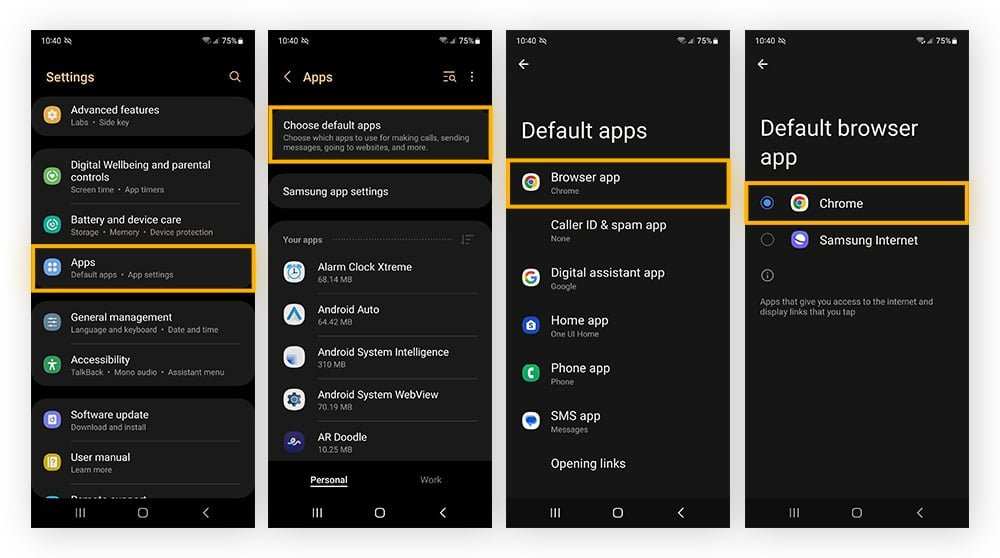
The process can vary slightly depending on your Android version and device manufacturer. However, most Android devices follow similar steps:Method 1: Using the Settings Menu
- Open the Settings app on your device. You can usually find the gear icon on your home screen or app drawer.
- Scroll down and tap on Apps & notifications or simply Apps depending on your device.
- In the Apps menu, select Default apps. If you don’t see this option, tap on Advanced to expand additional settings.
- Look for the Browser app or Browser setting.
- Tap on it, and a list of installed browsers will appear.
- Select Chrome from the list.
Method 2: Using the Chrome App Settings
Some Android devices allow you to set defaults directly from the app:- Open the Chrome app.
- Tap the three dots in the upper right corner to open the menu.
- Select Settings.
- Scroll down to find Default browser app.
- Tap on it, then choose Chrome as your default.
Managing Default Apps and Changing Them Back
Sometimes, you might want to switch back to a different browser or change your default app for any reason. Here’s how to do it:- Follow the same steps as above to access Default apps.
- Tap on Browser app.
- Select the browser you prefer instead of Chrome.
- Android will now open links with the new default browser you’ve chosen.
- Go to Apps & notifications.
- Select the app you want to reset (for example, Chrome).
- Tap on Open by default.
- Choose Clear defaults.
Troubleshooting Common Issues When Making Chrome Default
Even though the process is simple, some users face issues when trying to set Chrome as the default browser. Here are common problems and how to fix them:Problem: The default app option is missing or grayed out
- Ensure Chrome is up to date. Update it through the Google Play Store if needed.
- Restart your device and repeat the steps.
- If the option still doesn’t appear, check if your device has custom settings or a manufacturer-specific interface. You might need to consult your device’s support resources.
Problem: Links still open in another browser
- Verify that Chrome is set as the default in Default apps.
- Clear defaults for other browsers following the steps mentioned above.
- Restart your device to ensure the settings take effect.
Additional Tips for Better Browsing Experience
To maximize your browser use, consider these tips:- Enable Chrome’s sync feature to access bookmarks and history across devices.
- Keep Chrome updated to benefit from the latest security patches and features.
- Use Chrome’s privacy settings to control data sharing and browsing permissions.
- Add useful extensions or add-ons via Chrome Web Store for enhanced functionality.
Summary
Making Chrome your default browser on Android devices involves just a few simple steps. First, ensure Chrome is installed and updated. Then, access your device’s settings or Chrome’s app menu to select Chrome as your default browser. If needed, you can always switch back or change defaults according to your preferences. Managing your default apps ensures your device opens links exactly how you want, providing a more personalized and efficient browsing experience. Remember, taking a moment to configure your settings can make your daily activity easier and more enjoyable, whether you’re browsing websites, checking emails, or accessing social media. With these steps, you’re ready to enjoy the full benefits of Chrome as your go-to web browser on Android.Frequently Asked Questions
How can I set Chrome as the default browser on my Android device?
Open your device’s Settings app, then navigate to the Apps or Applications section. Tap on ‘Default apps’ or ‘Set as default,’ find Chrome in the list of available browsers, and select it. If prompted, confirm your choice to set Chrome as the default browser.
What steps should I follow if Chrome doesn’t appear as an option to set as default?
Ensure that Chrome is installed on your device. If it isn’t, download it from the Google Play Store. After installing, go to Settings > Apps & notifications > Advanced > Default apps, and then select Chrome as your primary browser. Restart your device if necessary to apply the changes.
Can I change my default browser from another app’s settings?
Some apps provide the option to select a default browser through their own settings. If you want Chrome to open links by default, update this preference within the app’s settings menu. Otherwise, use the device’s default app settings to make Chrome the default browser globally.
Is it possible to set Chrome as the default browser for specific links?
Android does not natively support assigning default browsers for specific link types. However, you can use third-party apps or link management settings to customize how certain links open. Typically, setting Chrome as your default browser will handle most links automatically.
How do I change the default browser if I previously chose another app?
Navigate to Settings > Apps & notifications > Default apps. Tap on the current browser app and select Chrome from the list. Confirm your selection to ensure Chrome opens all web links by default moving forward.
Final Thoughts
To make Chrome your default browser on Android, open the Settings app. Find the ‘Apps’ or ‘Applications’ section and tap ‘Default apps.’ Select ‘Browser’ and choose ‘Chrome’ from the list. Making Chrome your default browser ensures seamless browsing experience. When you know how to set it as the default, switching browsers becomes simple. In summary, for ‘android how to make chrome default browser,’ follow these steps. It’s quick and easy to set Chrome as your preferred app, making your browsing more efficient.
Similar Posts































