How To Make Signal Default Messenger On Android

How to Make Signal Default Messenger on Android
Setting Signal as your default messaging app on Android might seem like a small change, but it’s an important step if you want to communicate more securely and effortlessly. When Signal is your default messenger, every time you tap on a messaging link or send a new message, your Android device will automatically open Signal. This guide will walk you through the process in simple, clear steps and explain the key concepts along the way. Whether you’re new to Signal or just want to make sure it’s set as the default, this comprehensive guide will help you get it right.Understanding the Importance of Default Messaging Apps
Before diving into the steps, it’s helpful to understand why setting Signal as your default messenger makes a difference. When you choose a default messaging app, your phone prioritizes that app for all your text messages and chat links. Here’s why setting Signal as your default messenger can be beneficial:- Enhanced Security: Signal offers end-to-end encryption, meaning your messages are secret and only visible to you and the person you’re chatting with.
- Better Privacy: Signal does not store metadata or your message history on its servers, helping keep your conversations private.
- Convenience: Automatically opens for messages or links, saving you time and effort.
- Unified Communication: All your messages go through Signal, making it easier to keep track of conversations.
Preparing Your Android Phone for Signal
Before setting Signal as your default, ensure your app is installed and ready to go.Download and Install Signal
Follow these steps if you haven’t installed Signal yet:- Open the Google Play Store on your Android device.
- Type “Signal” into the search bar.
- Tap on the Signal app in the search results.
- Click on the “Install” button and wait for the app to download and install.
- Once installed, open the app and follow the on-screen instructions to set up your account.
Set Up Signal
During setup, you’ll need to:- Verify your phone number.
- Allow Signal to access your contacts.
- Customize your profile, such as adding your name or profile picture.
Making Signal Your Default Messenger on Android
Different Android versions and devices may have slight variations in settings, but the overall process remains similar. Here are the main steps:Step-by-step Guide
- Open your device’s Settings app. This is usually represented by a gear icon.
- Scroll down and tap on Apps & notifications or just Apps, depending on your device.
- Tap on Default apps. If you don’t see this option immediately, look for Advanced settings or a similar menu.
- Find and tap on SMS app. This option controls what app opens when you send a new message or click a message link.
- Choose Signal from the list of available apps.
Additional Settings to Confirm
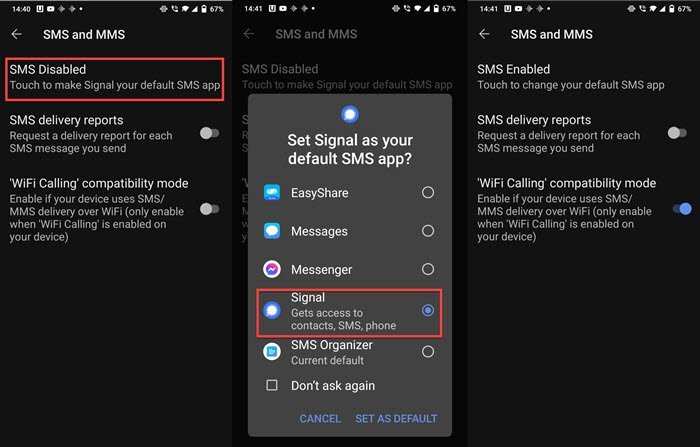
In some cases, especially on newer Android devices or custom interfaces, you might need to do extra steps:- Open Signal, go to Settings.
- Tap on Apps or Chat preferences.
- Look for a prompt or option that says Set as default or Make Signal my default messaging app.
- Confirm the change when prompted.
Handling Messaging Links and App Associations
When you set Signal as your default app, your phone will automatically open Signal for messaging links or when you tap on message-related notifications. Here’s what to expect:- If you click a sms: link in your browser or email, Signal will open to send a message.
- When a contact sends you a message or you get a message notification, Signal takes precedence and opens up automatically.
- If at any point you want to change back to another messaging app, follow the same process and select a different app as your default.
Clearing Default Apps
- Go to Settings.
- Select Apps & notifications.
- Tap on See all apps or App info.
- Find and tap on an app that’s currently handling your messages, like “Messages” or another messaging app.
- Scroll down and tap on Open by default.
- Tap on Clear defaults.
Switching Between Messaging Apps
Sometimes, you may need to switch back and forth between Signal and other messaging apps like WhatsApp, Messenger, or the default Android Messages app. To do this smoothly:- Follow the same steps to access Default apps.
- Select the preferred messaging app you want to use at that moment.
Additional Tips for a Seamless Messaging Experience
To get the most out of Signal as your default messenger, consider the following tips:- Make sure to keep Signal updated to access the latest features and security improvements.
- Check your notification settings within Signal to stay informed about new messages.
- Sync contacts to easily find friends and family using Signal.
- Explore Signal’s settings to customize your privacy preferences further.
Troubleshooting Common Issues
If setting Signal as the default messenger doesn’t work as expected, try these troubleshooting steps:- Restart your device after making changes.
- Ensure Signal has all necessary permissions, such as SMS and contacts.
- Update your Android system and the Signal app to the latest versions.
- If problems persist, clear default app settings for other messaging apps and repeat the process.
Summary
Setting Signal as your default messenger on Android is straightforward but requires paying attention to your device’s specific settings and options. Installing Signal, configuring the default SMS app, and ensuring proper app associations will give you a security-focused, efficient messaging experience. Remember, managing default apps is a part of customizing your phone to work the way you want, so don’t hesitate to revisit these settings whenever needed. Whether you want increased privacy, easier message management, or just prefer Signal over other apps, taking these steps will help you communicate more securely and comfortably.Frequently Asked Questions
What steps should I follow to set Signal as my default messaging app on Android?
To set Signal as your default messaging app, open your device’s Settings and navigate to the Apps or Applications section. Tap on Default Apps, then select Messaging app. From the list, choose Signal to set it as your default. This ensures all your messaging activities are handled through Signal by default.
How can I change my default messaging app to Signal on different Android devices?
The process can vary slightly between devices, but generally, you need to go to Settings > Apps & notifications > Default apps. Tap on Messaging app or SMS app, then select Signal from the options presented. If you do not see Signal listed, ensure it is installed and properly set up on your device.
What should I do if Signal is not appearing as an option to set as default?
First, make sure you have the latest version of Signal installed on your device. Restart your phone to refresh system settings. If Signal still doesn’t appear in the default apps list, navigate to Settings > Apps & notifications > Default apps, then look for Signal in the list. You may need to clear app preferences or update your device software for it to recognize Signal as an option.
Can I revert back to a previous messaging app after setting Signal as default?
Yes, you can revert to your previous messaging app at any time. Go to Settings > Apps & notifications > Default apps, select Messaging app, and then choose the app you prefer. This allows you to switch back easily whenever needed.
Is it necessary to stop using the default messaging app before setting Signal as my default?
No, you do not need to uninstall or disable your current messaging app. Simply changing the default app in system settings directs your messaging functions to Signal. You can switch back or choose different default apps whenever you like without removing other apps.
Final Thoughts
To make Signal default messenger on Android, start by opening your device’s Settings. Navigate to the Apps section and select Default Apps. Find the Messaging app option and choose Signal from the list. This ensures all your messages automatically go through Signal, improving your messaging experience. In summary, setting Signal as default messenger on Android is straightforward. Follow these steps, and you’ll be able to send all your messages via Signal effortlessly. Remember, how to make signal default messenger on android, is simply a matter of adjusting your app preferences.
Similar Posts































