How To Make Waze Default On Android Guide

How to Make Waze Default on Android
Making Waze your default navigation app on Android can save you time and make your driving experience smoother. When Waze is set as the default map app, your device will automatically open it whenever you tap on a navigation link or get directions. Setting it up properly involves several steps, but don’t worry — this guide will walk you through each one clearly and thoroughly.Understanding the Importance of Setting Waze as Your Default Navigation App
Before diving into the steps, it’s good to know why setting Waze as your default app matters. Many Android phones come with Google Maps pre-installed and often set as the default for navigation. If you prefer Waze because of its real-time traffic updates, community alerts, or user-friendly interface, setting it as the default means less hassle during your drives. When Waze is the default, you won’t need to select your preferred navigation app each time you get directions. Everything becomes automatic: click a location link, and Waze opens right away with the route ready to go. This setup is especially useful for frequent travelers or those who rely heavily on navigation during daily commutes.Check if Waze is Installed and Up to Date
Before starting, verify that the latest version of Waze is installed on your device. An outdated app might cause issues or not function as expected.- Open the Google Play Store.
- Search for “Waze” in the search bar.
- If you see an “Update” button, tap it to get the latest version.
- If Waze isn’t installed, tap “Install” and wait for the process to complete.
Setting Waze as the Default Navigation App
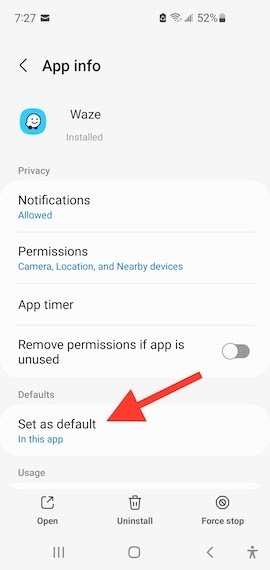
Once Waze is installed and updated, you can set it as your default app. The process can vary slightly depending on your Android version, but the general steps remain the same.Step-by-step Guide to Set Waze as Default
- Open the device’s **Settings** app from your home screen or app drawer.
- Scroll down to find and select **Apps & Notifications**, or simply **Apps** depending on your device.
- Tap on **Default Apps**. On some devices, you might need to open **Advanced** options first.
- Look for **Navigation App** or **Set as Default App** options.
- Choose **Waze** from the list of available navigation apps.
- If prompted, confirm your choice by tapping **Always** or **Set as Default**.
Handling App Permissions for Waze
For Waze to function correctly, it needs certain permissions granted by your device. These permissions allow Waze to access features like location services, storage, and notifications.- Open **Settings** and navigate to **Apps & Notifications**.
- Select **Waze** from the list of apps.
- Tap **Permissions**.
- Ensure that **Location** access is set to **Allow all the time** or **While using the app**.
- Review other permissions like storage or microphone if needed, but usually, location is the most critical.
Using Waze as Your Default Navigation App
With Waze set as the default and permissions granted, it’s time to see it in action.Getting Directions
- Open your favorite map link from an email, message, or website.
- The link should automatically open in Waze, displaying the route to the selected destination.
- If Waze does not open, check your default app settings again, or open Waze manually and enter your destination.
Starting a Route
Once Waze opens with your destination:- Tap the **Start** button.
- Waze will begin guiding you with voice instructions, alerts about traffic, road hazards, and more.
- Keep your Waze app running in the background for the best experience.
Customizing Waze for Better Navigation
Making Waze your default app is just the beginning. Customize it to enhance your driving experience.Adjusting Settings for Safety and Convenience
- Open Waze and tap the **Menu** icon (usually represented by three lines or a circle).
- Go to **Settings**.
- Explore options like **Voice Guidance**, **Display Settings**, and **Alerts**.
- Set preferences such as **Avoid tolls**, **Route preferences**, or **Music integration**.
Notifications and Alerts
Ensure your notifications are enabled so you receive real-time updates about traffic jams, accidents, or police presence.- Go to the **Settings** in your device’s main menu.
- Select **Apps & Notifications** and then **Waze**.
- Tap **Notifications** and enable the ones relevant to your driving needs.
Troubleshooting Common Issues
Sometimes, things don’t go as planned. Here are typical problems and quick fixes:Waze Doesn’t Open When Tapping Links
- Ensure Waze is set as your default navigation app in the device’s settings.
- Clear cache and data for Waze in **Apps & Notifications**.
- Reinstall Waze if problems persist.
GPS or Location Problems
- Make sure location services are enabled on your device.
- Set location mode to **High accuracy**.
- Restart your device to refresh GPS signals.
App Not Showing Updates or Working Correctly
- Update Waze from the Google Play Store.
- Restart your device.
- Ensure your device’s software is up to date.
Additional Tips for a Better Navigation Experience
- Keep Waze open and in the foreground when navigating.
- Update maps regularly for accurate routes.
- Use voice commands for hands-free guidance.
- Sync Waze with your car’s Bluetooth system for easier control.
Frequently Asked Questions
What steps should I follow to set Waze as the default navigation app on my Android device?
To set Waze as your default navigation app, first open your device’s Settings and navigate to the Apps section. Find and select the Waze app. Tap on the ‘Open by default’ or ‘Set as default’ option. Then, choose ‘Always open this app’ or ‘Set as default’ to make Waze your preferred GPS application. From now on, when you click on navigation links, your device will automatically open Waze.
How can I change the default app for navigation if another app is currently set?
If another app currently handles navigation by default, go to your device’s Settings and select Apps or Applications. Locate the app that opens by default, then tap on it. Find the section labeled ‘Open by default’ or similar, and clear the default setting. The next time you initiate navigation, your device will prompt you to choose an app, allowing you to select Waze and set it as the new default.
Is it possible to set Waze as default without resetting other app preferences?
Yes, you can set Waze as your default navigation app without affecting other app preferences. Simply go to Settings > Apps, locate Waze, and access ‘Open by default’ options. From there, select ‘Always open this app’ or ‘Set as default.’ This process does not impact your other default app settings and only assigns Waze as the default for navigation tasks.
Will updating Waze affect its status as the default navigation app?
Updating Waze does not automatically change its default status. After updating, check your device’s Default Apps settings to ensure Waze remains set as your preferred navigation app. If the default setting resets, repeat the process of setting Waze as your default through the app settings.
What should I do if Waze does not open automatically despite being set as default?
If Waze does not open automatically, restart your device to refresh settings. Confirm that Waze is properly set as the default app in your device’s settings. Additionally, clear the cache and data of your default app selections by visiting Settings > Apps > Default Apps (if available). If the issue persists, reconfigure the default app settings or reinstall Waze to ensure proper functionality.
Final Thoughts
To make Waze default on Android, start by opening your device’s settings. Navigate to the Apps or Applications section, then find and select the Waze app. Tap on ‘Set as default’ or ‘Open by default,’ and choose Waze for navigation tasks. If another app currently opens by default, clear its defaults to prioritize Waze. This process ensures your device consistently uses Waze when you tap navigation links. In conclusion, understanding how to make Waze default on Android simplifies your driving experience. Follow these steps to set Waze as your primary navigation app, making your travel smoother and more efficient.
Similar Posts