Android Battery Health Check Tips For Better Device

Comprehensive Guide to Android Battery Health Check
Taking care of your Android phone’s battery is essential to keep your device running smoothly. A good battery ensures longer usage time, better performance, and less frustration caused by sudden shutdowns. Conducting a regular battery health check helps you understand the current state of your battery and take necessary steps to prolong its lifespan. In this guide, we’ll dive deep into everything you need to know about checking your Android battery health, from understanding battery metrics to using both built-in tools and third-party apps.Why Is Monitoring Your Android Battery Health Important?
Knowing how healthy your phone’s battery is can save you time and money. A declining battery can cause issues such as:- Shorter usage time between charges
- Unexpected shutdowns
- Slower device performance
- Permanent battery damage if ignored
Understanding Android Battery Metrics
Before performing a battery check, it’s good to understand some essential metrics that indicate battery health:Battery Cycle Count
This number shows how many times your battery has fully charged and then discharged. Most batteries are rated to last between 300 and 500 cycles. When the cycle count exceeds this, the battery’s capacity diminishes.Battery Capacity (% or mAh)
This figure indicates the maximum charge your battery can hold. Over time, the capacity decreases from its original value, leading to shorter usage times.Voltage and Temperature
Voltage measures the electrical potential of your battery, while temperature indicates how hot your phone gets. High temperatures can accelerate battery degradation.Battery Drain Rate
A high drain rate suggests apps or services are consuming more power than usual, which can be a sign of underlying issues affecting battery health.How to Check Android Battery Health Using Built-in Tools
Many Android devices have built-in features or settings to monitor battery health. Here are some ways to do it:Access Battery Usage Stats
– Open your device’s Settings app. – Tap on “Battery” or “Battery & Device Care”. – Look for “Battery Usage” or similar options. – Review which apps are consuming the most power. This helps identify misbehaving apps that drain your battery quickly.Use Developer Options
– Enable Developer Options by going to Settings > About Phone > Tap on Build Number seven times. – Return to Settings > Developer Options. – Find “Battery” or related sections. – Check for detailed battery information like cycle count and health status if available. Note: Some manufacturers include additional diagnostics, but not all Android phones do.Using Third-Party Apps for Advanced Battery Health Checks
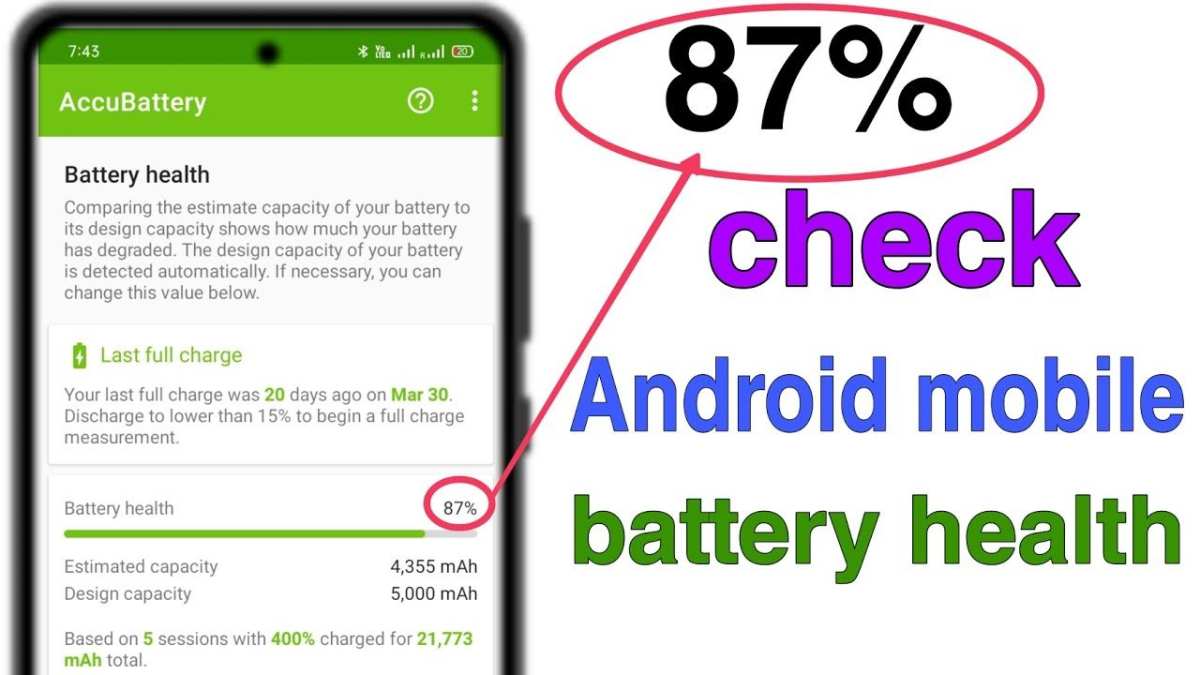
If your device lacks detailed battery info, or you want a more in-depth analysis, third-party apps come in handy. Here are some reliable options:AccuBattery
– Provides real-time battery health data. – Shows cycle count, capacity, and estimated lifespan. – Monitors battery drain per app.GSam Battery Monitor
– Offers detailed insights into battery usage. – Reports on wake locks, screen on time, and app consumption. – Useful for identifying power-hungry apps.Batterymon or Battery Doctor
– Displays battery temperature, voltage, and health status. – Provides tips for optimizing battery life.How to Use Third-Party Apps Effectively
– Install from the Google Play Store. – Use the app regularly for consistent monitoring. – Follow suggested actions based on app insights to enhance battery life.Interpreting Battery Health Data
Once you gather data from built-in tools or third-party apps, analyze it carefully:- If your battery’s capacity has dropped below 80%, it may be time to consider a replacement.
- High temperature readings over time indicate you might need to improve cooling or reduce intensive usage.
- Consistently high drain rates suggest background apps or settings draining power unnecessarily.
- A high cycle count correlates with decreased battery capacity and performance.
Tips to Maintain and Improve Android Battery Health
Besides checking your battery, following good habits can extend its lifespan:Optimize Charging Practices
– Avoid overcharging; unplug your device once it reaches 100%. – Don’t let the battery drain completely frequently. – Use original or certified chargers.Manage Power-Hungry Apps and Settings
– Close background apps that you don’t use. – Reduce screen brightness and timeout duration. – Turn off Wi-Fi, Bluetooth, or GPS when unnecessary.Keep Software Up to Date
– Updates often include battery optimization and bug fixes that improve efficiency.Limit Background Processes and Notifications
– Disable notifications for less important apps. – Use “Battery Saver” modes when needed.Maintain Proper Device Temperature
– Avoid exposing your phone to high heat environments. – Keep your device cool during intensive tasks or gaming sessions.When to Replace Your Android Battery
Even with good care, batteries age over time. Signs that it might be time for a replacement include:- Noticeable decrease in usage time between charges
- Battery swelling or physical damage
- Device shutting down unexpectedly
- Charging issues or inability to hold a charge
Frequently Asked Questions
How can I check the current health status of my Android device’s battery?
You can examine your Android device’s battery health by accessing the built-in diagnostic tools. Dial *#*#4636#*#* in the phone app to open the testing menu, then select ‘Battery Information.’ This section provides details about your battery’s capacity, voltage, and temperature. Additionally, many Android phones display battery health percentages within the device settings under ‘Battery.’ Third-party apps like AccuBattery also offer comprehensive insights into battery health and usage patterns.
What indicators suggest that my Android battery is deteriorating?
Signs of declining battery health include faster-than-normal battery drain, longer charging times, and unexpected shutdowns even when the battery shows some charge remaining. If your device heats up excessively during use or charging, these could also point to issues. Monitoring the battery percentage over a period can reveal rapid drops, indicating the battery’s capacity to hold charge has diminished.
Are there ways to improve my Android battery’s longevity?
Yes, several practices help extend battery lifespan. Reducing screen brightness, limiting background app activity, turning off unnecessary connectivity features like Bluetooth and GPS when unused, and avoiding extreme temperatures protect the battery. Additionally, using the device’s optimized charging mode, if available, and avoiding full charges or complete discharges can help maintain battery health over time.
Can I replace my Android device’s battery to restore its health?
If your device’s battery health has significantly declined and causes performance issues, replacing the battery can restore its original capacity. Many manufacturers offer authorized service centers for battery replacement. Ensure you choose genuine parts and professional technicians to prevent damage and ensure safety. Keep in mind that some devices have sealed batteries, making replacement more complex and potentially requiring professional assistance.
Final Thoughts
In conclusion, performing an android battery health check helps identify potential issues early. Regular checks can extend your device’s lifespan and improve performance. Knowing the battery’s capacity and health ensures you make informed decisions about usage and replacements. Keep your device running smoothly by staying proactive with battery management. A simple android battery health check keeps your phone reliable and efficient, preventing unexpected shutdowns. Stay vigilant and maintain your device’s longevity for a better user experience.
Similar Posts