Android Battery Icon

Understanding the Android Battery Icon
The battery icon on your Android device is more than just a small symbol in the top corner of your screen. It provides important information about your device’s power status, helps you manage your battery usage, and even influences how you interact with your device throughout the day. Whether you have a new Android phone or an older model, knowing the ins and outs of this icon can help you keep your device running smoothly and avoid surprises like sudden shutdowns. In this section, we will explore what the Android battery icon is, why it changes appearance, and how it plays a critical role in your digital life.What Does the Android Battery Icon Represent?
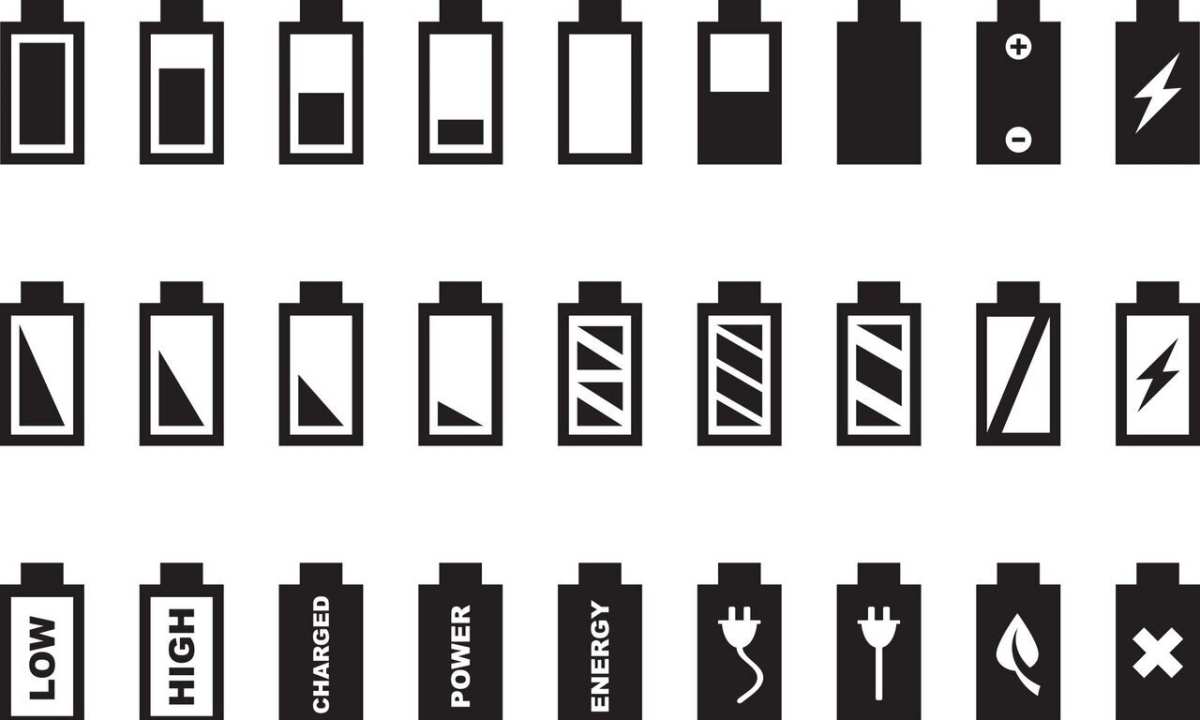
The primary purpose of the Android battery icon is to show the current battery level of your device. It acts as a quick visual cue so you can tell at a glance how much power remains. The icon typically looks like a small rectangle or shape with a line or cap on top, indicating the battery’s overall charge status. Here are some key points about what the icon represents:- Battery percentage: Most Android devices display a percentage number inside or next to the icon indicating remaining battery life.
- Charge status: The icon changes depending on whether your device is charging or not.
- Battery health: Sometimes, the icon or associated indicators can give clues about your battery’s health or issues.
How the Android Battery Icon Changes
The appearance of the battery icon isn’t static; it evolves based on different factors, giving you vital information about power status. Here are some common variations you may encounter:Battery Full or Almost Full
When your device’s battery is near 100%, the icon appears fully filled or shows a full charge symbol. This is a good sign that your device is ready to go without needing a charge soon.Battery Draining
As your battery percentage drops, the icon gradually decreases in fill level. When it reaches a low stage, a warning color (often orange or red) appears, urging you to connect your charger.Charging Indicators
When you connect your device to a power source, the icon will often display with a lightning bolt symbol, indicating charging. If your device supports fast charging, you may see additional icons or animations.Critical Battery Level
When your battery hits a very low level, usually around 5% or less, the icon turns red or uses a warning symbol to inform you that it’s time to plug in the charger.Different Types of Android Battery Icons
Android offers several variations of battery icons, especially when you customize your device’s interface. These variations help you personalize the look and feel of your device while still providing essential power information.Standard Battery Icon
The default icon shows a simple outline with a fill level that reflects current battery status. This icon can be solid, segmented, or outlined.Percentage Display
Some Android themes and settings allow you to display the exact percentage of remaining battery life alongside or within the icon, making it easier to judge how much power you have left.Battery Saver Mode Icon
When your device enters battery saver mode, a small icon often appears to indicate that your device is working to conserve power. This mode reduces background activity and can help extend battery life.Custom Battery Icons
Many Android launchers and third-party apps offer customizable battery icons. These can display different styles, colors, and animations to better suit your preferences.Why the Android Battery Icon Matters
Having an accurate and clear understanding of the battery icon’s significance helps you prevent unexpected shutdowns and keeps your device functioning optimally. Here are a few reasons why this small icon plays such an important role:- Early warning: Recognizing when the battery is low allows you to save work or find a charger in time.
- Battery health management: Changes in the icon, like rapid drain or unusual behavior, can indicate battery health issues.
- Power saving: Seeing the charging icon or low battery indicator prompts you to enable power saving modes or reduce device usage.
- Device longevity: Properly managing your battery helps extend its overall lifespan and avoids the need for frequent replacements.
Managing Your Android Battery Icon Settings
Most Android devices give you control over how the battery icon appears and what additional information is displayed. Customization allows you to tailor your device’s interface to your preferences and make vital information more visible.Enable or Disable Percentage Display
You can choose to show or hide the battery percentage, depending on what you find more useful. To do this:- Open your device settings.
- Navigate to “Battery” or “Battery & Power.”
- Select “Show battery percentage.”
Change the Icon Style
Some devices let you swap between different styles of the battery icon:- Solid fill
- Segmented
- Outline
Adjust Icon Position
In some Android launchers, you can move the battery icon from the status bar to different positions or even hide it completely if you prefer a cleaner look.Using Third-Party Apps to Enhance Battery Icon Features
If you want more advanced features or customization options, third-party apps can help. These apps can provide:- Enhanced visual styles and animations.
- Additional battery information such as temperature, voltage, and cycle count.
- Notification widgets that show detailed battery stats.
Common Problems and Solutions Related to Android Battery Icons
Sometimes, the battery icon may not display correctly or may behave unpredictably. Here are some common issues and how to fix them:Battery Percentage Not Showing
– Ensure the feature is enabled in settings. – Restart your device. – Check if any recent updates changed display options.Incorrect Battery Level or Fluctuations
– Calibrate your battery by fully charging and draining it once. – Update your device’s software. – Remove and reinsert the battery if your device has a removable one.Battery Icon Not Updating in Real-Time
– Restart your device. – Clear cache in the system launcher or notification app. – Reset app preferences if necessary. The Android battery icon is a small yet powerful tool that helps you stay informed about your device’s power status. By understanding what each variation means, how to customize its appearance, and what to do when issues arise, you can manage your device’s battery life more effectively. Keeping a close watch on this icon ensures you won’t be caught off guard by a sudden shutdown and helps you extend the lifespan of your device’s battery. Whether you are a casual user or someone who relies heavily on their Android device daily, mastering the nuances of the battery icon enhances your overall user experience.Frequently Asked Questions
How can I change the appearance of the battery icon on my Android device?
To modify the look of your battery icon, navigate to your device’s Settings menu. Select “Battery” or “Display,” then look for options related to the icon style. Some Android versions or custom ROMs allow you to choose between different styles or enable a percentage display next to the icon. If your device doesn’t support customization natively, consider using third-party apps that can alter the battery icon’s appearance.
What does it indicate when the battery icon shows a charging symbol?
The charging symbol on the battery icon indicates that your device is actively connected to a power source and recharging. If the icon displays a lightning bolt, it confirms the device is charging. In some cases, if the icon appears to be stuck or not updating, it may suggest a problem with the charging port, cable, or the battery itself. Restarting your device or checking the charger can often resolve such issues.
Why does my Android device show a low battery icon even when charged?
This issue often results from calibration problems with the battery indicator, or it could be a sign of a faulty battery. To address this, fully discharge your battery and then charge it to 100% without interruption. If the problem persists, consider resetting device settings or replacing the battery if it no longer holds a proper charge. Sometimes, software updates also help fix inaccurate battery readings.
Final Thoughts
The ‘android battery icon’ offers clear insights into your device’s power status. By understanding its different states, you can better manage your usage and extend battery life. Keeping the icon visible and updated helps prevent unexpected shutdowns. Regularly monitoring it ensures you stay informed about your device’s power levels. In summary, paying attention to the ‘android battery icon’ allows you to optimize your device’s performance and avoid inconvenience. Accurate interpretation of this icon enhances your overall user experience.
Similar Posts































