How To Save Android Battery Effectively In 2023
To extend your Android battery life, simply adjust settings and limit background activity. **Turning off unnecessary notifications and reducing screen brightness can make a big difference.** When asking how to save Android battery, focus on managing apps, disabling Wi-Fi and Bluetooth when not in use, and avoiding excessive multitasking. These quick steps help conserve power and keep your device running longer. Implementing these simple tips ensures your phone stays powered throughout the day without hassle.

How to Save Android Battery: Simple Tips to Extend Your Phone’s Power
Your Android phone is a constant companion, and having a long-lasting battery is essential to stay connected and productive throughout the day. If you notice your battery drains quickly or you’re looking for ways to make it last longer, don’t worry—there are many effective strategies you can use. In this guide, we’ll walk through practical and easy-to-follow tips to help you save Android battery life, so you can enjoy your device without constantly searching for a charger.
Understanding Why Android Batteries Drain Fast
Before diving into how to conserve your Android battery, it’s helpful to understand what causes rapid battery drain. Several common factors can speed up battery loss:
- Screen brightness and timeout: The display consumes the most power on your phone. Bright screens drain battery quickly.
- Background apps: Apps running in the background can use data and power even when you’re not actively using them.
- Network connections: Wi-Fi, mobile data, and Bluetooth can all contribute to battery drain, especially if they’re constantly active.
- Location services: GPS and location tracking tend to consume a lot of energy, especially if left on all the time.
- Push notifications: Frequent notifications can wake your device regularly, leading to quicker battery depletion.
Knowing these factors helps inform your decisions on what to turn off or limit to extend your battery life.
Adjusting Display Settings to Save Power
The display is the biggest power hog on your Android device. Making small adjustments here can make a significant difference.
Reduce Screen Brightness
Lower the screen brightness to the lowest comfortable level. You can do this by:
- Swiping down from the top of your screen to access quick settings.
- Dragging the brightness slider to a lower level.
- Enabling “Automatic brightness” so your phone adjusts brightness based on ambient light.
Set Screen Timeout to a Short Duration
The screen should turn off as soon as you’re not using your device. To set this:
- Go to Settings > Display > Screen timeout.
- Select a shorter time, such as 30 seconds or 1 minute.
This prevents your screen from staying on longer than necessary when you’re not actively looking at it.
Use Dark Mode or Themes
Switching to dark mode can help save battery, especially on devices with OLED screens, where black pixels are turned off. To enable dark mode:
- Open Settings > Display > Dark theme.
- Turn it on to reduce power consumption and make your screen easier on your eyes.
Limit Background Activities and App Usage
Many apps keep running in the background, draining your battery unnoticed. Managing this activity can extend your device’s life.
Close Unused Apps
Make it a habit to close apps you aren’t actively using. On most Android devices:
- Tap the recent apps button or swipe up from the bottom (depending on your model).
- Swipe away to close apps you don’t need right now.
Restrict Background Data for Apps
You can prevent apps from using data and power in the background by:
- Going to Settings > Apps & notifications > See all apps.
- Selecting an app you want to restrict.
- Tap Data usage > Background data, and toggle it off.
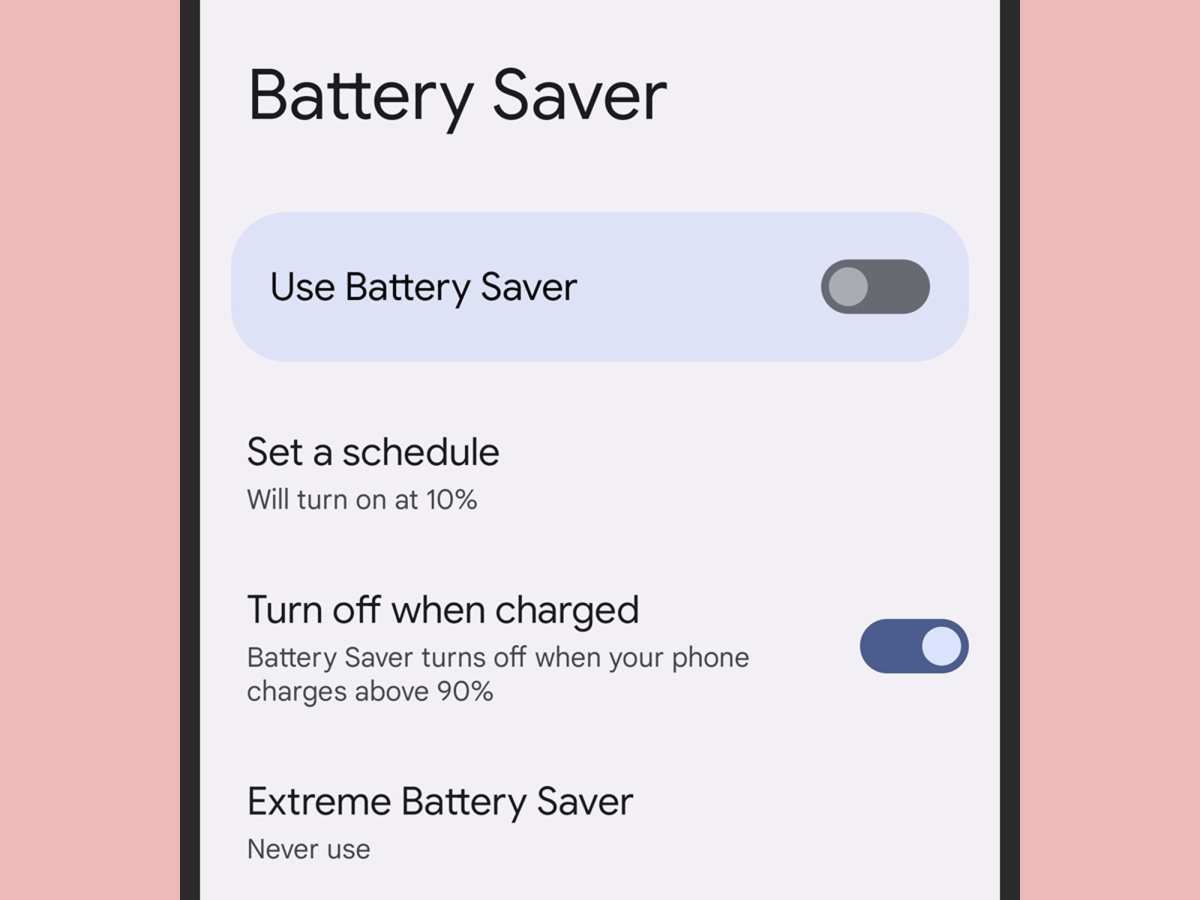
Enable Battery Saver Mode
Most Android phones come with a built-in battery saver feature. Turning this on helps limit background activity, reduces performance, and disables certain visual effects. To turn it on:
- Go to Settings > Battery > Battery saver.
- Activate it manually or set it to turn on automatically at a specific battery percentage.
Managing Network Connections for Better Battery Life
Your network connections impact battery life significantly. Managing them carefully can save power.
Turn Off Wi-Fi and Mobile Data When Not Needed
If you’re in an area with no Wi-Fi or mobile signal, your device works harder to connect, draining more battery. To conserve power:
- Switch off Wi-Fi, mobile data, and Bluetooth when not in use.
- Use airplane mode if you’re in a place with no service and don’t need connectivity.
Use Wi-Fi Instead of Mobile Data
Wi-Fi generally consumes less power than mobile data. Connect to Wi-Fi whenever possible, especially when browsing or streaming.
Disable Bluetooth if Not Used
Bluetooth can run in the background and drain power. Turn it off when not connecting to other devices:
- Swipe down to open quick settings.
- Tap the Bluetooth icon to toggle it off.
Controlling Location Services and Notifications
Location services and frequent notifications can lead to increased battery use.
Limit Location Access
Adjust location settings to use them only when necessary:
- Navigate to Settings > Location.
- Select “Device only” or “Battery saving” mode.
- Set certain apps to “While using the app” instead of “Always.”
Manage Notifications
Only allow important apps to send notifications:
- Open Settings > Apps & notifications > Notifications.
- Disable notifications for apps that aren’t essential.
Optimizing Apps and Software
Updating and managing your apps and software can greatly impact battery life.
Keep Your Android and Apps Updated
Developers release updates that include bug fixes and power optimizations. Regularly check for updates:
- Go to Settings > System > Software update.
- Update all apps through the Google Play Store.
Uninstall Unnecessary Apps
Remove apps you no longer use to prevent background activities:
- Navigate to Settings > Apps & notifications > See all apps.
- Select the app and tap Uninstall or Disable.
Use Built-In Battery Optimization Features
Android has battery optimization tools that monitor and limit app activity:
- Go to Settings > Battery > Battery optimization.
- Review and optimize apps to limit their background activity.
Smart Tips for Daily Battery Saving
Here are some simple habits that can make a big difference:
- Turn off Wi-Fi, Bluetooth, and location services when not needed.
- Reduce screen brightness and timeout duration daily.
- Close unused apps regularly.
- Enable battery saver mode during low battery periods.
- Avoid using power-hungry apps during the day.
- Use airplane mode when you’re in a place with no service and don’t need connectivity.
- Charge your phone with the recommended charger to maintain battery health.
- Keep your device’s software up to date for optimal performance and power efficiency.
| Tip | Benefit |
|---|---|
| Lower screen brightness | Reduces display power consumption |
| Close background apps | Prevents unnecessary battery drain |
| Limit location access | Decreases GPS power usage |
| Use Wi-Fi instead of mobile data | Conserves battery during browsing |
| Enable battery saver mode | Maximizes battery lifespan in critical moments |
Taking these steps consistently can help you enjoy longer-lasting battery performance on your Android device. It’s about making small, thoughtful changes to how you use your phone every day, helping you stay connected without constantly worrying about running out of power.
Frequently Asked Questions
How can I identify which apps are draining my Android battery the most?
To see which apps consume the most battery, go to your device’s Settings, select Battery, and then tap on Battery Usage. This section displays a list of apps ranked by their power consumption. Recognizing these apps helps you decide which ones to restrict or uninstall to extend your battery life.
What strategies can I use to reduce screen brightness effectively?
Lower the screen brightness manually by adjusting the brightness slider in the Quick Settings panel or in Display settings. Using adaptive brightness, which adjusts brightness based on ambient lighting, can also save power. Additionally, reducing screen timeout duration minimizes unnecessary display activity, conserving battery power.
How does turning off wireless features help conserve battery life?
Disabling Wi-Fi, Bluetooth, GPS, and mobile data when you’re not using them prevents your device from continuously searching for connections or transmitting data. Turning these features off reduces background activity, leading to significant battery savings, especially in areas with poor signal strength.
What are some effective ways to optimize app usage for better battery life?
Limit background activity by closing apps you’re not actively using and restricting background data for non-essential apps through app settings. Use battery saver modes that optimize app refresh rates and background processes. Regularly updating your apps and system can also improve their efficiency and reduce unnecessary battery drain.
How can I manage notifications to save power without missing important alerts?
Customize notification settings to display alerts only from essential apps. Turning off notifications for non-urgent apps reduces wake-ups and background activity. Managing notification preferences helps balance staying informed while conserving battery life.
Final Thoughts
To save Android battery, turn off unused features like Bluetooth, Wi-Fi, and location services. Adjust screen brightness and reduce screen timeout to conserve power. Use battery saver mode when needed to extend battery life.
Limiting background app activity and closing apps when not in use also helps. Regularly update your device software to improve efficiency. Following these simple steps ensures your Android device lasts longer throughout the day. Remember, knowing how to save android battery can make a significant difference in your daily usage.

Similar Posts































