How To Check Battery Health On Android Phone Effectively
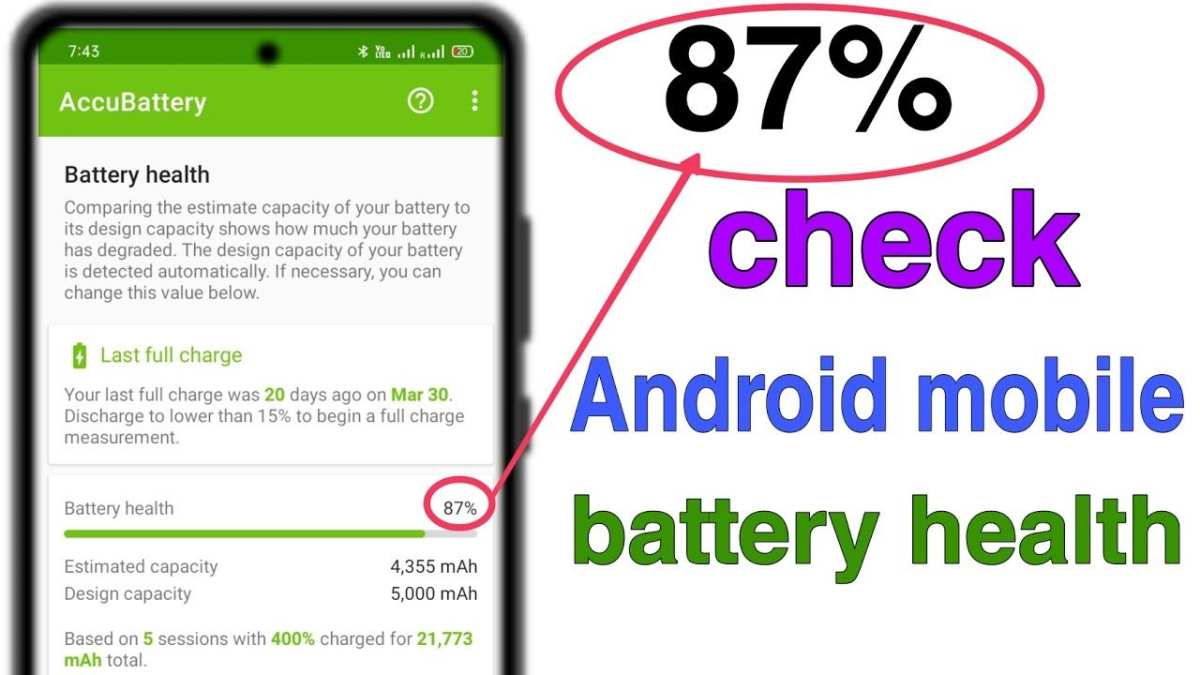
To check your Android phone’s battery health, you can easily access built-in tools or use third-party apps. **The simplest way is to dial *#*#4636#*#* on your device, which opens a menu with battery information.** Understanding your battery’s condition helps you avoid unexpected shutdowns and optimize performance.
Knowing how to check battery health on Android phone allows you to stay ahead of potential issues and extend your device’s lifespan. Whether through settings or apps, keeping an eye on your battery ensures your phone remains reliable for daily use.

How to Check Battery Health on Android Phone
Keeping track of your Android phone’s battery health is essential for ensuring your device runs smoothly and lasts longer. Over time, batteries deteriorate, which can cause your phone to shut down unexpectedly or drain faster than before. Fortunately, checking your battery’s health doesn’t require special tools or technical knowledge—just some simple steps and understanding of what to look for. In this guide, we will walk you through various methods to check the health of your Android phone’s battery, explain what the results mean, and provide useful tips to keep your battery in top condition.
Understanding Battery Health and Why It Matters
Before diving into how to check your battery health, it’s helpful to understand what it really means. Your Android phone’s battery relies on lithium-ion technology, which gradually loses its ability to hold a charge after repeated use. This decline impacts your phone’s performance and longevity.
**Why does battery health decline?**
- Repeated charging cycles — every time you charge and drain your battery, it wears down a little more.
- High temperatures — heat can accelerate battery aging.
- Poor charging habits — like using incompatible chargers or letting your battery die completely often.
A healthy battery provides optimal performance, charges quickly, and lasts longer. When the battery health starts to decline significantly, it might be time to consider replacing it or adjusting usage habits.
Methods to Check Battery Health on Android Devices
There are multiple ways to check your Android’s battery health, ranging from built-in features to third-party apps. Let’s explore them in detail.
Using Built-in Battery Settings
Many Android phones come with built-in options that give you basic insights into battery usage, though detailed health reports might not be available on all devices.
**Steps to access these settings:**
- Open the Settings app on your Android device.
- Scroll down and tap on “Battery” or “Battery & performance,” depending on your device.
- Tap on “Battery Usage” to see which apps are consuming the most power.
- Look for any unusual activity or high drain apps that could signal issues.
While these settings don’t provide a direct percentage of battery health, they help you identify if your battery is causing performance issues.
Using Hidden Codes to Check Battery Health
Some Android devices support dialer codes that reveal detailed hardware information, including battery health data.
**How to use dialer codes:**
- Open the Phone app.
- Type in the code *#*4636#*#* (commonly used on many Android phones).
- A menu will appear—look for “Battery Information” or similar options.
- Review the “Battery Status” and “Health” information if available.
Note: Not all Android phones support these codes, and the options you see might vary by manufacturer.
Accessing Battery Dump Data with Developer Options
Developer options can provide battery stats, but interpreting this data requires some technical knowledge. To enable Developer Options:
- Go to Settings > About phone.
- Tap “Build number” seven times until you see a message confirming Developer Options are enabled.
- Return to Settings and find “Developer Options.”
- Scroll down to “Battery” or “Process Stats.”
This method is more advanced and is suitable for users familiar with interpreting technical data.
Using Third-Party Apps to Check Battery Health
Third-party apps offer a user-friendly way to get detailed battery insights, including estimated health percentage, capacity, and cycle count.
**Popular apps include:**
- AccuBattery
- GSam Battery Monitor
- Battery Usage Analytics
**How to use these apps:**
- Download and install your preferred app from the Google Play Store.
- Open the app and grant necessary permissions.
- Follow the on-screen instructions to calibrate your battery (if needed).
- Review the battery health report, which often displays remaining capacity relative to the original design capacity.
**Benefits of using third-party apps:**
- Provide detailed statistics on capacity loss.
- Estimate the number of charge cycles your battery has gone through.
- Offer tips to extend battery lifespan.
How to Interpret Battery Health Data
Once you have your battery data, understanding what the numbers mean is key to knowing when to take action.
What Is a Healthy Battery Capacity?
– **Full capacity**: When your battery’s capacity is around 100%, it’s considered new.
– **Minor degradation**: A capacity of 80% or above is generally acceptable for most users.
– **Significant degradation**: When the capacity falls below 70%, you might notice shorter battery life and reduced device performance.
– **Critical levels**: Below 50%, you may experience frequent shutdowns and need to replace the battery.
Understanding Charge Cycles and Their Effect
A charge cycle occurs when you use a full charge and recharge it completely. Over time, batteries accumulate cycles, which accelerate capacity loss.
**Average lifecycle:**
- Most lithium-ion batteries last between 300 to 500 charge cycles.
- After exceeding this, capacity can drop significantly, resulting in shorter phone usage between charges.
Check if your app or device reports cycle counts to better understand your battery’s condition.
Tips to Maintain and Improve Battery Health
Knowing how to maintain your battery health can prolong its lifespan and enhance your device’s performance.
Adopt Good Charging Habits
- Avoid letting your battery completely die before charging.
- Try to keep the charge level between 20% and 80% for optimal battery longevity.
- Use only compatible chargers and cables approved by your device manufacturer.
Keep Your Phone Cool
– Avoid exposing your device to high temperatures, especially during charging.
– Remove cases that trap heat during charging, if necessary.
Limit Intensive Background Activities
– Close apps running in the background that drain power unnecessarily.
– Disable Bluetooth, Wi-Fi, or GPS when not in use.
Update Your Device Software
– Keep your Android system up to date to benefit from the latest battery management improvements.
Enable Battery Saver Mode
– Most Android devices come with built-in power-saving modes that reduce background activity and lower power consumption.
When to Consider Replacing Your Battery
If your battery health drops below 70% and you notice significant battery drain or performance issues, it might be time for a replacement.
**Signs that your battery needs replacement:**
- Unexpected shutdowns even when the battery indicates sufficient charge.
- Rapid battery drain, even with minimal use.
- Excessive heat during charging or use.
- Battery health status shows a low percentage (below 70%).
Always consult a professional or your device’s authorized service center to replace the battery safely.
—
Monitoring your Android phone’s battery health is simple once you know where and how to look. Whether through built-in settings, secret codes, or third-party apps, understanding your battery’s condition helps you manage usage better, prevent unexpected shutdowns, and extend the life of your device. Implementing good charging habits and keeping your phone cool can make a significant difference. Remember, a healthy battery means a happier, more reliable phone experience.
Frequently Asked Questions
What settings or tools can I use to monitor my Android phone’s battery status?
You can access your device’s built-in settings to check battery information by navigating to Settings > Battery. This section displays details like usage statistics, remaining battery percentage, and the time since it was last charged. Additionally, some Android phones offer a dedicated battery health feature or diagnostics tool that provides more detailed insights about the battery’s condition.
Are there third-party apps available to assess my Android battery’s health?
Yes, several third-party applications can help you evaluate your battery’s health more thoroughly. Apps like AccuBattery, Battery HD, and GSam Battery Monitor analyze your usage patterns and provide detailed reports on battery capacity, wear level, and overall performance. These tools often require permission to access system data and can give you a clearer picture of your battery’s current state.
How can I interpret the information provided by battery diagnostic apps?
Battery diagnostic apps typically present data such as current capacity relative to the original capacity, estimated remaining lifespan, and estimated time left based on current usage. A significant drop in capacity or a high wear level indicates your battery may need replacement. Regularly monitoring these metrics helps you identify when your device’s battery starts to decline and plan accordingly.
What signs indicate that my Android device’s battery may be degrading?
Indicators of a degrading battery include rapid battery drain, unexpected shutdowns, longer charging times, and excessive heat during charging or use. If your device shows these symptoms, it may be time to consider replacing the battery or seeking professional support to assess its condition more accurately.
Final Thoughts
Monitoring your Android phone’s battery health is straightforward. You can access built-in options like *Settings > Battery* to view usage patterns and capacity.
Alternatively, download third-party apps such as AccuBattery to get detailed insights into battery performance and health status.
Regular checks help you identify potential issues early, ensuring your device stays in top condition.
In summary, knowing how to check battery health on Android phone enables you to maintain optimal performance and extend your device’s lifespan.

Similar Posts