Contents
Key Takeaways
- Enhanced Multitasking: Ultrawide monitors offer a vast horizontal workspace, allowing you to comfortably view multiple applications side-by-side without the need for constant window switching.
- Immersive Experiences: Beyond productivity, ultrawides provide a more engaging experience for creative tasks like video editing, graphic design, and even gaming, drawing you deeper into your work.
- Ergonomic Considerations: While beneficial, the expansive nature of ultrawide monitors requires mindful setup and potential adjustments to maintain good posture and reduce eye strain.
- Content Compatibility: Not all software and content are optimized for ultrawide aspect ratios, which can lead to stretched images or black bars, impacting your viewing experience.
- Desk Real Estate: Ultrawide monitors are physically larger and require more desk space than traditional monitors, so consider your available workspace before purchasing.
- Cost-Benefit Analysis: The increased productivity and immersive experience offered by ultrawide monitors need to be weighed against their often higher price point and potential need for specialized software adjustments.
Are Ultrawide Monitors Good for Productivity?
The digital workspace is constantly evolving, and with it, the tools we use to get things done. For years, the standard has been a single, rectangular monitor. But lately, a wider, more expansive option has been gaining popularity: the ultrawide monitor. You’ve probably seen them – those dramatically long screens that seem to stretch across your entire desk. The big question on many minds is: are ultrawide monitors actually *good* for productivity? This guide is here to give you the definitive answer. We’ll break down exactly why ultrawide monitors can be a game-changer for certain workflows, what their potential downsides are, and most importantly, how you can best set one up to maximize your efficiency. By the end, you’ll have a clear understanding of whether an ultrawide monitor is the right upgrade for your desk and your work.Understanding Ultrawide Monitors
Before we dive into productivity benefits, let’s quickly define what an ultrawide monitor is. Unlike standard widescreen monitors (which typically have a 16:9 aspect ratio, like 1920×1080 or 3840×2160 pixels), ultrawide monitors boast a wider aspect ratio, most commonly 21:9. This means they are significantly wider relative to their height. Common resolutions for ultrawide monitors include 2560×1080 (WFHD), 3440×1440 (WQHD), and even 5120×2160 (5K2K). This extra horizontal real estate is where the potential for increased productivity lies.The Productivity Power of Ultrawide Monitors
The core appeal of an ultrawide monitor for productivity stems from its expansive horizontal display. Let’s explore the key ways this translates into a more efficient workflow.1. Superior Multitasking Capabilities
This is arguably the biggest win for ultrawide monitors. Imagine this: instead of having two or three separate monitors taking up space and requiring constant alt-tabbing, you have one seamless, expansive screen.Effortless Side-by-Side Comparisons
With an ultrawide monitor, you can easily place two large windows side-by-side without any overlap or wasted space. For instance, you could have your email client open on the left and a document you’re writing on the right. Or, you could be referencing a website while composing a report. This direct visual comparison is incredibly powerful and reduces the cognitive load associated with switching between applications.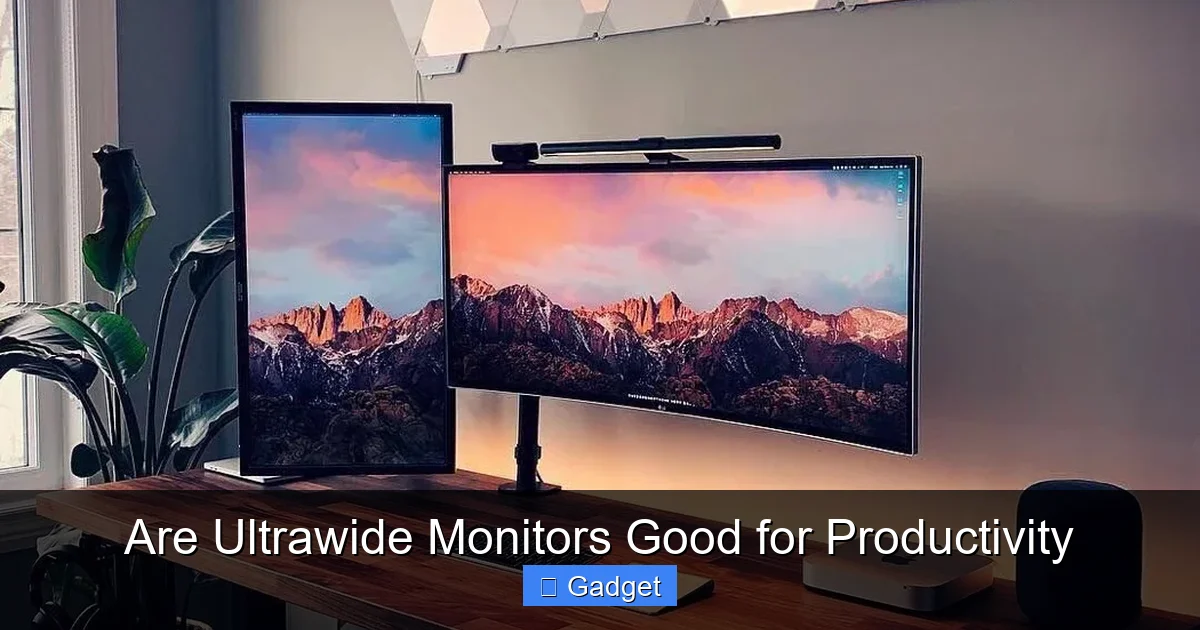
Visual guide about Are Ultrawide Monitors Good for Productivity
Image source: yankodesign.com
Streamlined Workflow for Specific Tasks
Developers can have their code editor on one side and a browser for testing on the other. Researchers can view a journal article on one half and their notes or writing application on the other. The ability to see more of your work at once means less time spent managing windows and more time spent actually doing the work. If you’re a programmer looking to optimize your setup, check out our detailed guide on whether ultrawide monitors are good for coding.2. Enhanced Immersive Experiences
While we’re focused on productivity, it’s worth noting that the immersive quality of ultrawide monitors can also benefit certain professional applications.Creative Workflows
For video editors, a 21:9 aspect ratio can show a longer timeline, allowing for more precise edits and a better overview of the footage. Graphic designers can appreciate the extra space for toolbars, palettes, and design canvases. Photographers might find it easier to view full-resolution images alongside editing software. Learn more about how these displays perform in creative environments in our article on ultrawide monitors for photo editing.Gaming and Entertainment
Though not strictly a productivity benefit, many professionals use their work machines for downtime. Ultrawide monitors offer a deeply immersive gaming experience, often without needing a second monitor for chat or other applications. This can lead to a more enjoyable and focused break.3. Reduced Clutter and Fewer Bezels
Using a single ultrawide monitor instead of multiple smaller monitors can significantly declutter your desk. No more bezels breaking up your view or cables running everywhere.A Unified Workspace
A single, large display creates a more cohesive and less distracting workspace. This can lead to a calmer mental state and improved focus, which are crucial for sustained productivity.Improved Eye Tracking
With multiple monitors, your eyes have to constantly re-focus and adjust to different screen depths and bezel interruptions. A single ultrawide monitor presents a consistent focal plane, potentially reducing eye strain over long work sessions.Potential Drawbacks and Considerations
While the benefits are compelling, it’s important to acknowledge that ultrawide monitors aren’t a perfect fit for everyone or every task.1. Content Compatibility Issues
Not all software and content are designed with ultrawide aspect ratios in mind. This can lead to some awkward visual compromises.Stretched or Cropped Content
Some older games, videos, or even applications might stretch the image horizontally to fill the screen, distorting the picture. Others may display with large black bars on the sides (letterboxing or pillarboxing), effectively reducing the usable screen real estate.
Visual guide about Are Ultrawide Monitors Good for Productivity
Image source: i.ytimg.com
Operating System and Software Support
While modern operating systems like Windows 10/11 and macOS have improved their window management for ultrawide displays, some older software might not snap correctly to the available space. This can require manual resizing or third-party utilities.2. Desk Space Requirements
Ultrawide monitors are, by nature, physically wider than their 16:9 counterparts. This means they take up a significant amount of desk real estate. For help planning your setup, read our guide on how much desk space an ultrawide monitor needs.Physical Dimensions
Measure your desk carefully before purchasing. An ultrawide monitor can easily span 30-49 inches or more in width. Ensure you have enough depth as well, as these monitors often have deeper stands.Ergonomic Placement
Due to their width, you might need to position the monitor further back on your desk to keep the entire screen within your comfortable field of view. This can impact your posture and might require adjustments to your desk setup, such as a monitor arm.3. Cost
Ultrawide monitors tend to be more expensive than traditional widescreen monitors with similar vertical resolutions.Price Premium
The specialized panels and wider aspect ratios often come with a higher price tag. You’ll need to weigh the potential productivity gains against the increased cost.4. Neck Strain and Eye Strain
While it can reduce eye strain by eliminating bezels, the sheer width of an ultrawide monitor can also be a double-edged sword.Peripheral Vision Demands
If you’re constantly moving your head to look from one side of the screen to the other, it can lead to neck discomfort. You might find yourself needing to turn your whole body more often, which isn’t ideal for prolonged sitting.Focusing Challenges
For some users, the extreme horizontal expanse can make it difficult to maintain focus on the entire screen. You might find yourself naturally focusing on one half of the screen and neglecting the other.Maximizing Productivity with Your Ultrawide Monitor
If you decide an ultrawide monitor is right for you, there are several ways to ensure you’re getting the most out of its expansive display.1. Optimize Window Management
Modern operating systems offer features to help you manage multiple windows on an ultrawide.Snap Layouts and Grid Systems
Windows 10 and 11 have robust “Snap Layouts” that allow you to quickly arrange multiple windows into predefined sections of your screen. macOS offers similar functionality with features like Split View and third-party tools like Magnet or Rectangle.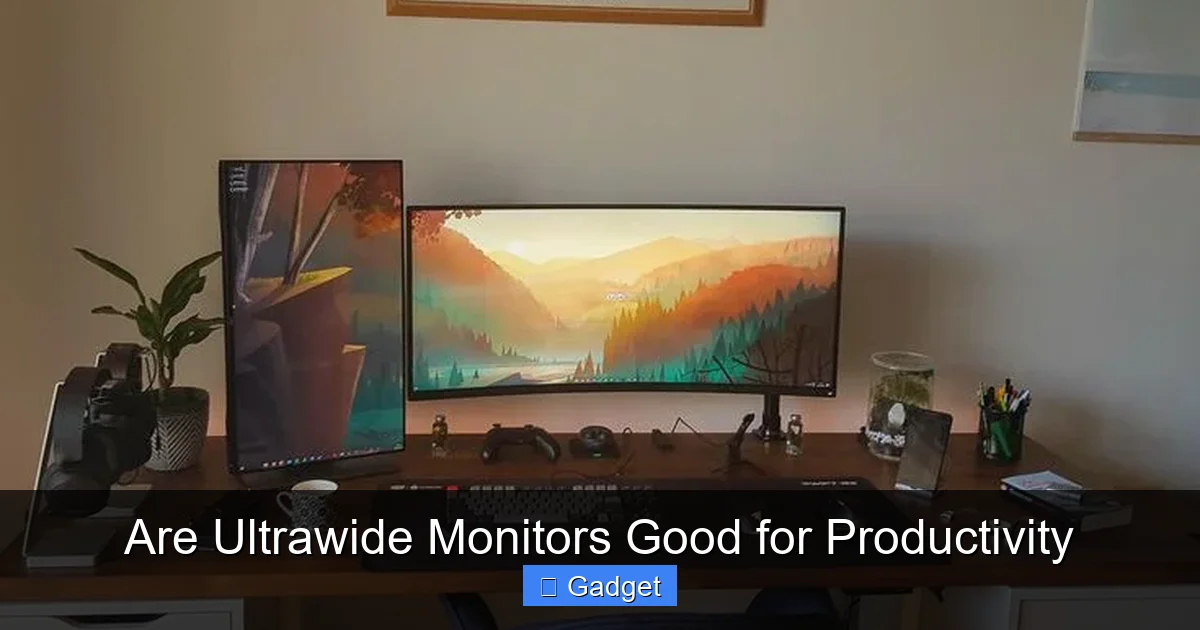
Visual guide about Are Ultrawide Monitors Good for Productivity
Image source: i.pinimg.com
Third-Party Window Management Tools
For more advanced control, consider using third-party applications. Tools like DisplayFusion or AquaSnap offer granular control over window placement, custom grid layouts, and even the ability to assign specific applications to open in certain screen regions.2. Utilize Ultrawide-Optimized Software
Many applications are now designed with ultrawide displays in mind.Creative Suites
Adobe Creative Suite applications (Premiere Pro, Photoshop, After Effects), DaVinci Resolve, and other professional creative tools often scale well and offer expanded toolbars or timelines on ultrawide monitors.Coding IDEs
Integrated Development Environments (IDEs) like VS Code, JetBrains IDEs, and others are excellent on ultrawide screens, allowing for multiple code panes, terminals, and explorers to be visible simultaneously.Web Browsers
Modern web browsers generally handle ultrawide displays well, allowing you to view lengthy web pages or multiple tabs side-by-side in a much more comfortable manner.3. Consider a Monitor Arm
A monitor arm can be a crucial accessory for ultrawide monitors, especially if desk space is limited or if you need to adjust the monitor’s position for better ergonomics.Ergonomic Adjustments
A good monitor arm allows you to bring the screen closer, adjust the height, tilt, and swivel to find the perfect viewing angle, reducing neck and eye strain.Desk Space Saving
Mounting your ultrawide monitor on an arm frees up valuable desk space that would otherwise be occupied by its stand.4. Adjust Display Settings
Sometimes, a few tweaks to your monitor’s settings can make a big difference.Resolution and Refresh Rate
Ensure your monitor is running at its native resolution and highest supported refresh rate for the sharpest image and smoothest motion. For productivity, a higher refresh rate might not be as critical as for gaming, but it still contributes to a pleasant viewing experience.Color Calibration
For creative professionals, calibrating your monitor’s colors is essential. This ensures accurate color representation across all your work.Who Benefits Most from Ultrawide Monitors?
While anyone can enjoy the benefits of an ultrawide monitor, certain professions and use cases stand to gain the most:- Programmers and Developers: Seeing more code, documentation, and debugging output at once.
- Video Editors and Content Creators: Larger timelines and more workspace for editing.
- Financial Analysts and Traders: Displaying multiple charts, data feeds, and spreadsheets.
- Graphic Designers and Digital Artists: More room for toolbars and canvases.
- Researchers and Writers: Effortlessly comparing sources while writing.
- Multitaskers: Individuals who frequently juggle many applications and need to see them simultaneously.
Troubleshooting Common Ultrawide Issues
Even with careful planning, you might encounter a few hiccups.Issue: My game is stretched or has black bars.
Solution: Check the game’s display settings for an ultrawide resolution option (e.g., 21:9 or 3440×1440). If not available, you might need to use third-party patches or mods for the specific game. Some graphics driver settings (Nvidia Control Panel or AMD Radeon Software) also allow you to adjust scaling modes.
Issue: Windows doesn’t snap correctly to sections of the screen.
Solution: Ensure you’re using the latest version of Windows and that your graphics drivers are up to date. If the issue persists, consider using a third-party window management tool which often has more robust snapping features.
Issue: My monitor feels too wide, and I’m straining my neck.
Solution: Adjust your seating position so you are more centered in front of the monitor. Use a monitor arm to bring the display closer to you and adjust its height and tilt for an optimal viewing angle. Try to keep the primary window you’re working in closer to the center of the screen.
Conclusion
So, are ultrawide monitors good for productivity? The answer is a resounding **yes, for many people and many types of work.** If your daily tasks involve heavy multitasking, side-by-side comparisons, or immersive creative workflows, an ultrawide monitor can be a significant upgrade. It offers a unified, expansive workspace that reduces clutter and can streamline your operations. However, it’s not a one-size-fits-all solution. You need to consider your desk space, budget, and the compatibility of your essential software. If you find yourself constantly dealing with stretched content or battling for desk real estate, the benefits might be diminished. Ultimately, the best way to determine if an ultrawide monitor is right for your productivity is to assess your specific needs and workflow. If you’re looking for a more efficient, immersive, and less cluttered computing experience, and you’re willing to make the necessary adjustments, an ultrawide monitor could very well be the productivity powerhouse you’ve been searching for.