Monitoring Wake Locks That Keep Your Phone Awake: How To

Monitoring Wake Locks That Keep Your Phone Awake
Understanding Wake Locks and Why They Matter
Wake locks are tools that keep your phone’s screen or processor awake even when you’re not actively using it. They are essential for certain apps that need to run in the background without interruption. However, excessive or unnecessary wake locks can drain your battery quickly and reduce your device’s lifespan. Knowing when and why your phone stays awake helps in managing battery life better. By monitoring wake locks, you can identify apps or processes that are causing your phone to stay awake longer than needed. This awareness allows you to take steps to improve your device’s performance and battery health.Types of Wake Locks
There are different types of wake locks that can keep your phone awake. Understanding these will help you identify what might be draining your battery.Partial Wake Lock
This type keeps the CPU running even if the screen is off. Apps like music players or background tasks often use partial wake locks. They are useful but can cause battery drain if left on unnecessarily.Screen Wake Lock
This lock keeps the screen on, preventing it from turning off automatically. Apps that need your attention, like navigation or reading apps, may use this wake lock. Excessively using it can quickly reduce your battery life.Screen Brightness Wake Lock
This lock keeps the screen bright and on. It is often used in gaming or video streaming but should be turned off when not needed to conserve power.Wi-Fi or Location Wake Locks
These locks keep your device’s Wi-Fi or GPS active. They are necessary for apps that rely on real-time data but can also contribute to battery drain if left active unnecessarily.How to Detect Wake Locks on Your Device
There are several methods to monitor and detect wake locks on your phone, whether you use Android or iPhone.Using Developer Options on Android
Most Android devices have a built-in developer option that displays wake lock information. To enable it:- Go to Settings
- Tap on About Phone
- Find the Build Number and tap it seven times to unlock Developer Options
- Return to Settings and tap Developer Options
- Scroll down to ‘Show CPU Usage’ and turn it on
Third-Party Apps for Monitoring Wake Locks
Several apps can give detailed insights into wake locks and battery drains, such as:- BetterBatteryStats
- Wakelock Detector
- AccuBattery
Using Built-in Battery Usage Tools
Most smartphones offer battery usage stats under Settings. These insights show which apps consume the most power and may indicate wake lock activity.Steps to Analyze and Manage Wake Locks Effectively
Once you detect which apps or processes keep your device awake, take the following steps:Identify Problematic Apps
Review battery and wake lock data to see which apps consume the most power. Focus on apps with high wake lock durations.Force Stop or Uninstall Unnecessary Apps
If an app is unnecessarily draining your battery, consider force stopping it or uninstalling it altogether. This reduces unwanted wake lock activity.Adjust App Settings
Some apps have settings to limit background activity or disable wake locks. Turning off features like location tracking or notifications can help.Use Power Saving Modes
Most devices feature power-saving modes that restrict background activity, including wake locks, thus conserving battery life.Best Practices for Managing Wake Locks
Effective management of wake locks involves proactive steps and regular monitoring.Limit Background App Activity
Close apps that you do not need running in the background. Use your device’s app management tools to restrict background activity.Update Apps and Firmware
Developers often release updates to fix bugs that cause unnecessary wake locks. Keeping your apps and firmware current is vital.Disable Unnecessary Notifications
Notifications can sometimes trigger wake locks. Turn off notifications for apps that do not require immediate attention.Be Mindful of Location and Wi-Fi Usage
Apps that constantly access your location or Wi-Fi can keep your device awake. Disable these features when not needed.Tools and Tips for Better Wake Lock Management
Using the right tools and following simple tips enhances your ability to control wake locks effectively.Using Task Managers and Automation Apps
Apps like Greenify or Tasker can automate the process of limiting background activity and waking locks. These tools help optimize device performance.Regularly Check Battery Reports
Make it a habit to review your battery reports regularly to identify unusual activity or apps that keep your phone awake.Set App Permissions Wisely
Limit permissions like location and background data access to prevent apps from running unnecessary processes.Related Topics
In addition to monitoring wake locks, understanding related topics can improve your overall device management.Battery Optimization Settings
Using system settings to optimize battery usage can reduce unnecessary wake locks and extend battery life.Background App Refresh Control
Controlling which apps can refresh in the background prevents them from waking your device often.Device Performance and Battery Health
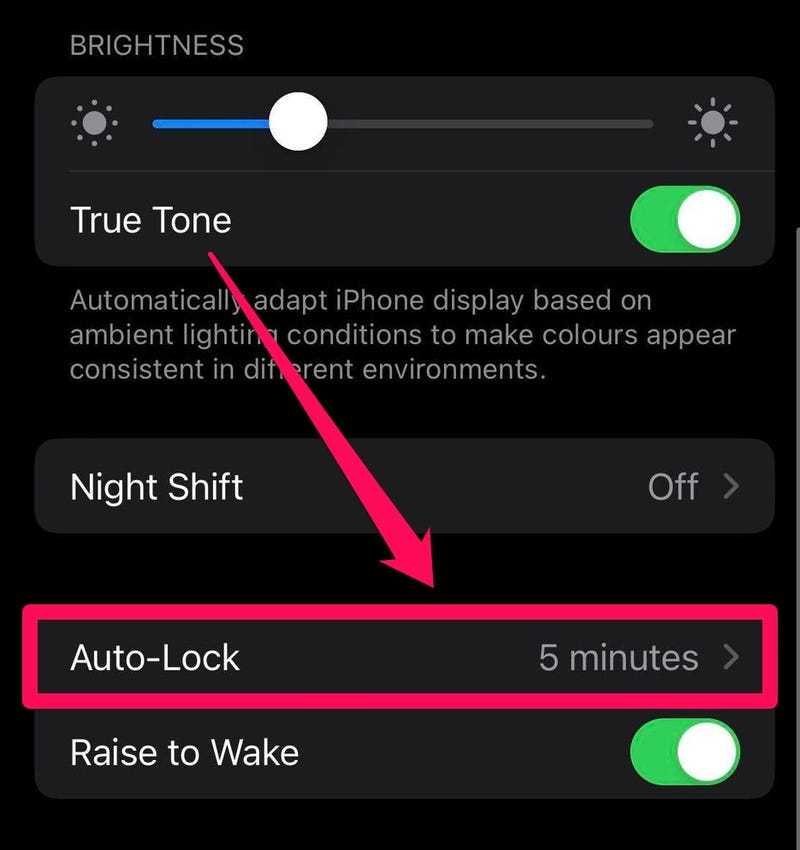
Monitoring your device’s overall health ensures that wake locks and other processes do not negatively impact your device’s longevity. Keeping an eye on wake locks helps you understand what keeps your phone awake and how it affects your battery life. Proper detection, management, and prevention of unnecessary wake locks can extend your device’s usage time and lifespan. Consistent monitoring and smart app management make your phone run smoothly and efficiently while conserving power.How to turn off automatic turn on screen in iphone | Turn off Raise to wake
Frequently Asked Questions
What tools can I use to identify apps causing excessive wake locks?
You can utilize built-in device tools like the Android Developer Options or third-party applications such as BetterBatteryStats and WakeLock Detector. These tools provide detailed insights into which apps are preventing your device from sleeping and help you pinpoint the sources of excessive wake locks.
How can I reduce unnecessary wake locks to save battery life?
To minimize unnecessary wake locks, review the apps that frequently keep your device awake and disable background activity for those you do not need constantly running. Adjust app permissions and settings to limit background data and refresh, ensuring that only essential apps keep the device awake when necessary.
What are the signs that a specific app is causing significant wake lock issues?
If your phone’s battery drains quickly without heavy usage, or if you notice it remains awake for long periods despite minimal activity, an app might be causing wake lock problems. Monitoring app activity through system tools helps identify which applications stay active longer than expected.
Are there any system settings I can enable to monitor wake lock activity more effectively?
Yes, enabling developer options and viewing detailed battery statistics allows you to monitor wake lock activity more precisely. Some devices also offer battery usage dashboards that highlight apps or processes that keep the device awake unnecessarily.
Can background app management help reduce wake lock occurrences?
Absolutely. Managing background app activity through settings or task killers can prevent apps from running unnecessarily when they do not need to stay active. Regularly closing or restricting background apps helps in lowering wake lock instances and conserving battery life.
Final Thoughts
Monitoring wake locks that keep your phone awake is essential for maintaining battery life. By tracking these locks, you identify apps or processes causing unnecessary power drain. This helps you take action to optimize your device usage. Staying aware of wake lock activity ensures your phone stays efficient and ready when you need it most.
Similar Posts































