How To Talk To Chatgpt On Pc For Effective Conversations

How to Talk to ChatGPT on PC
ChatGPT has become a popular tool for getting quick answers, brainstorming ideas, and even learning new things. Talking to ChatGPT on your PC is simple once you understand the steps involved. This guide will explain everything you need to know to have smooth conversations with ChatGPT on your computer.
Accessing ChatGPT on Your PC
To start chatting with ChatGPT on your PC, you first need to access the platform. You can use the ChatGPT website or desktop applications if available. Simply open your preferred web browser like Chrome, Firefox, or Edge.
Navigate to the official ChatGPT website by typing chat.openai.com into your browser’s address bar. If you don’t have an account, sign up using your email address or login with your existing credentials. Once logged in, you are ready to start chatting.
Using the ChatGPT Web Version
The web version is the most common way to talk to ChatGPT on PC. It is accessible from any operating system with an internet connection. This version offers a simple interface with a chat box where you can type your messages.
After logging in, you will see a prompt box at the bottom of the screen. Click inside the box and type your question or message. Hit Enter or click the send button to get a response from ChatGPT.
Installing the Desktop App (if available)
Some users prefer to use a dedicated app for convenience. Check if OpenAI offers a desktop application compatible with your PC operating system. Download and install the app following the provided instructions.
Once installed, open the app and log in with your credentials. The app provides a streamlined experience and notifications, making it easier to talk to ChatGPT without using a browser.
Optimizing Your Chat Experience
To improve your interaction, consider these tips. Use clear, straightforward language in your questions for accurate responses. Avoid overly long or complex sentences that might confuse the AI.
If your conversation involves technical or specific topics, provide context to help ChatGPT understand better. Remember, the more details you give, the more precise the answer will be.
Creating Effective Prompts
An effective prompt is essential for getting useful responses. Be specific about what you want. For example, instead of asking “Tell me about space,” ask “Can you explain how black holes form in space?”
Using question words like how, why, what, and when can guide ChatGPT to give clearer answers. Also, breaking complex questions into smaller parts helps improve the quality of the responses.
Using Voice Input on PC
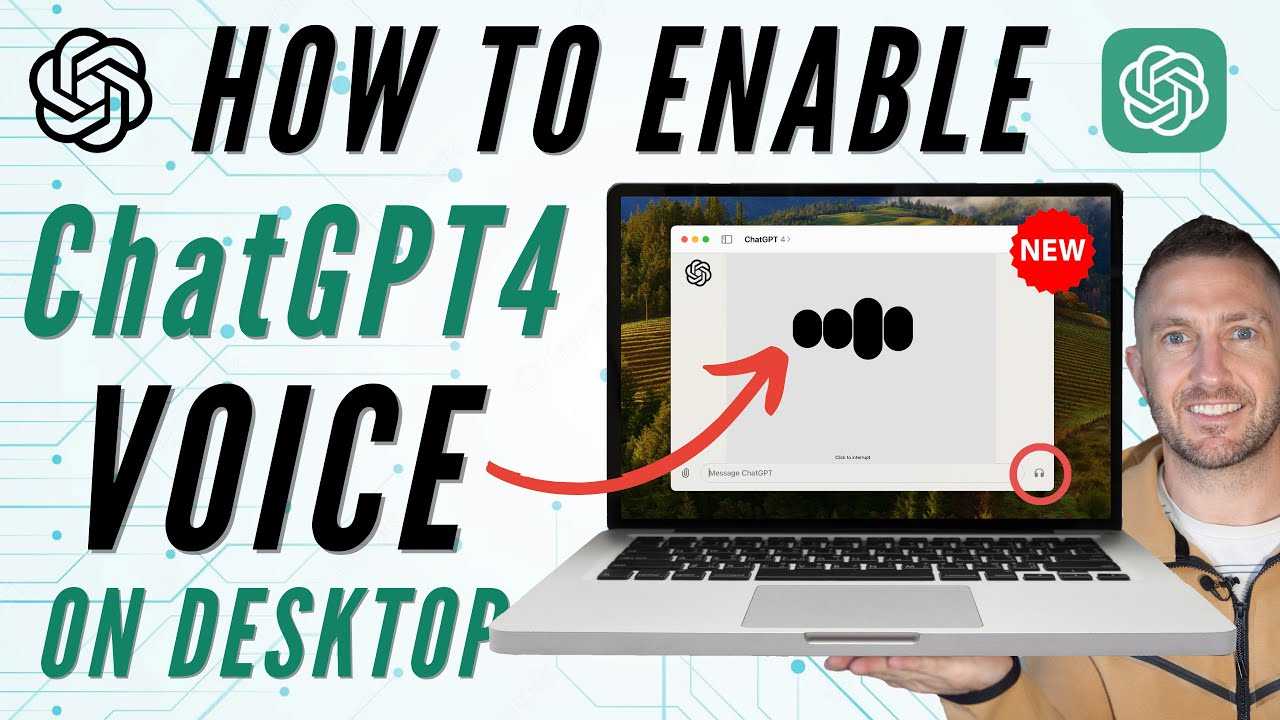
If you prefer speaking to typing, you can use voice input features. Many operating systems have built-in speech recognition tools. Enable voice recognition in your PC settings.
Once enabled, click the microphone icon in your browser’s chat box or use keyboard shortcuts to activate speech-to-text. Speak clearly, and your words will be converted into text for ChatGPT to process.
Managing Chat History and Privacy
ChatGPT saves your conversations to improve the AI and for your convenience. You can review your chat history in your account dashboard. If you prefer privacy, check the settings to delete or disable chat saving.
Be cautious about sharing personal or sensitive information during your chats. The platform is designed to respect user privacy, but it’s best to avoid giving out confidential details.
Customizing Your Chat Experience
You can personalize your chats by adjusting settings such as language, tone, or response length. Some platforms allow you to select a formal or casual style for your responses.
Use the system prompt feature if available. This allows you to instruct ChatGPT on how to respond, making your interactions more tailored to your needs.
Using ChatGPT for Different Purposes
ChatGPT can assist with various tasks on PC. Whether you need help writing emails, creating stories, or learning new skills, just ask. For example, ask “Help me write a professional email” or “Explain photosynthesis in simple words.”
Explore different prompts to get the most out of your AI assistant. Remember, ChatGPT is flexible and can adapt to diverse requests.
Troubleshooting Common Issues
If you encounter issues like slow responses or login problems, check your internet connection first. Refresh the page or restart your browser to resolve temporary glitches.
If the app crashes or doesn’t load, try updating your browser or reinstalling the desktop application. Clearing cache and cookies can also fix many common problems.
Enhancing Your Interaction with ChatGPT Plugins
Some platforms support plugins or integrations that add extra features. For example, you can connect ChatGPT with applications like calendar apps or productivity tools. This allows seamless data sharing and more personalized responses.
To use plugins, access the settings or plugin store within the platform. Follow instructions to enable and configure the tools you need for your workflow.
Security and Safety Tips for ChatGPT on PC
Always use official sources when accessing ChatGPT. Avoid third-party sites that may compromise your privacy or security. Use strong passwords and enable two-factor authentication if available.
Be cautious with the information you share. Do not input passwords, bank details, or other sensitive data during conversations. Keep your software updated to protect against vulnerabilities.
Advanced Features for Power Users
For more experienced users, exploring advanced features like custom prompts or API integration can enhance your experience. The API allows developers to embed ChatGPT into their own applications or websites.
API access requires signing up on the OpenAI developer platform and following technical documentation. It opens up possibilities for automation and custom AI solutions on your PC.
Summary of Best Practices for Talking to ChatGPT on PC
- Use clear and concise language for better understanding.
- Provide context for complex questions.
- Break down big questions into smaller parts.
- Utilize voice input if preferred.
- Manage your chat history for privacy.
- Adjust settings to personalize your experience.
- Keep your software up to date to avoid technical issues.
- Be cautious with sensitive information sharing.
- Explore plugins and integrations for added functionality.
Following these tips will help you communicate effectively and make the most out of your conversations with ChatGPT on PC. Remember, patience and clarity go a long way when talking to AI. With practice, you’ll be able to ask better questions and get more helpful responses every time.
How to Enable ChatGPT Voice on Desktop Computer (GPT4)
Frequently Asked Questions
What software or browser do I need to access ChatGPT on my PC?
To use ChatGPT on your PC, you can access it through any modern web browser such as Chrome, Firefox, Edge, or Safari. No additional software installation is required if you’re using the web version. Simply navigate to the official ChatGPT website, log into your account, and start chatting.
How can I ensure a stable connection when talking to ChatGPT on my PC?
For a smooth experience, make sure you have a reliable internet connection with sufficient speed. Avoid network disruptions by closing unnecessary background applications that might consume bandwidth. Using a wired Ethernet connection instead of Wi-Fi can provide more stability and reduce lag during your conversations.
Are there specific settings I should adjust for better interaction with ChatGPT on my computer?
Adjusting your browser’s settings can improve your experience. Disable any ad blockers or extensions that might interfere with website functionality. Enable cookies and JavaScript, as these are essential for ChatGPT to work properly. Clearing cache and cookies regularly can also prevent loading issues.
Can I use voice commands to talk to ChatGPT on my PC?
Currently, ChatGPT’s web interface primarily supports text input. However, you can use your computer’s voice recognition features, like the Windows Speech Recognition or macOS Dictation, to convert your speech into text and then input it into ChatGPT. This setup allows for a more hands-free interaction.
Is there a way to keep my chat history accessible when talking to ChatGPT on my PC?
Yes, when you log into your ChatGPT account on the website, your chat history is saved automatically. You can access previous conversations from the sidebar or history section, making it easy to review past messages or continue previous discussions without starting anew.
Final Thoughts
To talk to chatgpt on pc, start by opening your preferred browser and visiting the chatgpt website. Log in with your account details, if needed. Type your questions or prompts into the chat box, and wait for responses. Using clear and specific language improves the interaction and helps you get better answers. Practice and familiarity will make your conversations more natural and efficient. In summary, how to talk to chatgpt on pc involves accessing the platform, entering your prompts, and engaging clearly. Keep your questions precise, and you’ll navigate the chat smoothly.
Similar Posts