How To Make Your Snapchat Dark Mode On Android In 55?
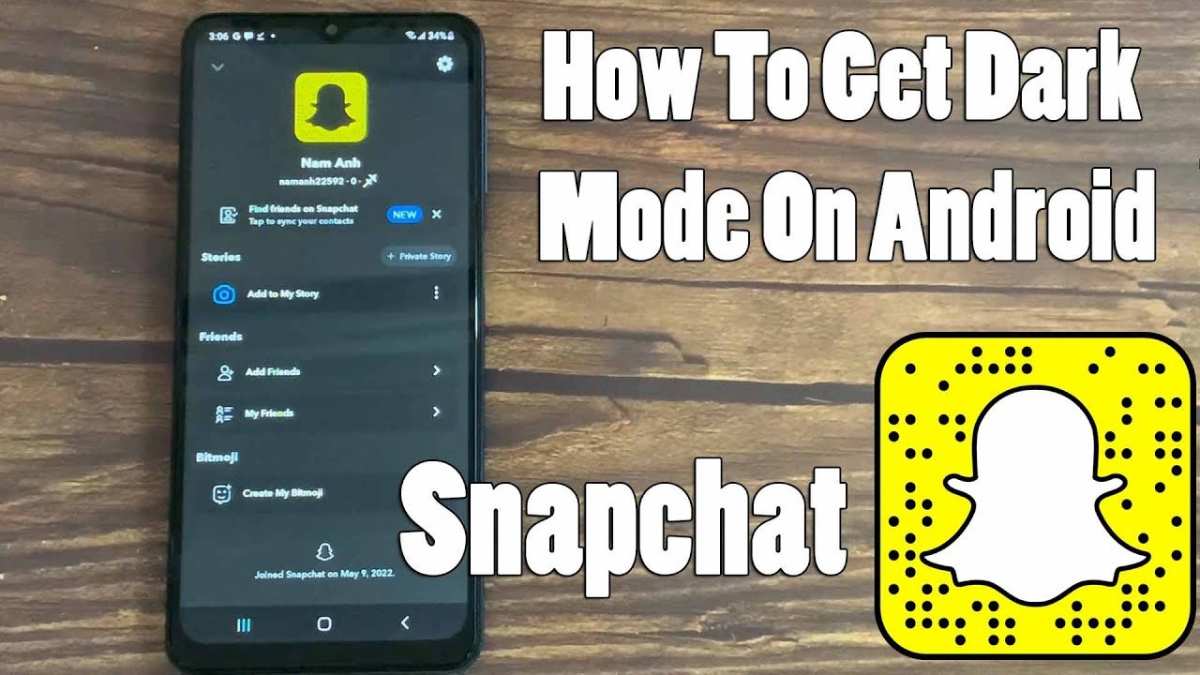
To make your Snapchat dark mode on Android, simply enable the system dark theme and switch Snapchat to dark mode. **This is the quickest way to activate dark mode on your app.** If your device doesn’t support it directly, you can use third-party apps or tweaks to achieve the same effect.
Knowing how to make your Snapchat dark mode on Android helps reduce eye strain and saves battery life. Follow these simple steps, and you’ll enjoy a sleek, dark interface in no time.
How to Make Your Snapchat Dark Mode on Android
Getting your Snapchat to look dark on an Android device is a great way to reduce eye strain and save battery life, especially if you use the app a lot at night. While Snapchat didn’t always support a dark mode option, recent updates and some clever tricks now make it possible to switch to a darker theme easily. In this detailed guide, we’ll walk you through the different methods to enable dark mode on Snapchat for Android, so you can enjoy a more comfortable viewing experience.
Why Use Dark Mode on Snapchat?
Before diving into the how-to steps, let’s understand why many users prefer dark mode:
- Reduces Eye Strain: Bright screens can cause fatigue, especially when using your phone at night or in dim environments.
- Conserves Battery: Dark themes save power on devices with OLED screens because black pixels use less energy.
- Improves Focus: Dark mode can make content stand out more clearly, reducing distractions.
Knowing these benefits, you’ll see why enabling dark mode is a smart move for your daily Snapchat use.
Checking If Your Snapchat Supports Dark Mode
Not all versions of Snapchat immediately support dark mode. It’s important to ensure you have the latest app update:
- Update Snapchat: Go to the Google Play Store, search for Snapchat, and tap ‘Update’ if available.
- Check the Version: Go to your device’s Settings > Apps > Snapchat > Advanced or App details to see your current version.
Typically, support for dark mode was added in the recent updates, so updating your app is the first step before trying other methods.
Method 1: Using Snapchat’s Built-In Dark Mode (Official Way)
The easiest method involves enabling dark mode directly within the app. Here’s how:
Steps to Enable Dark Mode in Snapchat
- Open Snapchat on your Android device.
- Tap on your Bitmoji or profile icon in the top-left corner to open your profile page.
- Click on the gear icon in the top-right corner to access Settings.
- Scroll down to find the ‘App Appearance’ or ‘Appearance’ option. If you see this, tap on it.
- Select ‘Dark’ from the available options.
If you don’t see the ‘App Appearance’ option, your app might not support this feature yet, or you need to update Snapchat.
Troubleshooting
- If the option isn’t visible, check for app updates again.
- Sometimes, the feature rolls out gradually; in that case, wait for the update or try other methods.
- If your phone’s operating system is outdated, update Android to improve compatibility with new app features.
Method 2: Using Android Dark Mode Settings (System-Wide Dark Theme)
If Snapchat doesn’t have a built-in dark mode option, Android’s system-wide dark mode can help:
Activating Dark Mode on Android
- Open your device’s Settings app.
- Navigate to Display or Appearance settings.
- Find the ‘Dark Theme’ or ‘Dark Mode’ toggle and turn it on.
Once enabled:
- Most apps, including Snapchat, will switch to dark mode automatically if they support system-wide themes.
- If Snapchat doesn’t switch immediately, restart your device.
Note:
Some apps require a specific setting to enable dark mode manually, and not all apps fully support Android’s dark theme yet. If Snapchat isn’t switching, consider trying other methods described below.
Method 3: Using Third-Party Apps or Mod APKs
For more advanced users, some third-party apps or modified APKs offer additional customization to force dark themes on apps that don’t officially support them:
Using Third-Party Dark Mode Apps
- Apps like ‘Dark Mode’ or ‘Midnight’ can force dark themes across your device, including Snapchat.
- Download from trusted sources and follow their instructions to enable dark mode.
Using Modified APKs
- Some unofficial APK files of Snapchat may include built-in dark mode support.
- Be cautious: downloading APKs from unofficial sources can pose security risks and may violate Snapchat’s terms of service.
**Important:** Always back up your device before installing modified APKs and use these methods at your own risk.
Method 4: Customizing Appearance via Developer Options
If you are comfortable with more technical steps, enabling developer options can sometimes offer additional display customizations:
Steps to Enable Developer Options
- Go to Settings > About phone.
- Navigate back to Settings > Developer options.
- Look for options related to UI or theme adjustments.
2>Tap on ‘Build number’ repeatedly until a message indicates Developer Options are enabled.
However, this method is less direct and may not provide dark mode for Snapchat specifically. It’s more suitable for general system-wide appearance tweaks.
Additional Tips for Better Dark Mode Experience
- Keep your app updated: Regular updates often include new features and bug fixes, including improved dark mode support.
- Use dark wallpapers: Complement dark mode with dark-themed wallpapers for a more cohesive look.
- Adjust brightness: Lower your screen brightness when using dark mode for more comfort.
- Enable night mode on your device: Many Android devices now offer blue light filters or night modes, reducing eye fatigue further.
Enabling dark mode on Snapchat on Android can significantly improve your app experience, especially during late-night chats or when trying to save battery life. Whether through Snapchat’s official settings, system-wide Android themes, or third-party solutions, you have several options to achieve a darker appearance. Always keep your app updated and explore the latest features added by Snapchat and Android to make the most of your device’s capabilities. With these methods, you can enjoy a more comfortable, eye-friendly Snapchat experience tailored to your preferences.
Frequently Asked Questions
Can I enable dark mode on Snapchat without updating the app?
Yes, you can enable dark mode on Snapchat without updating the app if your device’s system-wide dark theme is active. Snapchat often inherits the device’s theme, so turning on dark mode in your Android system settings can automatically switch Snapchat to dark mode if the app supports it on your version. Check your device’s display settings to enable dark theme, and then open Snapchat to see if the mode has switched.
What steps can I follow if dark mode does not activate automatically on my Android device?
If dark mode does not activate automatically, try updating Snapchat to the latest version. You can also clear the app cache or restart your device. Make sure your Android version supports app theme switching, and ensure that the system-wide dark theme is enabled. If it still doesn’t work, reinstall Snapchat to ensure you have the latest features available.
Are there any third-party apps I can use to force dark mode on Snapchat?
While some third-party apps claim to enable dark mode for various apps, using them can cause security issues or app instability. It’s safer to rely on system settings and official app updates. Always update Snapchat to the latest version, as the developers continually improve dark mode support. Avoid third-party tools unless they are verified and trusted.
Does enabling dark mode affect the overall performance or battery life on my Android device?
Enabling dark mode can reduce battery consumption, especially on devices with OLED screens, by limiting the use of bright pixels. It also makes viewing more comfortable in low-light environments and can decrease eye strain. Generally, enabling dark mode has a positive impact on device performance related to power efficiency.
How can I check if my Snapchat version supports dark mode?
Go to the Google Play Store and search for Snapchat. If you see an update option, update the app to the latest version. You can also open Snapchat and navigate to the settings menu to find a dark mode toggle; if it’s available, your version supports it. Keep your app updated regularly to access new features like dark mode.
Final Thoughts
Making your Snapchat dark mode on Android is simple and enhances your viewing experience. Start by updating your app to the latest version to access new features. If dark mode isn’t available in settings, you’ll need to enable it through your device’s system settings.
Navigate to your Android device’s display settings and activate dark theme. Some devices allow you to enable dark mode system-wide, which automatically applies to compatible apps like Snapchat.
In summary, how to make your snapchat dark mode on android involves updating the app and enabling system-wide dark mode on your device. This approach ensures a seamless switch to a more comfortable viewing mode.

Similar Posts































