How To Make Snapchat Dark Mode Android For Easy Use
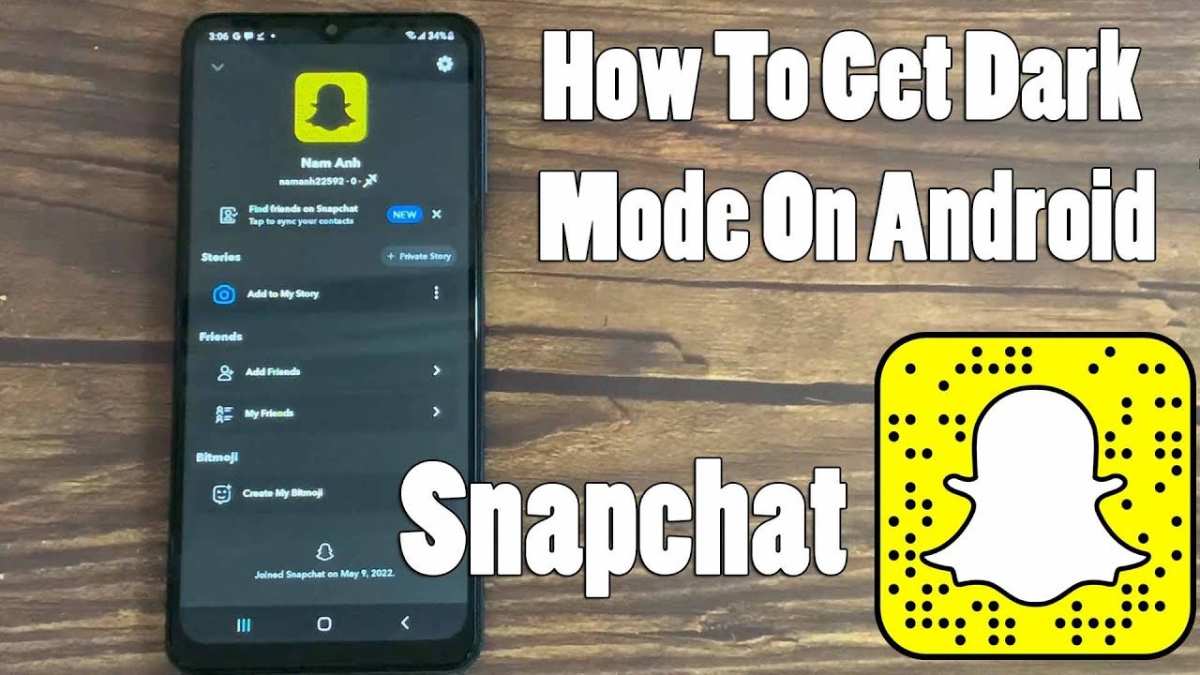
To make Snapchat dark mode on Android, you simply need to enable the app’s dark theme setting or use system-wide dark mode. **This is an easy process that doesn’t require any complex steps or third-party apps.** Just ensure your Snapchat app is updated to the latest version and toggle the dark mode option in settings.
If your device supports system-wide dark mode, activating it can automatically switch Snapchat to dark mode as well. Knowing how to make Snapchat dark mode Android helps reduce eye strain and makes your browsing more comfortable.

How to Make Snapchat Dark Mode on Android
Getting Snapchat to switch to dark mode on your Android device can feel tricky, but with the right steps, you can enjoy a more comfortable viewing experience, especially at night. Bright screens can cause eye strain and make it harder to relax, so enabling dark mode helps reduce glare and saves your phone’s battery. Let’s explore in detail how you can enable dark mode on Snapchat for Android, including different methods, tips, and troubleshooting advice.
Understanding Why Dark Mode Matters for Snapchat
Before diving into the how-to, it’s useful to understand why dark mode is so popular. When you switch to dark mode:
- Screen brightness appears less harsh, which can protect your eyes.
- Battery life extends, especially on phones with OLED screens.
- You get a sleek, modern look that many users find more appealing.
- It’s easier to use Snapchat during late-night hours without disturbing your sleep cycle.
Many apps now support dark mode, and Snapchat is no exception. While Snapchat introduced an official dark mode feature, it wasn’t initially available on all Android devices, leading users to explore alternative methods.
Official Method to Enable Snapchat Dark Mode on Android
The most straightforward way to enable dark mode is through Snapchat’s built-in settings, but this depends on your app version and device compatibility.
Update Snapchat to the Latest Version
Make sure you have the newest Snapchat app:
- Open Google Play Store.
- Search for Snapchat.
- If an update is available, tap “Update.”
Running the latest version ensures you have access to the newest features, including dark mode if your device supports it.
Enable Dark Mode via Snapchat Settings
Once your app is up-to-date:
- Open Snapchat and tap your profile icon in the top left.
- Tap the gear icon to open Settings.
- Scroll down to find “App Appearance” or an option related to “Appearance.”
- Tap on it, then select “Always Dark” or “Dark Mode” from the options.
If you don’t see this option, continue reading as your device or app version may not support it directly.
Enabling Dark Mode Through Device Settings
Some Android devices allow you to force apps into dark mode by changing system settings, even if the app doesn’t natively support it.
Use Android’s Dark Theme Settings
Follow these steps:
- Open your device’s Settings app.
- Tap on “Display.”
- Look for “Dark Theme” or “Dark Mode” and activate it.
This setting often forces compatible apps, including Snapchat, to switch to dark mode. Keep in mind, this may not work perfectly on all devices or Android versions.
Apply Developer Options to Force Dark Mode
For advanced users:
- Go to Settings > About Phone.
- Tap “Build Number” repeatedly until you see the message “You are now a developer.”
- Return to Settings, then open “Developer Options.”
- Scroll down to find “Override force-dark” or similar option.
- Toggle it on.
This forces dark mode on most apps, including Snapchat, but use this with caution as it can cause display glitches.
Third-Party Apps and Browser Extensions
If official methods don’t work, some third-party apps can force dark mode on Android or when using Snapchat’s web interface.
Using Third-Party Apps
Apps like “Dark Mode” or “Force Dark Mode” available on Google Play can apply dark themes system-wide. Be sure to choose reputable apps and check reviews for safety.
Accessing Snapchat via Web
Though Snapchat’s web version might not support all features, logging in through a browser like Chrome can sometimes display a dark mode if your browser or extensions support it. Use browser extensions such as “Dark Reader” for Chrome and Firefox to add dark themes that can apply to web versions.
Troubleshooting Common Issues
Sometimes, enabling dark mode doesn’t work immediately or causes visual glitches. Here are some tips:
- Ensure your app and device are updated to the latest versions.
- Restart your device after changing settings.
- Clear cache of the Snapchat app via Settings > Apps > Snapchat > Storage > Clear Cache.
- Try toggling dark mode on and off again to see if it applies correctly.
- If using third-party apps, check their permissions and settings.
Remember, not all Android devices handle forced dark modes perfectly. If you encounter persistent issues, contacting Snapchat support or checking online forums for device-specific advice can help.
Best Practices for a Better Dark Mode Experience on Snapchat
Here are some tips to maximize your dark mode experience:
- Adjust your device’s brightness to comfortable levels after enabling dark mode.
- Use dark mode in well-lit environments to reduce eye strain.
- Combine dark mode with blue light filter or night mode settings for a more relaxing viewing experience.
- Keep your app updated to access the latest dark mode enhancements and fixes.
- Consider customizing chat backgrounds or themes if available, for a more personalized look.
Additional Tips for a Seamless Experience
To enjoy Snapchat’s dark mode fully, keep these considerations in mind:
- Some features or themes within Snapchat might not be optimized for dark mode, so expect minor inconsistencies.
- Regularly check for app updates, as Snapchat continues to improve its dark mode support.
- If you experience visual glitches, restart your phone or reinstall Snapchat.
- Share your feedback with Snapchat developers if you encounter persistent issues or want better dark mode support.
Enabling dark mode on Snapchat for Android might require a combination of official app options and device settings. It’s a process that varies depending on the Android version and device model but following these detailed steps ensures you’ll find the best way suitable for your device. Not only will this help reduce eye strain, but it also enhances your overall experience, especially during late-night chats or extended Snapchat sessions.
Frequently Asked Questions
Can I enable Snapchat’s dark mode directly within the app on Android?
Currently, Snapchat does not offer a built-in dark mode option within its app settings for Android devices. To enable a dark theme, you may need to use system-wide dark mode settings or third-party solutions that modify app appearance. Keep an eye on app updates, as Snapchat may introduce this feature in future versions.
How can I activate dark mode on my Android device to affect Snapchat?
To make Snapchat appear darker, enable the system-wide dark mode on your Android device. Go to your device’s Settings, select Display, and toggle on Dark theme or Dark mode. When your device switches to dark mode, supported apps like Snapchat will adapt their interfaces accordingly, providing a darker appearance across the app.
Are there any third-party apps that can force dark mode on Snapchat for Android?
Yes, some third-party apps and system modifications, such as certain theme engines or custom ROMs, can force dark mode on apps like Snapchat. However, using these methods may compromise your device’s stability or security, and could violate app terms of service. Proceed with caution and consider the risks before trying these options.
Does enabling developer options or using accessibility features help in turning Snapchat dark?
Enabling developer options or accessibility features typically does not directly activate dark mode for Snapchat. These tools are more useful for customizing device performance or accessibility accommodations, not altering app visuals. For an effective dark mode experience, focus on system-wide themes or official updates from Snapchat.
Is it possible to change the theme of Snapchat on Android without updating the app?
Without an official app update, Snapchat does not provide an option to manually switch themes or enable dark mode. Using system-wide dark mode is your best alternative. Keep the app updated to access any new features or built-in theme options introduced by Snapchat in future releases.
Final Thoughts
To make Snapchat dark mode on Android, start by updating the app if needed. Check if your device supports system-wide dark mode and enable it in settings. Some Android versions allow switching dark mode on through the display options.
If Snapchat doesn’t automatically switch, try using a third-party app or developer options to force dark mode. Keep in mind that these methods may vary depending on your device and software version.
In conclusion, how to make snapchat dark mode android involves enabling system-wide dark mode or applying specific tweaks. These steps help you enjoy a darker theme and reduce eye strain.

Similar Posts































