How To Make Your Sound Louder On Android Effectively
If you want to make your sound louder on Android, the solution is simple: boost the volume settings and explore third-party apps. **Adjust the volume levels and use audio booster applications to enhance sound output.** Knowing how to make your sound louder on Android can significantly improve your listening experience. Just tweak your device’s settings or install a trusted app, and you’ll enjoy louder, clearer audio instantly. No need for complex steps—quick adjustments make all the difference.
How to Make Your Sound Louder on Android
Getting your Android device’s sound to be louder can sometimes feel tricky. Whether you want to hear your favorite song better, make sure your notifications stand out, or simply enjoy a louder volume during calls, there are many ways to boost the sound on your Android. This guide will walk you through all the practical methods, tips, and tricks to increase your device’s volume effectively. Let’s dive into how you can make your sound louder on Android without sacrificing the quality or risking damage to your speakers.
Adjusting the Built-In Volume Controls
The easiest way to increase your Android device’s volume is through its native controls. These controls are usually straightforward but sometimes need a little fine-tuning to get the best loudness.
Using the Volume Buttons
On most Android devices, the volume buttons are located on the side of your phone or tablet. To maximize volume:
- Press the upper volume button to increase the volume.
- Ensure that the volume slider reaches the maximum level.
Remember, some phones have separate sliders for media, notifications, and ringtone. Check that you’ve increased all relevant sliders for the loudest output.
Accessing Volume Settings
Beyond the physical buttons, you can also access detailed volume controls:
- Tap the volume icon that pops up when you press the volume buttons.
- Tap on the gear or settings icon next to the volume sliders, depending on your device.
- Adjust each volume type—media, call, alarms, notifications—to the maximum.
- Open Settings on your device.
- Navigate to Sound or Sound & Vibration.
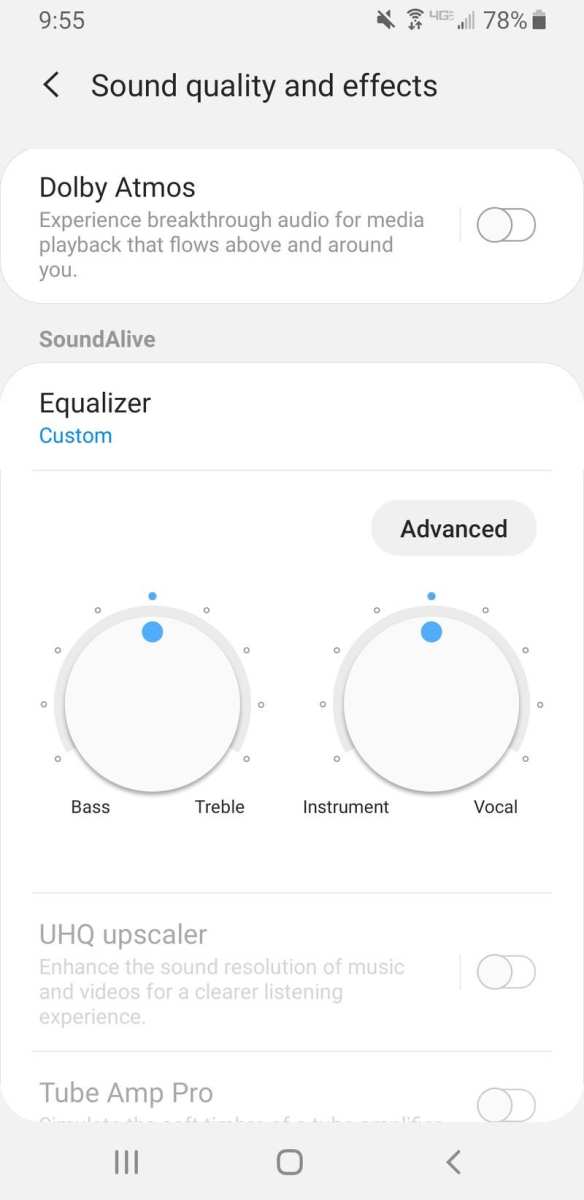
- Look for options like “Sound Effects,” “Dolby Atmos,” “Dirac,” or “Audio Boost.”
- Enable these features if available, and adjust their settings for the loudest sound.
- Within Sound Settings, look for “Volume Limit” or “Media Volume Limit.”
- Disable or raise the limit carefully, considering your hearing safety.
- Use “Sound Amplification” features if available to enhance loudness without hardware modifications.
- Volume Booster GOODEV: Simple and effective, allows you to turn up volume beyond the default limit.
- Super Volume Booster: Enhances volume for media, calls, and notifications.
- Precise Volume Control: Offers fine-tuned adjustments for different sound types.
- Download and install it on your device.
- Open the app and grant all requested permissions.
- Adjust the sliders or controls to increase your sound levels.
- Test the sound output and adjust gradually to avoid distortion or damage.
- Access the Equalizer setting via your device or third-party app.
- Increase bass frequencies for deeper, more pronounced sound.
- Adjust mid and treble frequencies to enhance clarity and loudness.
- Save your preferred settings for quick access.
- Clean your speaker grills regularly to avoid dust buildup that muffles sound.
- Test with different headphones to see if volume is consistent.
- Replace damaged or low-quality headphones for better sound output.
- Use quality headphones or speakers designed for higher volume levels.
- Avoid listening at maximum volume for extended periods to protect your hearing.
- Keep your device updated; manufacturers often release updates that improve sound performance.
- Beware of setting volume levels too high, which can cause hardware damage over time.
- External portable speakers can significantly boost volume.
- Bluetooth speakers with higher decibel ratings provide louder, clearer sound.
- Sound amplifiers or docks designed for smartphones can increase loudness for small gatherings or outdoor use.
- Use physical volume buttons to reach the maximum level.
- Adjust volume controls in settings for different sound types.
- Enable sound enhancement features if your device offers them.
- Use trusted third-party apps for additional boosting capabilities.
- Optimize audio with equalizers for clearer and louder output.
- Maintain hardware components like speakers and headphones.
- Consider external hardware solutions for more volume when needed.
This method allows for precise control over different sound types, helping you get louder sound when needed.
Enabling and Using Volume Boost Features in Settings
Some Android phones come with built-in features or settings designed to boost volume beyond the default maximum.
Check for Sound Enhancement Settings
Many manufacturers include sound enhancement options:
If your device has a dedicated equalizer, experiment with the bass and treble settings to make the sound appear louder and clearer.
Activating Volume Limit or Sound Amplification
If your device limits maximum volume for safety reasons, you might need to disable or modify these settings:
Bear in mind that enabling these features can sometimes cause distortion; adjust gradually and test the sound quality.
Using Third-Party Apps to Increase Volume
Sometimes, the default options aren’t enough, and third-party apps can help boost your Android’s loudness further.
Choosing the Right Volume Booster App
Look for trusted apps with good reviews that are compatible with your device. Popular options include:
Always download apps from reputable sources like Google Play Store to avoid malware.
Installing and Using Volume Booster Apps
Once you choose an app:
Some apps also provide presets to optimize sound for different environments, such as outdoor or indoor use.
Optimizing Your Audio for Maximum Loudness
Beyond boosting volume, optimizing your audio settings can help improve loudness without losing clarity.
Using Equalizers for Better Sound
Equalizers allow you to boost certain frequencies to make sound appear louder and richer. Common steps include:
Playing with equalizer settings can help you achieve a louder sound that still sounds natural.
Ensuring Your Speakers and Headphones Are in Good Condition
Sometimes, hardware issues limit loudness:
Maintenance and proper hardware can make a big difference in perceived loudness.
Additional Tips for Increasing Your Android Volume Safely
To get the loudest sound possible without risking damage:
Balancing loudness with safety helps you enjoy better sound without risking your device or hearing health.
Additional Hardware Options for Louder Sound
If software adjustments aren’t enough, consider hardware solutions:
Hardware upgrades are particularly useful if you often need louder sound outside or in noisy environments.
Summary of Key Steps to Make Your Sound Louder on Android
Getting your Android device to produce louder sound is all about combining the right settings, apps, and hardware. Always remember to prioritize your hearing safety, and don’t push your device beyond its limits. With these tips, you should enjoy a much louder and clearer audio experience on your Android device.
Frequently Asked Questions
How can I adjust the volume settings on my Android device?
Open the Settings app on your Android device and navigate to the Sound or Volume section. From there, you can manually increase the media, ringtone, and notification volumes using the sliders. Ensure that the “Media volume” is maximized for louder sound output during media playback.
What steps can I take to improve sound quality on Android?
Install a sound-enhancement app or use built-in audio settings to boost sound quality. Some devices offer equalizer settings under the Sound or Music section, allowing you to adjust bass, treble, and other audio parameters. Turning on features like Dolby Atmos or similar sound effects can also enhance overall audio clarity and loudness.
Are there any hardware options to increase my Android’s volume?
Yes, you can use external accessories such as portable speakers or headphones with built-in amplifiers. These devices amplify the sound directly from your Android device, providing a louder and often clearer audio experience. Make sure to connect them properly via Bluetooth or the headphone jack for optimal results.
How can I ensure apps use maximum volume when playing media?
Check the app-specific volume settings within the app itself, if available. Some apps, like music or video players, have their own volume controls that override system volume settings. Increase the volume within the app to the maximum for louder playback. Also, disable any volume limit features that might restrict loudness.
Is it possible to boost sound without rooting my Android device?
Yes, many apps available on the Google Play Store can increase volume without rooting your device. These apps typically work by adjusting device settings or applying sound effects. Be cautious when choosing such apps and read reviews to ensure they do not harm your device or compromise sound quality.
Final Thoughts
To make your sound louder on Android, start by adjusting the volume sliders in settings. Enable developer options and increase the maximum volume limit if available. Use third-party apps carefully to boost sound output without damaging your device.
By following these steps, you can effectively increase your Android device’s sound. Remember, how to make your sound louder on Android is about tweaking settings and choosing the right tools for your needs. This ensures a clearer, louder audio experience whenever you need it.

Similar Posts































