How To Make Your Android Super Fast In Simple Steps
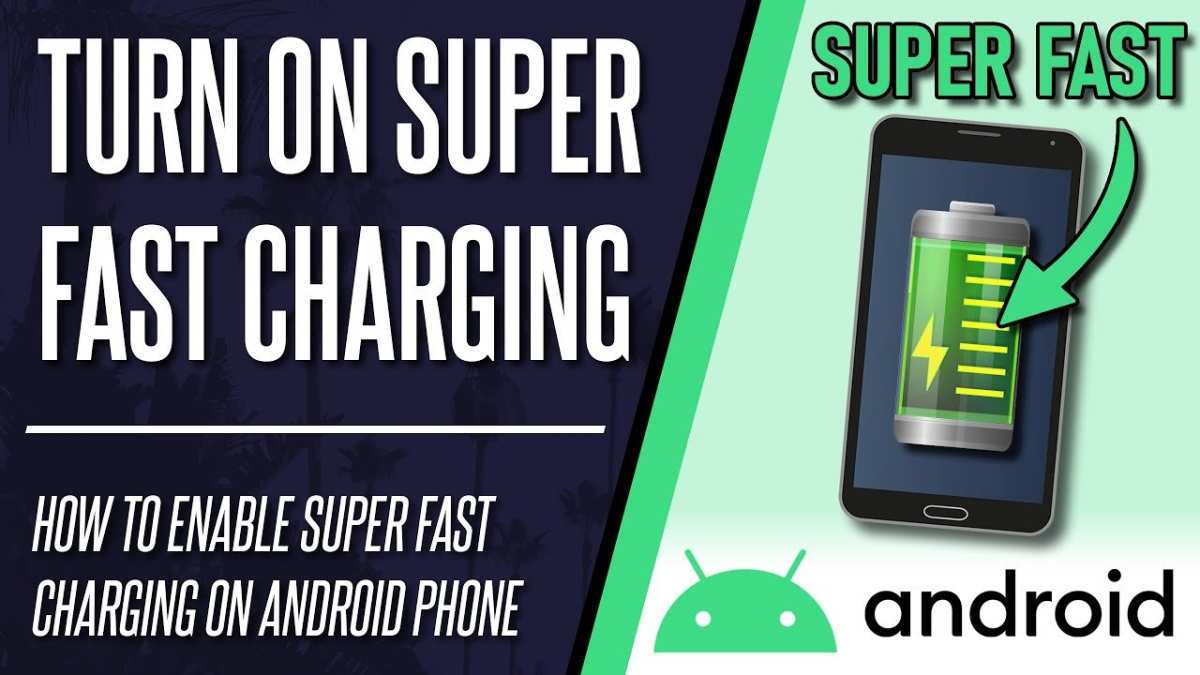
If you want your Android to run faster instantly, the best way is to clear cache and close background apps. **To make your Android super fast**, start by uninstalling unused apps and disabling unnecessary notifications. Regularly update your device software to optimize performance. Keeping your Android tidy and current will help it operate smoothly and swiftly.

How to Make Your Android Super Fast: Simple Tips and Tricks
Having a smartphone that runs smoothly makes everything more enjoyable. Whether you’re playing games, browsing the internet, or using apps, a fast Android device improves your experience. Luckily, there are many easy ways to boost your Android’s speed without needing to buy a new phone. Let’s explore some practical steps you can follow to make your Android super fast.
Understanding Why Your Android Gets Slow
Before diving into the tips, it’s good to understand why Android phones sometimes slow down. Several factors can cause lag or sluggishness:
- Too many Apps Running: When many apps run in the background, they use up memory and processing power.
- Insufficient Storage Space: If your phone’s storage is almost full, it can slow down your device.
- Old Software Version: Outdated Android OS can sometimes lead to performance issues.
- Cache Buildup: Temporary files pile up and clutter your device over time.
- Running Background Processes: Some apps keep working even when you’re not using them, draining resources.
Knowing these reasons helps you target the right solutions to speed up your phone.
Free Up Storage for Faster Performance
A cluttered storage can make your device sluggish. Clearing space is one of the easiest ways to improve speed. Here are some steps:
How to Check Your Storage
– Go to Settings on your Android device.
– Tap on Storage.
– Review what is taking up space, such as photos, videos, downloads, or apps.
Tips for Freeing Up Space
- Uninstall unused apps: Remove apps you no longer need. Long-press on the app icon and select Uninstall.
- Delete or move photos and videos: Transfer files to a computer or cloud storage and delete them from your device.
- Clear app caches: Go to Settings >Apps & Notifications >Choose an app >Storage & Cache > Tap Clear Cache.
- Remove temporary files: Use a cleaning app like CCleaner or Files by Google to delete junk files safely.
Maintaining at least 10-15% free storage space helps your Android run smoothly.
Update Your Android Software and Apps
Running the latest software version ensures your device benefits from performance improvements and security patches.
How to Check for Android OS Updates
– Open Settings.
– Scroll down and tap System.
– Select Software Update.
– Tap Check for Updates and follow on-screen instructions if an update is available.
Update Your Apps for Better Speed
– Open the Google Play Store.
– Tap on your profile icon in the top right corner.
– Select Manage Apps & Device.
– Tap Updates Available.
– Update all apps to ensure compatibility and performance improvements.
Updating your device and apps regularly fixes bugs and enhances efficiency.
Manage and Disable Unnecessary Apps
Apps running in the background use CPU and RAM, slowing your device down.
How to Detect Resource-Heavy Apps
– Go to Settings >Apps & Notifications >See All Apps.
– Tap on Battery or Memory to identify apps that consume the most resources.
– Close or uninstall apps that you don’t need.
Disable or Uninstall Bloatware
– Some phones come with pre-installed apps, called bloatware, that you may not need.
– To disable them, go to Settings >Apps & Notifications.
– Select the app and tap Disable or Uninstall if possible.
Disabling unnecessary apps frees up RAM and reduces background activity.
Optimize Your Device’s Settings for Speed
Adjusting some settings can make a visible difference in performance.
Turn Off Animations
Animations add visual effects but can slow down your device.
– Enable Developer Options: Go to Settings >About Phone.
– Tap Build Number seven times until you see a message confirming developer mode.
– Return to Settings >System >Developer Options.
– Find Window Animation Scale, Transition Animation Scale, and Animator Duration Scale.
– Set all three to Animation Off or 0.5x for faster transitions.
Disable Unnecessary Connectivity Features
– Turn off Bluetooth, Wi-Fi, or Mobile Data when not needed.
– Use Airplane Mode temporarily if you want to speed up your device during critical tasks.
Use Performance-Boosting Apps and Tools
There are apps designed to help clean and optimize your Android device.
Recommended Apps
- CCleaner: Cleans junk files and clears cache.
- Files by Google: Manages storage and suggests files to delete.
- Greenify: Puts unused apps into hibernation to save resources.
Remember to download these apps from trustworthy sources like the Google Play Store.
Perform a Factory Reset as a Last Resort
If your Android remains slow despite trying these tips, a factory reset might help.
How to Reset Your Device
– Back up all important data.
– Go to Settings >System >Reset Options.
– Tap Erase All Data (Factory Reset).
– Confirm and follow the instructions.
This step wipes all data and restores your device to its original state, often fixing persistent performance issues.
Additional Tips for Maintaining Speed
– Regularly restart your device to refresh background processes.
– Keep your device dry and clean, as physical damage can affect performance.
– Avoid installing too many apps, as clutter slows things down.
– Use only trusted apps to prevent malware, which can significantly harm performance.
Taking good care of your device, updating it frequently, and cleaning it regularly help keep your Android running at top speed.
—
By following these steps, you’ll see a marked improvement in your Android’s speed. Keep your device organized, update software timely, and manage background apps to enjoy fast, responsive performance every day. Remember, a little bit of maintenance can go a long way in keeping your Android device running smoothly.
Frequently Asked Questions
What are some simple ways to free up storage space on my Android device?
To free up storage, delete unnecessary apps, clear cache files regularly, and remove old photos or videos you no longer need. You can also use built-in storage management tools to identify and delete large or unused files, which helps your device run more smoothly.
How can I reduce background activity to improve performance?
Identify apps that run in the background and disable unnecessary ones through your device settings. Limiting background data and closing apps when you’re not using them reduces system load, leading to faster operation and better responsiveness.
What updates can help optimize my Android’s speed?
Keeping your device’s software, including the operating system and apps, up to date ensures you have the latest performance improvements and security patches. Regular updates fix bugs that may cause slowdown and enhance overall device efficiency.
How does resetting your device benefit its speed?
A factory reset removes accumulated junk, residual files, and misconfigured settings. This process clears the system, often resulting in faster operation. Be sure to back up important data before performing a reset, as it will erase all personal files and settings.
Final Thoughts
To make your Android super fast, start by clearing unnecessary apps and cache regularly. Disable background processes and animations to free up system resources. Keep your device’s software updated for optimal performance. These simple steps ensure your device runs smoothly. Ultimately, knowing how to make your Android super fast involves regular maintenance and smart management of apps and settings.

Similar Posts































