How To Make Twitter Public On Android For Better Visibility
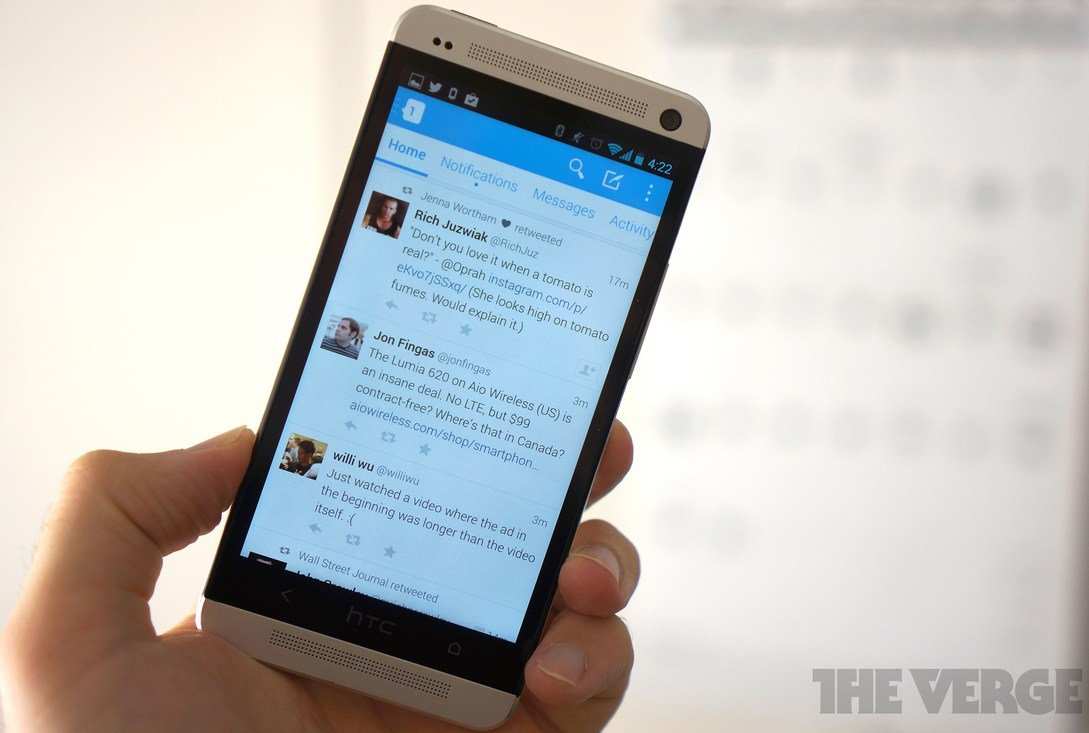

How to Make Twitter Public on Android
When you use Twitter on your Android phone, you might wonder how to make your profile visible to everyone. Making your Twitter profile public allows anyone to see your tweets, follow you, and engage with your content without needing your approval first. This is especially useful if you’re building a brand, sharing your opinions, or just want more people to see what you’re posting. Let’s walk through all the steps needed to make your Twitter account public and explore some important details along the way.Understanding Public and Private Twitter Accounts
Before we jump into the steps, it’s good to understand what it means to have a public or private Twitter profile.- Public Profile: Anyone, whether they are your follower or not, can see your tweets, profile information, pictures, and other shared content. This setting helps you reach more people and grow your audience.
- Private Profile: Only the people you approve can see your tweets and profile. When your account is private, your tweets are hidden from non-followers unless they send a request and you accept it.
Steps to Make Your Twitter Profile Public on Android
Now, let’s go through the straightforward steps to change your Twitter account from private to public using your Android device.Access Your Twitter Profile Settings
First, open the Twitter app on your Android device:- Tap on the **Twitter icon** to launch the app.
- Log in if you haven’t already, using your username and password.
- Once logged in, tap on your **profile picture** at the top-left corner of the screen or tap the **hamburger menu** (three horizontal lines) at the top-left.
- In the side menu that appears, select **Settings and privacy**.
- Under this menu, tap **Privacy and safety**.
Locate the Privacy Settings for Your Profile
Once in the ‘Privacy and safety’ menu:- Look for the section labeled **Audience and contacts**.
- Tap on **Audience and contacts** to find the privacy options related to who can see your tweets.
Switching from Private to Public
Inside the **Audience and contacts** section:- Find the setting labeled **Protect your Tweets**.
- If the toggle is switched **on** (usually colored blue), it means your account is set to private.
- Tap the toggle to turn it **off**. When you turn it off, your account becomes public.
- A confirmation prompt may appear, asking if you are sure about making your tweets visible to everyone. Confirm your choice.
Check Your Profile to Confirm Visibility
To verify that your profile is now public:- Go to your profile by tapping your profile picture in the top-left menu or the bottom menu, depending on your layout.
- Look for the **lock icon** near your profile picture. If there is no lock, your profile is public.
- Visit your profile from a different account or ask a friend to check if they can see your tweets openly.
Additional Tips for Managing Your Public Twitter Profile
Making your account public is just one step. Here are some additional tips to ensure your profile appears professional and inviting:Optimize Your Profile
- Use a clear profile picture that represents you or your brand.
- Add a catchy bio that explains what you tweet about.
- Include a link to your website or other social media profiles if relevant.
- Choose an eye-catching header image to make your profile stand out.
Post Content Consistently
Regularly sharing relevant and engaging tweets helps attract followers and increases your visibility:- Share thoughts, news, images, or videos related to your interests.
- Use hashtags appropriately to reach a broader audience.
- Engage with your followers by replying or liking their comments.
Stay Aware of Your Privacy Settings
Even after making your account public, periodically check your privacy settings:- Review the **Privacy and safety** section to ensure your preferences remain as you want.
- Control who can tag you, see your location, or send you messages.
Pros and Cons of Making Your Twitter Profile Public
It’s important to understand the benefits and potential drawbacks:| Advantages | Disadvantages |
|---|---|
| Reaches a larger audience | Less control over who sees your tweets |
| Builds your personal or business brand | Potential for unwanted interactions or spam |
| Helps grow followers quickly | Requires more careful management of content |
Common Issues and Troubleshooting
Sometimes, even after changing your privacy settings, your profile might not appear as public:- Ensure you saved the setting properly.
- Restart the app or your device to refresh the settings.
- Check from another device or browser to confirm your profile is visible publicly.
- If you still encounter problems, update your Twitter app or reinstall it.
Frequently Asked Questions
How can I change my Twitter profile settings to make my account visible to everyone?
To make your Twitter account public, open the Twitter app on your Android device. Tap your profile picture in the top-left corner to access the menu, then select “Settings and privacy.” Tap on “Privacy and safety,” then look for the “Audience and tagging” section. Toggle off the “Protect your Tweets” option so that your tweets are visible to all users. When this setting is off, your account becomes public, allowing anyone to see your tweets and follow you.
Where do I find the privacy options to set my Twitter account as public on Android?
Open the Twitter app on your Android device and tap your profile icon to access the menu. Select “Settings and privacy,” then choose “Privacy and safety.” Under the “Your account” section, tap on “Audience and tagging.” Here, you’ll see the “Protect your Tweets” option. Make sure this is turned off to set your account to public. Adjusting these settings makes your tweets accessible to everyone and allows others to follow you without restrictions.
Can I control who can see my tweets after making my Twitter account public?
Yes, once you set your Twitter account to public, anyone can view your tweets. However, Twitter provides additional options to restrict visibility of certain tweets or to block specific users if needed. You can also review your follower list or restrict interactions through privacy settings, but the main tweets will generally be visible to all when your account is public.
Final Thoughts
To make your Twitter profile public on Android, open the Twitter app and navigate to your profile. Tap the three-dot menu icon, then select ‘Settings and privacy.’ Next, choose ‘Privacy and safety,’ and deactivate the ‘Protect your Tweets’ option. This action makes your tweets visible to everyone. Remember, the key is to keep your profile settings open to public view. In conclusion, understanding how to make twitter public on android allows you to share your content broadly. Just follow the simple steps outlined, and your tweets will be accessible to all.
Similar Posts































