How To Make The Lenny Face On Android: Easy Steps
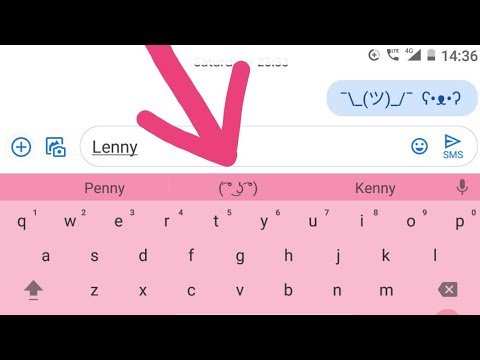

How to Make the Lenny Face on Android
Creating the perfect Lenny Face on your Android device is easier than you might think. The Lenny Face, known for its expressive and mischievous look, can add fun and personality to your texts, social media posts, or comments. Whether you’re new to emoji art or want to improve your skills, this guide will walk you through various methods to craft the Lenny Face on your Android phone or tablet. From using simple keyboard tricks to downloading dedicated apps, we’ve got all the options covered.Understanding the Lenny Face and Why It’s Popular
Before diving into how to make the Lenny Face, it helps to know what it is and why so many people enjoy using it. The Lenny Face features a combination of characters that form a quirky or mischievous facial expression. It often looks like this: ( ͡° ͜ʖ ͡°). People love it because it adds humor, sarcasm, or a playful tone to messages. Its unique style makes it stand out compared to regular emojis. Plus, since you can customize and create different versions, it encourages creativity in digital conversations.Methods to Make the Lenny Face on Android
There are several ways to make or type the Lenny Face on an Android device. Each method suits different preferences, whether you prefer shortcuts, apps, or manual typing. Let’s explore each option step-by-step.Using Built-in Keyboard Shortcuts
Many Android keyboards support creating the Lenny Face through simple keyboard combinations or by enabling special characters. Here’s how you can do it:- Manual Typing: You can type the characters directly if your keyboard supports them. Just open your messaging app, tap on the text input field, and use the symbols to create the face. For example: ( ͡° ͜ʖ ͡°).
- Using Special Characters: Some keyboards allow long-press options or have symbols included in the keyboard layout. Look for the punctuation or symbols menu, and see if you can find the characters like ͡, ʖ, or ͜.
Copy-Pasting the Lenny Face from Samples
If you find it difficult to type the symbols manually, you can copy the Lenny Face from a website or a note. Here’s how:- Search for “Lenny Face” or “Le Lenny Face” on your web browser.
- Find a website that displays various versions of the Lenny Face, such as lennyface.net or emoji-copy.com.
- Select the preferred face, then tap and hold to copy it.
- Paste it into your message or social media post on your Android device.
Using Third-Party Apps for Lenny Faces
Another easy way is to use apps that generate Lenny Faces and other emoticons. Some popular apps include:- Lenny Face Generator: Apps dedicated to creating various emoticons, including the Lenny Face, with just a tap. Look for apps in the Google Play Store under “emoji generator” or “emoticon maker.”
- Keyboard Apps with Special Characters: Some third-party keyboards, like Gboard or SwiftKey, offer built-in emoji panels or emoji-specific shortcuts that include faces like the Lenny Face.
- Download and install the app from the Google Play Store.
- Open the app and select the Lenny Face or create one using the app’s tools.
- Tap to copy the generated face.
- Paste it into your message or chat window.
Customizing and Variations of the Lenny Face
The classic Lenny Face ( ͡° ͜ʖ ͡°) isn’t the only option. You can find or create numerous variations depending on the mood or context. Here are some popular versions:| Name | Representation | Description |
|---|---|---|
| Classic Lenny | ( ͡° ͜ʖ ͡°) | The original mischievous face used for jokes or fun messages. |
| Wink Lenny | ( ͡~ ͜ʖ ͡~) | The face with a winking eye, adding a flirty or teasing tone. |
| Sad Lenny | ( ͡° ʖ̯ ͡°) | Expresses sadness or disappointment with a downturned mouth. |
| Surprised Lenny | ( ͡o ͜ʖ ͡o) | Shows surprise or shock. |
Tips for Making the Perfect Lenny Face on Android
Getting the exact look you want can sometimes be tricky. Here are some useful tips:- Use a Compatible Keyboard: Install a keyboard that supports a wide range of special characters, like Gboard or SwiftKey.
- Search for Character Codes: Use websites or Unicode tables to find specific characters that make your Lenny Face more expressive.
- Practice Typing: Memorize common character combinations for faster creation in conversations.
- Create Templates: Save your favorite Lenny Faces in notes or clipboard managers for quick access.
- Explore Emoticon Apps: Use apps that offer a variety of faces and symbols to expand your options.
Common Challenges and How to Overcome Them
While these methods are straightforward, some issues may arise. Here’s how to handle them:Characters Not Displaying Correctly
If the characters in your Lenny Face don’t display properly:- Check if your app or keyboard supports Unicode characters.
- Update your keyboard app or switch to Gboard, which offers better support for special symbols.
- Try copying and pasting the face into different apps to see if display issues persist.
Difficulty Finding Symbols
Some characters like ͡ or ʖ are less common. To make it easier:- Use online tools or websites that generate Lenny Faces, as they include all necessary characters.
- Use character map apps or Unicode search engines to copy specific symbols for manual typing.
Wanting More Customization Options
To make unique faces:- Experiment with different combinations of characters and symbols.
- Visit emoji or emoticon websites for inspiration.
- Download face generators that let you select and customize expressions easily.
Frequently Asked Questions
How can I create the Lenny Face using my Android keyboard?
To make the Lenny Face on your Android device, open your keyboard in any text input area. Use the special characters and symbols available or install a dedicated Lenny Face app or keyboard. Once installed, switch to the custom keyboard and select the Lenny Face emoticons to easily insert them into your messages.
Are there specific apps that help generate the Lenny Face on Android?
Yes, several apps are designed to generate Lenny Faces and other emoticons. You can find these apps on Google Play Store by searching for “Lenny Face Generator” or “Emoticon Keyboard.” Download and install the one that suits your preference, and then use it to insert Lenny Faces effortlessly in your chats.
Can I create custom Lenny Faces on Android without using third-party apps?
Yes, you can manually type common Lenny Face patterns using your Android’s default keyboard. Simply combine special characters like parentheses and letters, such as ( ͡° ͜ʖ ͡°), to form different variations. Practice typing these combinations to quickly add personalized Lenny Faces in your conversations.
Is it possible to save frequently used Lenny Faces on Android for quick access?
What should I do if my Android keyboard doesn’t support special characters for Lenny Faces?
If your keyboard lacks support for special characters, consider installing a third-party keyboard app that offers extended symbol support, such as Gboard or SwiftKey. These keyboards provide a broader range of characters and easier ways to access emoticons like the Lenny Face, making your messaging more expressive and convenient.
Final Thoughts
To make the lenny face on Android, start by opening any app with a text input. Use your keyboard’s special characters or emojis to craft the face. You can also copy and paste the face from online sources if needed. Practicing common combinations like ( ͡° ͜ʖ ͡°) helps you get familiar with creating the face quickly. Remember, adjusting characters slightly can create different expressions. In conclusion, knowing how to make the lenny face on android is simple. Just follow these steps and practice a little. It makes your chats more fun and expressive.
Similar Posts































