How To Make The Keyboard Smaller On Android: Simple Tips
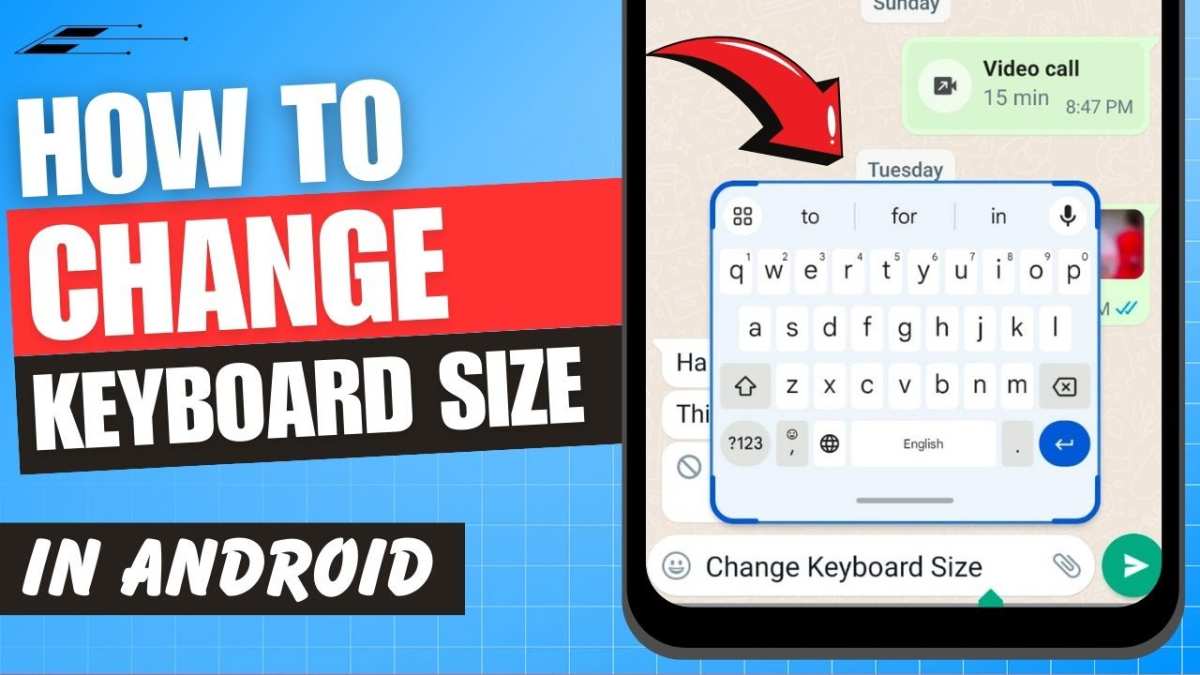
To make the keyboard smaller on Android, simply adjust the keyboard height settings in your device’s options or switch to a customizable keyboard app. **This quick change makes typing more comfortable and frees up screen space.** If you want to learn how to make the keyboard smaller on Android, start by exploring your keyboard’s settings or try installing a keyboard app that allows size adjustments.
Changing the keyboard size helps improve your overall experience and makes navigating your device easier. Just a few taps can make a noticeable difference every time you type.

How to Make the Keyboard Smaller on Android
Many Android users find that their keyboard can sometimes take up too much space on the screen, especially when trying to view a lot of content or multitask. Luckily, adjusting the size of your keyboard on Android is possible and straightforward. In this guide, we will walk you through different methods to make your keyboard smaller, explore settings you can tweak, and suggest helpful tips for a more comfortable typing experience.
Understanding Why Your Keyboard Might Be Too Large
Before diving into how to resize the keyboard, it helps to understand why it might feel oversized. Common reasons include:
- Default keyboard size settings that favor larger keys for easier typing.
- Using certain keyboard apps that do not automatically resize or scale.
- Display size and font settings on your device that influence the keyboard’s appearance.
- Apps that have their own keyboard configurations which override system defaults.
Knowing these reasons helps you choose the best method to reduce the keyboard size based on what’s causing it to appear large.
Using Built-in Settings to Adjust Keyboard Size
Adjusting Keyboard Size Through Gboard Settings
If you use Google’s Gboard, the default keyboard on many Android devices, adjusting the size is quite simple:
- Open the Gboard app by tapping on any text input field, then tap the gear icon or go to Settings from your device’s application menu.
- Navigate to the Preferences section.
- Scroll down to find Keyboard height. You should see a slider that lets you change the height of the keyboard.
- Drag the slider towards the left to make the keyboard smaller or towards the right to make it larger, based on your preference.
- Once satisfied with your choice, exit the settings. The changes should take effect immediately.
This method allows you to fine-tune the keyboard size easily without installing third-party apps.
Adjusting Layout and Theme for Compactness
Besides size, customizing the keyboard layout and theme can help improve your typing experience. With Gboard or other popular keyboards, you can:
- Switch to a compact keyboard layout that condenses key spacing.
- Enable a dark or light theme that suits your visual style and reduces visual clutter.
- Use floating keyboard mode, which lets you move and resize the keyboard as a floating window.
Switching to a Different Keyboard App with Smaller Size Options
Choosing a Keyboard App Designed for Compactness
If your current keyboard doesn’t offer enough flexibility, consider trying other keyboard apps. Some popular options include:
- SwiftKey: Offers adjustable layouts and themes, with customization options for size.
- Fleksy: Known for its clean interface and customizable size settings.
- AnySoftKeyboard: An open-source keyboard with various size and layout options.
Installing and Setting Up a New Keyboard
- Go to the Google Play Store and search for your preferred keyboard app.
- Download and install the app, then open device Settings.
- Navigate to System >Languages & input >Virtual keyboard.
- Tap Manage keyboards and enable your new keyboard app.
- Set it as default and customize its size and appearance within the app’s settings.
Using Accessibility Settings to Reduce Keyboard Size
Some Android devices include accessibility options that can help modify how interfaces appear, including the keyboard:
- Open Settings and go to Accessibility.
- Look for options related to Display size or Size and text.
- Adjust the display size to be smaller, which can indirectly make the keyboard appear more compact.
Note that this method affects the overall display size and not just the keyboard, so it’s best used if you want a generally smaller interface.
Additional Tips for a Smaller and More Comfortable Keyboard
Enable One-Handed Mode
Most modern Android phones support one-handed mode, which shifts the keyboard to one side and reduces its size for easier typing with one hand. To activate:
- While the keyboard is open, look for the one-handed mode icon, usually available on the keyboard toolbar or in settings.
- Tap it to toggle between centered, left, or right alignment.
Customize Keyboard Shortcuts and Layouts
Some keyboard apps allow you to create custom layouts that prioritize smaller key sizes or specific keys. Adjust these settings to suit your needs and make the keyboard more manageable.
Experiment with Device Display and Font Sizes
Reducing overall screen elements can help your keyboard appear smaller relative to the display. Explore options such as:
- Decreasing font size in display settings.
- Reducing the display size or resolution, if your device supports it.
- Adjusting accessibility zoom options for a more scaled-down interface.
Final Tips for a Better Typing Experience
Making your keyboard smaller is just one aspect of improving typing comfort on Android devices. Here are some additional tips:
- Practice good posture and hold your phone comfortably.
- Use predictive text features to speed up typing and reduce errors.
- Enable voice typing for quick input when resizing or manipulating the keyboard isn’t convenient.
- Regularly update your keyboard app to benefit from new features and improvements.
By exploring these options and customizing your keyboard, you can create a more efficient and comfortable typing environment. Whether you prefer a more compact keyboard or want specific layout adjustments, Android offers flexible solutions to fit your preferences. Experiment with settings and apps until you find the perfect balance that makes typing a breeze on your device.
Frequently Asked Questions
Can I resize the keyboard on my Android device manually?
Most Android devices do not allow manual resizing of the keyboard directly through system settings. However, some third-party keyboard apps offer customization options that let you adjust the keyboard size. Check the settings of your current keyboard or consider installing a keyboard app like Gboard or SwiftKey, which often include size adjustment features.
How can I change the default keyboard size on Android?
To modify the default keyboard size, open your device’s Settings app, navigate to Language & Input or Keyboard & Input Methods, then select the keyboard you are using. Look for size or layout options within the keyboard settings. For instance, in Gboard, you can go to Preferences and adjust the height slider to make the keyboard smaller or larger according to your preference.
Are there third-party apps that let me customize keyboard size on Android?
Yes, several third-party keyboard apps such as Gboard, SwiftKey, and Fleksy provide options to customize the keyboard’s size and layout. Download and install one of these apps from the Play Store, then access their settings to adjust the keyboard dimensions to your liking.
Will updating my keyboard app affect its size settings?
Updating your keyboard app generally retains your personalized settings, including size adjustments. However, in some cases, updates may reset preferences. Check your settings after updating to ensure your desired size settings are still active or read the update notes for any changes related to customization features.
Can I use gesture controls to resize the keyboard on Android?
Most Android keyboards do not support gesture controls for resizing. Instead, you should adjust the size through the keyboard’s settings menu. If your device or keyboard app offers gesture-based customization, refer to its user guide to see if resizing via gestures is possible. Otherwise, manual adjustment through settings remains the primary method.
Final Thoughts
To make the keyboard smaller on Android, you can adjust the keyboard size settings directly. Many Android keyboards, like Gboard, offer a resize option in their settings menu. Simply open the keyboard, tap the gear icon, and look for size or layout adjustments.
Alternatively, you can try third-party keyboard apps that allow more customization, including resizing. These apps often provide more control over the keyboard’s appearance and functionality.
In summary, if you want to make the keyboard smaller on Android, explore the built-in settings or consider installing customizable keyboard apps.

Similar Posts































