How To Make Text Bigger Android
To make text bigger on your Android device, simply adjust the display settings. This quick change makes reading much easier. If you’re wondering how to make text bigger Android, just go to Settings > Accessibility > Font Size and drag the slider to your preferred size. This simple step improves readability instantly. Whether you’re browsing or using apps, increasing font size helps reduce eye strain. No need for extra apps or complicated steps—your device provides all you need right in the settings menu.

How to Make Text Bigger on Android Devices
Making text larger on your Android phone or tablet can make a big difference, especially if you find it hard to read small fonts. Whether you want to see more clearly, reduce eye strain, or simply prefer bigger text, knowing how to adjust font sizes on Android is a handy skill. In this guide, we’ll explain different methods to increase text size, so you can choose the one that suits you best.
Understanding Why Text Size Matters
Before diving into the steps, it’s good to understand why adjusting text size can improve your Android experience. Small fonts can sometimes be difficult to read, especially if you have vision issues or want to use your device comfortably for longer periods. Changing text size not only makes content more accessible but also helps you navigate your phone more easily and enjoy content without squinting.
Quick Ways to Increase Text Size on Android
Most Android devices offer multiple ways to make text larger. Here, we explain the fastest methods so you can do it instantly or with minimal effort.
Using Accessibility Settings
The easiest way to enlarge text is through accessibility features designed for better visibility:
- Open the “Settings” app on your Android device.
- Scroll down and tap on “Accessibility”.
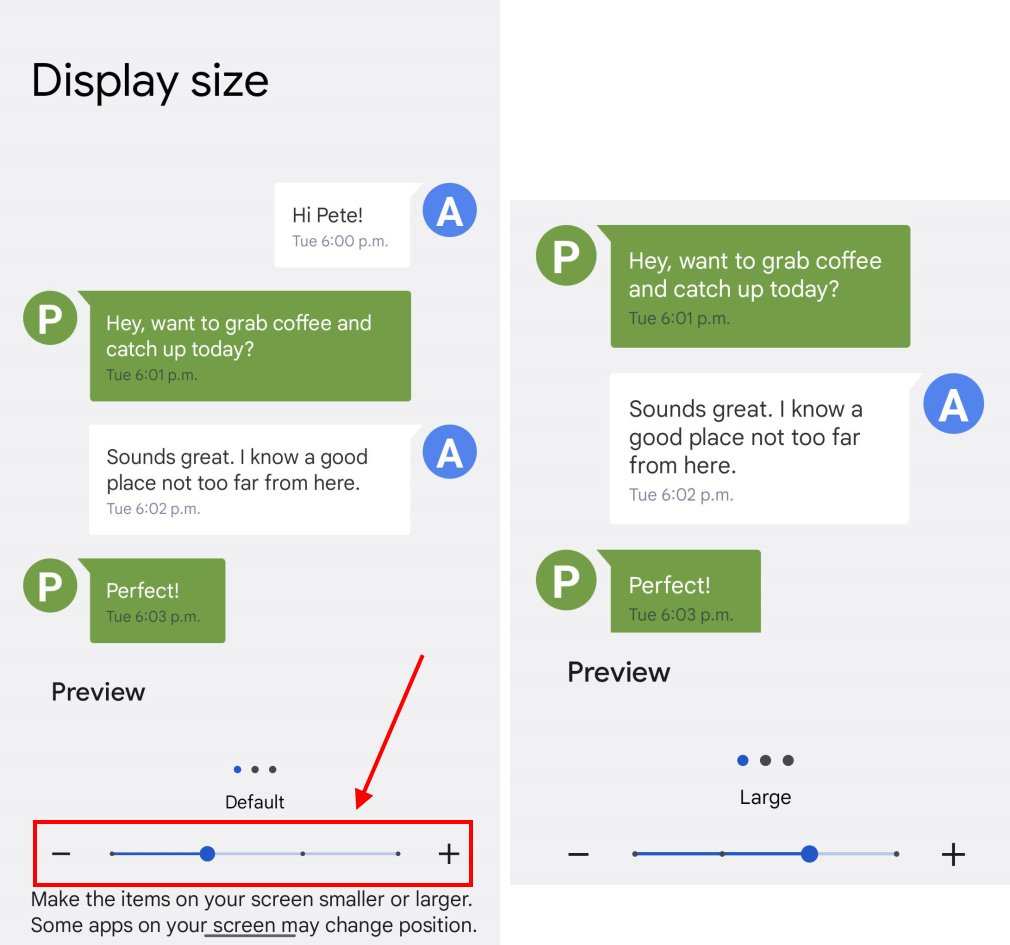
- Look for options like “Font size” or “Display size”.
- Adjust the slider to increase the font size to your liking.
- Exit settings, and your text should appear larger immediately.
This method is effective because it adjusts all system-wide text, including menus, apps, and settings, making everything more readable without tweaking individual apps.
Adjust Font Size in Display Settings
Android provides a dedicated section for font size settings:
- Navigate to “Settings”.
- Select “Display” or “Display & Brightness” depending on your device.
- Tap on “Font size” or “Font size and style”.
- Use the slider to select a larger font size.
- See the preview and tweak as needed.
This change affects all text across your device, making it a quick and effective way to increase readability.
Adjusting Text Size in Specific Apps
Sometimes, you may want to change text size within a particular app, like a web browser or messaging app, without affecting the entire system. Many apps allow you to customize text size directly:
In Web Browsers
Popular browsers such as Chrome or Firefox let you zoom in or adjust text size:
- Open the browser app.
- Tap the menu (three dots or lines).
- Select “Settings”.
- Look for “Accessibility” or “Text scaling”.
- Adjust the slider or enter a percentage to zoom in.
In Messaging Apps
Apps like WhatsApp or Messenger often have their own font settings:
- Open the app and go to “Settings”.
- Find “Chat” or “Display” options.
- Select “Font Size” or similar options.
- Choose a larger size or enable “Always show larger text”.
Changing text size within apps can improve your user experience without altering overall device settings.
Using Accessibility Features for Enhanced Visibility
Android includes various features to support users with different needs. These options can significantly increase text size and improve visibility.
Enable Magnification Gestures
This feature allows you to zoom into any part of the screen temporarily:
- Go to “Settings”.
- Tap on “Accessibility”.
- Select “Magnification” or “Magnification gestures”.
- Turn it on.
- To use it, triple-tap the screen to zoom in, and triple-tap again to zoom out.
Activate TalkBack for Audio Feedback
While primarily for visually impaired users, TalkBack reads text aloud and helps in navigating:
- Open “Settings”.
- Navigate to “Accessibility”.
- Tap on “TalkBack” or “Screen reader”.
- Turn it on.
- Adjust speech rate and other preferences.
This feature provides an alternative way to understand content if printed text is hard to see.
Using Third-Party Apps to Customize Text Size
If your device does not give enough flexibility or you want extra features, third-party apps can help:
- Search for “font size changer” or “font customize” in the Google Play Store.
- Download reputable apps that offer text scaling features.
- Follow the app-specific instructions to modify font sizes for specific apps or entire device.
Always check app reviews and permissions before installing to ensure safety and effectiveness.
Tips for Choosing the Right Font Size
Picking the perfect size depends on your comfort level. Here are some tips to find the ideal setting:
- Start with small adjustments and gradually increase until you find what works best.
- Test the size in different lighting conditions to ensure readability.
- Consider enlarging text in key apps you use frequently, like messaging or reading apps.
- Remember, bigger isn’t always better; find a balance between size and fitting content on the screen.
Remember, your goal is to make reading easier without sacrificing too much screen space or clarity.
Maintaining Battery and Performance While Enlarging Text
Increasing font size typically doesn’t impact battery life significantly, but some features like magnification or screen zoom might:
- Use accessibility features only when needed.
- Avoid keeping magnification on for long periods, as it can sometimes strain memory.
- Regularly update your device to keep features running smoothly.
Making thoughtful adjustments ensures your device remains fast and responsive while providing comfortable text size options.
Customizing Text Size for Different Android Versions
Different Android versions may have slightly different steps:
- Android 10 and newer often have more streamlined settings for font size and display size.
- Older versions may require you to access “Display” options or additional accessibility menus.
- If unsure, consult your device’s manual or support site for specific instructions.
Matching your device’s version ensures you follow the most efficient method for your setup.
—
Making text bigger on Android is easy once you know where to look. Whether you want a quick fix from accessibility settings, adjusting display or font size, or using special features like magnification, you have multiple options. Remember to start small, test the changes across your favorite apps, and choose what feels most comfortable for your eyes. With these steps, reading on your device becomes more enjoyable and less straining, making your Android experience more personalized and accessible.
Frequently Asked Questions
How can I change the font size for my entire Android device?
To alter the font size across your Android device, go to Settings and select Display. Tap on Font size or Font size and style, then slide the slider to increase or decrease the text size as desired. This change adjusts the font size system-wide, making all text more accessible.
Is it possible to increase text size specifically for apps like messages and emails?
Yes, you can modify font sizes within individual apps if they support accessibility features. Open the app’s settings and look for options related to text or display settings. Some apps allow you to set a preferred font size directly, providing a more personalized reading experience.
What are the accessibility options available to make text easier to read on Android?
Android offers accessibility features such as Magnification and Display Size adjustments. Navigate to Settings, then Accessibility, and enable Magnification to zoom into text manually or adjust Display Size to increase the size of all visual elements, including text, for better readability.
Can I customize font size for specific elements like headings or body text separately?
Most standard Android devices do not support separate font size settings within the system. However, some third-party launchers or customization apps allow you to change font styles and sizes for different elements independently. Explore these options if you want more granular control over text appearance.
How do I enable larger text in my device’s accessibility settings for better visibility?
Go to Settings > Accessibility > Font size or Display size. Drag the slider toward larger sizes to make all text easier to read. Some devices also offer a toggle for bold text, which can improve contrast and visibility for users with visual impairments.
Final Thoughts
To make text bigger on Android, adjust the display settings in your device. Navigate to Settings > Accessibility, then select Font Size or Screen Size. Drag the slider to increase the text size to your preference.
You can also enable the Bold Text option for better readability. Additionally, many apps allow you to customize text size within their individual settings.
In conclusion, knowing how to make text bigger Android helps improve visibility and comfort. Adjust font size settings seamlessly to enhance your overall smartphone experience.

Similar Posts