How To Make Split Screen On Android: Step-By-Step Guide

How to Make Split Screen on Android
When you want to multitask on your Android device, using split screen mode can be a real lifesaver. It allows you to run two apps side by side, making it easier to copy information, compare content, or just do more at once. If you’re wondering how to make split screen on Android, you’ve come to the right place. This guide will walk you through every step in a simple way, so you can start using split screen today.Understanding Android Split Screen Mode
Before diving into the steps, it’s good to know what split screen mode is and why it’s useful. Android’s split screen feature divides your screen into two parts, letting you run two apps simultaneously. For example, you can browse the web while chatting with friends or watch a video while taking notes. This feature is available on most modern Android phones and tablets, but the way to access it might vary slightly depending on your device and Android version. It’s especially handy for those who want to increase productivity without switching back and forth between apps.Supported Devices and Android Versions
Most Android devices released from Android 7.0 Nougat onwards support split screen mode. Here’s what you need to keep in mind:- Android 7.0 Nougat and later: Basic split screen functionality is available.
- Android 8.0 Oreo and newer: Improved multitasking options with easier access to split screen.
- Some older devices: May not support split screen or may require specific steps.
Preparing Your Device for Split Screen Mode
Before you start, ensure your device’s software is up to date. Software updates often add new features, improve existing ones, and fix bugs. To update your device:- Open the ‘Settings’ app.
- Scroll down to ‘Software update’ or ‘System updates.’
- Follow the instructions to check for and install updates.
How to Activate Split Screen on Android
Now, let’s get into the actual steps to turn on split screen mode. The process can vary slightly depending on your device’s manufacturer and Android version but generally follows these steps:Using the Recent Apps Button
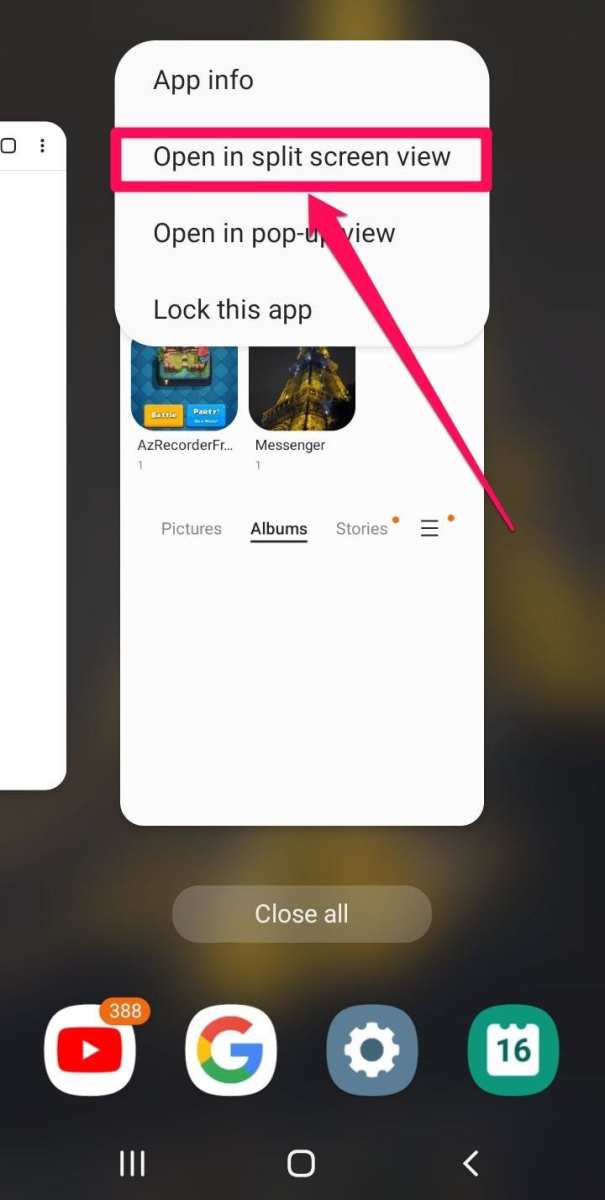
Most Android devices have a dedicated button or gesture to view recent apps, which is essential for enabling split screen.- Tap the ‘Recent apps’ button—usually a square or three vertical lines.
- Scroll through your open apps to find the one you want to view in split screen.
- Tap on the app’s icon or card at the top or bottom of the screen.
- Select ‘Split screen’ or ‘Open in split screen’ from the options that appear.
Using Gesture Navigation
If your device uses gesture controls instead of buttons, follow these steps:- Open the app you want to use in split screen mode.
- Swipe up from the bottom of the screen and pause to view recent apps (this gesture varies slightly depending on the device).
- Tap on the app’s icon or thumbnail, then choose ‘Split screen’ or ‘Open in split screen.’
Selecting the Second App for Split Screen
After the first app is pinned to one side, your screen will show a list or grid of recent or available apps.Choosing from Recent Apps
- Tap the app you want to open in the second half of your screen.
- If the app isn’t visible, you can open the app drawer and select the app directly.
Using the App Drawer
Some devices allow you to directly select the second app from the app drawer:- Tap the ‘App drawer’ icon, usually a grid or a downward arrow.
- Scroll through your apps or search for the app you want.
- Tap on the app to open it in split screen mode.
Adjusting the Split Screen Layout
Once both apps are open, you can adjust the size of each by dragging the divider line between them. Doing so allows you to allocate more space to the app you’re using most.Resizing the Split Screen
- Look for the horizontal or vertical divider between the apps.
- Tap and drag the divider up, down, left, or right to resize the apps.
- Release the divider once you reach your desired size.
Exiting Split Screen Mode
To stop using split screen, follow these easy steps:- Drag the divider all the way to the top or bottom of the screen.
- Tap the ‘Home’ button or use the home gesture to exit split screen.
- Alternatively, press the ‘Overview’ or ‘Recent apps’ button and then close one of the apps.
Tips for Better Multitasking with Split Screen
To make the most out of split screen mode, consider these helpful tips:- Use compatible apps: Some apps are optimized for split screen, offering better multitasking experiences.
- Close unused apps: Keep your multitasking smooth by closing apps you’re not using.
- Be mindful of battery life: Running two apps simultaneously can drain your battery faster.
- Adjust app sizes: Resize apps based on what you need, giving more space to the app you’re actively using.
- Explore specific gestures: Some devices offer custom gestures to quickly activate split screen mode.
Troubleshooting Common Issues
Despite being useful, split screen mode sometimes runs into problems. Here are common issues and easy fixes:Split Screen Not Working
- Ensure your device runs the latest Android version.
- Restart your device to refresh the system.
- Check if the apps you want to use are compatible with split screen.
- Clear recent app cache to eliminate any glitches.
Apps Not Staying in Split Screen
- Make sure the app supports split screen—some apps do not.
- Update the app to the latest version.
- Restart your device if issues persist.
Divider Not Resizing Properly
- Try closing and reopening split screen mode.
- Rearrange the apps and attempt resizing again.
- Update your device’s software for better compatibility.
Frequently Asked Questions
How can I access split-screen mode on my Android device?
To access split-screen mode, open the apps you want to use simultaneously. Then, tap the recent apps button or use the gesture navigation to view your app switcher. Find the first app, tap its icon or the split-screen icon (if available), and select ‘Split screen’ or drag it to the top or side of the screen. Repeat this process with the second app to activate split-screen view.
Are there specific Android versions that support split-screen functionality?
Yes, split-screen mode is available on Android 7.0 Nougat and later versions. Devices running Android Nougat or newer can utilize the split-screen feature, though availability and implementation may vary slightly depending on the manufacturer and device model. Always ensure your device runs a compatible Android version to access this feature.
What are some tips for managing apps in split-screen mode efficiently?
To manage apps effectively in split-screen mode, adjust the dividing line to resize each app window according to your needs. Use app-specific controls to navigate within each app without switching focus. Avoid opening too many apps at once, as this can impact performance. Additionally, close apps when finish using the split-screen to free up resources.
Final Thoughts
To make split screen on Android, start by opening the first app. Tap the recent apps button and select the app you want to split. Then, tap the split screen icon or hold the app’s title and select “Split screen.” Next, choose the second app from the recent apps list or app drawer. Adjust the size of each window to your preference for better multitasking. In conclusion, knowing how to make split screen on android helps you multitask efficiently. This feature enhances your productivity by allowing two apps to run simultaneously.
Similar Posts































