How To Make Split Screen Android Effectively

How to Make Split Screen on Android
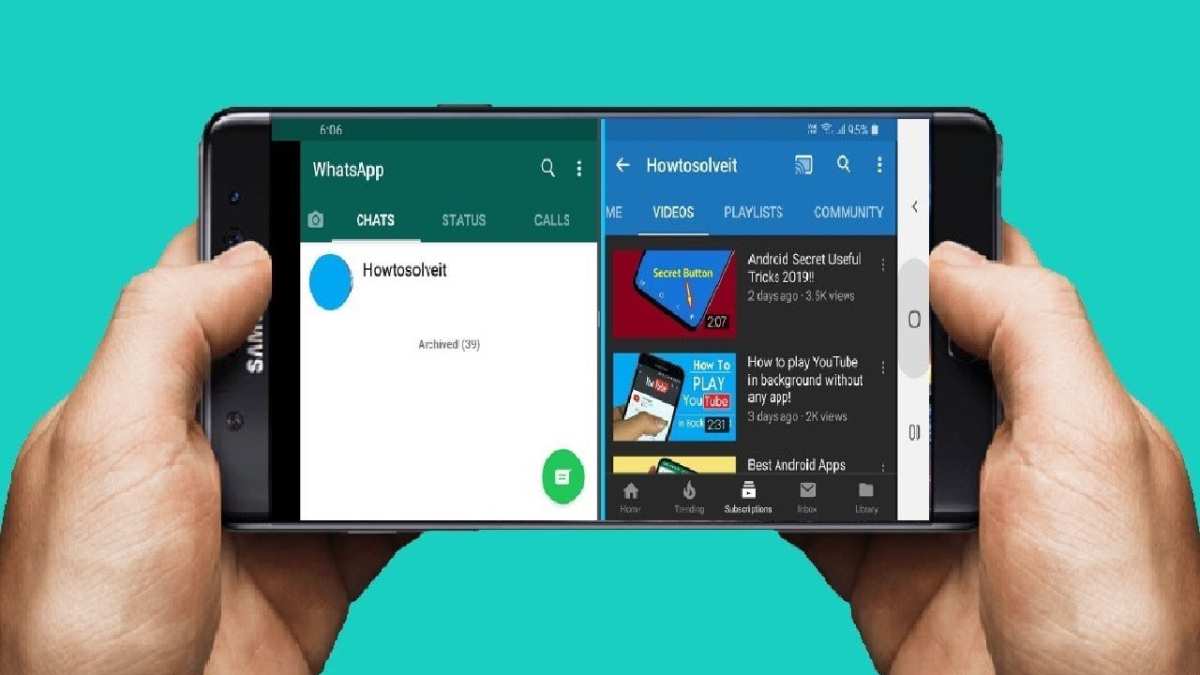
Making your Android device display two apps side by side can be a game-changer for multitasking. Whether you want to watch a video while browsing the web or reply to messages without switching between apps, the split-screen feature makes it all possible. In this guide, you’ll learn step-by-step how to activate and use split screen on your Android device, the best practices for a smooth experience, and tips to troubleshoot common issues. We will also explore different methods depending on your device’s Android version, so no matter what phone you own, you’ll find the instructions helpful.Understanding the Android Split Screen Feature
Before diving into the how-tos, it helps to understand what split screen is and how it works on Android. Split screen divides your screen into two parts, allowing you to run two apps simultaneously. This feature is especially useful when you need to compare information, copy-and-paste content, or keep an eye on multiple notifications or media sources at once. Some Android devices have a dedicated split-screen button, while others use gestures or settings menu options. The feature’s availability and functionality may vary based on your Android version or device manufacturer. For example, Samsung’s One UI offers a slightly different experience from stock Android or Xiaomi devices.Key Benefits of Using Split Screen
- Multitasking becomes faster and more natural.
- You can watch videos while browsing the web.
- Compare documents side by side easily.
- Take notes while attending online meetings or tutorials.
- Reply to messages without leaving your current app.
Check Your Android Version and Compatibility
Before you learn how to activate split screen, check your device’s Android version. Split screen was first introduced in Android 7.0 Nougat and has been improved in later versions. Here’s how to verify your Android version:- Open the Settings app on your device.
- Scroll down and tap on About Phone or About Device.
- Look for Android Version.
How to Use Split Screen on Android Devices
Depending on your Android version and device brand, the process may differ slightly. Here are the most common methods:Using the Recent Apps Button (Button Navigation)
This method is typical for devices with navigation buttons or gestures that mimic them.- Open the first app you want to use in split screen.
- Tap the Recent Apps button. This is usually a square icon or a button on the navigation bar.
- Find the app you are currently using, then tap the app icon at the top of its card or window.
- Select Split Screen from the options. On some devices, you might need to tap the app’s title to see this option.
- The screen will split into two parts. Select the second app you want to open from the recent apps list or your app drawer.
Using Gesture Navigation (Swipe Up or Similar Gestures)
If your device uses gestures instead of buttons, follow these steps:- Open the first app you want to split-screen.
- Swipe up from the bottom of the screen to access the recent apps screen, or swipe up and hold to access split screen mode on devices that support it.
- Tap the app icon at the top of the app card or preview.
- Tap Split Screen. If this isn’t available, try swiping the app to the top or side of the screen to enter split-screen mode.
- Select your second app from the recent apps or app drawer.
Using the Quick Settings Panel (Samsung and Some Devices)
On many phones, split screen can be accessed directly via quick settings:- Pull down the notification shade to open quick settings.
- Look for an icon named Split Screen or similar.
- Tap it, then select the first app.
- The screen will split; then select the second app to open in the other window.
Managing and Resizing Split Screen Windows
Once split screen mode is active, managing the size of each window is straightforward:- Locate the dividing line between the two apps.
- Tap and hold this line, then drag it up or down (or side to side if in landscape mode) to resize the windows.
- To exit split screen, drag the divider all the way to the top or bottom, or tap the home button if your device allows.
Using Split Screen in Different Android Versions
Android versions before 10 often had limited split screen options, mainly accessible through recent apps. Android 10 and later improved this significantly, especially with gesture navigation. – **Android 7.0 to 9.0 (Nougat to Pie):** Split screen is available but may require more steps. – **Android 10 and above:** Quick and more flexible split screen gestures and options. – **Android 11 and later:** Enhanced multitasking features, including easier access to split screen. Keep in mind that some device manufacturers add their custom layers, which might improve or limit the functionality. Always check your device’s user guide for specific instructions.Tips for Better Multitasking with Split Screen
To get the most out of your split screen experience, consider these tips:- Choose compatible apps to prevent lag or crashing. Some apps do not support split screen.
- Use apps that are lightweight to keep multitasking smooth.
- Adjust the divider for the most comfortable viewing and interaction.
- Close unnecessary apps in your recent apps to free up resources.
- Use split screen in landscape mode for a wider view, especially when watching videos or browsing.
Possible Challenges and Troubleshooting
Sometimes, entering split screen might not work as expected. Here are common issues and solutions:Split Screen Option Missing
– Ensure your Android version supports split screen. – Check if the feature is disabled in device settings or launcher options. – Restart your device to refresh system functions.Apps Not Supporting Split Screen
– Not all apps work in split screen mode. You’ll see a message or the option is greyed out. – Try updating the app or use alternate apps that support multitasking.Screen Flickering or Lag
– Close background apps to free system resources. – Restart your device. – Update your device’s software for bug fixes. Using split screen on your Android device can make multitasking more efficient and enjoyable. Whether you prefer to use buttons, gestures, or quick settings, activating this feature is simple once you understand your device’s specific method. Remember to choose compatible apps for a smooth experience and to customize the window sizes for comfort. Always keep your device updated to access the latest multitasking features and fixes. With a little practice, managing two apps at once will become a natural part of your smartphone use.Frequently Asked Questions
How can I activate split screen mode on my Android device?
To activate split screen mode, open the recent apps menu by tapping the square or recent button. Find the app you want to use in split screen, then tap the app icon or long-press the app preview. Select the option labeled “Split screen” or “Open in split screen.” The screen will split into two, allowing you to select another app to open in the second half.
Are there specific Android versions that support split screen functionality?
Split screen support is available on Android 7.0 Nougat and newer versions. If your device runs on these versions or later, you can use the split screen feature. To confirm your Android version, go to Settings > About phone > Software information, and check the Android version number.
Can I adjust the size of the split screen between two apps?
Yes, after activating split screen, you can resize the view by dragging the divider line between the two apps. Simply tap and hold the divider, then move it up or down (or side to side, depending on orientation) to adjust the proportion of screen space each app occupies.
What should I do if the split screen option isn’t appearing on my device?
If the split screen option does not show up, ensure your device runs Android 7.0 or higher. Also, verify that the app you are trying to use supports split screen mode. Restart your device or update your operating system to the latest version, which can often resolve compatibility issues.
Is split screen available on all Android devices or only specific models?
Split screen is supported on most recent Android devices running Android 7.0 and above. However, the implementation and ease of access can vary between manufacturers and models. Some devices may require specific gestures or settings adjustments to enable the feature.
Final Thoughts
To make split screen android, open the recent apps menu by tapping the square or multitasking button. Press and hold the app you want to view alongside another. Drag it to the top or side of the screen, depending on your device orientation. Select the second app from your recent apps or app drawer to fill the remaining screen space. In conclusion, how to make split screen android involves a simple process of selecting and positioning apps. This method allows you to multitask efficiently, making your device more productive.
Similar Posts































