How To Make Songs Your Ringtone Android: Easy Steps
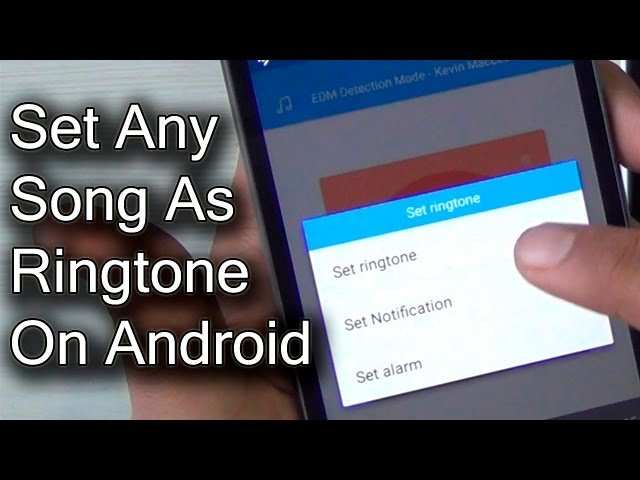

How to Make Songs Your Ringtone Android
Creating a custom ringtone from your favorite songs can make your Android device feel more personal and fun. Instead of settling for the default ringtones, you can choose any song you like and set specific parts to ring for calls, texts, or alerts. In this guide, we will walk you through the process step by step, sharing tips and tricks to make the whole experience simple and enjoyable. Whether you’re a beginner or someone who wants to explore more options, this article will give you everything you need to make your Android ringtone stand out.Understanding Ringtone Files and Formats
Before diving into how to make songs your ringtone on Android, it’s important to understand the common file types used for ringtones. Most Android phones accept mp3, m4a, and wav formats.- MP3: The most popular audio format for ringtones due to its compatibility and good sound quality.
- M4A: Similar to MP3, often used for files purchased from Apple iTunes but compatible with Android devices.
- WAV: An uncompressed audio format, offering high quality but larger in file size, suitable for high-fidelity ringtones.
Choosing the Right Part of the Song for Your Ringtone
Not every segment of a song makes the best ringtone. When selecting the portion of your music to use, keep a few tips in mind:- Keep it short: Ringtones typically last around 20 to 30 seconds. Shorter clips are more effective and less intrusive.
- Pick a catchy part: The chorus or a distinctive hook often works best as a ringtone because it’s recognizable and attention-grabbing.
- Avoid abrupt cuts: Choose parts that start and end smoothly to avoid awkward pauses or abrupt stops.
Using Built-in Android Features to Make a Ringtone
Many Android phones offer basic tools that enable you to create a ringtone directly on your device. Here’s how to do it:Steps to create a ringtone directly from your music app
- Open your music or song app and locate the song you want to set as a ringtone.
- Tap on the options or menu button associated with the song (usually three dots or swipe options).
- Select the option “Set as” or “Use as ringtone”. Some phones show “Create ringtone” or “Edit” options.
- Adjust the start and end points if available. Preview the clip to ensure it fits your preference.
- Save your selection. Your device may prompt you to assign it to a specific contact or set it as the default ringtone.
Creating Ringtones Using Third-party Apps
If your phone’s default options are limited or you want more customization, numerous apps are available to help you make perfect ringtones. Some popular options include:- Ringdroid: An easy-to-use app that allows you to cut, edit, and set songs as ringtones directly from your phone.
- MP3 Cutter and Ringtone Maker: Offers precise editing features and supports multiple formats.
- Zedge: Besides offering pre-made ringtones, it lets you create custom ringtones from your music files.
Steps to create a ringtone with these apps
- Download and install your preferred ringtone maker app from the Google Play Store.
- Open the app and grant necessary permissions for storage access.
- Select the song you want to turn into a ringtone from your device storage.
- Use the app’s editing tools to trim the song to your desired segment. Most apps have a simple slider interface for this purpose.
- Preview the edited segment to check the sound quality and transition smoothness.
- Save the ringtone file and assign it as your default ringtone or for specific contacts.
Saving and Managing Your Custom Ringtones
Once you’ve created your ideal ringtone, proper management ensures easy access and future modifications. Here’s how to keep things organized:- Locate your ringtone files: Usually saved in the “Ringtones” folder within your device’s internal storage or SD card.
- Name your files: Use descriptive names, such as “My Favorite Song” or “Chorus Clip,” to find them easily.
- Create a dedicated folder: To avoid clutter, store all your custom ringtones in a specific folder like “My Ringtones” for quick access.
Setting Your Custom Ringtone on Android
After creating your ringtone, setting it up is simple:Steps to assign your custom ringtone globally or to specific contacts
- Open the Settings app on your Android device.
- Navigate to “Sound” or “Sound & Vibration”.
- Tap on “Phone Ringtone” or “Ringtone”.
- Browse through the list of available ringtones and select “Add” or “Choose local file” if your custom ringtone isn’t listed.
- Locate your saved ringtone file in your storage and select it.
- Confirm your selection, and your custom ringtone will be set.
- Open the Contacts app and select the contact.
- Tap on “Edit” or the pencil icon.
- Find the section labeled “Ringtone” or “Default ringtone”.
- Select your custom ringtone from the list and save changes.
Tips for Best Results When Making Ringtones
To ensure your ringtones sound great and work properly, consider these tips:- Test your ringtone: Play it before setting to confirm the sound quality and volume.
- Keep file sizes reasonable: Aim for files under 1MB for smooth performance and faster loading.
- Use good quality audio: Lower quality files may sound distorted or unclear, so choose high-quality sources.
- Avoid copyrighted material without permission: To stay within legal boundaries, use music you’re authorized to use or royalty-free sounds.
- Back up your ringtones: Save your custom files to cloud storage or a computer to prevent loss during device resets or updates.
Summary
Making songs your ringtone on Android is a rewarding process that lets you personalize your device to match your style. Whether you use built-in tools or third-party apps, the key is choosing the right song segment, editing it carefully, and saving it properly. Once set, your phone will ring with a sound that’s uniquely yours, making your everyday calls more enjoyable. Remember to keep your files organized and always test your ringtone before setting it live. With these steps, you’re all set to create and enjoy custom ringtones that reflect your musical taste and personality.Frequently Asked Questions
How can I set a specific part of a song as my ringtone on Android?
First, open your preferred audio editing app or use the built-in editor if available on your device. Import the song you want to use. Select the portion of the song you wish to set as your ringtone by trimming or cropping it. Save the edited clip to your device, then go to your phone’s Settings, navigate to Sounds & Vibration, and select Ringtone. Choose the saved clip from your list of available ringtones, and set it as your default or specific contact ringtone.
What steps should I follow to add a custom ringtone to a particular contact on Android?
Access your Contacts app and select the contact you want to assign a custom ringtone to. Tap the Edit option, then look for the Ringtone setting within the contact details. Tap on Ringtone and choose the song or audio clip you want to assign. If your ringtone isn’t listed, ensure you have saved it properly in your device. Save the changes, and when that contact calls, your chosen ringtone will ring instead of the default one.
Are there any apps that simplify making songs into ringtones on Android?
Yes, several apps make it easier to create and set custom ringtones. Apps like Ringtone Maker, MP3 Cutter, or Zedge allow you to select a song, trim it to your preferred segment, and directly save it as a ringtone within the app. These apps often provide options to preview the clip before saving, making the process straightforward and quick.
Can I use a music file from my streaming service as a ringtone on Android?
Streaming service files are typically protected with digital rights management (DRM), preventing you from saving them directly as ringtones. To use a streaming song as a ringtone, you need to download or purchase the file legally, then edit and set it as your ringtone using your device’s settings or a ringtone editor app. Always respect copyright laws when using music files for personal use.
Final Thoughts
To make songs your ringtone on Android, start by selecting your favorite song and trimming it to the desired length using a free app like Ringtone Maker. Save the clip in a compatible format, such as MP3. Then, go to your device’s settings, select ‘Sound,’ and tap on ‘Ringtone.’ Choose the new ringtone from the list. By following these simple steps, you can easily customize your Android device. Remember, how to make songs your ringtone android is straightforward once you know the process. Enjoy your personalized ringtone!
Similar Posts