How To Make Songs Your Ringtone On Android In Easy Steps
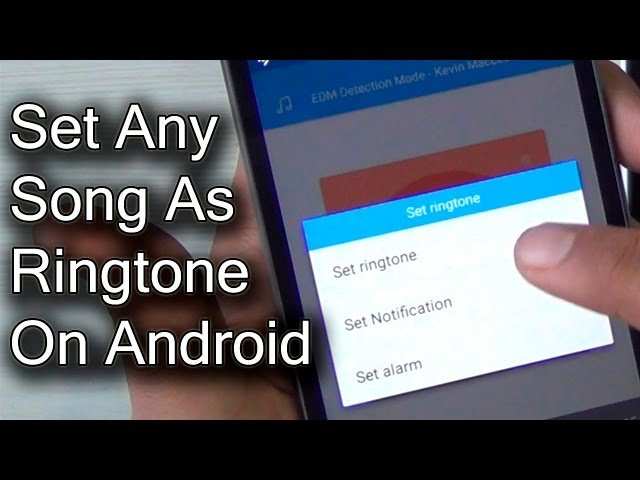

How to Make Songs Your Ringtone on Android
Making your favorite song your ringtone on an Android device might seem tricky at first, but it’s actually pretty simple once you know the steps. Whether you want a lively tune to start your day or a special song to remind you of someone, setting custom ringtones helps you personalize your phone in a way that makes it more fun and unique. In this guide, we will walk you through everything you need to know, including how to choose the right song, edit it to fit your ringtone needs, and set it up properly on your Android device.Understanding Ringtones and Why They Matter
Before diving into the process, let’s understand what a ringtone is and why choosing the right one matters. A ringtone is the sound your phone makes when someone calls you. You can choose a default ringtone or create a custom one. Custom ringtones allow you to:- Personalize your device to reflect your style
- Identify your calls more easily with unique sounds
- Add a fun or sentimental touch to your phone experience
Finding the Perfect Song for Your Ringtone
The first step to making your own ringtone is selecting the right song. Here are some tips:- Select a song that is not too long — ideally less than 30 seconds
- Pick a part of the song that has a recognizable and catchy sound
- Ensure the song is stored on your device or can be easily transferred to it
Preparing the Song for Use as a Ringtone
Once you’ve chosen your favorite song, you’ll often need to edit it to fit the ringtone length and format. Most Android devices accept MP3 files, so your song should be converted to MP3 if it’s in another format.Using a Music Editor App
Several apps can help you cut and edit your songs directly on your phone. Here are some popular options:- Ringdroid — a free app available on Google Play Store
- MP3 Cutter and Ringtone Maker — another free, user-friendly option
- Audacity — a more advanced app if you prefer editing with more control (requires computer)
- Open the app and load your selected song
- Choose the part of the song you want as your ringtone — usually around 15 to 30 seconds
- Save the clip in MP3 format and give it a memorable name
Tip: Keep Your Ringtone Files Organized
Create a special folder on your device, like ‘Ringtones’, and save all your custom ringtones there. It makes it easier to find them later when you’re setting up your phone.Transferring the Ringtone to Your Android Device
Most editing apps save your ringtones directly onto your device, but if needed, you can transfer files manually:- Connect your phone to your computer using a USB cable
- Enable file transfer mode on your Android device
- Copy the MP3 ringtone files from your computer to the ‘Ringtones’ folder on your phone
Setting Your Custom Song as a Ringtone
Once your ringtone files are on your Android device, it’s time to set one as your default ringtone or assign it to specific contacts.Changing the Default Ringtone
Follow these simple steps:- Open the Settings app on your Android device
- Scroll down and tap on ‘Sound & Vibration’ (or just ‘Sound’ depending on your device)
- Tap on ‘Phone Ringtone’ or ‘Ringtone’
- Choose ‘Add’ or ‘My Sounds’ to see your custom ringtones
- Select the desired ringtone and confirm your choice
Setting a Ringtone for Specific Contacts
Customizing ringtones for certain contacts helps you identify who’s calling without looking at your phone:- Open your Contacts app
- Select the contact you want to assign a special ringtone to
- Tap on ‘Edit’ — usually represented by a pencil icon
- Scroll down to find ‘Ringtone’ or ‘Set ringtone’
- Choose your custom ringtone from the list and save your changes
Troubleshooting Common Ringtone Issues
Sometimes, setting your custom ringtone might not work as expected. Here are some tips to fix common problems:- If your song isn’t showing up, ensure it’s saved in the correct folder (usually ‘Ringtones’)
- Make sure the ringtone file isn’t corrupted — try editing the file again if needed
- Restart your phone after setting new ringtones to refresh the system
- Verify that your device supports MP3 files or the specific format of your ringtone
Additional Tips for Creating Perfect Ringtones
Want to make your ringtone even better? Consider these extra ideas:- Use fades and volume adjustments during editing for a professional sound
- Avoid using copyrighted music for public sharing to respect copyright laws
- Create different ringtones for different contacts to keep things organized
- Use fun sound effects or voice recordings if you prefer something more humorous or personal
Frequently Asked Questions
How can I cut a song to fit my ringtone on Android?
To tailor a song for your ringtone, open a music editing app compatible with Android, such as Ringtone Maker or MP3 Cutter. Select the song you want to edit, then choose the specific segment you wish to set as your ringtone by adjusting the start and end points. Save the edited clip, and you’ll have a custom ringtone ready to set on your device.
What steps should I follow to set a custom song as my ringtone on Android?
First, ensure your desired song is saved on your phone. Navigate to the Settings menu, then tap on Sound & Vibration or Sound. Select Ringtone, then choose the option to add or pick a new ringtone. Locate the song in your files or music library, select it, and confirm your choice. The song will now play as your ringtone whenever you receive a call.
How do I transfer a song from my computer to my Android device for use as a ringtone?
Connect your Android device to your computer using a USB cable. Transfer the song files into a folder on your device, such as the Music or Ringtones folder. Once copied, disconnect your device, go to Settings > Sound > Ringtone, and select the new song from your list of available tones. This method allows you to add personalized ringtones directly from your computer.
Final Thoughts
To make songs your ringtone on Android, start by selecting the song you want. Use an audio editing app to trim the part you prefer as your ringtone. Save the clip in your device’s storage. Next, go to your phone’s Settings, then Sound, and tap on Ringtone. Choose the option to add a new ringtone. Find your saved clip and select it to set as your ringtone. In conclusion, learning how to make songs your ringtone on Android is simple. Follow these steps, and enjoy your favorite music as your ringtone effortlessly.
Similar Posts































