How To Make Song A Ringtone On Android Easy Steps
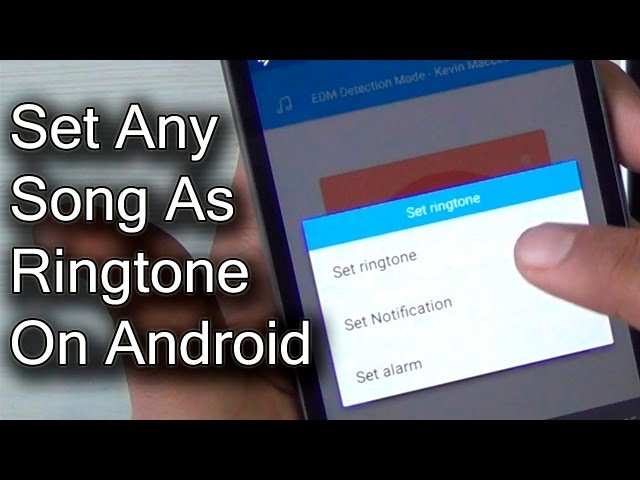
How to Make a Song a Ringtone on Android
Making a song your ringtone on an Android device might seem tricky at first, but once you understand the steps, it becomes an easy task. This guide will walk you through everything you need to know to set your favorite song as your ringtone, including how to pick the right part of the song, use different apps, and troubleshoot common issues. Whether you’re new to Android or just want to change your ringtone quickly, this detailed explanation will help you do it smoothly.Understanding Ringtones and Why Custom Ringtones Matter
Before diving into the steps, it’s helpful to understand what a ringtone is and why customizing it can make your phone more personal.- What is a ringtone? A ringtone is the sound your phone makes when someone calls you.
- Why set custom ringtones? Personalizing your ringtone helps you recognize who’s calling without looking at your phone. It can also make your phone more fun and unique.
- Types of ringtones You can use standard sounds, voice recordings, or favorite songs. Custom songs allow you to pick exactly what you want to hear when someone calls.
Selecting the Right Song for Your Ringtone
Choosing the correct song is essential. Not every part of a song works well as a ringtone. Here’s what to keep in mind:Picking a Song
- Choose songs that are clear and recognizable in short clips.
- Opt for upbeat or catchy parts that grab your attention.
- If the song is long, select a segment between 20 to 30 seconds for the best ringtone length.
Downloading or Accessing Songs
Make sure your song is stored on your device. You can download songs from music apps or transfer audio files from your computer.
Editing Your Song to Create a Ringtone
Most songs are longer than the typical ringtone length, so you’ll need to trim the song to just the part you want. Here’s how to do that effectively:Choosing the Right App
Many apps can help you cut and save a section of your song. Some popular options are:
- Ringdroid
- MP3 Cutter
- Audacity (used on PC but worth mentioning)
Step-by-Step Guide to Cutting Your Song
- Open the app and grant necessary permissions to access your audio files.
- Select the song you want to turn into a ringtone from your device storage.
- Use the editing tools to choose your preferred start and end times. Focus on parts that are clear and catchy.
- Preview the clip to ensure it sounds good as a ringtone.
- Save the clip with a recognizable name in your device’s storage.
Setting Your Edited Song as a Ringtone
Once you have your perfect clip, the next step is to set it as your ringtone. The process may vary slightly depending on the Android version and device model, but generally, the following steps apply:Directly from the App
Many ringtone maker apps offer a built-in option to set the clip as your ringtone immediately after saving. Simply select “Set as ringtone” or equivalent option.
Via Phone Settings
- Go to your device’s Settings.
- Tap on Sound & Vibration or just Sound.
- Select Phone Ringtone.
- Browse your files or the list of available ringtones and tap on your newly edited song clip.
- Confirm your choice and exit settings.
Using File Managers for Greater Control
If your device doesn’t see your file as a ringtone, you may need to move or copy the file to the Ringtones folder on your device. You can use a file manager app for this:
- Open the file manager app.
- Locate your edited song clip.
- Copy or move the file to the Ringtones folder.
- Follow the previous steps to select it as your ringtone.
Additional Tips for Managing Ringtones
Setting multiple ringtones or changing them often is easy once you know how. Here are some tips:- Create a ringtone folder on your device to keep all custom ringtones organized.
- Name your ringtones clearly to identify them easily in your phone settings.
- Use different ringtones for contacts so you know who’s calling without looking at your phone.
Using Online Tools and Apps for Ringtone Creation
If you want more features or easier editing, consider using online tools or apps that specialize in ringtone creation:Online Ringtone Makers
Websites like MP3Cut.net or Ringtone Maker allow you to upload your song, select a segment, and download the clip. Then, transfer it to your phone and set it as a ringtone following the earlier steps.
Music Apps with Ringtone Features
Some music apps like Spotify or Apple Music don’t allow direct ringtone creation, but you can use their audio files with third-party apps for editing.
Troubleshooting Common Issues
Sometimes, setting a custom ringtone might not work immediately. Here are common problems and solutions:- File format issues: Make sure your song clip is in an accepted format like MP3 or WAV.
- Permissions problems: Grant necessary permissions to apps for accessing storage.
- File not showing in options: Move the file to the Ringtones folder or refresh your device’s media scanner.
- App crashes or errors: Update the app or restart your device to resolve glitches.
Frequently Asked Questions
How can I select a specific part of a song to set as my ringtone on Android?
Open a ringtone maker app or your built-in editor, then load the song. Use the trim tool to select the desired section by adjusting the start and end points. Preview the clip to ensure it sounds right, then save and set it as your ringtone.
What steps should I follow to set a custom song as my notification tone on Android?
Navigate to your music or file manager app and locate the song. Copy or move the song to the Ringtones folder on your device storage. Access your device settings, go to Sound & Vibration, then Notification ringtone, and select the song from the list to set it as your notification tone.
Is there a way to make a song a ringtone without using third-party apps?
Yes, you can use your device’s built-in music editor or file manager. Locate the song, then access the options menu to trim the audio file directly. Save the edited version in the Ringtones folder or set it as a ringtone through the sound settings menu.
How do I ensure the song I select is in the correct format for Android?
Most Android devices support common audio formats like MP3, WAV, and OGG. If your song isn’t in one of these formats, convert it using an online converter or a media editing app before trying to set it as a ringtone.
Can I use a song from my streaming service as a ringtone on Android?
No, streaming service songs are usually protected by digital rights management (DRM), which prevents you from saving or editing them directly. Download the song legally to your device, then edit and set it as a ringtone following standard procedures.
Final Thoughts
Pour faire de votre chanson un ringtone sur Android, commencez par ouvrir votre application de musique et sélectionnez la chanson souhaitée. Ensuite, utilisez un éditeur audio pour couper la partie que vous voulez comme sonnerie. Sauvegardez le fichier dans le format approprié. Accédez aux paramètres de votre téléphone, puis à la section des sonneries. Choisissez l’option pour ajouter une nouvelle sonnerie et sélectionnez votre fichier modifié. Enfin, définissez cette chanson comme sonnerie pour vos appels. Pour faire de votre chanson un ringtone sur Android, suivez ces étapes simples. Appliquez cette méthode pour personnaliser votre téléphone facilement.
Similar Posts































