How To Make A Playlist On Android Step By Step
How to Make a Playlist on Android
Creating a playlist on your Android device might seem simple, but there’s more to it than just pressing a few buttons. Whether you want a playlist for workouts, relaxing evenings, or road trips, organizing your favorite songs helps you enjoy your music better. In this guide, you’ll learn step-by-step how to make a playlist on Android, explore different ways to add songs, and discover tips to keep your playlists fresh and personalized.Understanding Your Music App Options
Before diving into creating playlists, it’s important to know which music app you plan to use. Android phones come with different apps, and you can also download third-party ones.Default Music Player
Many Android devices come with a pre-installed music app, like Google Play Music (which has been replaced by YouTube Music) or Samsung Music, depending on your device brand.Popular Third-Party Music Apps
Some apps offer additional features that make playlist creation easier:- Spotify – excellent for streaming and creating playlists from a vast music library.
- Apple Music – available on Android, with seamless playlist creation features.
- Deezer – another great option for personal playlists and streaming.
- Amazon Music – offers playlist options for Prime members.
Creating a Playlist in Your Music App
Now, let’s get into the actual process. Although steps vary slightly depending on the app, the core idea remains similar. We’ll use YouTube Music as an example, since it’s a common choice on Android devices.How to Make a Playlist on YouTube Music
Follow these steps:- Open the YouTube Music app on your Android device.
- Tap on your profile picture or initials in the top right corner.
- Select Library from the menu.
- Tap on Playlists.
- Click the CREATE PLAYLIST button.
- Enter a name for your playlist. You can also add a description if you want.
- Choose the privacy setting: Public, Unlisted, or Private.
- Tap on Create.
Adding Songs to Your Playlist
Adding songs is straightforward. Here’s how to do it:Using Search to Add Songs
- Navigate to the search tab or bar within the app.
- Type the name of the song, artist, or album.
- Find the track you want to add from the search results.
- Tap the three-dot menu next to the song.
- Select Add to playlist.
- Choose the playlist you just created.
Adding Songs from Your Library
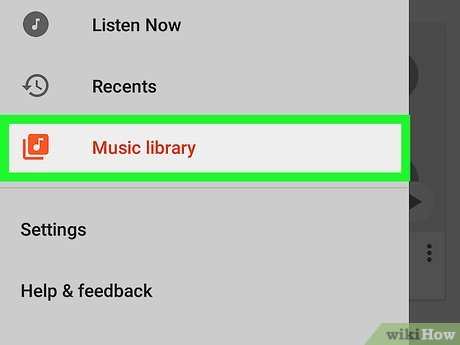
- Go to your library or my music section.
- Browse or search for songs already stored on your device or in your account.
- Tap the three-dot menu next to a song.
- Choose Add to playlist.
- Select your playlist.
Adding Multiple Songs at Once
Some apps allow you to select multiple tracks simultaneously for quick additions:- Long press on one song to select it.
- Tap or tap and hold on additional songs to select multiple ones.
- Tap the Add to playlist button.
- Select your playlist to add all selected songs at once.
Editing Your Playlist
As your music collection grows, you might want to update your playlist. Here’s how to do that efficiently:Rearranging Songs
Most apps let you drag and drop songs within the playlist to set the order:- Open the playlist.
- Press and hold on a song.
- Drag it to your desired position.
Removing Songs
To delete a song:- Open your playlist.
- Tap the three-dot menu next to the song.
- Select Remove from playlist.
Adding New Songs to an Existing Playlist
Repeat the search and add process, then select the existing playlist to include new tracks.Syncing Playlists Across Devices
Many music apps automatically sync your playlists when you’re logged in with the same account. This makes it easy to enjoy your curated list on different devices. To ensure synchronization:- Make sure you are logged into the same account on all devices.
- Check your app’s sync settings or preferences.
- Keep your app updated to the latest version for optimal performance.
Additional Tips for Creating Effective Playlists
Creating a playlist is more than just adding songs. Here are some ideas to make your playlist enjoyable and easy to manage:Choose a Theme or Mood
Decide on the mood or theme, like workout tunes, relaxing melodies, or dance hits. This helps you pick songs that fit your vibe and make listening more fun.Mix Popular and Lesser-Known Tracks
Including a mix of hit songs and hidden gems keeps your playlist interesting and surprises you.Simplify Navigation
Name your playlist clearly so you can find it easily later. Use descriptive titles like “Morning Run” instead of generic names.Update Your Playlist Regularly
Remove songs you no longer want and add new favorites. Keeping your playlist fresh ensures it remains enjoyable.Using Built-in Features for Customization
Most music apps offer features to customize your playlist further:- Sorting options: Arrange songs by title, artist, or custom order.
- Adding album art: Some apps let you change or add images to your playlists for a personalized touch.
- Sharing playlists: Send your playlist to friends or share on social media.
Managing Storage and Offline Listening
If you want to listen to your playlist offline:- Download songs or playlists within your app, if supported.
- Ensure you have enough storage space on your device.
- Access your playlist without an internet connection, useful for traveling or areas with weak signal.
Frequently Asked Questions
How can I add multiple songs to my playlist on Android?
To add multiple songs, open your music app and navigate to the playlist you want to edit. Tap the option to add songs, then select multiple tracks by holding down on each one or using the selection mode. Confirm your choices to include all selected songs in your playlist.
Is it possible to reorganize the order of songs in my Android playlist?
Yes, most music apps allow you to change the order of songs within a playlist. Open your playlist, then drag and drop the tracks to your preferred positions. Some apps also offer options to sort songs alphabetically or by other criteria, which can help you customize the order easily.
How do I delete a song from an existing playlist on my Android device?
Navigate to your playlist in the music app. Find the song you want to remove, then tap or press the options menu next to it. Choose the delete or remove option, and the song will be removed from that playlist without affecting it elsewhere in your library.
Can I create a playlist without an internet connection on Android?
Yes, once you have downloaded your songs onto your device, you can create and listen to playlists offline. Open your music app, select the songs stored locally, and add them to a new playlist. No internet connection is required to access or organize locally stored music.
Are there any tips for sharing my playlist with others on Android?
Most music apps provide sharing options. After creating your playlist, look for a share button or menu. You can typically export the playlist link or send it via messaging or email. Ensure the recipient has access to the same app or compatible platform to open and listen to your playlist.
Final Thoughts
Making a playlist on Android is simple and quick. Open your preferred music app, like Google Play Music or Spotify. Tap the “Create Playlist” button, then name your playlist. Add songs by searching or browsing your library. Organize your playlist by dragging songs into your desired order. Save your playlist to access it anytime. This way, you can enjoy your favorite tunes effortlessly. In summary, how to make a playlist on Android involves creating, adding, organizing, and saving your selections. Follow these steps to enjoy custom playlists tailored to your mood or activity.
Similar Posts































