How To Make A Hotspot On Android For Internet Sharing
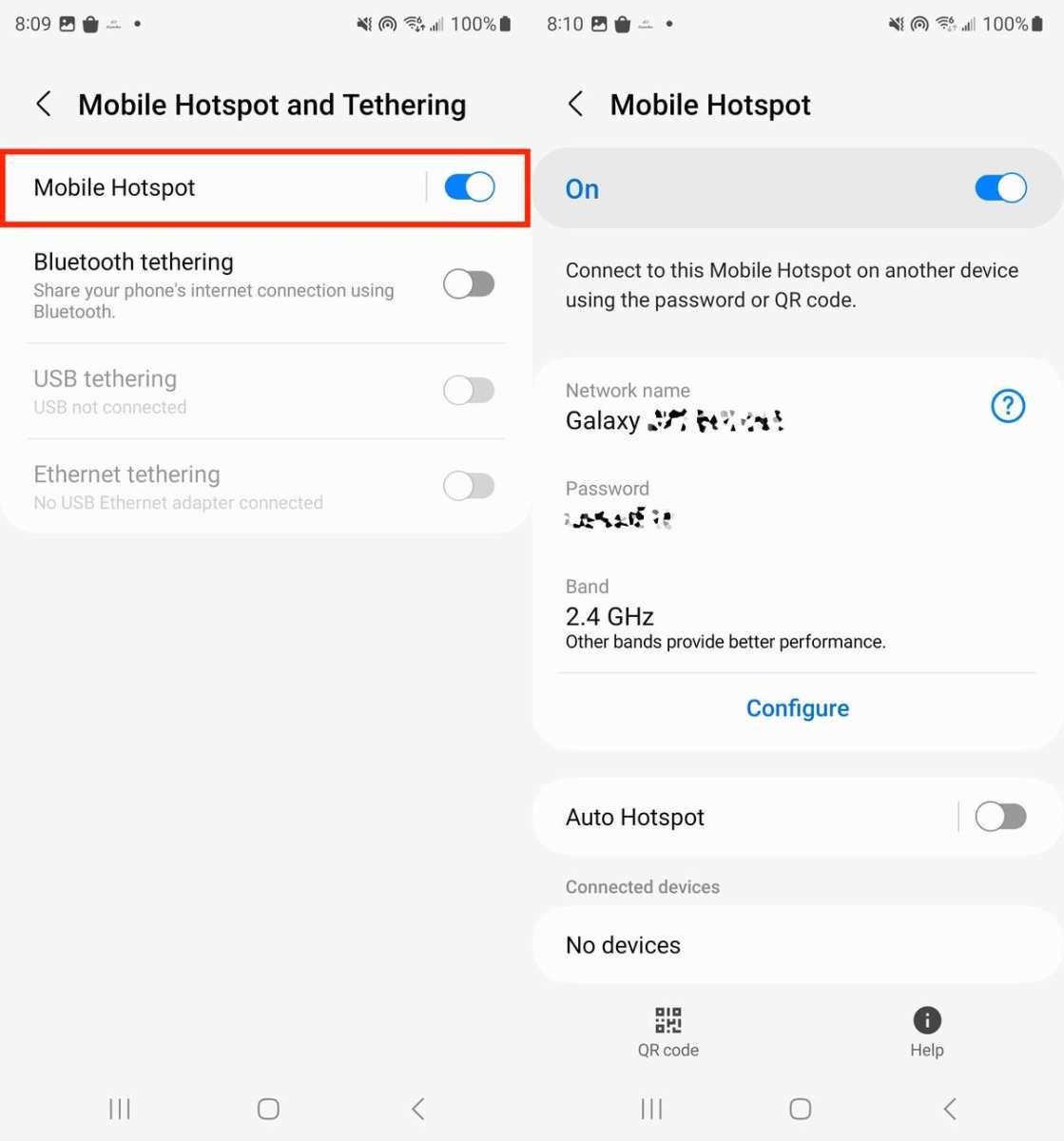
To make a hotspot on Android, simply access your device’s settings, turn on the portable hotspot feature, and connect your other devices. **It’s a quick process that only takes a few taps.** When you want to share your internet connection, knowing how to make a hotspot on Android saves you time and keeps you connected on the go. Just follow these easy steps, and you’ll be sharing your data effortlessly. No need for extra apps or complicated setups—your phone does the job seamlessly.
How to Make a Hotspot on Android
Having the ability to share your phone’s internet connection with other devices can be a real lifesaver, especially when you’re out and about or in places with weak Wi-Fi signals. Turning your Android phone into a mobile hotspot allows your laptop, tablet, or other gadgets to connect to the internet using your phone’s mobile data. In this guide, we’ll walk through how to make a hotspot on Android step by step, along with important tips and troubleshooting options to ensure a smooth experience.
Understanding Mobile Hotspot on Android
Before diving into the process, let’s clarify what a mobile hotspot is and how it works. A mobile hotspot uses your phone’s cellular data to create a Wi-Fi network. Other devices can then connect to this network just like they would to any Wi-Fi source. This feature is especially useful when:
- You’re traveling and need internet access for your laptop or tablet.
- Your home Wi-Fi isn’t working temporarily.
- You want to save on data by sharing a stable connection from your phone.
It’s important to remember that using your phone as a hotspot can consume a lot of data, so keep an eye on your data plan to avoid extra charges.
Steps to Turn Your Android Phone Into a Hotspot
Creating a mobile hotspot on Android is straightforward. Here are the detailed steps:
Accessing the Hotspot Settings
1. Open your phone’s **Settings** app. You can find this icon on your home screen or in the apps drawer.
2. Scroll down and look for **Network & Internet** or **Connections**, depending on your phone model.
3. Tap on **Hotspot & Tethering** or **Mobile Hotspot and Tethering**. This section contains options to manage your internet sharing.
Enabling and Configuring the Hotspot
Once you’re in the Hotspot & Tethering menu:
1. Tap on **Wi-Fi hotspot** or **Mobile Hotspot**.
2. Toggle the switch to **On**. Your phone will start broadcasting a Wi-Fi network.
3. To customize the network, tap on **Set up Wi-Fi hotspot** or **Configure hotspot**.
In this configuration menu:
- Set a **Network Name (SSID)** – this is the name other devices will see when searching for Wi-Fi networks.
- Choose a **Security type**, usually WPA2-Personal – this protects your connection from unauthorized access.
- Create a **Password** – use a strong password with a mix of letters, numbers, and symbols.
- Set or confirm the **AP Band** – usually 2.4 GHz or 5 GHz, depending on your device’s capabilities.
Once you’ve entered all details, save the settings. Your hotspot is now ready!
Connecting Devices to Your Hotspot
To connect other devices:
- Open Wi-Fi settings on the device you want to connect.
- Find your hotspot’s network name (SSID) in the list of available networks.
- Select it and enter the password you set earlier.
- Once connected, the device will access the internet through your phone’s data connection.
Managing Your Hotspot for Better Performance
To ensure your hotspot operates efficiently, consider these tips:
- Keep your phone within close range of connected devices to avoid connection drops.
- Limit the number of connected devices. Most phones allow between 5-10 devices.
- Turn off the hotspot when not in use to save battery and data.
- Monitor your data usage regularly, especially if you’re on a limited plan.
Adjusting Hotspot Settings for Better Security and Performance
Securing your hotspot with a password is vital. Follow these best practices:
- Use a complex password that isn’t easily guessable.
- Change your password periodically for added security.
- Disable the hotspot feature when you’re not using it.
- Check for firmware or software updates on your device, which can improve security and performance.
If you notice slow speeds or disconnects, try switching the band between 2.4 GHz and 5 GHz, if your device supports it. The 2.4 GHz band offers better range, while the 5 GHz band provides faster speeds but over a shorter distance.
Troubleshooting Common Hotspot Issues
Sometimes, things don’t go as planned. Here are some common problems and how to fix them:
Hotspot Won’t Turn On
– Make sure your mobile plan includes hotspot data. Some plans restrict this feature.
– Restart your phone.
– Check if other devices are already connected and disconnect them if needed.
– Ensure your phone has a good cellular connection.
Devices Can’t Connect to Hotspot
– Confirm the hotspot is active and visible.
– Double-check the password.
– Restart both your phone and the device trying to connect.
– Reset network settings if necessary.
Slow Internet Speed
– Limit the number of connected devices.
– Switch from the 2.4 GHz to 5 GHz band if possible.
– Move your phone closer to connected devices.
– Avoid simultaneous large downloads or streaming.
Battery Drain
Using a hotspot consumes a lot of power. To conserve battery:
- Keep your phone plugged into a charger if possible.
- Disable the hotspot when not needed.
- Lower screen brightness and close unnecessary apps.
Additional Tips for Using the Hotspot Effectively
– Always update your device software to ensure you have the latest features and security patches.
– Use a VPN if connecting to sensitive work or personal data. This adds an extra layer of security.
– Consider upgrading your data plan if you frequently use your hotspot to avoid overage charges.
– Use a dedicated device for hotspot if you rely heavily on it, as it can help manage data and power better.
Things to Keep in Mind
– Not all Android devices support hotspot features, so check your device specifications.
– Sharing your data connection can drain your battery quicker than usual.
– Using a hotspot on your phone can be costly if you exceed your data limit; always monitor your usage.
By following these detailed steps and tips, you can easily turn your Android phone into a reliable hotspot for all your internet needs. Whether you’re working remotely, managing travel logistics, or just need to keep your devices connected in a pinch, this feature makes your device more versatile than ever.
Frequently Asked Questions
How can I set up a mobile hotspot on an Android device?
To set up a mobile hotspot on your Android device, open the Settings app and tap on the “Network & internet” or “Connections” option. Look for “Hotspot & tethering” or “Mobile Hotspot” and select it. Turn on the “Wi-Fi hotspot” feature, configure your network name and password if needed, and then activate the hotspot. Your device will now share its internet connection with nearby devices.
What steps should I follow to change the hotspot password on Android?
Navigate to your device’s Settings and select “Network & internet” or “Connections.” Tap on “Hotspot & tethering” or “Mobile Hotspot,” then choose “Set up Wi-Fi hotspot” or a similar option. Here, you can modify the network name and password. Save your changes, and your new password will be active, ensuring only authorized devices connect to your hotspot.
Can I customize the network name and security settings for my Android hotspot?
Yes, you can personalize your hotspot’s network name and security settings. Access the “Hotspot & tethering” section in your Settings, select “Set up Wi-Fi hotspot,” and input your preferred network name (SSID). Choose a security type like WPA2, and set a strong password. Save your settings to activate your customized hotspot.
Is it possible to share my Android’s internet connection via USB tethering?
Absolutely. Connect your Android device to your computer using a USB cable. Open Settings and go to “Network & internet” or “Connections.” Tap on “Hotspot & tethering” and then enable “USB tethering.” Your computer will recognize the connection, allowing you to browse the internet through your Android device’s data plan.
What should I do if my Android hotspot isn’t working properly?
If your hotspot isn’t functioning, first verify that your mobile data is active and has a strong signal. Restart your device to reset network settings. Ensure that the hotspot feature is enabled and that your device isn’t connected to too many devices simultaneously. If problems persist, update your device software or contact your carrier for additional support.
Final Thoughts
To make a hotspot on Android, start by opening your device’s Settings app. Tap on “Network & Internet,” then select “Hotspot & tethering.” Activate the “Wi-Fi hotspot” feature and customize your network name and password.
Ensure your data plan allows for hotspot usage and keep an eye on your data consumption. Once set up, connect your other devices to the new Wi-Fi network using the password you created.
In conclusion, how to make a hotspot on android is straightforward. Follow these simple steps to quickly share your internet connection whenever needed.

Similar Posts































