How To Check Android Battery Capacity Effectively
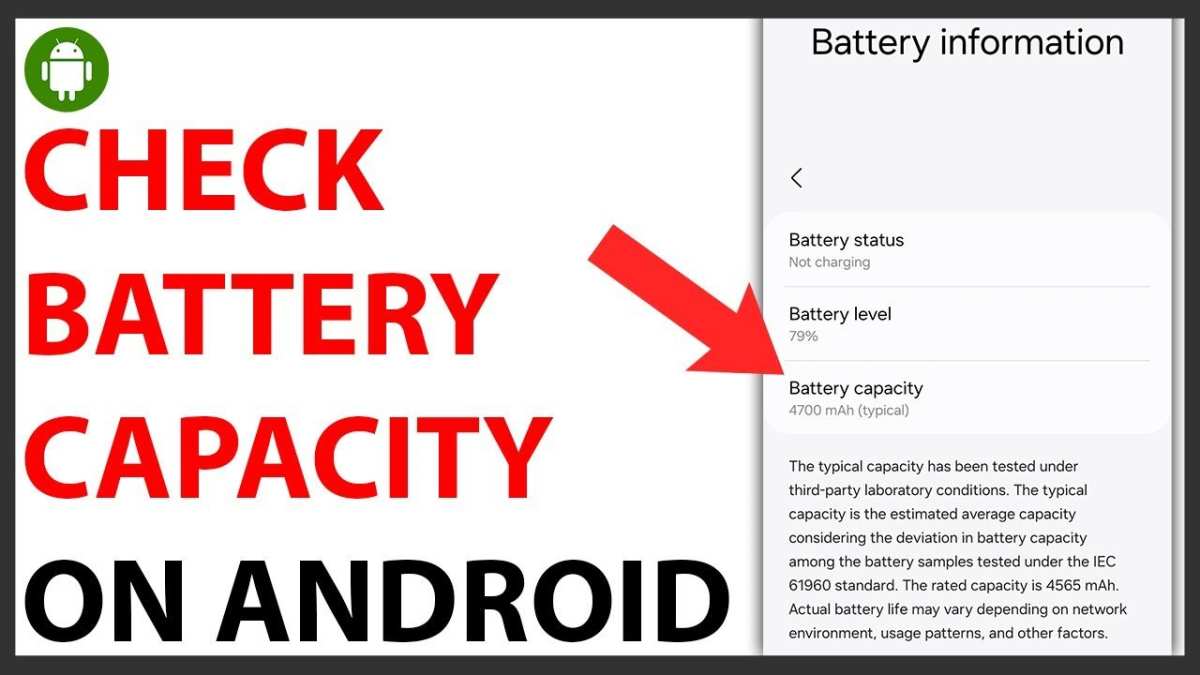
To check your Android battery capacity, you can use built-in settings or third-party apps for precise details. **Most Android devices display battery health information within settings or through diagnostic codes.** Simply accessing the device’s battery settings often reveals the current capacity and health status. If you want more detailed insights, installing a dedicated app provides a clear overview of your battery’s real capacity. Knowing how to check Android battery capacity helps you gauge when it’s time for a replacement or maintenance. Staying aware of your battery’s condition keeps your device functioning smoothly.

How to Check Android Battery Capacity
Understanding your Android device’s battery capacity is essential for keeping your phone running smoothly. Knowing whether your battery is healthy, degraded, or still performing well helps you make smart choices about charging habits, usage, or whether it’s time for a replacement. In this guide, we will explore all the ways you can check your Android’s battery capacity in simple steps, along with tips to interpret the results and maintain your battery’s health.
Why Is Battery Capacity Important?
Before diving into the how-to, it’s useful to understand why checking your battery capacity matters. The capacity of a battery is measured in milliampere-hours (mAh). When your phone is new, its battery capacity is at its highest level, which means longer usage times between charges.
However, over time and with regular use, batteries tend to lose their full capacity—a process called degradation. A degraded battery holds less charge and can cause your phone to power off unexpectedly or have reduced battery life. By checking your battery’s capacity, you can:
- Determine if your battery is still healthy or needs replacement
- Plan your usage to prevent unexpected shutdowns
- Improve charging habits to extend battery life
- Ensure your device runs efficiently without unnecessary strain
Understanding the Basics of Android Battery Capacity
Android devices do not all display detailed battery information in the same way. Some phones include built-in features, while others require third-party tools or apps. Typically, the original battery capacity is specified in the device’s specifications, but the real capacity may change over time.
The key terms to understand include:
- Design Capacity: The original capacity of the battery when new, usually given in mAh.
- Current Capacity: The actual capacity the battery can hold now, which often decreases with age.
- Battery Health: A measure of how well the battery holds charge compared to when it was new.
Methods to Check Your Android Battery Capacity
There are several ways to check your Android phone’s battery capacity, ranging from built-in system features to third-party apps and professional hardware tools. Let’s explore each method in detail.
Using Built-in System Settings or Diagnostics
Many Android devices offer built-in options to view battery information:
- Navigate to Settings
- Scroll down and select Battery
- Look for sections like Battery Usage or Battery Health
However, most Android phones do not display detailed capacity data directly. Instead, they show approximate usage or percentage remaining. Some manufacturers, like Samsung or OnePlus, include diagnostic tools:
- Open the phone’s dialer and enter certain codes like *#*#4636#*#*
- Enter *#*#07#*#* for battery info, if supported
Note: These codes are not universal and may not work on all devices. They often provide basic battery status but not the full capacity.
Using Android Debug Bridge (ADB) Commands
Tech-savvy users can connect their Android device to a computer and run ADB commands to extract detailed battery information:
- Enable Developer Options on your device
- Turn on USB Debugging
- Connect your phone to a computer via USB
- Download and install the Android Debug Bridge (ADB) tool
- Open a command prompt or terminal window and run:
adb shell dumpsys batteryThis command outputs various battery parameters such as status, voltage, temperature, and health status. Look for lines like “Capacity” or “Charge Counter,” which may give some idea of current capacity.
Third-Party Apps for Accurate Battery Capacity Testing
For more precise and detailed information, third-party apps are the most popular choice. These apps analyze battery data and often display the current capacity compared to the original:
- Download reputable apps like AccuBattery, Battery HD, or GSam Battery Monitor
- Open the app and grant necessary permissions
- Allow the app to run and collect data over a period (usually a few hours or days)
- Review reports that show the current capacity, health, and estimated lifespan
**AccuBattery**, in particular, performs a detailed analysis by measuring how much charge the battery actually stores and uses during regular operation. The app provides a clear percentage comparison between original capacity and current capacity.
Using Hardware Diagnostic Tools and Professional Services
If you prefer an even more accurate reading, you can visit a professional technician who uses specialized hardware diagnostic tools. These tools connect directly to your device’s hardware and provide detailed battery health reports, including true capacity measurements.
How to Interpret Battery Capacity Results
Once you have gathered battery data, it’s critical to understand what the numbers mean:
- Capacity close to the original: Usually indicates a healthy battery. You can continue regular use.
- Capacity drops below 80%: Battery health is declining. You might notice shorter usage times, and it might be time to consider replacing the battery.
- Significant voltage fluctuations or rapid capacity loss: Could suggest a faulty battery or other issues needing professional attention.
Most apps and tools display capacity as a percentage of the original. For example, if your battery’s original capacity was 4000mAh and the current capacity is 3400mAh, the battery health is roughly 85%. Batteries tend to hold only about 80-85% of their original capacity after about two years of regular use.
Tips to Maintain and Improve Your Android Battery Life
Knowing how to check capacity is helpful, but maintaining good battery health extends the lifespan of your device. Here are tips to keep your battery in good shape:
Manage Charging Habits
- Avoid letting the battery discharge completely; try to keep it above 20%
- Charge your phone before it reaches 10%, especially overnight
- Don’t leave your phone plugged in for extended periods after reaching 100%
Optimize Settings for Battery Conservation
- Reduce screen brightness or enable adaptive brightness
- Turn off Wi-Fi, Bluetooth, or GPS when not in use
- Limit background app refresh and notifications
- Use power-saving modes when necessary
Keep Your Apps and System Updated
Regular updates often include improvements to battery efficiency and system stability, contributing to better overall health.
Avoid Extreme Temperatures
Heat accelerates battery degradation, while cold can temporarily reduce capacity. Keep your phone within room temperature for best battery longevity.
Checking your Android device’s battery capacity gives you valuable insight into its health and usage. Whether you use built-in features, command-line tools, or third-party apps, understanding your battery’s status allows you to make informed decisions to extend its lifespan and optimize your device’s performance. Remember, regular maintenance, smart charging habits, and keeping your device at a suitable temperature play vital roles in maintaining a healthy battery. Stay proactive about your device’s battery health, and you’ll enjoy longer-lasting, more reliable performance.
Frequently Asked Questions
What are some apps that can help measure my Android phone’s battery capacity?
You can use third-party apps like AccuBattery or Battery Monitor to get detailed insights into your battery’s health and capacity. These apps analyze your device over time, providing information on current capacity, health status, and usage patterns. Ensure you download apps from trusted sources like the Google Play Store to protect your device’s security.
Can I check my Android battery capacity through device settings?
Most Android devices do not offer a direct way to view the exact battery capacity within settings. However, some manufacturers include advanced battery information within the device’s diagnostics or battery sections. You can access these by navigating to Settings > Battery or Diagnostic tools, but detailed capacity metrics might require using specialized apps or connecting your device to a computer with diagnostic software.
How does calibrating my battery affect the accuracy of capacity readings?
Calibrating your battery helps ensure that the device’s reporting tools reflect the true charge status. To calibrate, fully charge your device, then use it until it completely discharges. Recharge it to 100% without interruptions. This process can improve the accuracy of capacity readouts and help identify any discrepancies that might occur due to software glitches or misreporting.
Is it possible to physically measure my Android battery’s capacity at home?
Physically measuring the battery’s capacity requires specialized equipment like a battery analyzer or a disassembly process that might void your warranty. This method involves removing the battery and testing its actual charge capacity. For most users, relying on software diagnostics provides sufficient information without risking damage to the device or warranty voidance.
Final Thoughts
To check android battery capacity, use built-in settings or third-party apps. Navigate to Settings > Battery or download apps like AccuBattery for detailed info. These tools provide accurate data on your battery’s health and capacity.
Regularly monitoring helps identify when your battery needs replacement, ensuring optimal device performance. Knowing how to check android battery capacity keeps your device running smoothly. Keep an eye on battery health to prolong its lifespan and avoid unexpected shutdowns.

Similar Posts































