How to Become Windows 11 Beta Tester
How to Become a Windows 11 Beta Tester
Windows 11, the latest operating system from Microsoft, has generated a lot of excitement among tech enthusiasts and users alike. With its sleek design, improved performance, and new features, many people are eager to get their hands on the beta version of Windows 11. Becoming a beta tester allows you to experience the new operating system before its official release and provide valuable feedback to Microsoft. In this article, we will guide you through the process of becoming a Windows 11 beta tester.
What is a Beta Tester?
A beta tester is an individual or a group of individuals who test a software or application before its official release. Beta testing helps identify bugs, gather user feedback, and improve the overall quality of the product. Beta testers play a crucial role in the development process by providing valuable insights and helping developers address any issues or concerns.
Why Become a Windows 11 Beta Tester?
Becoming a Windows 11 beta tester offers several benefits:
- Early Access: As a beta tester, you get to experience Windows 11 before it is available to the general public. This allows you to explore new features, test compatibility with your existing software, and provide feedback to shape the final version of the operating system.
- Contribute to Development: By participating in beta testing, you have the opportunity to contribute to the development of Windows 11. Your feedback can help Microsoft identify and fix bugs, improve performance, and enhance user experience.
- Stay Ahead of the Curve: Being a beta tester gives you a competitive edge by keeping you up to date with the latest technology. You can gain valuable knowledge and skills by exploring the new features and functionalities of Windows 11.
Requirements to Become a Windows 11 Beta Tester
Before diving into the process of becoming a Windows 11 beta tester, it is important to ensure that you meet the necessary requirements:
- Compatible Hardware: Windows 11 has specific hardware requirements that your device must meet. These requirements include a compatible processor, a minimum amount of RAM, and sufficient storage space. Refer to Microsoft’s official documentation to check if your device meets the hardware requirements for Windows 11.
- Windows Insider Program: To become a beta tester for Windows 11, you need to join the Windows Insider Program. This program allows you to access early builds of Windows and provide feedback to Microsoft. You can sign up for the Windows Insider Program on the official Microsoft website.
- Active Microsoft Account: You need an active Microsoft account to participate in the Windows Insider Program. If you don’t have one, you can create a new account for free on the Microsoft website.
Steps to Become a Windows 11 Beta Tester
Now that you understand the requirements, let’s walk through the steps to become a Windows 11 beta tester:
Step 1: Check Compatibility
The first step is to ensure that your device meets the hardware requirements for Windows 11. Microsoft has provided a list of minimum system requirements on their official website. Check if your device meets these requirements to proceed with the beta testing process.
Step 2: Join the Windows Insider Program
To become a beta tester for Windows 11, you need to join the Windows Insider Program. Follow these steps to join the program:
- Visit the official Microsoft website.
- Search for the Windows Insider Program and click on the link.
- Click on the “Register” or “Sign up” button to create an account.
- Sign in with your Microsoft account or create a new account if you don’t have one.
- Agree to the terms and conditions of the Windows Insider Program.
- Choose the “Dev Channel” or “Beta Channel” based on your preference. The Dev Channel provides access to the earliest builds with potentially more bugs, while the Beta Channel offers more stable builds.
- Click on “Confirm” to complete the registration process.
Step 3: Enroll Your Device
After joining the Windows Insider Program, you need to enroll your device to receive beta builds of Windows 11. Follow these steps to enroll your device:
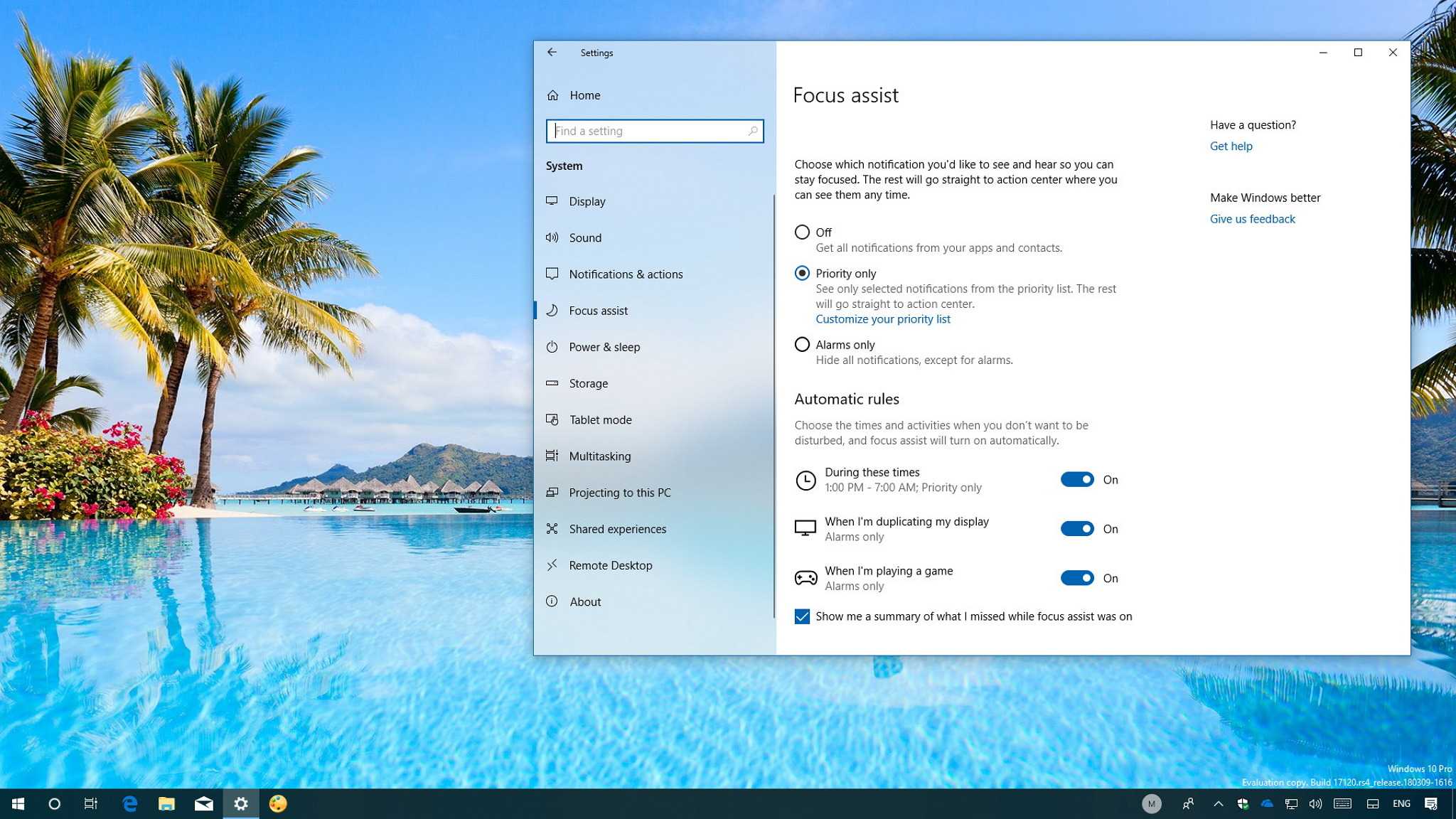
- Go to the “Settings” app on your Windows 10 device.
- Click on “Update & Security.”
- Select “Windows Insider Program” from the left-hand menu.
- Click on “Get Started.”
- Sign in with your Microsoft account if prompted.
- Click on “Link an account” and select the account you used to join the Windows Insider Program.
- Choose the channel you want to receive updates from (Dev Channel or Beta Channel).
- Click on “Confirm” to enroll your device.
Step 4: Install Windows 11
Once you have enrolled your device, you will receive beta builds of Windows 11 through Windows Update. Follow these steps to install Windows 11:
- Go to the “Settings” app on your Windows 10 device.
- Click on “Update & Security.”
- Select “Windows Update” from the left-hand menu.
- Click on “Check for updates.”
- If a Windows 11 build is available, it will be listed as an optional update. Click on “Download and install” to begin the installation process.
- Follow the on-screen instructions to complete the installation of Windows 11.
Frequently Asked Questions (FAQ)
Here are some frequently asked questions about becoming a Windows 11 beta tester:
Q: Can I become a Windows 11 beta tester if my device doesn’t meet the hardware requirements?
A: No, your device must meet the minimum hardware requirements specified by Microsoft to become a Windows 11 beta tester. If your device doesn’t meet these requirements, you may not be able to install and run Windows 11.
Q: Can I revert back to Windows 10 if I don’t like Windows 11?
A: Yes, you can revert back to Windows 10 if you don’t like Windows 11. Microsoft provides an option to roll back to your previous version of Windows within a certain time frame after installing Windows 11. However, it is recommended to create a backup of your important files before upgrading to Windows 11.
Q: How often will I receive updates as a Windows 11 beta tester?
A: As a beta tester, you will receive regular updates with new features, bug fixes, and improvements. The frequency of updates may vary depending on the channel you have chosen (Dev Channel or Beta Channel).
Q: Can I provide feedback to Microsoft as a beta tester?
A: Yes, one of the main responsibilities of a beta tester is to provide feedback to Microsoft. You can use the Feedback Hub app in Windows 11 to report bugs, suggest improvements, and share your overall experience with the operating system.
Conclusion
Becoming a Windows 11 beta tester is an exciting opportunity to explore the new features and functionalities of Microsoft’s latest operating system. By following the steps outlined in this article, you can join the Windows Insider Program, enroll your device, and start testing Windows 11. Remember to provide valuable feedback to Microsoft to help shape the final version of the operating system. Enjoy the early access and contribute to the development of Windows 11!

Similar Posts