How Do You Know If Your Tv Is An Android Tv
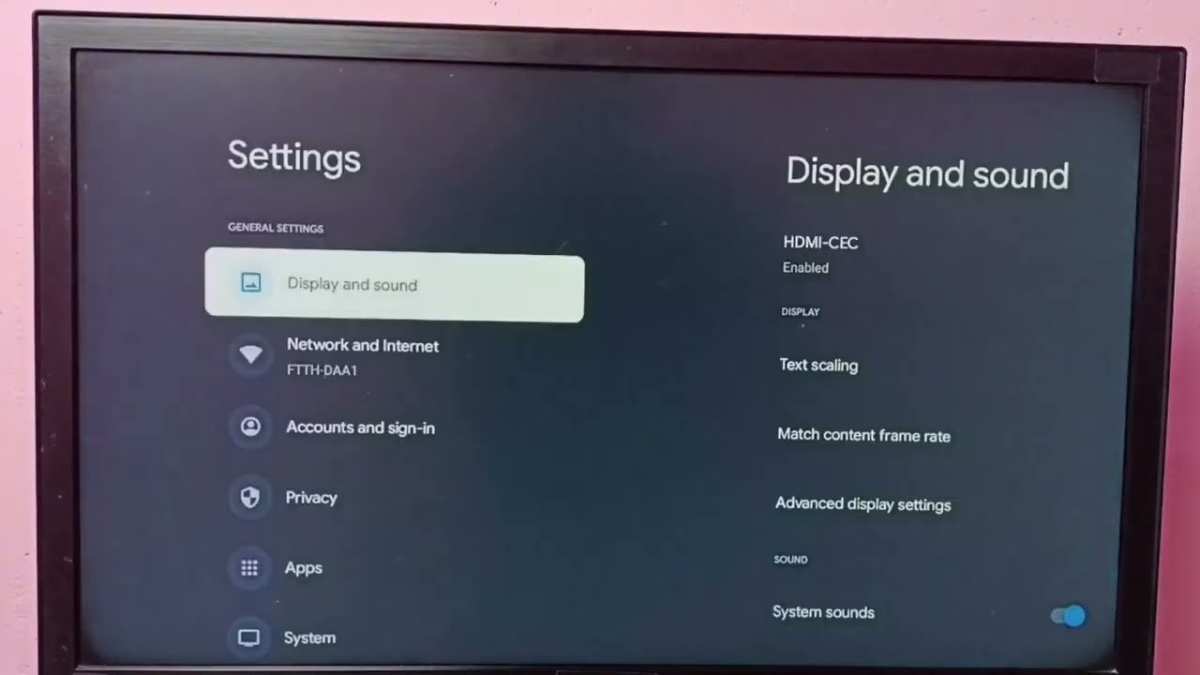
To find out if your TV is an Android TV, check its menu for the Android TV interface or apps like Google Assistant. **If your TV runs on Android TV, you’ll see the familiar interface and access to the Google Play Store.**
So, how do you know if your TV is an Android TV? Simply explore its settings or look for branding on the remote or packaging. Recognizing these signs helps you understand your device quickly and easily.

How Do You Know If Your TV Is an Android TV?
Understanding the features of your television can sometimes feel complicated, especially with so many smart TV options available. One popular choice among smart TVs is Android TV, known for its user-friendly interface and vast app library. But how can you tell if your TV actually runs on Android TV? This guide will walk you through everything you need to check, so you can confidently identify whether your television is an Android TV or not.
What Is an Android TV?
Before diving into how to identify an Android TV, let’s clarify what it actually is. Android TV is a version of the Android operating system designed specifically for televisions. It offers a simple interface, access to the Google Play Store, Google Assistant, and seamless integration with other Google services. If your TV runs on Android TV, you’ll enjoy features like voice search, a customizable home screen, and a wide range of apps, just like on your smartphone.
How to Recognize if Your TV Is an Android TV
The easiest way to determine if your TV is an Android TV is to look for specific visual and functional clues. Here are some key methods you can use:
Check the User Interface
Power up your TV and observe the main home screen. Android TV typically has a clean, grid-based layout with app icons arranged in rows and columns. The interface is minimalistic, with a prominent row at the top for recommendations, and a navigation bar at the bottom with icons for Home, Apps, Search, and Settings.
Look for Built-in Google Services
Android TV integrates Google services directly into the system. If your TV has a built-in Google Play Store icon or the Google Assistant button on the remote, it’s a strong sign that your device runs on Android TV. You might also notice the Google TV app, which is part of the Android TV ecosystem.
Identify the Settings Menu
Navigate to your TV’s Settings menu. If you see options like ‘Google Account,’ ‘Google Play Store,’ or ‘Google Assistant,’ these are indicators of Android TV. The Settings menu on Android TVs often has a simplified layout with categories such as ‘Device Preferences,’ ‘Apps,’ and ‘Google.’
Use the Remote Control
Many Android TV remotes feature a dedicated Google Assistant button or a microphone icon. Pressing this button activates voice search through Google Assistant, which is exclusive to Android TV devices.
Check the Model and Brand Information
Sometimes, the fastest way to find out is by looking at your TV’s model number or brand:
Look Up Your Model Number
Find the label on your TV — usually located on the back or side — that displays the model number. Once you have it:
- Go to the manufacturer’s website.
- Use the model number to search for detailed specifications.
- Check whether the device runs on Android TV or another operating system.
Identify Popular Android TV Brands
Many brands produce Android TVs, including Sony, Philips, Hisense, Xiaomi, TCL, and Sharp. If your TV is from one of these brands, especially with features like Google Play Store access, there’s a high chance it is an Android TV.
Testing Basic Android TV Features
You can perform simple tests to confirm if your TV runs Android TV:
Access the Google Play Store
Try to open the app store. If your TV displays the Google Play Store, it’s probably an Android TV. Other smart TVs might have their own app stores or proprietary systems.
Use Voice Search with Google Assistant
Press the microphone button on your remote and ask a question (“What’s the weather today?” or “Play Netflix”). If your TV responds using Google Assistant, that confirms it’s running Android TV.
Check for Chromecast Built-In
Android TVs typically support Chromecast, allowing you to cast content directly from your phone or tablet. Attempt to cast a video or music to your TV. If it works seamlessly, your TV is almost certainly an Android TV or compatible with Android features.
Differences Between Android TV and Other Smart TVs
Understanding what sets Android TV apart from other smart TV operating systems can help you identify it more easily.
Operating System and Interface
Android TV offers a familiar Android-like interface with app drawers, voice search, and Google services. Other platforms like Samsung’s Tizen or LG’s WebOS have different layouts and app stores.
App Availability
Android TV provides access to the Google Play Store, giving users a wide range of apps and games. Many other smart TVs have proprietary app stores with fewer options.
Voice Assistant Integration
Android TV features Google Assistant, enabling voice commands, smart home controls, and tailored content recommendations. Other smart TV platforms may use their own voice assistants, such as Samsung’s Bixby or LG’s ThinQ AI.
Troubleshooting: Confirming Your TV’s Operating System
If you’re still unsure, you can perform a few troubleshooting steps:
Update Your TV’s Firmware
Navigate to Settings > About > Software Update. If your TV prompts you to update via Google servers or displays options related to Google services, it’s likely an Android TV.
Consult the User Manual or Manufacturer’s Website
Check the user manual, packaging, or the manufacturer’s website for detailed specifications. Manufacturers usually specify the operating system on product pages.
Ask Customer Support
Contact the retailer or manufacturer with your model number. Customer support can clarify whether your TV runs on Android TV.
Summary Table of Key Identification Points
| Method | What to Look For |
|---|---|
| Home Screen | Grid layout with app icons, Google suggestions menu |
| Google Services | Google Play Store icon, Google Assistant button |
| Settings Menu | Options like Google Account, Google Play, Google Assistant |
| Remote Control | Dedicated microphone or Assistant button |
| Model Number | Search online for specifications checking OS details |
| App Store Access | Availability of Google Play Store |
| Voice Search | Activation of Google Assistant with voice commands |
| Built-in Chromecast | Content casting from mobile devices |
Knowing whether your TV is an Android TV involves observing its interface, checking the available apps, and using specific features like voice control. These steps will help you identify your device confidently. Once you verify the operating system, you can explore all the great features Android TV offers, from streaming apps to smart home integration, ensuring you get the most out of your device.
Frequently Asked Questions
What features indicate that a TV runs on Android TV?
Look for features like the Google Play Store, built-in Google Assistant, and access to the Android TV interface. These elements suggest your TV operates on the Android TV platform, allowing you to download apps and use voice commands seamlessly.
How can I identify if my remote control is compatible with Android TV?
If your remote has dedicated buttons for Google Assistant or a microphone icon, it likely supports Android TV features. Additionally, compatibility with Google services and the ability to control other smart devices indicate it’s designed for Android TV systems.
Where can I find the Android version on my TV?
Navigate to the Settings menu and select About or Device preferences. Here, you’ll find the Android version listed, confirming that your TV is running an Android-based operating system.
Can I tell if my TV has Google Play Store pre-installed?
Check the list of installed apps for the Google Play Store icon. If it’s available, your TV runs on Android TV, giving you access to a wide range of apps and games through Google’s app marketplace.
Is there a way to verify the operating system through the TV’s specifications?
Review the manufacturer’s specifications on their website or the user manual. If the specifications mention Android TV or Android-based OS, it confirms your TV’s operating system and its compatibility with Android apps and features.
Final Thoughts
To determine if your TV is an Android TV, check its menu for the Google Play Store or Android-specific apps. You can also verify the model number online or look for the Android TV logo on the packaging.
If your TV supports voice commands via Google Assistant and has a clean, Android-like interface, chances are it’s an Android TV.
How do you know if your TV is an android tv? If you see the Android interface, Google services, or access to the Google Play Store, your TV is likely Android TV.

Similar Posts