Can You Use Android Tv Box On Laptop Effectively
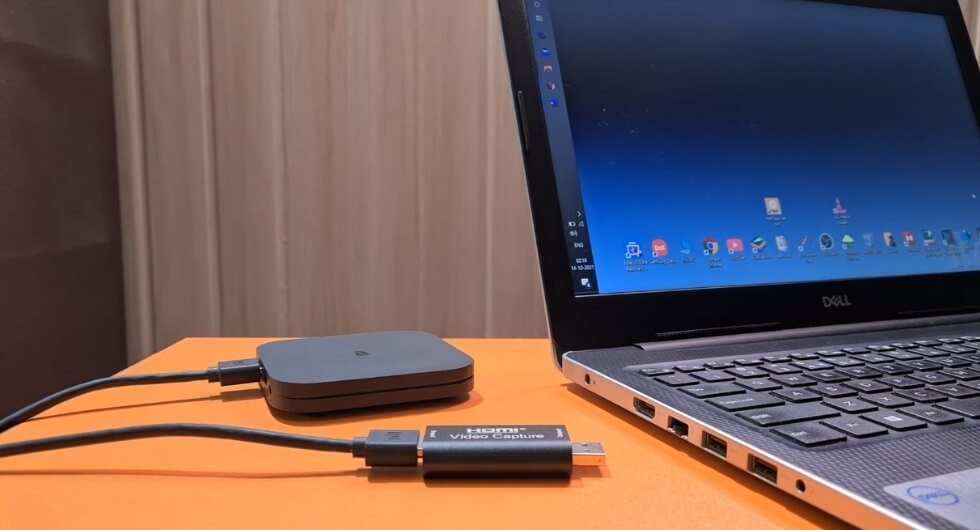
You can definitely use an Android TV box on a laptop. While it’s designed for TVs, connecting it to your laptop is possible with the right setup.
Many wonder, can you use Android TV box on laptop, and the answer is yes, with some adaptations. Using an HDMI cable or screen sharing, you can turn your laptop into a display for the Android TV box. This makes it easy to enjoy Android apps on your laptop screen without tricky configurations.

Can You Use Android TV Box on Laptop?
Many people ask if they can connect an Android TV box to their laptops. This question pops up because both devices are popular for streaming movies, TV shows, and playing games. To answer it clearly: yes, you can use an Android TV box on a laptop, but it depends on how you connect your devices and what you want to achieve. Let’s explore this idea in detail so you can decide the best way to get more from your devices.
Understanding What an Android TV Box Is
Before diving into how to connect an Android TV box to your laptop, it’s helpful to know what an Android TV box is. Think of it as a small computer designed specifically for entertainment. It runs on the Android operating system and allows you to stream videos, play games, and access apps from the Google Play Store.
Some key features of an Android TV box include:
- HDMI output for connecting to TVs or monitors
- Wi-Fi and Ethernet connectivity for internet access
- Pre-installed streaming apps like Netflix, Hulu, and YouTube
- Ability to install additional apps from Google Play
Because of these features, many people wonder: can I use this device not just on my TV but also on my laptop? The answer is yes, but the method may vary.
Ways to Use an Android TV Box with a Laptop
Using an Android TV box directly with a laptop isn’t as straightforward as plugging in a USB stick. Instead, you’ll need to think about what kind of setup you want. Here are some options:
Connecting via HDMI
The most common way to use an Android TV box is by connecting it to a TV or monitor with an HDMI cable. But you can also connect it to your laptop if your laptop has an HDMI input port.
**Important:** Most laptops only have HDMI output ports, which send video signals to other devices. Few laptops have HDMI input ports.
– **If your laptop has an HDMI input:**
You can connect the Android TV box directly to your laptop using an HDMI cable. Your laptop will act like a monitor, displaying the Android TV interface.
– **If your laptop only has HDMI output:**
You cannot connect the Android TV box directly to your laptop via HDMI because the laptop cannot receive video signals that way. Instead, you need to use alternate methods like screen mirroring or streaming.
Using Screen Mirroring or Casting
If direct HDMI connection isn’t possible, you can use wireless methods to display content from the Android TV box onto your laptop screen. This approach turns your laptop into a receiver for the Android device.
**Ways to mirror or cast content include:**
- Google Cast (Chromecast): Many Android TV boxes support casting content to devices that have Chromecast built-in or compatible devices. You can use this feature to stream videos directly to your laptop if it supports casting.
- Miracast or Wireless Display: Some laptops support Miracast, which allows you to project content wirelessly from an Android device to your laptop’s screen.
**Note:** Use a third-party app like AirServer or LetsView if your laptop doesn’t support Miracast natively. These apps act as receiver programs that allow your laptop to receive casting signals.
Using a USB Connection
Connecting an Android TV box to a laptop via USB doesn’t usually work for video streaming because USB ports are designed mainly for data transfer or charging. However, some Android TV boxes can act as a USB storage device or support USB tethering, mainly for internet sharing.
If you want to use your Android TV box as a media source, hooking it to a laptop via USB isn’t the best option. But, you can use USB to connect other Android devices for certain functions, such as file sharing.
Running Android TV Apps on a Laptop
Another approach to using an Android TV box with your laptop is to run Android TV apps directly on your laptop without the physical device. This can be useful if your goal is to access Android apps and streaming services.
**Methods include:**
- Using an Android Emulator: An emulator creates a virtual Android device on your laptop, allowing you to run Android TV apps. Examples include BlueStacks, Nox Player, or LDPlayer.
- Installing Android TV-specific emulators: Some emulators are designed specifically for Android TV, which support running apps optimally.
**Advantages of using an emulator:**
– No need for physical Android TV box
– Access to all Android apps directly on your laptop
– Easy to set up and use
**Limitations:**
– Emulators might not support all streaming apps due to regional restrictions or app compatibility
– Slight lag or performance issues on lower-end laptops
Comparing Hardware and Software Compatibility
When connecting an Android TV box to a laptop or trying to use Android TV apps on a laptop, hardware and software compatibility matter.
**Things to consider:**
– **HDMI ports:** Most laptops only have HDMI output, making direct connection to the Android TV box’s HDMI input impossible.
– **Wi-Fi network:** Both devices need to be connected to the same Wi-Fi network for casting or mirroring.
– **Supported streaming apps:** Some apps may not run smoothly or be available on emulators.
**Summary of compatibility:**
| Method | Hardware Requirement | Pros | Cons |
| — | — | — | — |
| Direct HDMI (if HDMI input available) | HDMI input port on laptop | Easy connection, high-quality video | Rare on laptops |
| Wireless casting/mirroring | Wi-Fi network, supports Miracast or Chromecast | No extra cables needed | Slight delay, dependent on network strength |
| Emulators | Compatible OS (Windows/Mac), decent specs | No need for physical device, runs Android apps | Possible performance issues, compatibility limits |
Setting Up Your Android TV Box for Use with a Laptop
Here’s a step-by-step guide to set up your Android TV box with your laptop:
1. **Check your laptop’s ports:**
Find out if your laptop has HDMI input. If yes, you can connect directly with an HDMI cable. If not, consider screen mirroring.
2. **Prepare the necessary cables and adapters:**
You may need an HDMI cable or a wireless display adapter. For wireless options, ensure your Wi-Fi connection is strong and stable.
3. **Connect or configure your devices:**
– For wired connection: Plug the Android TV box into your laptop’s HDMI port and switch your display input accordingly.
– For wireless setup: Enable screen casting or Miracast on both devices and select the Android TV box from your laptop’s display options.
4. **Adjust display settings:**
Make sure the resolution and display options are set correctly to enjoy smooth streaming or gaming.
5. **Test the connection:**
Play a video or run an app to ensure everything works well.
Final Thoughts on Using an Android TV Box with a Laptop
While physically connecting an Android TV box directly to a laptop might be limited by hardware ports, there are many effective ways to get the most out of both devices. Wireless options like casting and mirroring are practical and don’t require special hardware upgrades. If you prefer to run Android TV apps natively, using an emulator is a flexible option that lets you explore Android TV’s capabilities right on your laptop.
In the end, your choice depends on what you want to do. If streaming videos or playing Android games is your goal, using an emulator or wireless casting will serve you well. Remember, always check your device specifications before purchasing additional hardware or software to ensure compatibility.
By understanding these options and steps, you can enjoy a versatile entertainment experience and make the most of your Android TV box along with your laptop.
Frequently Asked Questions
Can I connect an Android TV box to my laptop’s display?
Yes, you can connect an Android TV box to your laptop’s display if your laptop has an HDMI input port. Typically, most laptops only have HDMI output ports, which means you cannot directly connect an Android TV box and display it on your laptop. However, if your laptop has an HDMI input or supports a video capture device, you can use that to display the TV box’s content. Using a USB video capture device is a common workaround to view the TV box output on your laptop screen.
What equipment do I need to use an Android TV box with a laptop?
To connect an Android TV box to a laptop, you need a few pieces of equipment. First, check if your laptop has an HDMI input port; most have HDMI output instead, which necessitates a capture device. If needed, acquire a USB video capture card that connects via USB and has an HDMI input. You will also need an HDMI cable to connect the Android TV box to the capture device. Once set up, you can view the Android TV box’s output on your laptop through compatible software.
Can I use software to mirror an Android TV box on my laptop?
Yes, you can mirror an Android TV box onto your laptop using screen sharing or casting software. Apps like Scrcpy or Vysor allow you to mirror your Android device’s screen to your computer wirelessly or via USB. This method works well if the Android TV box supports Google Cast or similar protocols, enabling you to cast the display directly. Keep in mind, the quality of the mirror depends on your network connection and the capabilities of the software used.
Are there limitations when using an Android TV box on a laptop compared to a TV?
Using an Android TV box on a laptop comes with some limitations. Since laptops are primarily designed for computing rather than home theater use, they may not support seamless connection options like a dedicated TV. Quality and latency may vary, especially if using capture devices or screen mirroring. Additionally, audio output might require configuration, and some features available on TVs—such as built-in remote controls or enhanced audio support—may not be accessible when connecting to a laptop.
Can I use my laptop’s keyboard and mouse to control an Android TV box?
Yes, you can control an Android TV box with your laptop’s keyboard and mouse if you use remote control software or a USB-based remote control device. When mirroring or using a capture device, some software allows you to interact with the Android TV interface using your laptop’s peripherals. Alternatively, you can connect a wireless remote or game controller to the TV box directly for ease of use, which often provides a better experience than relying solely on a keyboard and mouse.
Final Thoughts
Using an Android TV box on a laptop is possible with the right setup. You can connect the TV box via HDMI or screen mirroring to enjoy media on your laptop. This setup offers a simple way to access Android TV features without an external device.
However, compatibility depends on your laptop’s hardware and software. Be sure to check input options and driver support before attempting the connection.
In conclusion, can you use android tv box on laptop? Yes, it is feasible with proper connections and settings. This flexibility allows you to access Android TV apps directly on your laptop for entertainment.

Similar Posts































