How To Make Android Tv Box From Phone Easy Guide
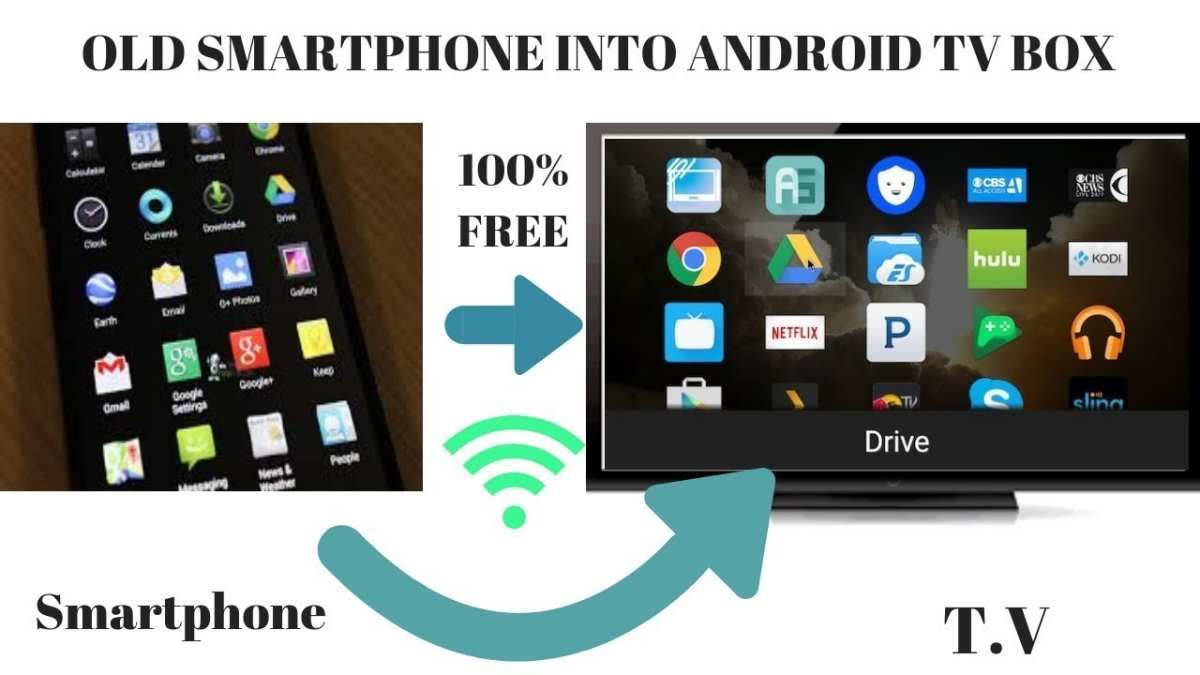

How to Make an Android TV Box from Your Phone
Creating an Android TV box using your phone might sound complicated, but with the right steps and tools, it becomes a fun and achievable project. This process allows you to turn your smartphone into a multimedia hub that can stream videos, play music, and even run apps on your TV. In this guide, we will walk you through each step, sharing tips and tricks to help you build your own Android TV box from your phone easily and effectively.Understanding the Concept: Can Your Phone Really Become an Android TV Box?
Before diving into the step-by-step process, it’s important to understand what this project involves. Essentially, an Android TV box is a small device that runs Android TV operating system and connects to your television, giving you access to streaming services and apps. Your smartphone already runs Android, so the idea is to turn your phone into a mini-computer that can serve as a TV box with some tweaks. This approach is perfect if you want a budget-friendly solution or if you want to reuse your current device rather than buying a new one. All you need is the right app, a stable internet connection, and a compatible TV.Essential Requirements to Turn Your Phone into an Android TV Box
To make your phone work as an Android TV box, prepare the following:- **An Android smartphone:** Ideally running Android 5.0 or higher for better compatibility.
- **A stable Wi-Fi connection:** Ensure your phone and TV are connected to the same Wi-Fi network.
- **A TV with HDMI input or a smart TV:** To display your phone’s screen on the TV.
- **A USB or HDMI cable:** Depending on your TV’s input options, a compatible cable will be needed.
- **A remote control app:** Such as Google Home or AnyMote, to navigate your phone from your TV or remote.
- **Screen mirroring or casting app:** To display your phone content on the TV screen.
Choosing the Right App to Transform Your Phone into an Android TV Box
The core of this project is the app you install on your phone. Several apps can help you cast your phone’s screen or turn your device into a media server.Popular Apps for Screen Mirroring and Casting
- Google Home: Allows you to cast your screen from Android devices to Chromecast or compatible TVs. It is simple to use and reliable.
- Miracast: Built into many Android devices, Miracast can mirror your screen wirelessly to compatible TVs or adapters.
- Airscreen: Turns your phone into a receiver for AirPlay, Google Cast, and Miracast, making it versatile for different devices.
- Scrcpy: An open-source app that enables you to mirror your phone’s screen onto a PC, which can then be connected to your TV.
Setting Up Your Smartphone as an Android TV Box
Once you select your app, follow these steps to set up your phone:Step 1: Connect Your Phone and TV to the Same Network
This is crucial for screen sharing. Use your Wi-Fi to connect both devices to ensure seamless communication.Step 2: Enable Screen Mirroring or Casting on Your TV
Depending on your TV, this might involve turning on the Miracast, Chromecast, or AirPlay feature. Consult your TV’s manual if needed.Step 3: Install and Configure the Casting App on Your Phone
Download your preferred app from the Google Play Store. Open the app and follow its instructions to enable casting or mirroring.Step 4: Start Casting or Mirroring
Select your TV from the list of available devices in the app. Once connected, your phone’s screen will appear on the TV.Enhancing Your Android TV Experience
To make the most out of your homemade Android TV box, consider these tips:Using a Bluetooth Remote or Keyboard
Connect a Bluetooth remote or keyboard to your phone to navigate more comfortably. Many Android remote apps can transform your smartphone into a remote control.Downloading Essential Media Apps
Install apps like Netflix, YouTube, Spotify, or Kodi directly onto your phone. When casting, these apps will stream content on your TV.Managing Storage and Performance
Clear your phone’s cache regularly and uninstall unnecessary apps to keep your device running smoothly during casting sessions.Additional Tips for a Better Setup
- Ensure your phone has enough battery life or keep it plugged into a charger during extended use.
- If your phone supports HDMI output, consider using an HDMI adapter for a wired connection, which often provides clearer, more stable viewing.
- Adjust your phone’s display settings to optimize resolution and refresh rate for better viewing quality.
- Use a stand or mount to keep your phone steady and at a good viewing angle.
Troubleshooting Common Issues
Sometimes, you might face connectivity or display problems. Here are solutions:- Lag or buffering: Reduce the resolution of the mirrored content or ensure your Wi-Fi network is fast and stable.
- No device found: Check that both devices are on the same network and restart the casting app.
- No sound: Make sure audio settings are configured correctly in your casting app and on your TV.
- Screen not mirroring properly: Update your device’s software and the casting app to the latest version.
Frequently Asked Questions
What tools do I need to convert my phone into an Android TV box?
To convert your phone into an Android TV box, you need a compatible Android device, a reliable Wi-Fi connection, and a screen mirroring or casting app such as Google Home, AirScreen, or Miracast. Additionally, it helps to have a Bluetooth remote or controller for easier navigation and a TV with HDMI input if you plan to connect your phone directly via cable.
How can I connect my phone to my TV for a larger display?
You can connect your phone to your TV using either a wireless or wired method. For wireless connection, use casting features like Google Cast or Miracast to mirror your screen. If your phone supports HDMI output, connect it directly to your TV with an appropriate HDMI adapter. Ensure both devices are on the same Wi-Fi network if using wireless methods for a smooth connection.
What apps can I use to turn my phone into an Android TV interface?
Apps like EasyCast, AirScreen, and WiFi Display enable you to mirror your phone’s interface onto your TV screen, effectively giving you an Android TV experience. These apps facilitate smooth screen sharing, allowing you to access apps, videos, and games on a larger display. Pick the app that best fits your device compatibility and user preferences.
Can I use my phone’s hardware as the main processing unit for a DIY Android TV box?
No, you cannot use your phone’s hardware as the main processing unit for a dedicated Android TV box. Instead, you can use your phone as a remote or streaming device that outputs content to a separate display. Building an actual Android TV box usually requires a dedicated device like a Raspberry Pi or Android TV stick, which is designed for continuous operation and connection to a TV or monitor.
Are there any limitations when converting my phone into an Android TV box?
Yes, converting your phone into an Android TV box comes with certain limitations. Your phone’s hardware might not support continuous or high-quality streaming for extended periods, and battery life can be a concern. Additionally, input options could be limited, and some apps may not function optimally on a mirrored setup. It’s best suited for short-term or occasional use rather than as a permanent replacement for a dedicated Android TV device.
Final Thoughts
To make an android tv box from phone, start by installing a compatible app like Web Video Caster or AirScreen. Connect your phone to your TV using a Chromecast or HDMI adapter. Configure the app settings to mirror your phone screen. Ensure your phone and TV are on the same Wi-Fi network for seamless connection. Use a Bluetooth remote or app control for easier navigation. Follow these steps to turn your phone into an android TV box easily. In conclusion, how to make android tv box from phone involves using the right apps and a stable connection. With simple setup steps, you can enjoy your favorite content on your TV efficiently.
Similar Posts































