How To Use Android Tv Box Remote Control Effectively
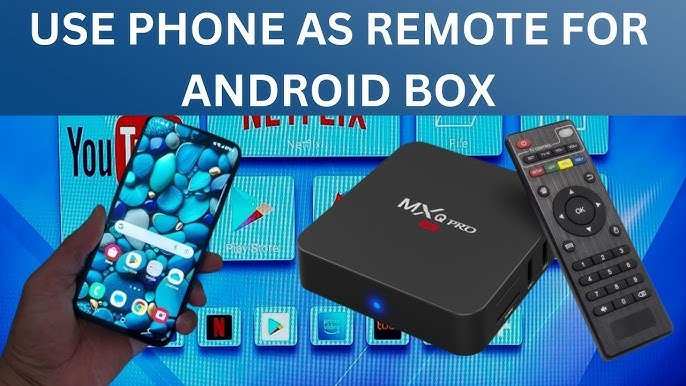

How to Use Android TV Box Remote Control
Understanding how to efficiently operate your Android TV box remote control is essential for getting the most out of your entertainment system. The remote acts as the gateway to your favorite shows, movies, games, and more. While it might seem straightforward at first, there are many features and tips that can help you navigate with ease and make your viewing experience more enjoyable. This guide will walk you through every detail, from basic functions to advanced tips, so you can confidently use your Android TV box remote control.Getting Familiar with Your Android TV Box Remote Control
Before diving into usage techniques, it’s important to familiarize yourself with the layout of your remote. Most Android TV remotes share common features, but some models may include additional buttons or functions.- Power Button: Turns the device on or off.
- Navigation Arrows: Help you move through menus and selections.
- OK/Select Button: Confirms your choice or opens an app.
- Home Button: Takes you directly to the home screen.
- Back Button: Returns to the previous screen.
- Volume Buttons: Control the sound level.
- Menu Button: Opens additional options or settings.
- Number Pad: Enter channel numbers or other numeric inputs.
- Special Function Buttons: May include Netflix, YouTube, or other app shortcuts.
Basic Operations and Navigation
Once you understand the layout, start practicing basic operations. The goal is to navigate effortlessly between menus and apps.Turning On and Off Your Android TV Box
Most remotes include a power button. To turn on the device:- Press the Power button once. The screen should light up, and the device will start booting up.
- If it doesn’t turn on, check whether the remote has working batteries or if your device is properly plugged in.
- Press and hold the Power button or select the shutdown option from the menu.
Navigating Menus
Use the navigation arrows (up, down, left, right) to move across different options on your screen. Press the OK button to select or open an app. To go back to the previous menu, press the Back button.Using the Home and Back Buttons
The Home button brings you directly to the main screen, regardless of your current app or menu. The Back button works like a back button on your phone, helping you scroll back through menus or exit apps.Controlling Volume and Power
Adjusting volume is simple with dedicated buttons on your remote:- Press the Volume Up button to increase sound.
- Press the Volume Down button to decrease sound.
Using the Number Pad and Input Features
The number pad becomes useful when:- Changing channels on your TV or cable provider.
- Entering search terms or specific app codes.
- Inputting passwords or login information.
Shortcut Buttons and Special Functions
Many Android TV remotes have shortcut buttons for popular streaming apps like Netflix, YouTube, or Amazon Prime. Pressing these buttons opens the respective app instantly, saving you time. If your remote includes quick-access buttons, familiarize yourself with their functions to streamline your viewing.Pairing and Connecting Your Remote
If your remote isn’t working properly, it might need pairing:- Ensure your TV box is turned on and within range.
- Hold down the pairing button (if available) or follow manufacturer instructions to synchronize the remote with your device.
- If your remote uses Bluetooth, enable Bluetooth on your TV box in settings and select “pair new device.”
Using Voice Control Features
Many modern Android TV remotes come with built-in microphones for voice commands:- Press and hold the microphone or voice button.
- Speak your command, such as “Open YouTube” or “Search for action movies.”
- Release the button, and the device will process your request.
Customizing Remote Settings and Functions
Your Android TV box allows some customization of remote controls:- Assign shortcut buttons to your favorite apps in the device settings.
- Adjust sensitivity or key mapping if the remote supports it.
- Update remote firmware if updates are available for improved performance.
Troubleshooting Common Remote Control Issues
If your remote isn’t responding, try these solutions:- Replace the batteries with fresh ones to ensure adequate power.
- Reset the remote by removing batteries, waiting a few seconds, then reinserting them.
- Ensure there are no obstructions between the remote and the TV box sensor.
- Resynchronize or re-pair the remote if necessary.
- If problems persist, consult the manufacturer’s troubleshooting guide or customer support.
Additional Tips to Maximize Remote Control Efficiency
- Keep your remote in a safe, easy-to-reach spot to prevent losing it.
- Use a remote control holder or organizer if you have multiple devices.
- Clean the remote buttons periodically to keep them responsive.
- Familiarize yourself with all functions to reduce accidental presses and improve navigation speed.
Frequently Asked Questions
How can I navigate through menus using the Android TV box remote control?
Use the directional pad (arrow keys) on the remote to move through menus. Press the center or select button to choose options. Familiarize yourself with the layout so you can easily access settings, apps, and content without confusion.
What should I do if the remote control isn’t responding to my Android TV box?
First, check the batteries and replace them if necessary. Ensure there are no obstructions between the remote and the sensor on the TV box. If it still doesn’t respond, try pairing the remote again or restarting the device. Sometimes, a reset helps reset the remote connection.
How can I set up voice commands with my Android TV box remote?
If your remote has a built-in microphone, press the voice button and speak your command clearly. Make sure the microphone isn’t blocked. You may need to configure voice settings in the device’s settings menu. Ensure your internet connection is active for voice recognition to work properly.
How do I use the shortcut buttons on the remote control?
Most Android TV remotes feature dedicated buttons for popular apps like Netflix or YouTube. Press these buttons to quickly open the respective app. You can also customize some shortcut buttons in the settings menu to access your preferred applications more efficiently.
Final Thoughts
Using your Android TV box remote control is straightforward. Start by familiarizing yourself with the main buttons: power, navigation, home, and volume. Use the directional pad to navigate menus efficiently. Pairing the remote via Bluetooth ensures smooth operation. To navigate apps or settings, rely on the remote’s simple layout. Press the select button to open options or confirm choices. Understanding these basic functions makes controlling your device easier. In conclusion, knowing how to use android tv box remote control helps you enjoy a seamless entertainment experience. Focus on the essential buttons and their functions to operate your TV box effortlessly.
Similar Posts































