Can Ultrawide Monitors Connect to Laptop
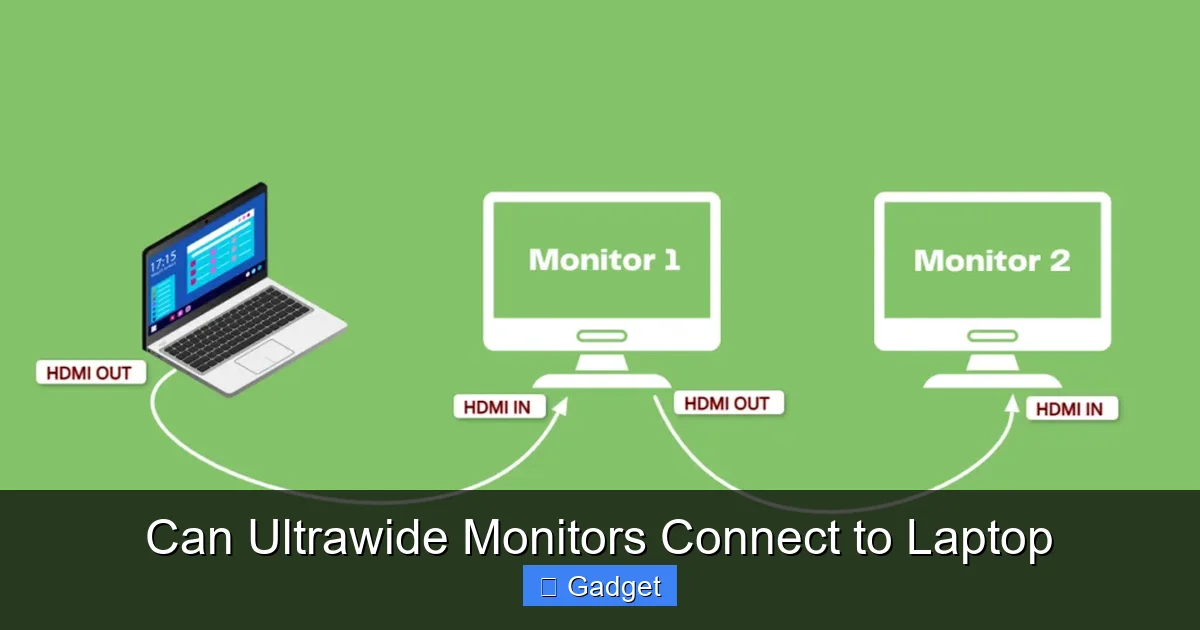
Yes, ultrawide monitors absolutely can connect to laptops. This guide will walk you through everything you need to know, from checking your laptop’s ports and the monitor’s inputs to selecting the right cables and troubleshooting common issues. You’ll learn how to enjoy the expansive workspace of an ultrawide display with your portable computer. 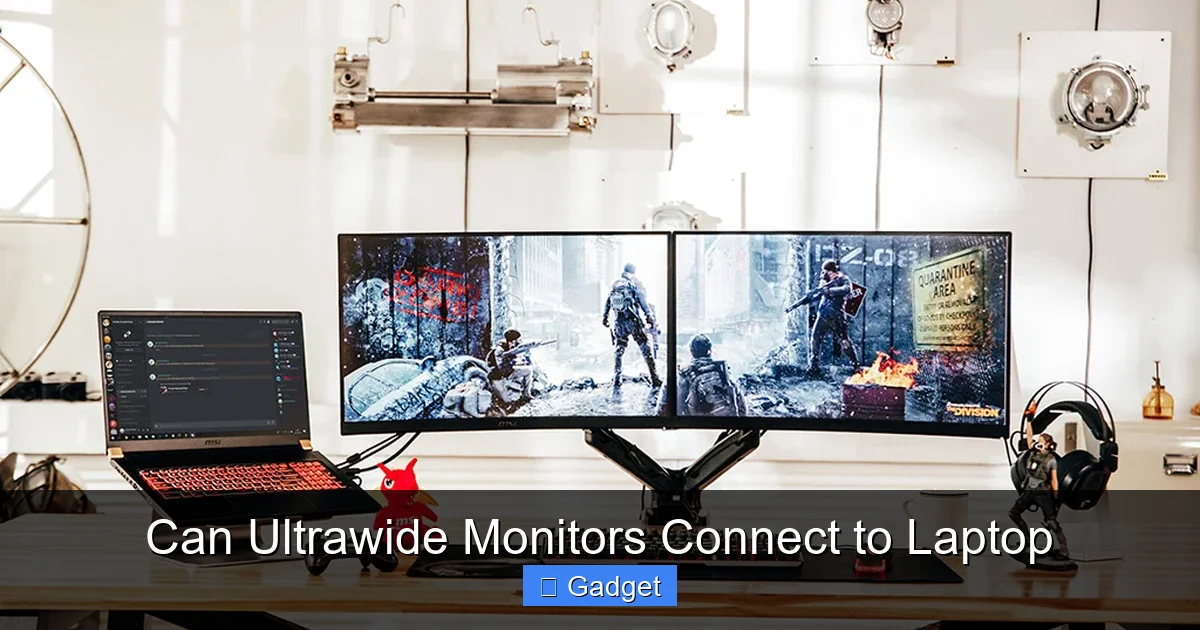
Can Ultrawide Monitors Connect to Laptop
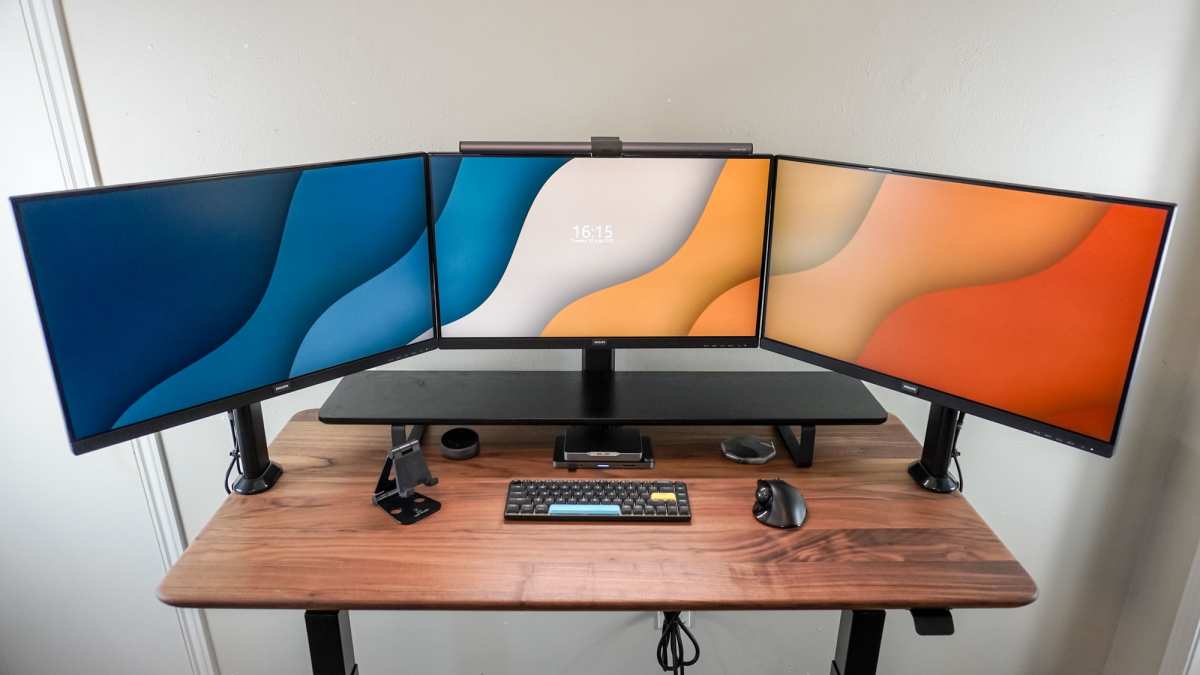
The allure of an ultrawide monitor is undeniable. Imagine a single, sweeping display that stretches across your desk, offering an immersive and incredibly productive workspace. Many people wonder if this expansive experience is accessible to laptop users. The good news is, in most cases, the answer is a resounding yes! Connecting an ultrawide monitor to your laptop is not only possible but can also dramatically enhance your computing experience. This comprehensive guide will take you through every step, from understanding the necessary components to getting your ultrawide setup up and running flawlessly.Key Takeaways
- Compatibility is Key: Most modern laptops and ultrawide monitors are designed to connect, but you need to verify port compatibility.
- Understanding Ports: Identify the video output ports on your laptop (HDMI, DisplayPort, USB-C) and the input ports on your ultrawide monitor.
- The Right Cable Matters: The type of cable (HDMI, DisplayPort, USB-C) you use directly impacts performance, resolution, and refresh rate.
- Resolution and Refresh Rate: Ensure your laptop and cable can support the ultrawide monitor’s native resolution and desired refresh rate for optimal visuals.
- Power and Setup: Connect your laptop to power and the ultrawide monitor, then configure display settings in your operating system.
- Troubleshooting Common Issues: Be prepared for potential problems like no signal, incorrect resolution, or flickering, and know how to fix them.
Understanding the Connection: What You Need to Know
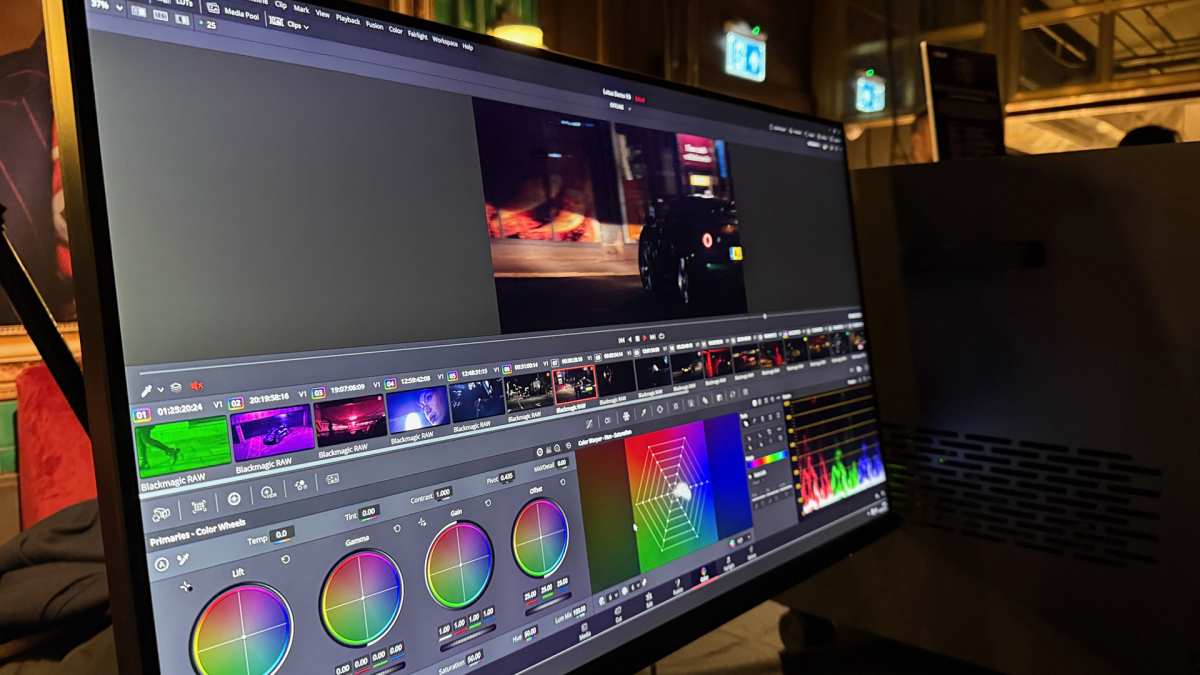
Before you even think about plugging things in, it’s crucial to understand the fundamental aspects of connecting external displays to laptops. The core of any monitor connection relies on the physical ports and the cables that bridge the gap between your devices. Ultrawide monitors, with their extended aspect ratios (typically 21:9 or 32:9), require a robust video signal to deliver their full visual potential. Your laptop needs to be able to output this signal, and your ultrawide monitor needs to be able to receive it. For those interested in how ultrawide displays perform in creative workflows, check out our article on whether ultrawide monitors are good for photo editing.Step 1: Identify Your Laptop’s Video Output Ports
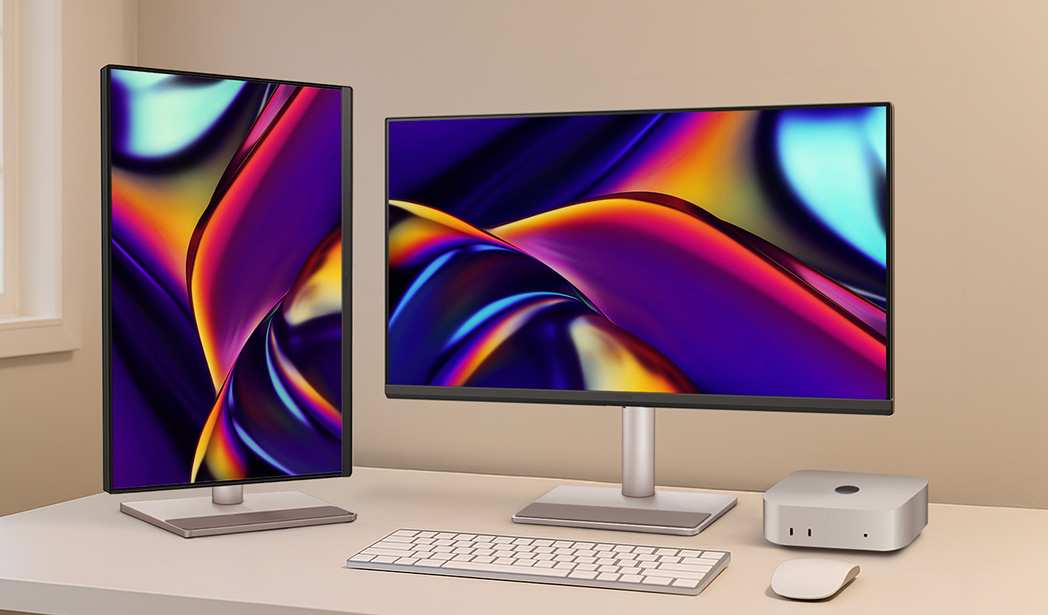
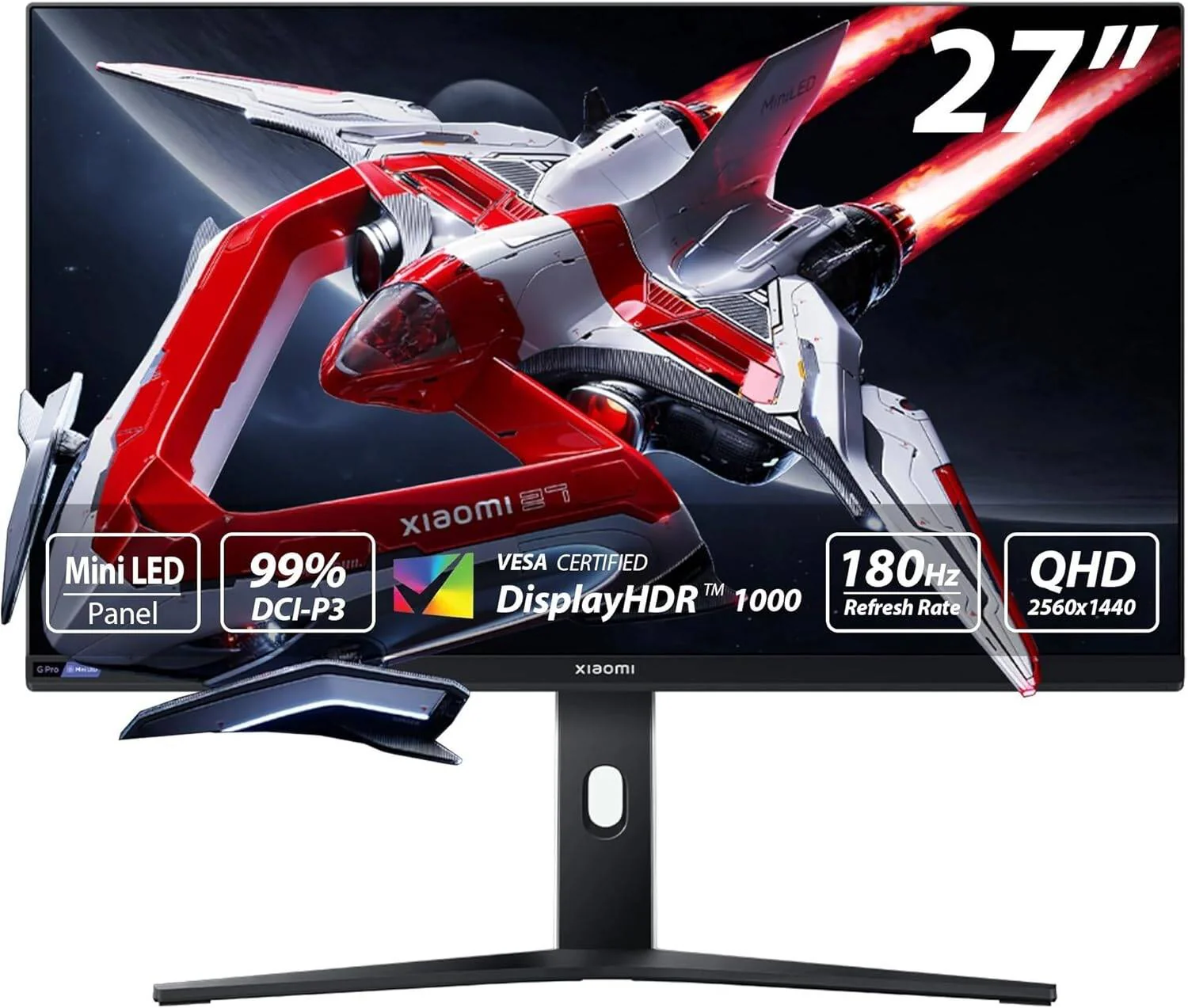
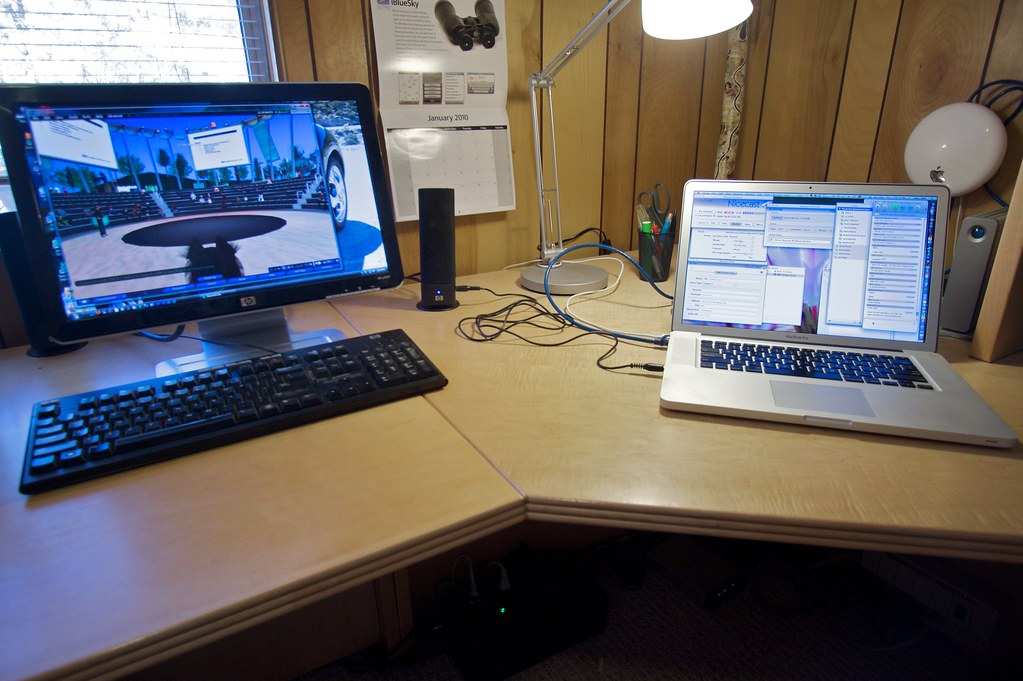
The first and most critical step is to identify the video output ports available on your laptop. This will dictate the types of cables you can use and the capabilities of your connection. Laptops come with a variety of ports, and knowing which ones your specific model has is essential for a successful ultrawide monitor connection.Visual guide about Can Ultrawide Monitors Connect to Laptop
Image source: storage-asset.msi.com
Common Laptop Video Output Ports:
- HDMI: This is perhaps the most common video port found on modern laptops. HDMI (High-Definition Multimedia Interface) is versatile and can carry both video and audio signals. Different versions of HDMI (e.g., HDMI 1.4, 2.0, 2.1) support different resolutions and refresh rates. For ultrawide monitors, you’ll ideally want a laptop with HDMI 2.0 or later for higher resolutions and refresh rates.
- DisplayPort (DP): DisplayPort is another excellent option, often preferred for its higher bandwidth capabilities, which are particularly beneficial for ultrawide displays. You might find a full-sized DisplayPort or a Mini DisplayPort on your laptop. Like HDMI, different versions of DisplayPort exist, with newer versions supporting higher resolutions and refresh rates necessary for ultrawide monitors.
- USB-C (with DisplayPort Alternate Mode or Thunderbolt): Many newer laptops, especially ultrabooks and MacBooks, utilize USB-C ports. However, not all USB-C ports can output video. You need a USB-C port that supports “DisplayPort Alternate Mode” (often indicated by a DisplayPort logo next to the port) or is a Thunderbolt 3 or Thunderbolt 4 port. These ports are incredibly versatile and can carry video, data, and power simultaneously. This is often the most flexible option for connecting to ultrawide monitors, as many ultrawide displays also feature USB-C inputs.
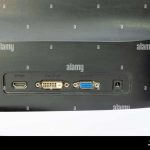
- VGA/DVI (Less Common on Modern Laptops): Older laptops might have VGA or DVI ports. While these can technically connect to some monitors, they are generally not recommended for ultrawide monitors due to their lower bandwidth and resolution limitations. They are unlikely to support the native resolution or refresh rates of most ultrawide displays.
Step 2: Identify Your Ultrawide Monitor’s Video Input Ports
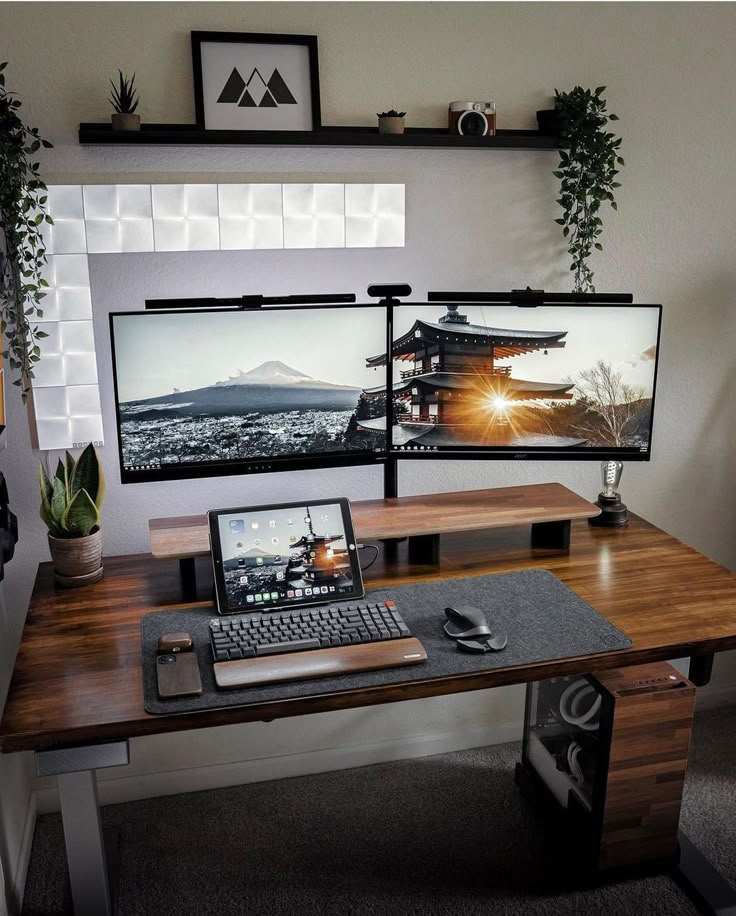
Just as important as your laptop’s output is your ultrawide monitor’s input. Your monitor will have a variety of ports designed to receive video signals from external sources. You’ll need to match these inputs with your laptop’s outputs.Visual guide about Can Ultrawide Monitors Connect to Laptop
Image source: projectorsphere.com
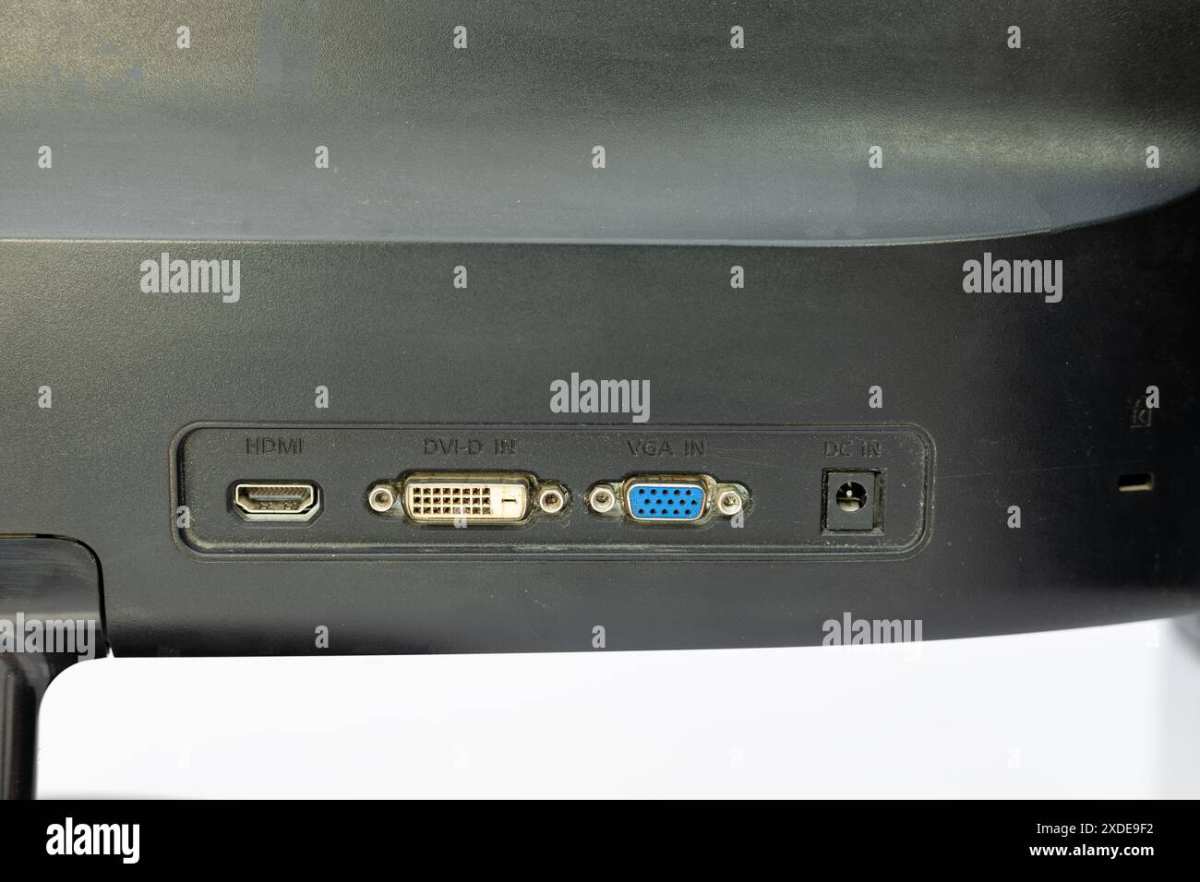
Common Ultrawide Monitor Input Ports:
- HDMI: Most ultrawide monitors will have at least one HDMI input, often multiple. Again, the version of HDMI (2.0, 2.1) will determine the maximum resolution and refresh rate supported.
- DisplayPort (DP): DisplayPort is highly recommended for ultrawide monitors, especially for higher refresh rates and resolutions. Many ultrawide displays come with at least one DisplayPort input.
- USB-C (with DisplayPort Alternate Mode or Thunderbolt support): Increasingly, ultrawide monitors are including USB-C ports that can accept video input. This is particularly convenient as it can also charge your laptop simultaneously (if both the laptop and monitor support power delivery over USB-C), effectively acting as a single-cable solution.
- Other Ports (e.g., USB Hubs): While not video inputs, many ultrawide monitors have built-in USB hubs. This can be a great way to connect peripherals like keyboards, mice, and webcams directly to the monitor, simplifying your desk setup.
Step 3: Choose the Right Cable
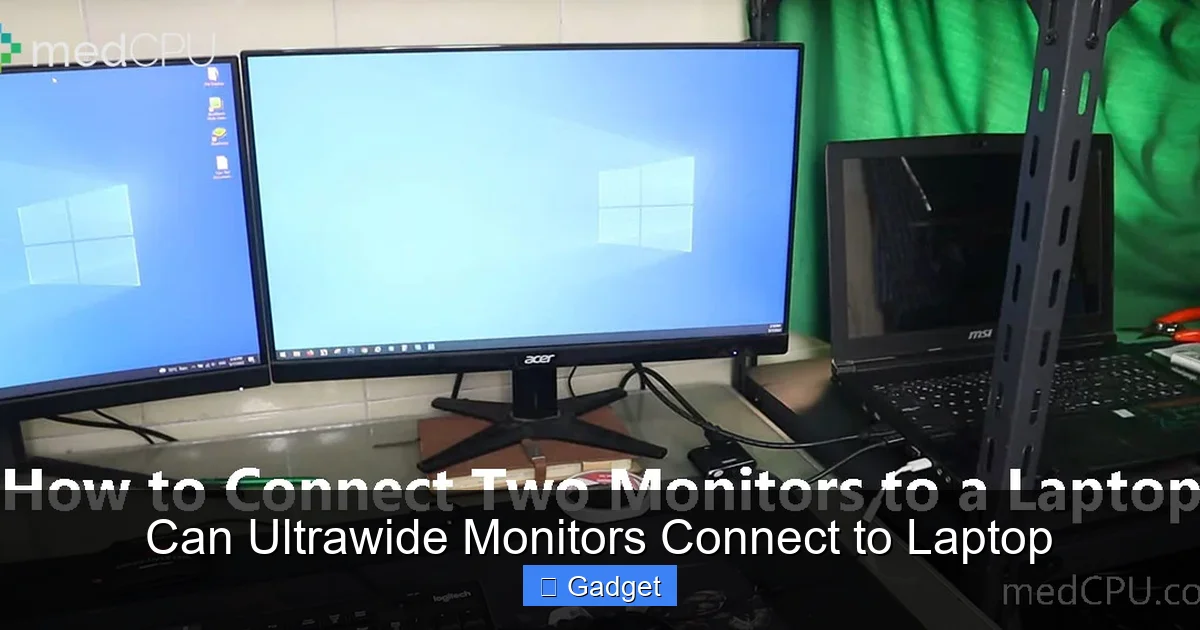
The cable you use is the bridge between your laptop and your ultrawide monitor. The type of cable and its quality are paramount to achieving the desired resolution, refresh rate, and overall visual experience. Using an outdated or low-quality cable can lead to performance issues, including lower resolutions, flickering, or even a complete lack of signal.Visual guide about Can Ultrawide Monitors Connect to Laptop
Image source: medcpu.com
Cable Options and Considerations:
- HDMI Cable: If both your laptop and ultrawide monitor have HDMI ports, an HDMI cable is a straightforward choice. For ultrawide monitors, aim for an HDMI 2.0 or HDMI 2.1 certified cable to ensure support for higher resolutions and refresh rates (like 144Hz or higher). Older HDMI 1.4 cables may struggle to deliver the full potential of an ultrawide display.
- DisplayPort Cable: DisplayPort cables are often the preferred choice for high-resolution, high-refresh-rate displays like ultrawide monitors. They generally offer more bandwidth than HDMI, allowing for smoother visuals and higher pixel counts. Ensure you use a DisplayPort 1.2 or DisplayPort 1.4 certified cable.
- USB-C Cable: If your laptop and ultrawide monitor both have compatible USB-C ports (supporting DisplayPort Alternate Mode or Thunderbolt), a single USB-C cable can be a game-changer. It simplifies your setup by carrying video, data, and potentially power. Ensure the USB-C cable itself is rated for the video bandwidth required by your ultrawide monitor’s resolution and refresh rate, and supports power delivery if you intend to use that feature. Not all USB-C cables are created equal; look for cables specifically designed for high-bandwidth video transmission or Thunderbolt.
- Adapters/Dongles: If your laptop’s ports don’t directly match your ultrawide monitor’s inputs, you might need an adapter or dongle. For example, if your laptop has USB-C but your monitor only has DisplayPort, you’ll need a USB-C to DisplayPort adapter or cable. Always ensure the adapter supports the desired resolution and refresh rate. Cheap, unbranded adapters can sometimes limit performance or cause issues.
Step 4: Connect Your Laptop and Monitor
With your ports identified and the correct cable in hand, it’s time to make the physical connection.Connection Process:
- Power Off Devices (Recommended): While many modern devices support hot-plugging (connecting while powered on), it’s often a good practice to turn off both your laptop and your ultrawide monitor before connecting. This can prevent potential electrical surges or glitches.
- Connect the Cable:
- HDMI: Plug one end of the HDMI cable into your laptop’s HDMI output port and the other end into your ultrawide monitor’s HDMI input port.
- DisplayPort: Plug one end of the DisplayPort cable into your laptop’s DisplayPort output and the other end into your ultrawide monitor’s DisplayPort input. Ensure the clip on the DisplayPort connector locks securely into place.
- USB-C: Connect the USB-C cable to the compatible USB-C port on your laptop and then to the compatible USB-C input on your ultrawide monitor.
- Connect Power: Ensure both your laptop and your ultrawide monitor are plugged into a power source. If you’re using a USB-C connection that supports power delivery, your laptop may start charging.
- Power On Devices: Turn on your ultrawide monitor first, followed by your laptop.
Step 5: Configure Display Settings on Your Laptop
Once everything is connected and powered on, your laptop should detect the ultrawide monitor. However, you’ll likely need to configure your display settings to ensure it’s working as intended and to utilize the full potential of your ultrawide screen.Adjusting Display Settings:
- Windows:
- Right-click on your desktop and select “Display settings.”
- Under the “Display” section, you should see your laptop’s display and the newly connected ultrawide monitor (often labeled as “1” and “2”).
- Click on the ultrawide monitor to select it.
- Scroll down to “Display resolution” and choose the native resolution of your ultrawide monitor (e.g., 3440 x 1440 for a 34-inch ultrawide).
- If your monitor supports a higher refresh rate and your laptop/cable can handle it, you might find an option under “Advanced display settings” to change the refresh rate.
- Under “Multiple displays,” you can choose how you want to use the monitors: “Duplicate these displays” (shows the same thing on both), “Extend these displays” (most common for ultrawide setups, creating one large workspace), or “Show only on 1” or “Show only on 2.” Select “Extend these displays” for the best ultrawide experience.
- macOS:
- Click the Apple menu in the top-left corner and select “System Settings” (or “System Preferences” on older macOS versions).
- Go to “Displays.”
- You should see your built-in display and the external ultrawide monitor.
- Click on the ultrawide monitor to configure its settings.
- To set the correct resolution, hold down the Option key while clicking “Scaled” to reveal more resolution options. Choose the native resolution.
- Under “Use as,” select “Extended display.”
- You can also arrange the displays by clicking and dragging them in the “Displays” window to match their physical placement on your desk.
Troubleshooting Common Issues
Even with the right equipment, you might encounter a few hiccups. Here are some common problems and how to address them:No Signal Detected:
- Check Cables: Ensure all cables are securely plugged into both the laptop and the monitor. Try reseating them.
- Incorrect Input: Make sure your ultrawide monitor is set to the correct input source (HDMI 1, DisplayPort, USB-C, etc.) that you’ve connected your laptop to. Use the monitor’s on-screen display (OSD) menu to cycle through inputs.
- Cable/Port Issue: Try a different cable or a different port on your laptop or monitor if available. Test the cable with another device if possible.
- Driver Issues: Ensure your laptop’s graphics drivers are up to date. Visit your laptop manufacturer’s website or the graphics card manufacturer’s website (NVIDIA, AMD, Intel) to download the latest drivers.
- Resolution/Refresh Rate Mismatch: Sometimes, a very high resolution or refresh rate might not be supported initially. Try connecting with a lower resolution first to get a signal, then adjust upwards.
Incorrect Resolution or Aspect Ratio (Black Bars):
- Native Resolution: As mentioned, ensure you’ve selected your ultrawide monitor’s native resolution in your operating system’s display settings.
- Aspect Ratio Settings: Check your monitor’s OSD menu for “Aspect Ratio” settings. Ensure it’s set to “Full,” “Wide,” or “16:9/21:9” as appropriate to fill the screen.
- Graphics Driver Update: Outdated graphics drivers can sometimes cause issues with displaying correct resolutions.
Flickering or Instability:
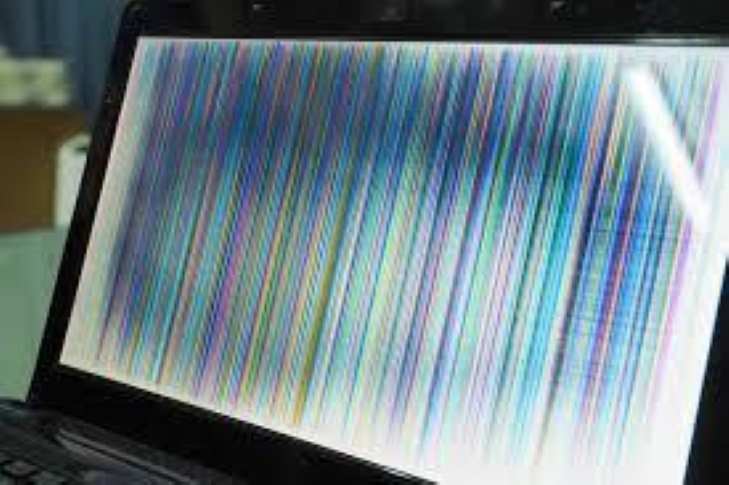
- Cable Quality: A low-quality or damaged cable can cause flickering, especially at higher resolutions or refresh rates. Try a different, higher-quality cable.
- Refresh Rate: If the refresh rate is too high for your setup, it can cause instability. Try lowering the refresh rate in your display settings.
- Power Issues: Ensure both devices are receiving stable power.
- Interference: Other electronic devices or strong magnets nearby can sometimes cause interference.
Laptop Not Charging via USB-C:
- Power Delivery Support: Both your laptop’s USB-C port and the ultrawide monitor’s USB-C port must support USB Power Delivery (PD).
- Cable Rating: The USB-C cable itself must be rated for sufficient wattage for charging your laptop. A standard USB-C data cable might not deliver enough power.
- Monitor Power: Ensure the ultrawide monitor is plugged into its own power source and is powered on.
Conclusion
Connecting an ultrawide monitor to your laptop is a fantastic way to boost productivity, enhance your viewing experience for work and entertainment, and declutter your workspace. By understanding your laptop’s ports, your monitor’s inputs, and selecting the appropriate cable, you can unlock the full potential of your ultrawide display. While initial setup might involve a few checks and configurations, the reward of an expansive, immersive workspace is well worth the effort. So go ahead, explore the possibilities of ultrawide computing with your laptop! If you’re curious about other uses for ultrawide screens, see how they perform for watching movies or coding tasks.
Similar Posts