Android Battery Low Tips To Optimize Your Phone’S Battery
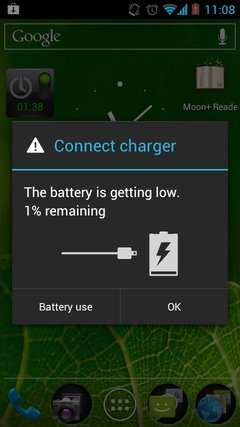

Dealing with an Android Battery Low Warning: How to Make Your Phone Last Longer
When your Android phone shows a “Battery Low” warning, it’s easy to feel anxious, especially if you’re in the middle of an important call or trying to finish an urgent task. This alert is a reminder that your device’s power is running out, and it’s time to take action before your phone shuts down unexpectedly. Fortunately, understanding why your battery drains so quickly and knowing practical steps to extend its life can help you stay connected longer. Here, we will walk through everything you need to know about managing that low battery warning, from simple tips to more advanced tricks.Why Does My Android Battery Reach Low Level So Quickly?
Before diving into solutions, it helps to understand why your Android phone’s battery might be dying faster than you expect. Several factors contribute to rapid battery drain, including:- Screen Brightness and Timeout Settings: The display consumes a large portion of your battery, especially when brightness is turned up high or the screen stays on for too long.
- Background Apps and Processes: Apps running in the background can use data and power, even when you’re not actively using them.
- Connectivity Features: Bluetooth, Wi-Fi, GPS, and mobile data all draw power, especially if they are left on when not needed.
- Old Battery Health: Over time, batteries lose their ability to hold charge, leading to faster drain and shorter usage times.
- Software Updates and Bugs: Sometimes, outdated or buggy software can cause abnormal battery consumption.
Strategies to Extend Your Android Battery Life
Handling a low battery warning isn’t just about rushing to find a charger. It’s about adopting daily habits and settings that make your phone’s battery last longer. Here are effective strategies:Adjust Screen Settings
Since the display is the biggest power drain, tweaking your screen settings can save a lot of energy:- Reduce Brightness: Turn down the brightness manually or enable adaptive brightness so your device adjusts automatically based on ambient light.
- Shorten Screen Timeout: Set your screen to turn off after a brief period of inactivity, such as 30 seconds or 1 minute.
- Use Dark Mode: Many apps and Android UI elements look better and consume less power when in dark mode, especially on OLED screens.
Manage Apps Wisely
Apps that run in the background or sync frequently can deplete your battery. Managing them effectively prolongs life:- Close Unused Apps: Always close apps you aren’t using, especially those that track location or send notifications.
- Disable Background Activity: In settings, restrict background activity for apps that don’t need to run all the time.
- Uninstall Unnecessary Apps: Remove apps you rarely or never use, reducing background processes and saving storage space.
Turn Off Unnecessary Connectivity Features
When not needed, turning off features like Bluetooth, Wi-Fi, or GPS can dramatically conserve power:- Enable Airplane Mode: If you don’t need network access, airplane mode disables all wireless signals, saving battery.
- Disable Location Services: Turn off GPS when not using navigation or location-based apps.
- Use Wi-Fi Instead of Mobile Data: Wi-Fi consumes less power than cellular data.
Optimize Battery Settings and Use Built-in Power Saving Modes
Android devices come with built-in features designed to conserve battery:Battery Saver Mode
Enabling battery saver limits background activity, reduces animations, and restricts app performance to extend battery life. Turn it on as soon as you see a low battery warning.Adaptive Battery
This feature learns your usage patterns and limits power to apps you rarely use, helping prolong overall battery life.Update Software and Apps
Software updates often include bug fixes and optimizations for better battery performance:- Keep your Android OS updated: Go to Settings > System > Software Update and install the latest version.
- Update your apps regularly: App developers release updates that fix bugs and improve energy efficiency.
Practical Tips for When Your Battery Is Really Low
Sometimes, despite your best efforts, your battery hits a critically low level. Here’s what you should do:- Enable Battery Saver Mode: Quickly restrict background app activity.
- Turn off Wi-Fi, Bluetooth, and Location: These features are unnecessary at this moment.
- Reduce Screen Brightness: Make the display as dim as comfortable.
- Limit Usage: Avoid opening new apps or playing videos and games that consume a lot of power.
- Carry a Power Bank or Charger: If possible, connect your device to an external power source or portably charge with a power bank.
How to Prevent Your Android Battery from Draining Too Quickly in the Future
Prevention is better than cure. Regular maintenance and mindful habits can help your Android device last longer:- Monitor Battery Health: Use built-in tools or third-party apps to check your battery’s condition periodically. If your battery health is poor, consider replacing it.
- Limit Notifications: Disable unnecessary app notifications that wake up your device.
- Set Charging Reminders: Avoid overcharging or letting your battery drain completely; maintain a healthy charge cycle (roughly 20% to 80%).
- Control App Permissions: Restrict apps from accessing location, camera, or microphone unless necessary, reducing background activity.
Advanced Tips for Power Efficiency
For tech-savvy users, there are more advanced options to maximize battery performance:Use Developer Options
Enable Developer Options by tapping the build number multiple times in Settings > About Phone. Then, you can:- Limit background process counts
- Disable animations to make your device more efficient
- Check hardware usage stats to spot power-hungry components
Install Battery Optimization Apps
Third-party apps can help identify problematic apps and optimize your phone’s power management more effectively.Replace the Battery
If your device is old and battery life is significantly reduced, replacing the battery can restore performance and prolong your device’s usability.Summary
Dealing with an Android battery low warning doesn’t have to be stressful. By understanding why your battery drains so quickly and making small but consistent changes—like adjusting screen brightness, managing apps, and turning off unused features—you can significantly extend your phone’s battery life. Remember, regular maintenance, software updates, and being mindful of your usage habits help keep your device running smoothly longer. Whether you’re at home, work, or on the go, these tips help make sure your Android phone stays powered up for as long as you need it.Frequently Asked Questions
What are some common reasons my Android battery drains quickly?
Several factors can cause rapid battery consumption on your Android device. Background apps may run without your knowledge, consuming power continuously. High screen brightness and extended screen time also contribute significantly to battery drain. Additionally, outdated or malfunctioning apps, poor signal strength, and running multiple processes at once can accelerate battery depletion. Ensuring your device and apps are updated and managing background activities helps reduce unnecessary power use.
How can I extend my Android phone’s battery life during the day?
To improve your battery life, start by lowering the screen brightness and reducing screen timeout duration. Turn off Wi-Fi, Bluetooth, and mobile data when not in use. Enable battery saver mode to limit background activity and push notifications. Close apps running in the background and uninstall apps you no longer need. Additionally, avoid using live wallpapers and keep your device’s software up to date for optimal performance.
Are there specific settings or apps that can help monitor battery health?
Yes, many Android devices include built-in battery management tools that allow you to see detailed information about battery usage and health. You can access these in the Settings menu under Battery or Battery Usage. There are also third-party apps that provide advanced monitoring, showing which apps consume the most power and offering suggestions to optimize battery life. Regularly checking these insights enables you to identify and address factors that drain your battery.
What steps should I take if my Android battery won’t hold a charge?
If your device’s battery fails to hold a charge, start by calibrating the battery. Let the phone drain completely to 0%, then recharge it to 100% without interruptions. If problems persist, consider replacing the battery, especially if your device is older. Checking for software updates can also resolve bugs that cause battery issues. If none of these steps help, visiting a professional technician or service center might be necessary to diagnose hardware problems.
Final Thoughts
En résumé, une batterie basse sur Android peut interrompre votre utilisation si vous ne prenez pas de mesures. Vérifiez régulièrement votre consommation d’énergie et fermez les applications inutilisées pour économiser la batterie. Activez le mode d’économie d’énergie pour prolonger la durée de vie de votre appareil. En cas d’android battery low, adaptez rapidement vos habitudes pour éviter les désagréments.
Similar Posts































