Optimize Your Phone With Accurate Android Battery
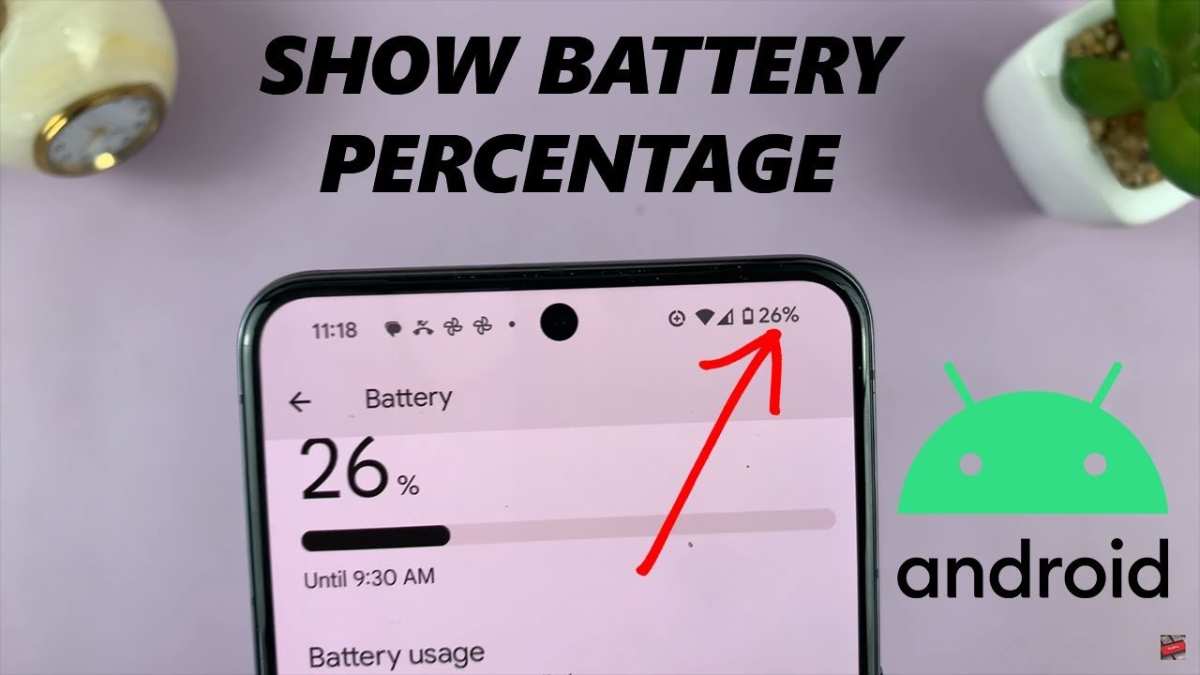

Understanding Android Battery Percentage and How to Manage It Effectively
Battery life remains one of the most common concerns for Android users. Whether you’re trying to squeeze extra hours out of your device or simply want to keep an eye on how much power you have left, knowing about your Android battery percentage is essential. In this article, we’ll explore everything you need to know about Android battery percentage, from what it really means to how you can optimize it for longer device usage.
What Does Android Battery Percentage Really Mean?
The term “battery percentage” indicates the remaining charge of your device’s battery expressed as a percentage. For example, if your phone shows 50%, it means half of the battery’s total capacity is still available for use. But what exactly happens behind the scenes when your battery percentage changes?
The battery percentage is calculated based on the readings from the device’s hardware sensors. These sensors measure the voltage and current within the battery, giving the device software a way to estimate how much power remains. However, this estimation isn’t always perfectly accurate; factors like battery aging, temperature, and usage patterns can influence the readings.
Why Is Showing Battery Percentage Important?
- Better Usage Planning: Knowing the exact percentage helps you decide whether to complete a task or charge your device soon.
- Prevent Unexpected Shutdowns: Staying aware of your remaining power reduces the chances of your device shutting down unexpectedly.
- Optimized Charging: Monitoring battery percentage allows you to maintain your battery health over time.
How to Enable or Disable Battery Percentage on Android
Most Android devices give you the option to see your battery percentage directly on the status bar. The process varies depending on the device model and Android version, but here’s a general guide to help you enable or disable this feature:
For Devices Running Android 8.0 and Above
- Open the Settings app on your device.
- Scroll down and select Battery.
- Look for an option called Show battery percentage. If you see it, toggle it to turn on or off.
For Samsung Devices
- Go to Settings.
- Tap on Notifications or Status Bar.
- Look for Show battery percentage and toggle it accordingly.
Using Quick Settings
Some Android versions allow you to toggle the battery percentage directly from the quick settings menu:
- Swipe down from the top of the screen to access quick settings.
- Look for the battery icon or an icon with a percentage indicator.
- Tap it to enable or disable the battery percentage display.
Customizing Your Battery Percentage Display
Different Android manufacturers offer various options for customizing how battery information appears. Here are some popular ways to personalize your battery indicator:
Using System Settings
- You can choose to display the percentage next to the battery icon or within it, depending on the device.
- Some devices allow you to choose a battery icon style, such as a simple bar, circle, or more detailed icons.
Installing Third-Party Apps
If your device doesn’t offer enough customization options, several third-party apps can help:
- Battery Widget Reborn
- AccuBattery
- GSam Battery Monitor
These apps can give you more detailed insights into your battery usage and display options, helping you manage your power better.
Understanding Battery Usage and Monitoring
To extend your Android device’s battery life, you must understand what drains your power. Android provides built-in tools to monitor battery consumption:
Checking Battery Usage
- Open Settings.
- Select Battery.
- Tap on Battery Usage.
This section shows a list of apps and services that use the most power. Here’s what you can do to manage consumption:
- Restrict background activity for apps that drain power unnecessarily.
- Uninstall or disable apps that you’re not using frequently.
- Turn off location services, Bluetooth, or Wi-Fi when not needed.
Identify Power-Hungry Apps
Some apps consume disproportionate amounts of battery, which can be surprising. Pay attention to apps that show up at the top of your battery usage list, especially if they’re not in active use. Consider:
- Limiting their background activity.
- Switching to lighter versions of the app.
- Using alternative apps that consume less power.
Tips to Maximize Battery Life Based on Percentage Usage
If you notice your battery is running low, here are practical tips to prolong usage until you can recharge:
Use Battery Saver Mode
Most Android phones include a battery saver or low power mode, which reduces background activity, lowers screen brightness, and limits app activity.
Reduce Screen Brightness and Timeout
The display consumes the most power on most devices. Lowering brightness and shortening screen timeout duration significantly saves battery life.
Limit App Refresh and Background Data
Restrict background data for apps that don’t need to update constantly, preventing unnecessary drain.
Turn Off Unnecessary Features
- Disable Bluetooth, NFC, or Wi-Fi when not in use.
- Activate airplane mode in areas with poor signal to prevent your device from constantly searching for networks.
Battery Health and Its Impact on Percentage Readings
Over time, your device’s battery capacity decreases. This decline affects the accuracy of remaining percentage readings. Understanding battery health can help you make better choices about charging habits:
- Battery aging causes the device to report higher percentages even when the total capacity is reduced.
- Using your device smartly, like avoiding complete discharges and not overcharging, helps preserve battery health.
- Battery calibration, which involves fully discharging and then fully charging your device, can sometimes improve the accuracy of battery percentage reporting.
Summary
Knowing your Android battery percentage provides valuable insights into how your device is performing and helps you make smarter choices about usage and charging. Customizing your display, monitoring app activity, and applying simple tips can extend your device’s battery life. Remember, as your battery ages, its percentage readings might become less accurate, so proper maintenance is essential for sustaining optimal performance.
By understanding what affects your battery percentage and how to manage it effectively, you can ensure your Android device stays powered longer and operates smoothly throughout your day.
Frequently Asked Questions
How can I see real-time battery percentage on my Android device?
To view the current battery percentage, you can enable the percentage display in your device’s status bar. Go to Settings, then tap on Battery or Battery & Performance. Toggle the option labeled ‘Show Battery Percentage’ to make the percentage visible next to the battery icon on your screen.
What is the best way to conserve battery life based on percentage usage?
Monitor your battery percentage regularly and identify apps or functions that drain energy quickly. Reduce screen brightness, turn off unnecessary features like Bluetooth or Wi-Fi when not in use, and close background apps. Using battery saver modes can also extend your device’s battery life when percentages drop low.
Can I customize the battery percentage display on my Android phone?
Yes, many Android devices allow customization of the battery percentage display. You can choose whether to show the percentage inside or next to the battery icon through the Display or Battery settings. Additionally, some third-party apps provide more options for customizing how the battery info appears on your home screen or status bar.
Final Thoughts
The ‘android battery percentage’ feature provides clear insights into your device’s power use, helping you manage it effectively. Users can easily customize this setting for better visibility. Monitoring your battery life ensures your device stays functional when needed most. Ultimately, keeping an eye on the ‘android battery percentage’ helps extend your phone’s lifespan and improves daily efficiency. Regular checks prevent unexpected shutdowns and optimize your overall experience.
Similar Posts































