Understanding Android Battery Drain Warning And How To Fix
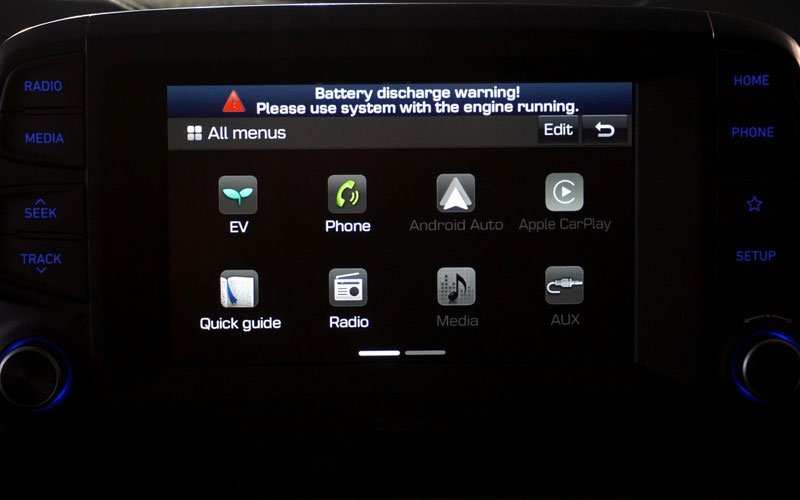

Understanding Android Battery Drain Warning and How to Fix It
When your Android phone suddenly shows a battery drain warning, it can feel like your device is working against you. These alerts pop up when your battery percentage drops faster than usual or when your device detects that something is draining power unexpectedly. Many users wonder why their phones are losing charge so quickly and how they can prevent this from happening. Knowing what causes battery drain and how to fix it can keep your device running longer, so you don’t have to worry about your phone dying in the middle of the day. In this article, we’ll explore what an Android battery drain warning really means, what causes these alerts, and practical steps you can take to extend your battery life. We’ll cover common reasons behind rapid battery drain, how to identify apps or settings that use too much power, and tips for maintaining your device’s health over time. Whether you’re a new Android user or someone who’s experiencing sudden battery issues, this guide aims to help you understand and solve these problems.What Is an Android Battery Drain Warning?
An Android battery drain warning is a message or alert that appears when your phone detects that the battery is being used up faster than normal or when it’s reaching a low level. Often, it comes in the form of a notification or a pop-up telling you that your battery is running low and suggests ways to conserve power. Sometimes, it’s an automatic warning from the system, especially if your device is running Android’s built-in battery management features. These warnings are designed to help you avoid unexpected shutdowns by alerting you early enough to take action. They can also be hints that something on your device is consuming more power than it should, giving you clues to identify the cause and fix it. The warning may appear in different forms, such as a subtle message in the notification shade, a pop-up, or even a bright red battery icon indicating critical levels.Common Causes of Rapid Battery Drain
Understanding what causes your Android device to drain battery quickly can help you prevent or fix the issue. Here are some of the main culprits:Background Apps Running Unnecessarily
Many apps continue to run in the background even when you’re not actively using them. These apps can perform tasks like syncing data, checking for updates, or refreshing content, all of which consume power. When multiple apps run simultaneously, they can drain your battery faster.The Screen Brightness and Timeout Settings
Your screen uses a significant portion of your device’s battery. Keeping the brightness high or having a long screen timeout period means the display stays on longer, using more power. Reducing brightness and shortening the timeout can conserve energy.Wi-Fi, Bluetooth, and Location Services
Keeping Wi-Fi, Bluetooth, and location services turned on constantly can cause battery drain, especially if your device is searching for networks or devices. Turning these features off when not needed helps save power.Outdated Apps and System Software
Using outdated apps or system software can result in inefficient battery use. Apps may have bugs or poorly optimized code that causes excessive power consumption. Regular updates fix these issues and improve overall efficiency.High-Performance Tasks and Gaming
Playing games or running demanding apps often requires more processing power and graphics, which can quickly deplete the battery. Limiting the use of these activities or taking breaks can help preserve your battery life. Sometimes, hardware issues or a degraded battery can cause excessive drain. If your battery health is poor, it might need replacement to restore normal performance. How to Recognize Which Apps Are Draining Your Battery
Knowing which apps use the most power helps you decide what to close or uninstall. Here’s how you can check your battery usage: Use Built-In Battery Usage Feature
Most Android devices have a battery section in the Settings menu. Here’s how to access it: - Open your device’s Settings app.
- Scroll down and select “Battery” or “Battery & device care.”
- Tap on “Battery Usage.”
This page shows a list of apps and services ranked by their power consumption over a selected period. Apps that use a large percentage of battery should be your focus for troubleshooting. Identify Unusual or Unexpected App Activity
If you see an app consuming an unusually high amount of power, consider: - Closing the app completely.
- Uninstalling or disabling apps you no longer use.
- Checking app permissions to restrict background activity.
How to Reduce Battery Drain Effectively
Now that you understand what causes rapid battery drain, let’s look at specific ways you can extend your Android device’s battery life. Adjust Your Screen Settings
Since the display is the biggest battery user, optimizing settings here can make a big difference: - Lower screen brightness or set it to auto-brightness.
- Reduce screen timeout duration to 30 seconds or 1 minute.
- Use dark themes or wallpapers, especially on OLED screens, as black pixels consume less power.
Turn Off Unnecessary Connectivity Features
Keep Wi-Fi, Bluetooth, and GPS turned off when you don’t need them. Quick tips: - Toggle these settings from the quick settings panel.
- Use airplane mode in areas with no network to save power.
Manage Background App Activity
Limit or restrict apps from running in the background: - Go to Settings > Apps & notifications > App info.
- Select the app you want to restrict.
- Tap on “Battery” or “Background activity” and choose restrictions.
You can also enable “Battery saver” mode, which limits background activity and reduces performance to prolong battery life. Keep Your Software Up-to-Date
Regularly update your Android system and apps to benefit from fixes that improve battery efficiency. To check for updates: - Open Settings.
- Scroll to “System” or “Software update.”
- Tap “Check for updates” and install available versions.
Limit High-Performance Tasks and Use Power-Saving Modes
Avoid gaming or running heavy apps for extended periods. When your battery is low, enable power-saving modes that restrict background activity, lower CPU performance, and reduce screen brightness. Perform Battery Health Checks and Replace Battery if Needed
Over time, batteries lose their ability to hold charge. If your device has a degraded battery, it might cause rapid drain despite trying all other methods: - Use built-in diagnostics if available.
- Visit an authorized service center for a battery check or replacement.
Practical Tips for Long-Term Battery Maintenance
Maintaining your Android’s battery health over months and years helps avoid sudden drain warnings: - Avoid letting your battery fully discharge regularly; instead, keep it charged between 20% and 80%.
- Don’t leave your device charging overnight frequently to prevent overcharging (modern devices usually stop charging once full).
- Store your device in a cool, dry place as heat accelerates battery wear.
- Use genuine chargers and cables to prevent damage to the battery and charging circuit.
Monitoring Your Battery for Better Insights
Keeping an eye on how your battery performs helps catch issues early. Use dedicated apps or built-in tools to: - Track battery temperature and health.
- Identify apps that suddenly start consuming more power.
- Set alerts for critical battery levels.
Conclusion
Battery drain warnings can feel alarming, but understanding why they happen and how to fix them empowers you to keep your Android device running smoothly. By managing app activity, adjusting display settings, turning off unused features, and maintaining your battery health, you can extend your device’s battery life significantly. Regular checks and updates also play a vital role in preventing sudden power loss, giving you peace of mind throughout your day. Remember, a little effort upfront can prevent inconvenience later on, ensuring your Android device stays reliable when you need it most. Frequently Asked Questions
What are the common causes of unexpected battery drain on Android devices?
Unexpected battery drain on Android devices often results from background apps consuming resources, high screen brightness, outdated software, or malware. Using location services excessively, keeping Wi-Fi or Bluetooth turned on when not needed, and faulty hardware components can also contribute to faster battery depletion. Regularly reviewing app permissions and closing unused apps can help mitigate these issues.
How can I identify which apps are draining my Android battery the most?
You can check battery usage details within your device settings. Navigate to Settings > Battery to see a list of apps and services ranked by their power consumption. This information helps you pinpoint apps that use excessive resources and decide whether to limit their activity or uninstall them. Monitoring this data periodically allows better management of battery drain.
What practical steps can I take to extend my Android device’s battery life?
To extend battery life, lower screen brightness, enable dark mode, and reduce screen timeout duration. Turn off Wi-Fi, Bluetooth, and location services when not in use. Keep your software updated, as updates often include battery optimization improvements. Additionally, enable battery saver mode to limit background activity and reduce power consumption during low-charge periods.
Is it safe to perform a factory reset to fix battery drain issues?
Performing a factory reset can resolve persistent battery problems caused by software glitches or malware. However, it also deletes all personal data and apps, so back up important information beforehand. After resetting, set up your device as new, avoiding restoring problematic backups, and check if the battery improves. If issues persist, hardware problems might be the cause.
How can software updates help prevent battery drain problems?
Software updates often include bug fixes, security patches, and performance improvements that optimize power consumption. Installing the latest updates ensures your device runs more efficiently and reduces unnecessary background activity. Regularly checking for updates and applying them promptly can prevent or lessen battery drain issues over time.
Final Thoughts
In summary, staying alert to the android battery drain warning helps you manage your device efficiently. Regularly check for apps that consume excessive power and adjust settings to extend battery life. Addressing these issues promptly prevents unexpected shutdowns and keeps your device running smoothly. Recognizing the android battery drain warning allows you to optimize performance and preserve battery health.
Similar Posts































