What Is Draining My Phone Battery Android Tips To Fix It
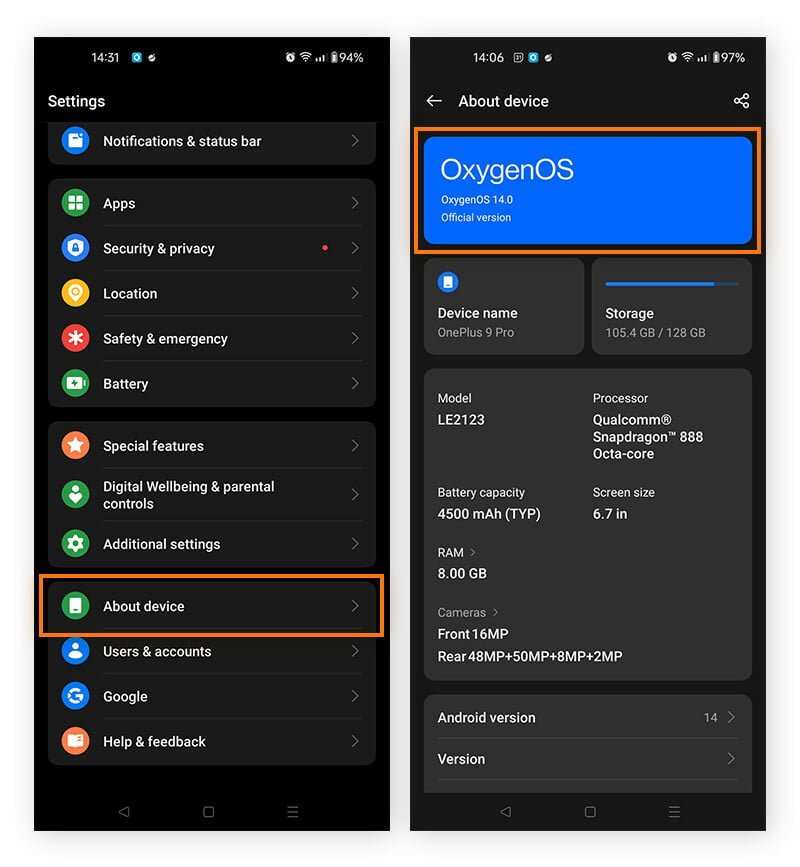
If you’re wondering what is draining my phone battery android, the answer is often apps running in the background, screen brightness, or outdated software. **Stopping background activity, reducing screen time, and updating your software can significantly extend your battery life.** Many users overlook these simple steps, leading to quick battery drain. Instead of searching for complicated solutions, start by checking which apps consume the most power. Keeping an eye on your settings and managing apps effectively can make a noticeable difference.

What Is Draining My Phone Battery Android?
When your Android phone starts to run out of juice faster than usual, it can be frustrating. You might wonder, “What is draining my phone battery Android?” Understanding the common causes behind rapid battery drain helps you take steps to make your phone last longer. In this section, we’ll explore all the main reasons that could be sucking your battery dry, from apps to settings and hardware issues.
Common Causes of Battery Drain on Android
Many factors contribute to quick battery depletion on Android devices. Knowing these can help you identify what is affecting your phone’s battery health.
- Background Apps and Processes
Many apps continue to run in the background even after you stop using them. These processes can consume significant power, especially if they frequently refresh data or send notifications. Common culprits include social media apps, email clients, and cloud services.
- High Screen Brightness and Screen Timeout
Your screen is one of the biggest battery consumers. Keeping brightness high and screen timeout duration long can drain your battery rapidly. Remember, the screen accounts for a large portion of power usage on any smartphone.
- Location Services and GPS
GPS is a powerful feature but also one of the most battery-intensive. When location services are left on for apps like maps or fitness trackers, they can quickly consume your battery.
- Network Connections (Wi-Fi, Mobile Data, Bluetooth)
Poor network signals cause your phone to work harder to connect, which drains battery. Keeping Wi-Fi or mobile data on constantly, especially when not using them, wastes power. Bluetooth and NFC are also power hogs when left active unnecessarily.
- Push Notifications and Syncing
Constant notifications and automatic data syncing keep your device engaged and increase power consumption. Social media, email, and news apps that refresh frequently are typical examples.
How App Usage Impacts Battery Life
Apps can be the biggest drain on your Android phone’s power. Some apps are more power-hungry than others, especially those that use location, camera, or sensors continuously.
Identifying Power-Hungry Apps
Your device has built-in tools to show which apps use the most battery percentage. Checking this information helps you pinpoint apps that might need limiting or uninstalling.
| App | Battery Usage | Comments |
|---|---|---|
| Social Media | High | Keep notifications minimal or disable background refresh. |
| Navigation Apps | Very High | Use only when needed; shut off GPS when not in use. |
| Email Apps | Moderate | Adjust sync frequency. |
| Streaming Services | High | Stream over Wi-Fi when possible and limit usage. |
Managing Apps to Save Battery
To extend your battery life, consider:
- Closing apps running in the background that you no longer need.
- Uninstalling or disabling apps that drain battery and are rarely used.
- Using lite versions of apps, which consume less power and data.
- Restricting apps’ background activity through your device settings.
Role of Hardware and System Settings in Battery Drain
The hardware components of your Android device also influence how quickly your battery drains. Additionally, specific system settings can either help conserve power or accelerate battery depletion.
Screen Settings and Display
The display consumes the most power, especially when it’s bright or has a high refresh rate. Adjusting display settings can make a big difference.
- Reduce brightness manually or enable adaptive brightness.
- Lower screen timeout duration to turn off display sooner when idle.
- Use dark mode if your device supports it—many OLED screens save power with dark backgrounds.
Battery Optimization Settings
Most Android devices have built-in battery optimization features that manage app activity.
- Enable battery saver mode during low battery situations.
- Use device-specific power management tools to restrict background activity and network access for apps.
- Review and optimize individual app permissions to prevent unnecessary background use.
Hardware Issues or Battery Age
Over time, batteries lose capacity. If your phone’s battery is old or damaged, even normal usage can cause rapid drain.
- Battery capacity naturally declines with age, leading to shorter usage times.
- Physical damage or manufacturing defects can lead to unexpected drain.
- Tools like battery health apps can give you estimates of your battery’s condition.
How to Diagnose and Fix Battery Drain Problems
Once you suspect what is draining your Android phone’s battery, you can perform a series of checks and actions to address the issue.
Step-by-Step Battery Usage Analysis
Follow these steps to determine which apps or settings are causing the problem:
- Open your device’s Settings app.
- Navigate to the Battery section.
- Tap on Battery Usage to view a breakdown of power consumption by apps and services.
- Identify any unusual or unexpectedly high usage percentages.
Adjust Settings to Improve Battery Life
Based on your findings, make the following changes:
- Limit or disable background activity for power-hungry apps.
- Switch to Wi-Fi instead of mobile data for internet use whenever possible.
- Lower screen brightness and reduce screen timeout duration.
- Turn off location services when not needed.
- Enable built-in battery saver modes.
Additional Tips for Battery Efficiency
Besides adjusting app and system settings, consider these habits:
- Close apps completely instead of leaving them running in the background.
- Update your device and apps regularly—updates often include battery optimizations.
- Remove or disable unnecessary widgets and live wallpapers that continuously refresh.
- Limit notifications or set do not disturb mode during times when you need your phone to last longer.
When to Replace Your Battery
If your battery continues to drain quickly despite following all these steps, it might be time for a replacement. Physical signs include overheating, swelling, or difficulty charging. Visiting a professional for a battery replacement ensures your device stays safe and functional.
In Summary
Understanding what causes your Android phone’s battery to drain allows you to take control of your device’s power consumption. By reviewing app activity, adjusting display and system settings, and considering hardware health, you can enhance your phone’s battery life significantly. Regularly monitoring your usage and making small adjustments can lead to longer-lasting device performance, ensuring your phone stays powered when you need it most.
Frequently Asked Questions
How can background apps affect my phone’s battery life?
Apps running in the background can consume significant battery power without your knowledge. They perform tasks like syncing data, updating feeds, or sending notifications, which drain your battery over time. To conserve energy, check your settings to identify and close apps that shouldn’t be active when not in use. Managing background app activity helps extend your phone’s battery life effectively.
Why does screen brightness impact my battery consumption?
High screen brightness increases the amount of power your display uses, which is one of the main battery drainers on your phone. Using auto-brightness or manually reducing the brightness level can significantly reduce energy consumption. Keeping the screen dimmer when possible allows your battery to last longer throughout the day.
Can connectivity features like Wi-Fi, Bluetooth, or GPS drain my Android battery?
Yes, active connectivity services such as Wi-Fi, Bluetooth, and GPS tend to use a lot of battery power because they maintain constant communication with other devices or satellites. Turning off these features when you don’t need them, or enabling airplane mode in low-signal areas, can prevent unnecessary battery drain and help your phone last longer.
How does app notification activity affect battery life?
Apps that frequently send notifications can cause your device to wake up often, which increases power consumption. If you receive many notifications but don’t need all of them, consider disabling notifications for certain apps or adjusting their settings. Reducing push notifications helps decrease battery usage and keeps your device running longer between charges.
In what ways does system updates or background processes influence battery drain?
System updates and background processes can temporarily increase battery consumption as your device processes new files or applies updates. Sometimes, background system tasks may run more frequently, consuming additional power. Keeping your device updated and monitoring background processes helps ensure smoother operation and reduces unexpected battery drain.
Final Thoughts
Drain on your Android battery often comes from background apps that run without your knowledge. Settings like location services, Wi-Fi, and Bluetooth also consume power when active. Screen brightness and screen timeout settings play a significant role as well.
Apps and notifications keep your phone awake longer, increasing power drain. Over time, software updates or faulty apps can cause unexpected battery loss.
In summary, what is draining my phone battery android? Identifying and managing background apps, adjusting settings, and updating software can greatly improve battery life.

Similar Posts































