What Does Battery Saver Do On Android Best Explained
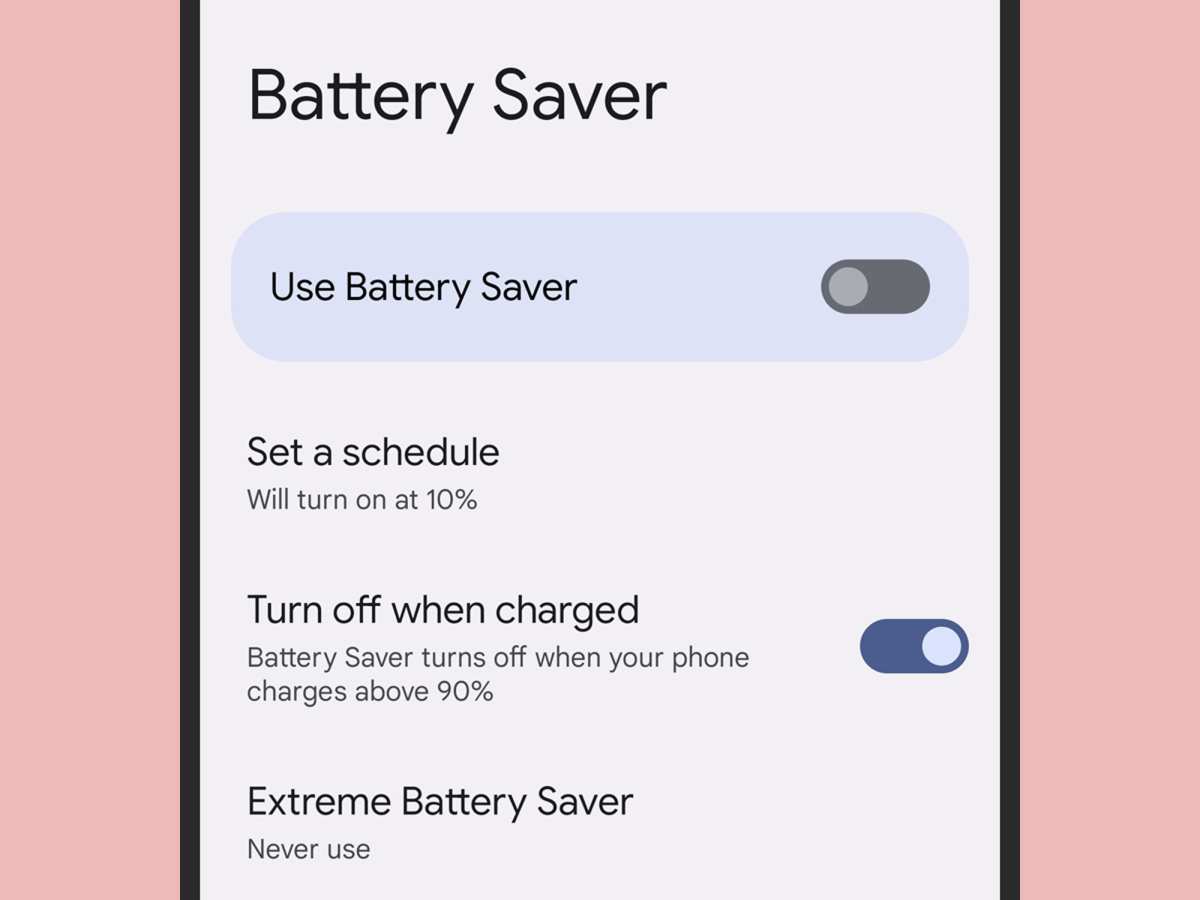

What Does Battery Saver Do on Android?
When your Android phone starts to run low on battery, the first thing you might see is the Battery Saver icon. Many users wonder, “What does battery saver do on Android?” It’s not just a simple switch; it’s a powerful tool designed to extend your phone’s battery life by adjusting various functions and settings. Understanding exactly how battery saver works can help you use it effectively and keep your device running longer throughout the day. In this article, we’ll explore what battery saver does on Android, how it impacts your device’s performance, and the different ways you can customize its settings to suit your needs. Whether you’re new to Android or a seasoned user, this guide will give you a clear understanding of this handy feature.How Battery Saver Works on Android
At its core, battery saver on Android is a software feature that reduces the amount of power your device consumes. When activated, it makes a series of adjustments to extend battery life without completely shutting down your phone or limiting your use too much. Here’s what typically happens when you enable battery saver:- Restricts background activity for apps, so they don’t run tasks without your knowledge.
- Limits notifications and vibrations to save energy used in alerting you.
- Reduces screen brightness and lowers screen timeout durations.
- Disables or minimizes location services, such as GPS.
- Suppresses visual effects and animations that aren’t necessary.
- Reduces CPU performance to lower power consumption.
Background Activity and App Management
One of the biggest ways battery saver helps prolong battery life involves managing what apps do in the background. Many apps, even when you’re not actively using them, continue to run and consume resources. This might include syncing data, checking for updates, or downloading content. When you turn on battery saver, the system automatically limits these background activities. It prevents unnecessary app refreshes, reduces network access, and sometimes even pauses certain processes altogether. This way, your phone focuses on essential functions, such as making calls, sending messages, or using the apps you’re actively carrying out. Some key points about app management include:- Apps are prevented from updating or syncing in the background unless you explicitly allow them.
- The system may restrict app notifications to reduce power when your device is in battery saver mode.
- You can often customize which apps are allowed to run in the background even when battery saver is active.
Screen Brightness and Display Settings
Your screen consumes up to 60% of your phone’s battery, making it a primary target for power saving efforts. When you activate battery saver, Android automatically reduces screen brightness to a lower level than your usual setting. If you enable adaptive brightness, it might adjust the brightness dynamically to keep it at a minimal comfortable level. Additionally, battery saver often shortens screen timeout duration. This means your display turns off faster when you’re not actively looking at your phone, reducing the time the screen stays on and consumes power unnecessarily. Some display adjustments made by battery saver include:- Lowering screen brightness to a minimum but still readable level.
- Disabling auto-brightness feature temporarily, or adjusting it to a lower setting.
- Reducing screen timeout duration, e.g., from 30 seconds to 15 seconds or less.
Location Services and GPS Restrictions
Many apps rely on GPS and location services to function properly. While these features provide valuable services like navigation or location-based notifications, they also use a significant amount of power. Battery saver mode typically disables or limits location services to extend battery life. In practice, this means:- Apps won’t be able to access your location unless you manually allow them.
- Location updates happen less frequently, reducing power drain from GPS signals.
- Some Android devices disable precise location and switch to approximate location for apps that don’t require exact positioning.
Network and Connectivity Adjustments
Another key aspect of battery saver is reducing network activity, particularly Wi-Fi, mobile data, and Bluetooth connections. When enabled, Android may:- Disable or limit Wi-Fi scanning to save power, especially if Wi-Fi is not connected.
- Reduce the frequency of background data syncing for apps.
- Disable Bluetooth if it’s not needed, especially if you’re not using wireless accessories.
- Limit cellular data usage for background apps, allowing only essential tasks.
Visual Effects and Animations
Android’s visual effects, like animations and transitions, make the user experience smooth and enjoyable. However, they can also use extra power. Battery saver mode typically reduces or disables these effects to save energy. Some visual adjustments include:- Turning off or minimizing transition animations between screens.
- Reducing or disabling certain touchscreen effects or haptic feedback.
- Simplifying UI elements to use less graphical processing power.
CPU Performance and Power Management
Finally, battery saver reduces the CPU’s performance to decrease the power it consumes. When the processor runs at lower speeds, it consumes less energy, but the overall device might respond slightly slower. This process involves:- Limiting background processes that demand heavy processing power.
- Reducing the frequency of CPU cycles used for running apps or system tasks.
- Balancing performance versus power consumption to keep your phone usable during low battery.
Can You Customize Battery Saver Settings?
Many Android devices allow some level of customization within battery saver mode. You might find options to:- Choose which apps can run in the background even when battery saver is active.
- Adjust screen brightness levels during power-saving mode.
- Set auto-activation rules, such as turning on battery saver when the battery drops below a certain percentage.
- Disable or enable specific features like location, Wi-Fi, or Bluetooth in battery saver mode.
When Should You Use Battery Saver?
Knowing when to activate battery saver can make your device last longer and prevent unexpected shutdowns. Some ideal situations include:- When your battery drops below 20% or 10%.
- During travel or outdoor activities with limited charging options.
- When you notice your device is draining faster than usual.
- While using your phone for essential tasks only, avoiding non-essential background activities.
Frequently Asked Questions
How does enabling Battery Saver affect the performance of my Android device?
When you activate Battery Saver, your Android device reduces background activity, limits certain visual effects, and adjusts system settings to prioritize conserving power. This often results in slightly slower performance for some apps and features but helps extend your device’s battery life during low power situations.
Can Battery Saver improve the longevity of my device’s battery over time?
While Battery Saver primarily helps you get more usage time on a single charge, it doesn’t directly influence the overall lifespan of your battery. However, reducing unnecessary power drain can decrease wear and tear on the battery, potentially helping it stay healthier longer.
Are notifications affected when Battery Saver is active?
Yes, enabling Battery Saver may restrict or delay notifications from certain apps to reduce background activity and conserve power. You’ll still receive essential alerts, but some less urgent notifications could be postponed until you turn off Battery Saver or disable specific limits.
Does Battery Saver automatically turn on at a specific charge level?
Most Android devices allow you to set a specific battery percentage that triggers Battery Saver mode automatically. Once your battery drops to that level, the system activates Battery Saver without requiring manual intervention, helping you manage power more effectively throughout the day.
Final Thoughts
Battery saver on Android helps extend your device’s battery life by limiting background activity and reducing power consumption. It automatically adjusts settings like screen brightness and disables non-essential apps. This feature is especially useful when you need your phone to last longer without charging. Understanding what battery saver does on Android allows you to manage your device more efficiently and stay connected longer throughout the day.
Similar Posts































