
FreeSync is AMD’s adaptive-sync technology that synchronizes your gaming monitor’s refresh rate with your graphics card’s frame rate. This eliminates visual annoyances like screen tearing and stuttering, leading to a significantly smoother and more responsive gaming experience. If you’re a PC gamer looking for the best visual fidelity, understanding FreeSync is crucial for choosing the right monitor.
What Does FreeSync Mean on a Gaming Monitor
So, you’re looking to upgrade your gaming setup, and you’ve stumbled across the term “FreeSync” while browsing for a new monitor. What exactly does it mean, and why should you care? If you’ve ever experienced those jarring visual glitches like “screen tearing” or frustrating “stuttering” during your gaming sessions, then FreeSync is something you’ll definitely want to understand. This guide is here to break down FreeSync in a way that’s easy to grasp, so you can make informed decisions and enjoy smoother, more immersive gameplay.
By the end of this guide, you’ll know:
* What FreeSync is and how it works.
* The common visual problems it solves.
* How to tell if your system is compatible.
* How to enable and get the most out of FreeSync.
* Practical tips for choosing a FreeSync monitor.
Let’s dive in and unlock a more fluid gaming experience!
Contents
- 1 Key Takeaways
- 2 Understanding the Problem: What Happens Without FreeSync?
- 3 What is FreeSync? The Core Concept
- 4 How FreeSync Works: The Technical Side (Simplified)
- 5 The Benefits of FreeSync for Gamers
- 6 FreeSync vs. G-Sync: What’s the Difference?
- 7 How to Tell if Your System is FreeSync Compatible
- 8 How to Enable FreeSync for the Best Gaming Experience
- 9 Troubleshooting Common FreeSync Issues
- 10 Choosing the Right FreeSync Monitor
- 11 Conclusion: Embrace Smoother Gaming with FreeSync
Key Takeaways
- FreeSync synchronizes your monitor’s refresh rate with your graphics card’s frame output, eliminating visual glitches.
- Screen tearing, where parts of different frames are displayed simultaneously, is the primary issue FreeSync addresses.
- Stuttering and input lag are also reduced, as the monitor doesn’t have to wait for a complete frame or display incomplete ones.
- FreeSync is an open standard, meaning it doesn’t require proprietary hardware and is generally more accessible than competing technologies.
- To use FreeSync, you need an AMD Radeon graphics card and a FreeSync-compatible monitor.
- Ensure FreeSync is enabled in both your monitor’s settings and your AMD graphics driver for optimal performance.
- While FreeSync is excellent, some higher-end monitors may also offer G-Sync compatibility, which can be an alternative for NVIDIA users.
Understanding the Problem: What Happens Without FreeSync?
Before we get into the magic of FreeSync, let’s talk about the visual hiccups that plague gamers without it. Imagine your graphics card (GPU) is like an artist rapidly painting frames of your game. Your monitor, on the other hand, is like a canvas that refreshes itself to show you what the artist has painted.
Normally, your monitor refreshes its image at a fixed rate, like 60 times per second (60Hz) or 144 times per second (144Hz). Your graphics card, however, doesn’t always produce frames at that exact same pace. The number of frames your GPU can render per second is called the “frame rate,” and it fluctuates based on how demanding the game is.
This mismatch between the GPU’s frame rate and the monitor’s fixed refresh rate leads to common visual problems:
Screen Tearing
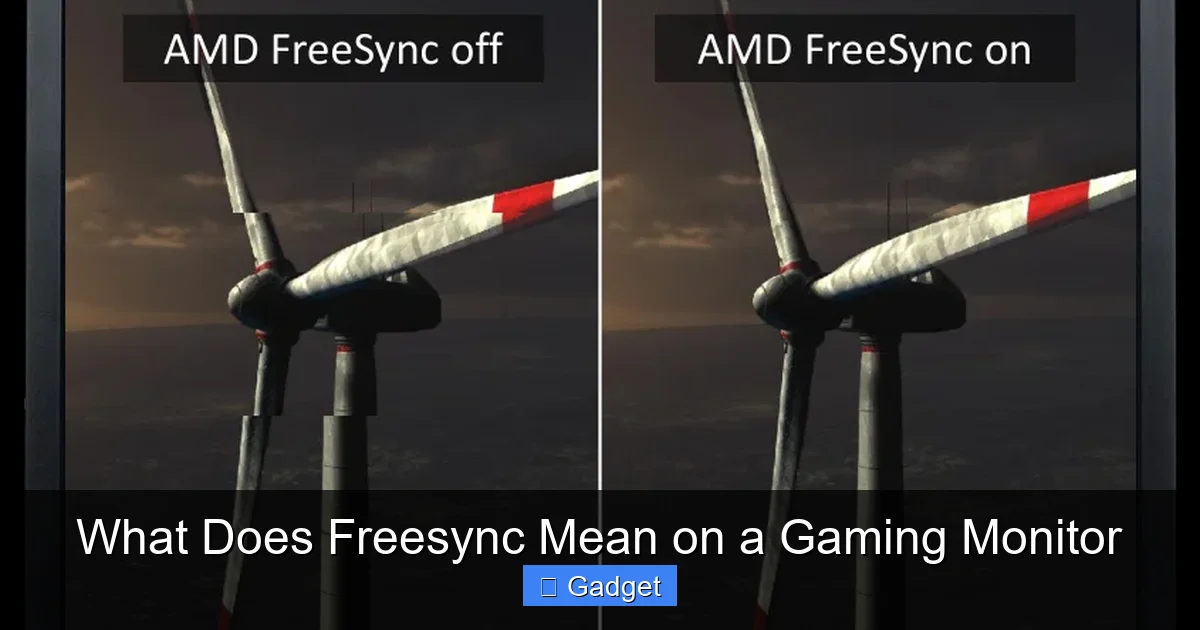
This is perhaps the most noticeable issue. When your GPU finishes rendering a new frame but the monitor has already started refreshing its screen, it might display a part of the old frame and a part of the new frame simultaneously. This creates a visual “tear” across the screen, making the image look broken and distracting. It’s especially apparent in fast-paced action games where the camera is moving quickly.
Stuttering and Lag
Conversely, if your GPU is struggling to keep up and its frame rate drops below your monitor’s refresh rate, your monitor might display the same frame multiple times before it receives a new one. This causes the image to appear choppy or “stutter.” In some cases, the monitor might even display an incomplete frame, leading to a slight delay or input lag, making your game feel less responsive.
These issues can break immersion and even put you at a disadvantage in competitive games where every millisecond and visual detail matters.
What is FreeSync? The Core Concept
Visual guide about What Does Freesync Mean on a Gaming Monitor
Image source: monitornerds.com
FreeSync is AMD’s answer to these visual inconsistencies. It’s a technology designed to bridge the gap between your graphics card and your monitor. In essence, FreeSync allows your monitor to dynamically adjust its refresh rate to match the frame rate that your AMD graphics card is outputting in real-time.
Think of it like this: instead of the monitor having a rigid schedule for refreshing, it now has a flexible one. When the GPU produces a frame, the monitor waits for that specific frame to be ready before refreshing and displaying it. When the GPU produces another frame, the monitor refreshes again. This synchronization ensures that every frame is displayed correctly and without interruption.
How FreeSync Works: The Technical Side (Simplified)
Visual guide about What Does Freesync Mean on a Gaming Monitor
Image source: cdn.appuals.com
FreeSync is built upon the VESA Adaptive-Sync standard, which is an open standard. This means it’s not proprietary technology that requires special hardware from a single company. AMD developed its implementation of this standard and called it FreeSync.
Here’s a simplified breakdown of the process:
1. GPU Signals Frame Rate: Your AMD graphics card determines how many frames per second it’s rendering.
2. Monitor Adjusts Refresh Rate: The graphics card sends a signal to the monitor, telling it the current frame rate. The monitor then adjusts its own refresh rate to match that exact number.
3. Seamless Display: The monitor refreshes its display only when a complete, new frame is ready from the GPU. This eliminates the need for the monitor to guess or repeat frames.
This dynamic adjustment happens continuously, moment by moment, as your game’s performance fluctuates.
The Benefits of FreeSync for Gamers
Visual guide about What Does Freesync Mean on a Gaming Monitor
Image source: i.ytimg.com
The primary goal of FreeSync is to provide a superior visual experience. Here are the key benefits you’ll enjoy:
* Eliminates Screen Tearing: By ensuring the monitor only refreshes when a full frame is ready, FreeSync completely eradicates screen tearing. This results in a clean, unbroken image, even during the most intense gaming action.
* Reduces Stuttering: When your GPU’s frame rate dips, FreeSync helps prevent stuttering. Instead of the monitor displaying the same frame multiple times, it will simply wait for the next available frame, leading to a smoother flow of motion.
* Minimizes Input Lag: By synchronizing the display with the frame output, FreeSync can also help reduce input lag. This means your actions in the game – like moving your mouse or pressing a button – are reflected on screen more quickly, leading to a more responsive feel.
* More Immersive Experience: When you’re not distracted by visual glitches, you can become more immersed in the game world. The fluidity of motion and clarity of the image contribute significantly to the overall gaming experience.
* Works with a Wide Range of Monitors: Because FreeSync is based on an open standard, many manufacturers produce FreeSync-compatible monitors. This offers gamers a wider choice of displays at various price points.
FreeSync vs. G-Sync: What’s the Difference?
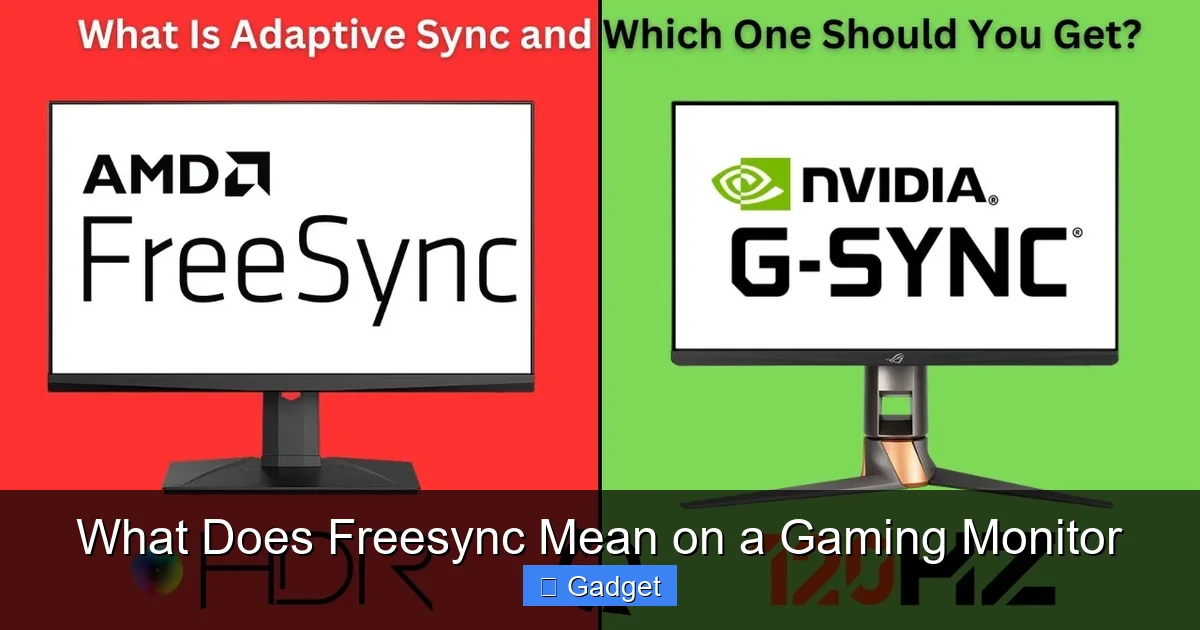
You might also hear about NVIDIA’s competitor to FreeSync, called G-Sync. Both technologies aim to achieve the same goal: eliminate screen tearing and improve visual fluidity.
* FreeSync: Developed by AMD, based on the VESA Adaptive-Sync standard. It’s an open standard and generally requires less expensive hardware integration for monitor manufacturers.
* G-Sync: Developed by NVIDIA. It requires a dedicated hardware module within the monitor, which can make G-Sync monitors typically more expensive.
For a long time, FreeSync was exclusive to AMD graphics cards, and G-Sync was exclusive to NVIDIA graphics cards. However, the landscape is evolving:
* G-Sync Compatible: NVIDIA now allows some FreeSync monitors to work with their graphics cards, labeling them as “G-Sync Compatible.” This often requires specific driver settings and might not always perform as well as native G-Sync.
* AMD Cards and G-Sync Monitors: AMD graphics cards can often work with G-Sync monitors as well, though the compatibility might vary.
The key takeaway is that if you have an AMD GPU, you’ll primarily be looking for FreeSync monitors. If you have an NVIDIA GPU, you’ll look for G-Sync monitors or “G-Sync Compatible” ones.
How to Tell if Your System is FreeSync Compatible
To enjoy FreeSync, you need two main components to be compatible:
1. Your Graphics Card:
* You need an AMD Radeon graphics card that supports FreeSync. Most AMD GPUs released from the Radeon R7 260 onwards generally support FreeSync.
* You can check the AMD website for specific model compatibility or look for the FreeSync logo on the graphics card’s product page.
2. Your Monitor:
* The monitor must explicitly state that it supports FreeSync. Look for the FreeSync logo on the box, in the product specifications, or on the monitor’s manufacturer website.
* Pay attention to the refresh rate range. FreeSync monitors have a minimum and maximum refresh rate they can adapt to (e.g., 48Hz – 144Hz).
Checking Your Monitor Specifications
When shopping for a new monitor, here’s what to look for:
* **”AMD FreeSync” or “FreeSync” logo:** This is the clearest indicator.
* **Refresh Rate Range:** Manufacturers will often list the supported refresh rate range for FreeSync, such as “48-144Hz.” This tells you the boundaries within which FreeSync will operate.
* **DisplayPort or HDMI Connection:** FreeSync primarily works over DisplayPort. While some monitors and AMD cards support FreeSync over HDMI, DisplayPort is generally more reliable.
How to Enable FreeSync for the Best Gaming Experience
Once you have compatible hardware, you need to make sure FreeSync is enabled in both your monitor’s settings and your graphics driver.
Step 1: Enable FreeSync on Your Monitor
This is usually done through the On-Screen Display (OSD) menu of your monitor.
1. **Access the OSD Menu:** Use the buttons on your monitor to bring up the menu.
2. **Navigate to Display or Gaming Settings:** Look for sections related to picture settings, gaming features, or display adjustments.
3. **Find the FreeSync Option:** You should see an option labeled “FreeSync,” “AMD FreeSync,” “Adaptive-Sync,” or something similar.
4. **Turn it On:** Select the option and enable it. Some monitors might offer different modes like “Premium,” “Basic,” or “Extended” range – generally, enabling it to its fullest setting is recommended unless you encounter issues.
Practical Tip: If you’re unsure how to access your monitor’s OSD menu or where to find the FreeSync setting, consult your monitor’s user manual.
Step 2: Enable FreeSync in AMD Radeon Software
This is done through the AMD driver software on your PC.
1. **Open AMD Radeon Software:** You can usually find this by right-clicking on your desktop and selecting “AMD Radeon Software” or by searching for it in the Windows Start menu.
2. **Navigate to the Display Tab:** Look for a “Display” tab or section in the software.
3. **Find the FreeSync Option:** You should see a toggle switch or checkbox for “AMD FreeSync.”
4. **Enable FreeSync:** Turn the toggle on.
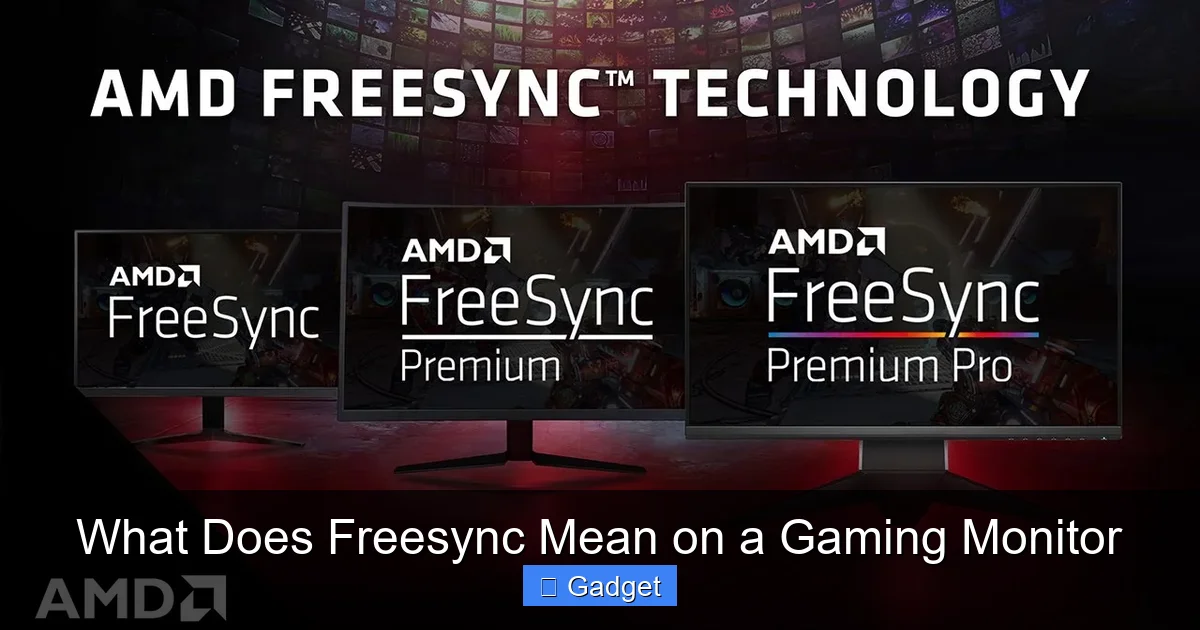
5. **Consider FreeSync Premium/Premium Pro:** Newer versions of Radeon Software may also offer settings for “FreeSync Premium” or “FreeSync Premium Pro.” These are tiers that guarantee certain features like higher refresh rates and HDR support. Enable these if your monitor supports them and you desire those features.
6. **Check Display Settings (Optional but Recommended):** While in the Display tab, ensure that your monitor’s refresh rate is set correctly in Windows display settings as well. This is usually done by going to Windows Settings > System > Display > Advanced display settings.
**Practical Tip:** Make sure your AMD graphics drivers are up to date. Visit the AMD website to download the latest drivers for your specific GPU.
Step 3: Connect Your Monitor Properly
* **Use DisplayPort:** For the best compatibility and performance, always connect your FreeSync monitor to your AMD graphics card using a DisplayPort cable.
* **Check Cable Quality:** Ensure you are using a high-quality DisplayPort cable that supports the refresh rate and resolution of your monitor. Older or low-quality cables might limit FreeSync functionality.
Troubleshooting Common FreeSync Issues
Even with compatible hardware, you might occasionally run into problems. Here are some common issues and how to resolve them:
Issue: FreeSync is not working, or screen tearing/stuttering persists.
* **Check all steps:** Revisit steps 1, 2, and 3 above. Ensure FreeSync is enabled on both the monitor and in the Radeon Software.
* **Verify connection:** Double-check that you are using a DisplayPort cable and that it’s securely connected to both the GPU and the monitor.
* **Driver updates:** Ensure you have the latest AMD graphics drivers installed.
* **Monitor firmware:** Some monitors have firmware updates that can resolve bugs. Check your monitor manufacturer’s website.
* **Specific game settings:** Some games might have their own V-Sync or frame rate limiters that can interfere. Try disabling in-game V-Sync and see if that helps.
* **Windowed vs. Fullscreen:** FreeSync generally works best in exclusive fullscreen mode. Some games in borderless windowed mode might also support it, but it can be less reliable. Test in exclusive fullscreen.
* **Restart your PC:** A simple restart can often resolve temporary software glitches.
Issue: FreeSync causes visual artifacts or flickering.
* **Refresh Rate Range:** If your monitor has a very wide FreeSync range (e.g., 30Hz-144Hz), there might be issues in the lower end. Try limiting the maximum refresh rate in the AMD Radeon Software to a higher value (e.g., 60Hz or 75Hz) to see if it stabilizes. You can do this in the Radeon Software under the “Display” tab, by clicking on “Custom Resolutions” or “Display Specs” and adjusting the “Refresh Rate.”
* **Cable:** A faulty or low-quality DisplayPort cable is a common culprit for artifacts. Try a different, high-quality cable.
* **Monitor Settings:** Experiment with different picture presets on your monitor or disable any aggressive image enhancement features.
Issue: FreeSync doesn’t seem to make a difference.
* **Check your frame rate:** FreeSync is most effective when your GPU’s frame rate is within the monitor’s FreeSync refresh rate range. If your frame rate is consistently very high (e.g., always above your monitor’s max refresh rate) or consistently very low (e.g., always below the monitor’s minimum FreeSync range), you might not notice as much of a benefit.
* **Game type:** Fast-paced games with lots of motion will show the benefits of FreeSync much more clearly than slower-paced games.
Choosing the Right FreeSync Monitor
When you’re in the market for a new gaming monitor and want to leverage FreeSync, keep these points in mind:
* **Refresh Rate:** Higher refresh rates (120Hz, 144Hz, 240Hz) provide a smoother visual experience overall, even without FreeSync. Combining a high refresh rate with FreeSync is ideal.
* **Resolution:** Choose a resolution that matches your graphics card’s capabilities. 1080p (Full HD), 1440p (QHD), and 4K (UHD) are common. Your GPU needs to be powerful enough to drive games at your chosen resolution with a decent frame rate for FreeSync to shine.
* **Response Time:** A low response time (e.g., 1ms) is crucial for reducing motion blur and ghosting. This works in conjunction with FreeSync to create sharp visuals.
* **Panel Type:** IPS panels offer excellent color accuracy and viewing angles. VA panels provide deeper blacks and better contrast. TN panels are known for their extremely fast response times but can have poorer color reproduction and viewing angles.
* **FreeSync Tiers (Premium, Premium Pro):** AMD categorizes FreeSync monitors. FreeSync Premium typically guarantees at least a 120Hz refresh rate at FHD and support for Low Framerate Compensation (LFC). FreeSync Premium Pro adds HDR support. If your budget allows and you have an HDR-capable GPU, Premium Pro offers the most feature-rich experience.
Conclusion: Embrace Smoother Gaming with FreeSync
So, what does FreeSync mean for your gaming? It means saying goodbye to distracting screen tearing and frustrating stuttering. It means your games will look and feel smoother, more responsive, and more immersive than ever before. By understanding this technology and ensuring your hardware and settings are properly configured, you can unlock a significantly better visual experience without breaking the bank.
Whether you’re a competitive esports player or a casual gamer who just wants their games to look great, FreeSync is a valuable feature to look for in your next gaming monitor. It’s a testament to how advancements in display technology can profoundly impact how we enjoy our favorite digital worlds. So, go forth, check your specs, and get ready to experience gaming the way it was meant to be seen – smooth, fluid, and tear-free!


