How To Use Chatgpt On Iphone Tips And Guide
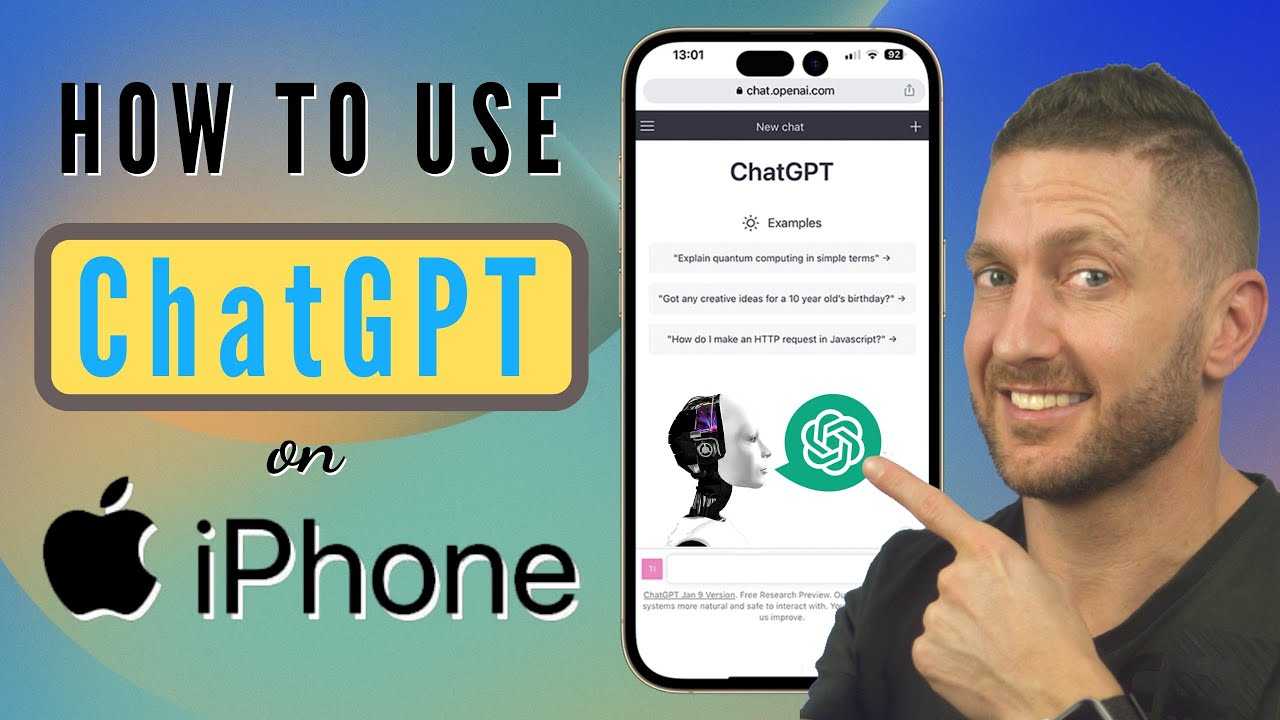

How to Use ChatGPT on iPhone: A Complete Guide
Introduction to ChatGPT on iPhone
Using ChatGPT on your iPhone makes chatting with AI easier and more convenient. Whether you’re seeking quick answers, creative ideas, or learning new things, ChatGPT offers helpful features right from your device. This guide will show you step-by-step how to get started and make the most of ChatGPT on your iPhone.Installing the ChatGPT App on Your iPhone
The first step is downloading the ChatGPT app from the App Store. Open the App Store on your iPhone and search for “ChatGPT.” Look for the official app developed by OpenAI. Tap the “Download” or “Get” button and wait for the app to install on your device. Once installed, locate it on your home screen and open it.Setting Up Your ChatGPT Account
After opening the app, you’ll need to sign up or log in. If you already have an OpenAI account, enter your email and password. If not, tap on “Sign Up” and provide your details, including email and a password. You might also set up two-factor authentication for added security. Once logged in, you’ll be ready to chat.Getting Started with ChatGPT on iPhone
When you open the app for the first time, you’ll see a user-friendly interface. You can type your questions or prompts in the chat box at the bottom of the screen. Just tap on the text field, enter your message, and press “Send” or the arrow icon. ChatGPT will then process your input and generate a response quickly.Using Voice Input for Hands-Free Chat
For easier communication, you can use voice input on your iPhone. Tap the microphone icon in the chat box, speak your question clearly, and the app will convert your speech into text. This feature is especially helpful when you’re multitasking or prefer speaking over typing.Customizing Your ChatGPT Experience on iPhone
Adjust settings within the app to personalize your experience. Tap on the menu icon or settings gear to explore options like theme adjustments, notification preferences, and language settings. You can also select different AI models if available, to get varied responses based on your needs.Managing Subscriptions and Premium Features
ChatGPT offers free access, but premium plans like ChatGPT Plus provide faster responses and priority access during busy times. To subscribe, go to the settings menu and tap “Upgrade.” Follow prompts to choose your plan and enter payment information. Once subscribed, enjoy enhanced capabilities.Tips to Use ChatGPT Effectively on iPhone
To get the best results, ask clear and specific questions. If you need detailed information, specify your context or request examples. Use natural language and avoid overly complicated prompts for more accurate responses. Experiment with different prompts to see what works best.Using ChatGPT for Creative Tasks on iPhone
ChatGPT can help with writing stories, composing emails, or brainstorming ideas. Simply describe what you need, and the AI will generate suggestions. For example, ask “Write a short story about a brave cat” or “Help me draft a thank-you email.”Integrating ChatGPT with Other iPhone Apps
You can copy responses from ChatGPT into other apps like Notes, Messages, or Mail. To do this, tap and hold the generated text, select “Copy,” then paste it into your preferred app. This makes it easy to use AI-assisted responses across your iPhone for everyday tasks.Using ChatGPT with Siri Shortcuts
For a more integrated experience, you can set up Siri Shortcuts to access ChatGPT quickly. Use the Shortcuts app to create a custom command that opens ChatGPT and prompts you for input. This way, you can initiate conversations with a simple voice command.Keeping Your ChatGPT Data Secure on iPhone
Always be cautious about sharing sensitive personal information. Review privacy settings within the app to control data collection. Regularly update the app to benefit from security patches and new features that protect your information.Troubleshooting Common Issues on iPhone
If you experience problems like app crashes or slow responses, try restarting your iPhone. Ensure your internet connection is stable, and update the app to the latest version. For persistent issues, contact OpenAI support through the app’s help section.Exploring Advanced Features of ChatGPT on iPhone
Some versions of the app may include features like voice conversations or multi-turn dialogues. Experiment with these options to enhance your experience. These features can make interactions feel more natural and engaging.Using ChatGPT for Learning and Productivity
Use ChatGPT to help with homework, learn new skills, or organize your day. Ask questions like “Explain photosynthesis” or “Create a to-do list for today.” This AI tool acts as an accessible personal assistant right from your iPhone.Staying Up-to-Date with ChatGPT Innovations on iPhone
OpenAI regularly updates ChatGPT with new capabilities. Keep your app updated via the App Store to access the latest features. Follow OpenAI’s announcements to learn about upcoming improvements and functionalities.Related Topics to Enhance Your ChatGPT Experience
- Using ChatGPT for language learning on iPhone
- Creating custom prompts for specific tasks
- Integrating ChatGPT with third-party apps
- Sharing your AI conversations with friends
- Using ChatGPT offline on iPhone (if applicable)
Final Tips for Using ChatGPT on iPhone
Remember to explore all features and settings to tailor your experience. Practice asking clear questions for better answers. Keep your app updated and ensure a stable internet connection for smooth chatting. Incorporating ChatGPT into your daily routine on your iPhone can provide quick assistance anytime you need it. Whether for work, study, or leisure, mastering its features will help you get the most out of this AI tool.How to use ChatGPT on iPhone with iOS 18.2! | Setup Essentials
Frequently Asked Questions
How can I access ChatGPT on my iPhone using a web browser?
Open Safari or any other preferred browser on your iPhone, visit the official ChatGPT website, and log into your account. You can start typing your questions directly on the webpage without needing to download any additional apps.
Is there a dedicated ChatGPT app for iPhone, and how do I install it?
Yes, OpenAI offers a dedicated ChatGPT app available on the App Store. Search for “ChatGPT” in the App Store, tap the download button, and once installed, open the app. Log in or sign up with your account to begin using ChatGPT directly from your device.
Can I use Siri or other iPhone features to interact with ChatGPT?
While you cannot directly integrate ChatGPT with Siri, you can use voice-to-text features to speak your questions into the ChatGPT app or website. For a more seamless experience, consider creating shortcuts or widgets that open ChatGPT quickly for your inquiries.
How do I ensure my conversations with ChatGPT on iPhone remain private?
Use the official ChatGPT app or website over secure HTTPS connections. Log out after your session if using a shared device, and avoid entering sensitive information. Regularly update the app and your device’s software to maintain security standards.
Is it possible to receive notifications from ChatGPT on my iPhone?
Currently, the ChatGPT app does not support push notifications. However, you can keep the app running in the background, or check for updates regularly to see if this feature becomes available in future versions.
Final Thoughts
By following these simple steps, you can easily use ChatGPT on your iPhone. Download the ChatGPT app from the App Store and log in with your account details. Once installed, open the app and start typing your questions or prompts directly. To get the best experience, ensure your app is updated regularly and allow necessary permissions such as notifications. How to use ChatGPT on iPhone becomes straightforward with this easy setup. Just a few taps, and you’re ready to chat whenever inspiration strikes.
Similar Posts