How To Use Android App In Windows 11 For Seamless Access
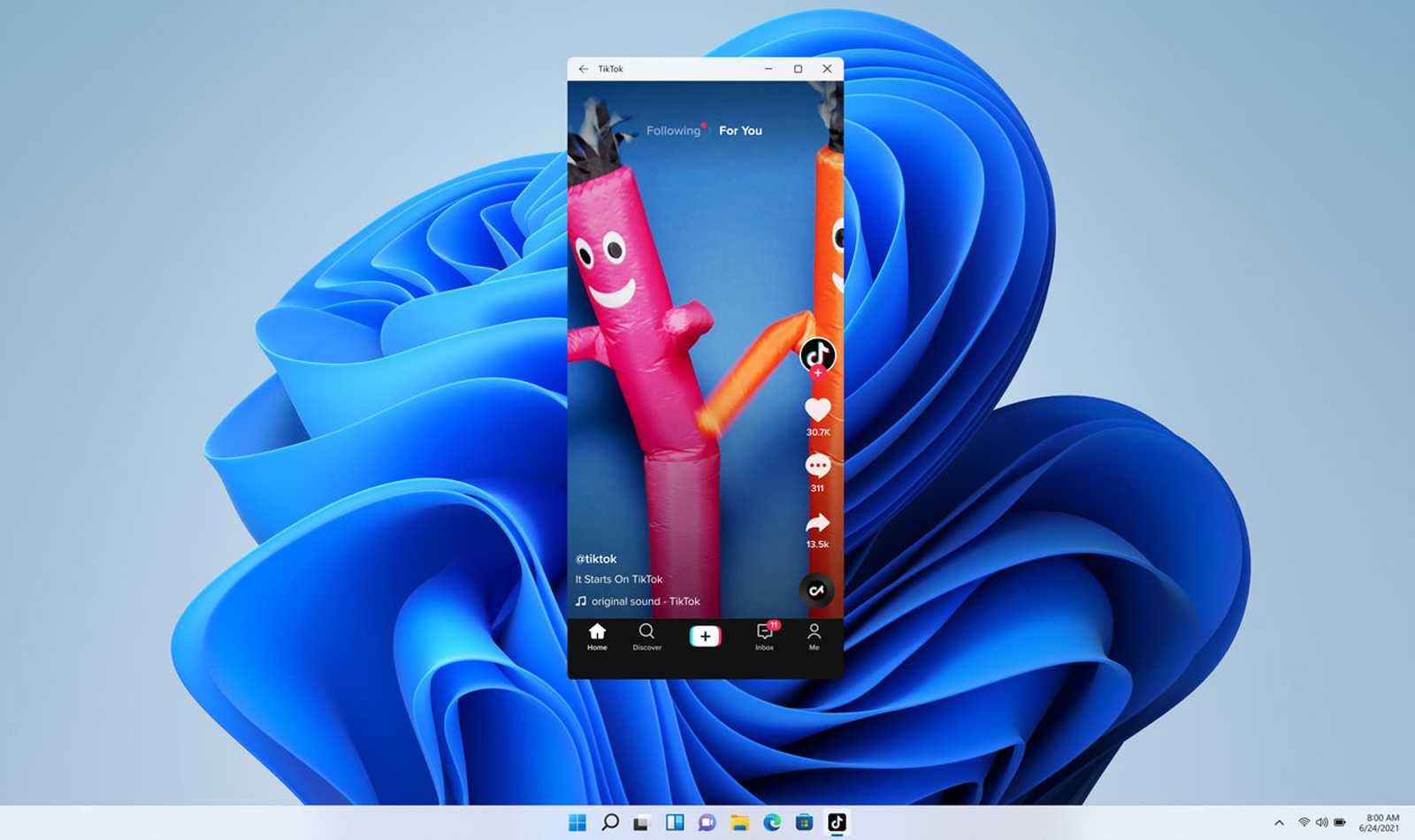
To use Android apps on Windows 11, the easiest way is to install the Windows Subsystem for Android or utilize emulators like BlueStacks. These tools allow you to run Android applications seamlessly on your PC, bringing the mobile experience right to your desktop. Whether you’re gaming, using social media, or managing apps, this method makes it straightforward and efficient.
In just a few simple steps, you can enjoy Android apps on your Windows 11 device by either enabling the built-in Windows Subsystem for Android or installing a reliable emulator. This guide will walk you through both options so you can start using your favorite Android apps on your PC without hassle.
Jumping into the world of Android apps on Windows 11 can feel like a major upgrade to your computing experience. With Windows 11 supporting the Windows Subsystem for Android, getting access to your favorite mobile apps is now easier than ever, making your workflow or entertainment more versatile. If you prefer a more flexible approach, Android emulators like BlueStacks offer a broad range of options, letting you run multiple apps simultaneously. Whether you’re looking for simplicity or more control, discovering how to run Android apps on your Windows 11 device opens up a whole new world of possibilities.

How to Use Android App in Windows 11
Running Android apps on Windows 11 allows users to access a wide variety of mobile applications directly on their PC. This integration makes it easier to multitask, stay connected, and enjoy your favorite apps without switching devices. Here, we will explore the different ways you can use Android apps seamlessly within Windows 11.
Understanding the Android Integration in Windows 11
Windows 11 introduces native support for Android apps through the Microsoft Store and the Amazon Appstore. This feature allows users to install and run Android applications just like traditional Windows programs. It simplifies the process, making Android apps more accessible and user-friendly on your PC.
The integration is built on the Windows Subsystem for Android (WSA), a special app that creates a virtual environment for Android within Windows. This enables smooth performance and compatibility for most Android applications.
Setting Up the Windows Subsystem for Android (WSA)
Step 1: Check System Requirements
- Windows 11 version 22000.526 or higher is necessary.
- A compatible CPU, preferably with virtualization support enabled in BIOS.
- At least 8 GB of RAM for optimal performance.
Step 2: Enable Virtualization
Access your system BIOS and activate the virtualization technology (Intel VT-x or AMD-V). This step is crucial for running WSA smoothly. Restart your PC after enabling this feature.
Step 3: Install the Windows Subsystem for Android
- Open the Microsoft Store and search for “Windows Subsystem for Android.”
- Click “Install” to download and set up WSA on your system.
- Once installed, open WSA and follow the on-screen instructions to configure settings.
Accessing the Amazon Appstore
After setting up WSA, the next step is to access the Amazon Appstore. This is where you can browse, download, and install Android apps directly onto your Windows 11 device.
Step 1: Sign in with Your Amazon Account
Launch the Amazon Appstore from the Start menu. Sign in with your Amazon account or create one if needed. This link ensures you can sync your apps and preferences across devices.
Step 2: Browse and Download Apps
- Use the search feature or browse categories to find desired apps.
- Click “Get” or “Install” to download the app directly to Windows 11.
Running Android Apps on Windows 11
Launching Android Apps
Once installed, Android apps appear as native Windows applications. You can launch them from the Start menu or search for them via the taskbar.
Managing Android Apps
Use the Settings app to manage app permissions like notifications and location access. You can also uninstall apps from the same interface if needed.
Using Android Apps in Windowed or Full Screen Mode
- Click and drag the app window to resize it as desired.
- Use the maximize button to switch to full screen.
Alternative Methods to Use Android Apps in Windows 11
Using Emulators
If the Amazon Appstore does not support a specific app, Android emulators provide an alternative. They emulate the Android environment on your PC, allowing installation of apps via APK files.
Popular Android Emulators
| Emulator Name | Features | Compatibility |
|---|---|---|
| BlueStacks | Supports multiple apps, game controls, and keyboard mapping. | Windows 10 and 11 |
| NoxPlayer | Good for gaming, customizable controls, and macro support. | Windows and Mac |
| LDPlayer | Fast performance, multiple instances, and GPS simulation. | Windows |
Installing APK Files
- Download APK files from trusted sources.
- Use the emulator’s interface to install APKs directly.
- Run the apps within the emulator environment.
Optimizing Performance and Compatibility
Adjusting Settings for Better Performance
Configure virtual machine memory allocation, graphics settings, and resolution within WSA or emulator settings to achieve optimal performance.
Ensuring App Compatibility
Check app requirements and system specifications before installation. Some apps may not work correctly if they require specific hardware features or sensors.
Security and Privacy Considerations
Permissions When Using Android Apps
Review permissions requested by each app. Limit access to sensitive data to protect your privacy.
Keeping Apps and System Updated
Regularly update your Windows OS, WSA, and installed apps to ensure security patches and improvements are applied.
Related Topics
Using Windows 11’s Microsoft Store
The Microsoft Store continues to expand its offerings, including Android app support, making it easier to find and install apps legally and safely.
Syncing Android Data with Windows 11
Some apps can sync data across your Android device and Windows 11, providing a continuous experience.
Customizing Android App Settings
Adjust app-specific settings such as notifications, storage, and permissions to improve your experience.
This comprehensive guide should help you confidently use Android apps within Windows 11. With proper setup and management, running Android applications becomes a straightforward part of your PC experience, enhancing productivity and entertainment options seamlessly.
How to Run Android Apps natively on Windows 11
Frequently Asked Questions
Can I run Android apps directly from the Microsoft Store on Windows 11?
Yes, Windows 11 allows you to run Android apps directly from the Microsoft Store by integrating the Amazon Appstore. You need to set up the Windows Subsystem for Android, which enables the installation and use of Android applications seamlessly. Once configured, you can browse, install, and launch Android apps just like traditional Windows applications.
What steps should I follow to install Android apps on Windows 11 using the Amazon Appstore?
First, ensure your Windows 11 system supports the Windows Subsystem for Android. Then, open the Microsoft Store and search for the Amazon Appstore. Install the app, sign in with your Amazon account, and browse the available Android apps. Select and install the apps you want to use, and they will appear alongside your other applications.
Are there any third-party tools to run Android apps on Windows 11 besides the Amazon Appstore?
Yes, several third-party emulators such as Bluestacks, NoxPlayer, or LDPlayer enable you to run Android apps on Windows 11. These tools create a virtual environment where Android applications can operate smoothly. Choose a reputable emulator compatible with Windows 11 and follow its installation instructions to start using Android apps on your PC.
Is it possible to sideload Android APK files on Windows 11?
Yes, you can sideload APK files on Windows 11 by using the Windows Subsystem for Android or third-party emulators. This process involves enabling developer mode in the subsystem settings and manually installing APK files via ADB commands or through emulator interfaces. Be cautious when sideloading apps from unknown sources to avoid security risks.
Do all Android applications function properly on Windows 11?
Final Thoughts
Using Android app in Windows 11 is straightforward with the right tools. You can run Android apps via the Amazon Appstore or Windows Subsystem for Android. Ensure your system is updated and enable the necessary features.
Install the Amazon Appstore from the Microsoft Store, sign in, and browse available apps. Alternatively, set up Windows Subsystem for Android for more flexibility and app compatibility. These methods make accessing Android apps seamless on your PC.
In conclusion, how to use android app in Windows 11 involves installing the Amazon Appstore or setting up Windows Subsystem for Android. These options provide easy access to Android apps directly on your Windows device.

Similar Posts