How To Make Youtube Videos With Android Phone For Beginners
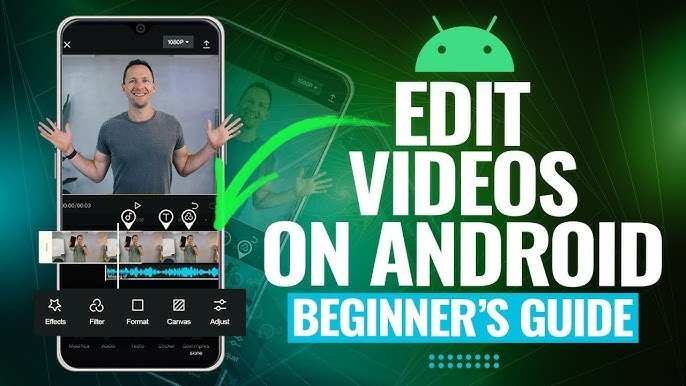

How to Make YouTube Videos with an Android Phone
Creating YouTube videos using your Android phone is easier than you might think. With the right tools, a little preparation, and some creativity, you can produce engaging videos that viewers will enjoy. This guide walks you through the essential steps to help you start making quality YouTube content right from your device.Preparing Your Android Phone for Video Creation
Before you begin filming, it’s important to get your device ready. Proper preparation ensures that your videos look professional and are easy to produce.Check Your Storage Space
Make sure your phone has enough free storage to save large video files. High-resolution videos can take up a lot of space. To free up storage:- Delete unnecessary apps or files.
- Transfer old videos or photos to an external drive or cloud storage.
- Use a storage-cleaning app to remove junk files.
Update Your Phone and Apps
Keeping your Android device and apps up to date enhances performance and fixes bugs. Check for updates in:- Google Play Store for your camera app, editing tools, and YouTube app.
- System updates through your phone settings.
Optimize Camera Settings for Video
Adjust your camera settings to record better quality videos:- Set video resolution to at least 1080p for clear footage.
- Activate grid lines to help with framing shots.
- Use the stabilizer, if available, to reduce shaky footage.
- Adjust exposure and focus manually if your phone allows.
Choosing the Right Equipment
While your Android phone is powerful enough to produce great videos, adding some accessories can elevate your content.Tripods and Stabilizers
Holding your phone steady minimizes shakiness and produces professional-looking videos:- Use a tripod designed for smartphones.
- Consider a handheld stabilizer for moving shots.
External Microphones
Good audio quality makes your videos more appealing:- Pick a lapel or shotgun microphone compatible with Android phones.
- Check connector types—most smartphones support 3.5mm or USB-C.
Lighting Options
Proper lighting helps your videos look bright and clear:- Natural light from windows works well during the day.
- Use affordable ring lights or portable LED lights for indoor filming.
Planning Your Content
Preparation is key to creating engaging videos. Spend some time planning before you start filming.Script or Outline
Create a simple script or outline to guide your filming:- Focus on key points to keep your message clear.
- Keep your language simple and conversational.
- Include a strong introduction and call-to-action at the end.
Storyboard Your Shots
Visualize your video by sketching or listing each shot:- Decide on camera angles and framing.
- Plan any special effects or transitions.
Filming Your Video
Once you’re prepared, it’s time to shoot your video.Set Up Your Scene
Choose a quiet, well-lit space free from background noise:- Arrange your background to be clean and tidy.
- Reflect your personality or branding in your setup.
Record Clear Footage
Follow these tips for high-quality recordings:- Keep your camera steady, using your tripod or stabilizer.
- Frame your shots with the rule of thirds for visual interest.
- Speak clearly and look directly at the camera.
- Record multiple takes if necessary.
Capture B-Roll and Additional Shots
Include extra footage to make your video more dynamic:- Close-ups of products or details.
- Shots of yourself doing activities.
- Environment and background scenes.
Editing Your Videos on Android
Editing helps make your video smooth and professional. Several apps make editing easy directly on your Android device.Choosing an Editing App
Pick an app based on your experience level and needs:- InShot
- PowerDirector
- KineMaster
- Adobe Premiere Rush
Basic Editing Techniques
Follow these steps to enhance your footage:- Trim unnecessary parts to keep the video engaging.
- Add transitions between scenes for a smooth flow.
- Include background music that fits your video’s mood.
- Insert text, titles, or captions to emphasize points.
- Adjust color, brightness, and contrast for a polished look.
Adding Effects and Enhancements
Use special effects sparingly to keep your viewers focused:- Apply filters for a consistent look.
- Use slow-motion or fast-forward effects for emphasis.
- Add stickers or animations to make your video fun.
Uploading and Optimizing Your YouTube Video
Once your video is ready, it’s time to share it with the world.Uploading Your Video
Follow these steps for a successful upload:- Open the YouTube app and tap the upload icon.
- Select your edited video from your gallery.
- Add a catchy title that includes your main keywords.
- Write a detailed description with keywords and links.
- Choose a relevant thumbnail image or upload your own.
- Select appropriate tags to help viewers find your video.
- Set the privacy settings—public, unlisted, or private.
Optimizing for Search
Make your video easier to find:- Use keywords related to your topic in the title, description, and tags.
- Add relevant hashtags for trending topics.
- Create an eye-catching thumbnail to attract clicks.
- Share your video on social media and community groups.
Engaging with Your Audience
Building a community keeps viewers coming back:- Respond to comments to show you care.
- Ask viewers questions to encourage interaction.
- Post consistently to keep your channel active.
- Use analytics to understand what viewers like most.
Improving Your Video Creation Skills
Keep learning and practicing to make better videos:- Watch tutorials and other creators’ videos for ideas.
- Experiment with different filming techniques and styles.
- Ask for feedback from friends or viewers.
- Stay updated on new apps and features on your Android device.
Frequently Asked Questions
What are some essential apps I should use to create YouTube videos on my Android phone?
To produce quality YouTube videos on your Android device, use apps like a good camera app to record high-quality footage, a video editing app such as KineMaster or PowerDirector to edit your clips, and a thumbnail maker like Canva to create attractive thumbnails. Additionally, a screen recorder can help capture tutorials or gameplay, while a good microphone app may improve audio clarity for voiceovers.
How can I improve the audio quality of my videos shot on an Android phone?
Enhance audio quality by using an external microphone compatible with your Android device, which provides clearer sound and reduces background noise. Record audio in a quiet environment and consider using audio editing tools within your editing app to remove noise and adjust levels. Position your microphone close to your voice to capture sound more effectively.
What are some tips for framing and lighting when filming with an Android phone?
Ensure your subject is well-lit by filming in natural daylight or using affordable ring lights or LED panels. Frame your shots with the rule of thirds for balanced compositions and keep the camera steady using a tripod or stabilizer. Pay attention to the background to avoid distractions and make sure your face or main subject is the focus of the shot.
How can I add subtitles or captions to my Android videos?
Use video editing apps like KineMaster or InShot, which offer features to add text overlays directly onto your videos. Alternatively, create subtitle files manually in apps that support subtitles, then import them into your editing software. Clear, well-timed captions can help viewers understand your content better, especially in noisy environments.
What steps should I follow to upload my videos directly from my Android device?
After editing your video, export it in a compatible format like MP4. Open the YouTube app and tap the upload icon. Select your video from your gallery, fill in the title, description, and tags, then choose the appropriate privacy settings. Finally, tap the upload button to publish your video directly from your Android device.
Final Thoughts
To make YouTube videos with an Android phone, start by selecting a well-lit, quiet location for filming. Use your phone’s camera in landscape mode to maximize video quality. Download simple editing apps like InShot or KineMaster to trim clips and add effects. Ensure clear audio by recording in a quiet place and consider using an external mic if possible. Practice engaging narration and keep your videos concise. With these steps, creating YouTube videos with Android phone becomes straightforward and effective.
Similar Posts