How To Make Your Screenshots Clearer On Android For Better?
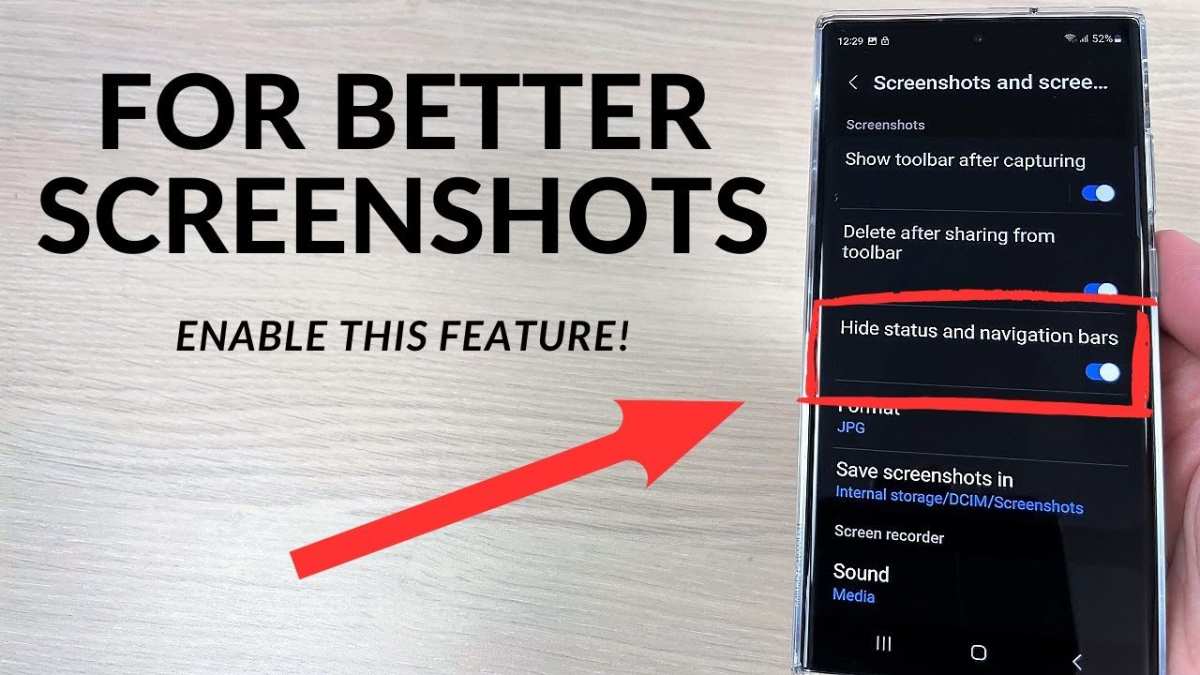
To make your screenshots clearer on Android, try adjusting your screen resolution or using built-in editing tools. **Increasing the display brightness before capturing can also improve clarity.** If your screenshots appear blurry, check your device settings for options to enhance image quality. Learning how to make your screenshots clearer on Android helps you save sharper images without extra apps or complex steps. A quick tweak here and there makes all the difference, ensuring your screenshots look crisp and detailed every time.
How to Make Your Screenshots Clearer on Android
Taking screenshots on your Android device can be super helpful—whether you want to save a funny meme, capture important information, or share your high scores. But what if your screenshots come out blurry or unclear? No worries! In this guide, we’ll walk through simple yet effective ways to improve the clarity of your Android screenshots so they look sharp and professional every time. Let’s explore this step-by-step.
Understanding Why Your Screenshots Might Be Blurry
Before jumping into solutions, it’s helpful to know why your screenshots might not look clear. Several factors can cause this issue, including:
- Low screen resolution: Older or budget Android phones often have lower screen resolutions, which makes screenshots less detailed.
- Screenshot method: Using third-party apps or incorrect methods might produce lower-quality images.
- Software glitches: Sometimes, bugs or outdated software can lead to poor screenshot quality.
- Screen scaling issues: Settings that zoom in or out can affect the final image quality.
Knowing the reasons helps you choose the right approach to fix the problem. Now, we’ll look at practical ways to make your screenshots clearer on Android.
Use the Built-in Screen Capture Features
Most Android devices come with built-in screenshot functions that ensure the best possible quality. To get the clearest images, always stick to these default methods:
Standard Screenshot Method
– Press and hold the Power button and the Volume Down button simultaneously until the screen flashes.
– Release the buttons quickly to avoid capturing a blurry or partial image.
– Check the screenshot in your gallery to verify clarity.
Assistive or Gesture-Based Screenshots
On newer Android models:
– Use gestures like swiping your palm across the screen.
– Enable this feature in Settings > Accessibility > Gestures, if available.
– These methods often produce clearer images since they use the device’s native functions.
Update Your Device Software
Keeping your Android OS updated plays a crucial role in capturing high-quality screenshots:
- Go to Settings > Software Update.
- Download and install any available updates.
- Restart your device after updating.
Manufacturers often include fixes that improve screenshot performance and fix bugs that might cause blurriness.
Optimize Screen Resolution Settings
Higher screen resolution results in sharper screenshots. Some devices allow you to change display resolution settings:
Check Display Resolution Options
– Navigate to Settings > Display.
– Look for options labeled “Screen resolution” or “Display size.”
– Increase the resolution or select the highest available setting.
Note: Increasing resolution may consume more battery, so consider balancing clarity with battery life.
Adjust Font and Display Size for Better Clarity
– Go to Settings > Accessibility.
– Change font size and display size to ensure elements are sharp and clear.
– This can improve the overall quality of screenshots, especially text-heavy images.
Use High-Quality Screen Recording Apps
If you need to capture high-resolution images of your screen’s content, consider third-party apps designed for high-quality screen captures:
- Choose apps like AZ Screen Recorder or Mobizen Screen Recorder.
- Set app settings to record at the highest possible resolution and bitrate.
- Take screenshots via these apps when recording, often resulting in better quality images.
Remember, always download apps from trusted sources like Google Play Store to avoid malware or lower-quality tools.
Improve Screenshot Clarity with Editing Tools
Sometimes, your screenshots might be good but need a little enhancement:
Use Photo Editing Apps
– Open your screenshot in apps like Google Photos or Snapseed.
– Adjust sharpness, contrast, and brightness.
– Use sharpening tools to make details clearer.
Crop and Resize to Enhance Focus
– Focus on the most important part of the screenshot.
– Crop out unnecessary background or blurry edges.
– Resizing to a smaller dimension can sometimes enhance clarity.
Avoid Common Mistakes That Cause Blurry Screenshots
To keep your screenshots crisp, steer clear of these pitfalls:
- Moving too quickly: Press buttons firmly and hold steady until the screenshot is captured.
- Using low-quality apps: Stick to device-native screenshot tools or reputable recording apps.
- Capturing during screen animations: Pause animations or transitions to prevent blurry images.
- Taking screenshots in low-light conditions: Improve your lighting or increase screen brightness to enhance clarity.
Additional Tips for Clearer Screenshots on Android
– **Clear Screen Before Capture:** Close unnecessary apps, remove notifications, or hide clutter for neat screenshots.
– **Disable Screen Filters:** If you have blue light filters or tinted screens, turn them off temporarily to avoid color distortions.
– **Use a Screen Protector:** A matte or matte-finish screen protector reduces glare and reflections that might affect clarity when capturing.
Troubleshooting Persistent Blurriness
If your screenshots remain blurry after trying the above tips:
- Check your device’s camera lens for smudges or dirt—clean it gently.
- Restart your device to clear temporary glitches.
- Perform a factory reset as a last resort if software issues persist (make sure to back up data first).
- Visit a professional technician if hardware problems affect screen quality.
Summary of Key Steps to Make Your Screenshots Clearer
- Use default built-in screenshot methods for optimal quality.
- Keep your device software updated.
- Set your display resolution to the highest setting available.
- Employ high-quality screen recording and capture apps when necessary.
- Edit screenshots using photo apps to sharpen details and improve clarity.
- Avoid quick finger presses and shaky handling during capture.
- Maintain a clean screen for better images.
By following these simple yet effective tips, your Android screenshots will look clearer and more detailed. Whether you’re capturing a special moment or saving important information, crisp screenshots make sharing and referencing easier and more professional. Keep experimenting with settings and tools until you find the perfect setup for your device. Happy capturing!
Frequently Asked Questions
What are some settings I can adjust to improve the clarity of my screenshots on Android?
You can enhance screenshot clarity by adjusting your device’s display and camera settings. Increasing screen resolution, enabling high-quality screenshot options, and adjusting brightness can make the captured images sharper. Additionally, using a screen recording or screenshot app that supports higher quality images can help improve clarity.
How can I use photo editing apps to enhance my existing screenshots on Android?
Use photo editing apps like Snapseed or Adobe Photoshop Express to sharpen and clarify your screenshots. These apps offer tools such as sharpness, contrast, and clarity adjustments that make text and details stand out more clearly. After editing, save the screenshots in high resolution to preserve quality.
Are there specific third-party screenshot tools that produce clearer images on Android?
Yes, some third-party screenshot apps come with features that improve image quality. Apps like Super Screenshot or AZ Screen Recorder allow you to capture screenshots with higher resolution and offer editing tools for enhancing clarity. Check user reviews to find tools that support high-quality exports.
Can changing the display resolution on my Android device help in capturing clearer screenshots?
Absolutely. Increasing your device’s display resolution results in higher-quality images. When your screen has a higher resolution, screenshots taken will contain more detail and appear sharper. Adjust this setting in your device’s display options to improve overall screenshot quality.
What role does lighting and screen brightness play in capturing clearer screenshots on Android?
Proper lighting and optimal screen brightness ensure that your screen display is clear and vibrant, which directly impacts screenshot quality. Keep your screen well-lit and avoid glare when taking screenshots. Increasing brightness slightly can help capture more details and improve the overall sharpness of the image.
Final Thoughts
Pour faire en sorte que vos captures d’écran soient plus nettes sur Android, commencez par ajuster la résolution de votre appareil. Utilisez également des applications de retouche d’image pour améliorer la clarté. Enfin, évitez de capturer des images en basse lumière ou avec un mouvement rapide pour préserver la qualité.
En suivant ces conseils, vous pouvez facilement rendre vos screenshots plus clairs. Si vous cherchez comment faire votre screenshot plus clair sur Android, ces astuces vous aideront à obtenir des résultats nets et précis.

Similar Posts































