How To Make Your Phone Not Turn Off Automatically Android

How to Make Your Phone Not Turn Off Automatically Android
If your Android phone is shutting off or locking too quickly, it can be frustrating. Whether you’re reading an article, watching a video, or working on something important, having your phone turn off automatically can interrupt your flow. Luckily, adjusting your phone’s settings to prevent it from turning off automatically is simple. In this guide, we’ll walk through all the steps to keep your Android device active for longer periods, so you won’t have to worry about it shutting down unexpectedly.Understanding Why Your Android Phone Turns Off Automatically
Before jumping into solutions, it’s helpful to understand why your phone might be turning off or locking automatically. Generally, Android devices are designed to conserve battery life, and one way they do this is by turning off or locking the screen after a set period of inactivity. This feature is beneficial for saving power, especially if you’re not actively using your device. However, sometimes, your preferred screen timeout duration might be too short, making your phone lock or turn off sooner than you’d like. Apart from power-saving features, other reasons your Android might turn off automatically include:- Battery saving settings: Certain power modes reduce screen timeout durations.
- Developer options or accessibility features: Some features might alter standby behaviors.
- Third-party apps: Apps with permission to manage device behavior can inadvertently cause the screen to turn off faster.
- System glitches or bugs: Occasionally, software issues can cause unexpected shut-offs or locks.
Adjusting Screen Timeout Settings on Your Android Device
The most common way to prevent your phone from turning off automatically is by increasing the screen timeout duration. This setting determines how long your device waits after you stop using it before turning off the display or locking.Step-by-step guide to change screen timeout
- Open the Settings app on your Android device.
- Scroll down and select Display. This section controls the appearance and behavior of your screen.
- Tap on Sleep or Screen timeout. The wording might vary depending on your device model or Android version.
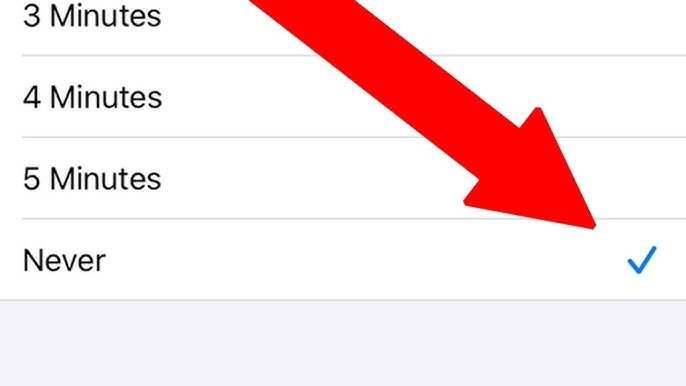
- Choose a longer duration, such as 10 minutes, 15 minutes, or even 30 minutes. If available, select the maximum allowed time.
Special notes for different Android versions
While the above steps work for most Android devices, some models or versions may have slightly different menus or options. For instance:- Samsung devices: Settings > Lock Screen > Screen timeout.
- Google Pixel: Settings > Display > Advanced > Screen timeout.
- Older versions: Settings > Display > Sleep.
Disabling Power Saving Mode to Keep Your Screen Active
Power saving modes are designed to extend your battery life by reducing performance, limiting background activities, and lowering screen timeout durations. If you notice your phone turns off or locks quickly because of the power saver, you can disable this mode.How to turn off power-saving mode
- Go to Settings >Battery & device care or Battery.
- Look for Power saving or Battery saver option.
- Toggle the switch to Off.
Managing Developer Options for Advanced Control
For users comfortable with more advanced settings, enabling Developer Options allows you to customize how your device handles background activity and screen behavior.Enabling Developer Options
- Open Settings.
- Scroll to About phone.
- Tap on Build number several times (usually 7) until a message confirms Developer Options are enabled.
Adjusting Stay Awake feature
- Return to Settings and navigate to Developer options.
- Find and turn on Stay awake. This feature keeps your screen on whenever the device is charging.
Managing App Settings That Control Screen Behavior
Sometimes, specific apps can influence how your device behaves, especially apps related to screen management, accessibility, or battery optimization.Checking app permissions and settings
- Go to Settings >Apps & notifications.
- Select the app you suspect might interfere with screen timeout.
- Tap Permissions or Battery & performance.
- Ensure apps are set to run normally and not restricted from accessing device features.
Using Third-Party Apps to Extend Screen Timeout
If your device’s default options aren’t sufficient, reputable third-party apps can help manage screen timeout and prevent automatic turn-offs. Some popular options include:- Stay Alive!: Keeps your screen awake during certain activities.
- Keep Screen On: Allows customization of display timeout per app.
- Caffeine: Mimics user activity to prevent the device from sleeping.
Addressing System Bugs or Glitches
Occasionally, your device might behave unpredictably due to system bugs. Regular updates and troubleshooting can help resolve these issues.Steps to troubleshoot
- Check for system updates in Settings >Software update. Install any available updates.
- Restart your device to refresh the system.
- Clear cache partition: turn off your device, then hold the volume up and power buttons together, navigate to ‘Wipe cache partition,’ and confirm.
- If problems persist, consider performing a factory reset after backing up your data. This step restores your device to default settings and can resolve persistent bugs.
Additional Tips for Maintaining Longer Screen Activity
– Keep your device charged, as low battery can cause automatic shutdowns or locks to conserve power. – Avoid using very low power modes if you need your device to stay active longer. – Use a screen protector or case that supports longer activity if you frequently need your device on for extended periods. By following these steps, you can prevent your Android device from turning off automatically, making your user experience smoother and more reliable for all your needs. Remember to customize your settings thoughtfully to balance convenience with battery life, ensuring your device meets your daily demands without unnecessary interruptions.Frequently Asked Questions
What are the steps to prevent my Android phone from turning off during inactivity?
To keep your Android device from shutting down automatically, go to the Settings app, then select Display. Tap on Sleep or Screen timeout and choose a longer duration or select “Never” if available. This setting prevents the screen from turning off automatically after a period of inactivity, which can help keep your device active as needed.
How can I modify battery settings to stop my phone from turning off unexpectedly?
Access the Battery settings through the Settings menu. Look for options like Battery Saver or Power Management. Disable or adjust these settings to prevent your phone from entering low power mode automatically, which might cause it to turn off or restrict functionalities prematurely. Also, check if any power-saving apps are causing the issue and modify their settings or disable them.
Is there a way to keep my phone awake while using specific applications?
Yes, you can enable Developer Options to prevent your device from sleeping during app use. To do this, go to Settings > About phone, tap on Build Number seven times to activate Developer Options. Then, navigate to Settings > Developer Options and enable “Stay Awake.” This keeps the screen on while your phone is charging, ensuring your device stays active when using particular apps.
Can I use third-party apps to stop my Android device from turning off automatically?
Several third-party apps available on the Google Play Store can help manage screen timeout and power settings. Apps like Caffeine or Stay Alive! allow you to keep your screen awake or prevent auto-lock temporarily. Before installing, ensure the app has good reviews and permissions to avoid potential security issues and to verify it suits your needs.
Are there any settings for custom sleep timers to prevent auto shutdown on Android?
Android devices generally do not allow custom sleep timers beyond the default options in Display settings. However, you can use third-party apps that offer customized timers for keeping your screen active. These apps let you set specific durations or conditions for your device to stay awake, providing more control over auto shutdown behaviors.
Final Thoughts
To make your phone not turn off automatically Android, adjust the sleep settings in your device’s menu. Navigate to Settings > Display > Sleep and select a longer duration or never. You can also disable battery optimization for specific apps to prevent automatic shutdowns during use. Lastly, ensure your device software is up-to-date, as updates often fix bugs and improve power management. Mastering how to make your phone not turn off automatically Android helps keep your device active when needed.
Similar Posts