How To Make Your Android Phone Update
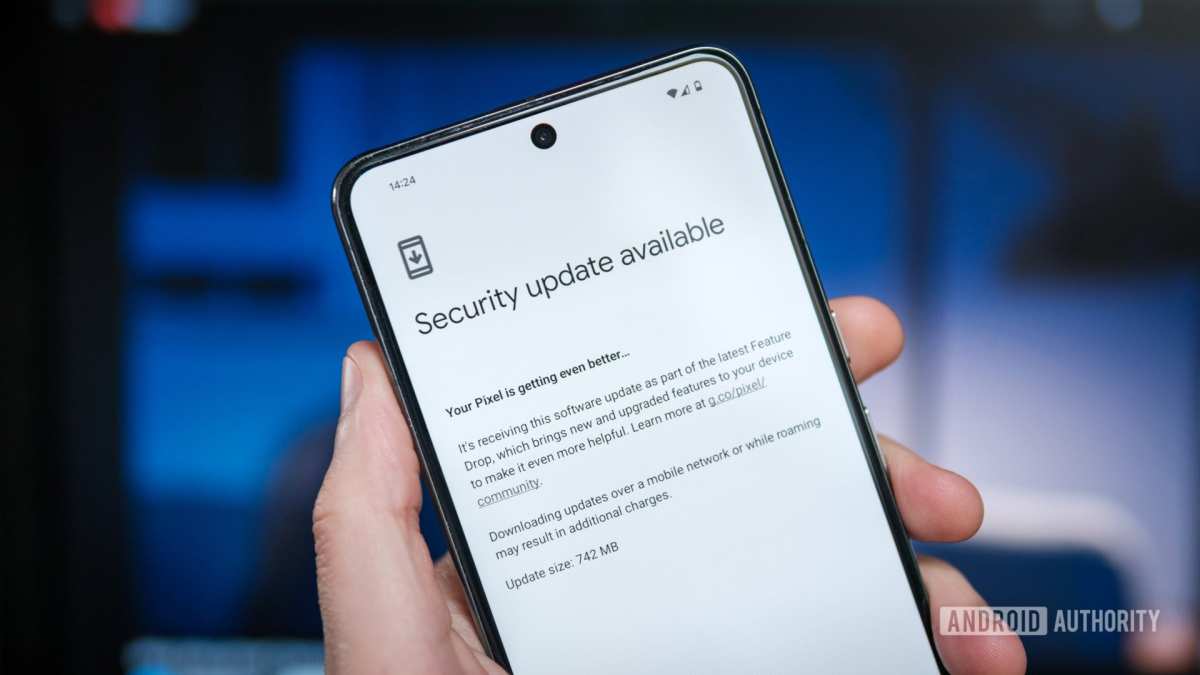

How to Make Your Android Phone Update
Keeping your Android phone up to date may seem like a small task, but it plays a big role in keeping your device secure, running smoothly, and gaining access to new features. Updating your Android phone isn’t complicated, but many users miss out on the benefits simply because they don’t know the right steps or hesitate due to concerns over losing data or facing technical issues. This guide will walk you through everything needed to make sure your Android device updates properly, step by step, and will give you tips to avoid common problems during the process.Understanding Why Updates Are Important for Your Android Phone
Before diving into how to update your device, let’s explore why updates are crucial. Android updates often include:- Security patches: Fix vulnerabilities that could leave your device vulnerable to hackers or malware.
- Bug fixes: Resolve issues that might cause apps or your device to crash or behave unpredictably.
- Performance improvements: Make your phone run faster and more efficiently by optimizing the software.
- New features: Access new tools, interface updates, and enhancements that improve your user experience.
- Compatibility: Ensure your apps work well with the latest system standards and technologies.
Checking Your Android Version and Compatibility
Before attempting to update, check which Android version your device currently runs. Knowing your current version helps you determine if an update is available and compatible with your phone.How to Check Your Current Android Version
- Open the Settings app on your device.
- Scroll down and tap on About Phone or About Device.
- Look for Android Version. It displays your current system version.
Verifying Compatibility
Different Android devices have different update schedules. Older models may not support new OS versions, or their hardware might not run the latest software smoothly. Generally, flagship devices receive updates longer, while budget phones might not get the latest versions. To check if your device is eligible:- Visit the official website or support page of your device’s manufacturer.
- Look up your model number to see the latest available Android version.
- Compare your current version with the latest to decide if an update is necessary.
Preparing Your Device for an Update
Preparation ensures the update process goes smoothly without data loss or technical hiccups.Back Up Your Data
Although most updates are safe, it’s smart to back up your important data:- Photos and videos: Save them to a cloud service like Google Photos or transfer them to a computer.
- Contacts: Sync your contacts with your Google account.
- Apps and settings: Use built-in backup options or third-party apps to save your app data and configurations.
Charge Your Phone Fully
Ensure your device has at least 50% battery or keep it plugged into power during the update. This prevents your phone from shutting down mid-process, which could cause software issues.Connect to a Stable Wi-Fi Network
Downloading updates over Wi-Fi helps prevent data charges and ensures a reliable and faster download.Free Up Storage Space
Updates often require additional space. To check available storage:- Go to Settings.
- Select Storage.
- If space is low, delete unnecessary files or apps to make room for the update.
How to Manually Check for Android Updates
If your device doesn’t update automatically, you can manually check for updates to ensure you get the latest software.Step-by-Step Guide to Manual Update Check
- Open Settings.
- Scroll down and tap on System or Software Update.
- Select Check for updates.
- If an update appears, follow the on-screen prompts to download and install it.
How to Download and Install the Update
When an update is available, follow these steps:Downloading the Update
- Ensure you’re connected to Wi-Fi and your device is charged or plugged in.
- Tap Download and Install.
- Wait for the download to finish; this might take some time depending on the size of the update and your internet speed.
Installing the Update
Once the download completes:- Tap Install Now.
- Your device will restart and begin the installation process.
- Do not turn off your device during installation.
- After installation, your device will restart again, and you’ll see the new version in your settings.
Troubleshooting Common Update Issues
Sometimes, the update process encounters problems. Here’s how to resolve common issues:Update Not Showing Up
– Make sure your device is connected to Wi-Fi. – Check for available storage space. – Restart your device and try again. – Visit the manufacturer’s support page for your device for specific advice.Failed to Download or Install
– Restart your device and try again. – Clear the cache of the System Update app (found in Settings > Apps > System Update). – Download the update during off-peak hours for faster download speeds. – Ensure your device is compatible and not rooted or modified, which can block updates.Device Freezes or Crashes After Update
– Boot into safe mode and uninstall recently added apps. – Perform a factory reset if problems persist (remember to back up your data first). – Contact official support for assistance.Keeping Your Android Device Updated Automatically
For most users, enabling automatic updates is the easiest way to stay current:- Go to Settings.
- Select System or Software Updates.
- Activate the toggle for Auto Download Over Wi-Fi or similar options.
Summary of Best Practices for Updating Your Android Phone
– Regularly check for updates, especially if your device is not set to auto-update. – Back up important data before any update. – Use a reliable Wi-Fi connection and keep your device charged. – Clear storage if needed to allow space for new updates. – Be patient during the download and installation process. – If problems occur, consult your device’s support channels or community forums for specific solutions. Getting into the habit of updating your Android phone ensures you maximize security, stability, and performance. With the right preparation and know-how, you can keep your device running smoothly and enjoy the latest features without hassle or worry.Frequently Asked Questions
How can I check if my Android device has the latest software update available?
Navigate to your device’s Settings, then tap on “System” or “About phone” depending on your model. Select “Software update” to see if a new version is available. If an update is available, follow the on-screen instructions to download and install it. Regularly checking for updates ensures your phone stays current with the latest features and security patches.
What steps should I follow to manually update my Android phone if automatic updates are not working?
First, ensure your device is connected to a stable Wi-Fi network and has sufficient battery life. Go to Settings > System > Software update, then tap on “Check for updates.” If an update appears, tap “Download” and wait for the process to finish. Once downloaded, tap “Install” to complete the update. Restart your device if prompted, and verify that the update was successful.
How do I troubleshoot when my Android phone fails to update?
If your update doesn’t start or install correctly, try restarting your device and checking your internet connection. Clear the cache of the update app by going to Settings > Apps > [Update app], then select “Clear cache.” Ensure enough storage space is available; delete unnecessary files or apps if needed. If problems persist, connect your device to a computer and use official software tools or contact customer support for further assistance.
Can I update my Android device through a computer instead of directly on the phone?
Yes, many Android manufacturers provide official software tools or PC suites that allow you to update your device via a computer. Connect your phone to the computer using a USB cable, launch the official software (like Samsung Smart Switch or Xiaomi Mi PC Suite), and follow the prompts to check for and install available updates. This method can be helpful if your device’s built-in update option encounters issues.
Are there risks associated with updating my Android phone manually or frequently?
Updating your device generally enhances security, fixes bugs, and introduces new features. However, improper updates or interrupted installations might cause issues like data loss or software instability. Always back up important data before proceeding with updates, follow official instructions carefully, and ensure your device has adequate power during the process. Stick to official sources to avoid installing malicious software.
Final Thoughts
To ensure your Android phone stays current, regularly check for updates in the Settings menu. Tap on “Software Update” and download any available versions. Enable automatic updates if your device offers this feature to keep your phone up-to-date effortlessly. In conclusion, how to make your android phone update smoothly depends on these simple steps. Regularly checking for updates and enabling auto-download options ensures your device remains secure and efficient. Following these tips will help you maintain optimal performance without hassle.
Similar Posts































