How To Make Your Android Look Like Iphone In 55 Characters
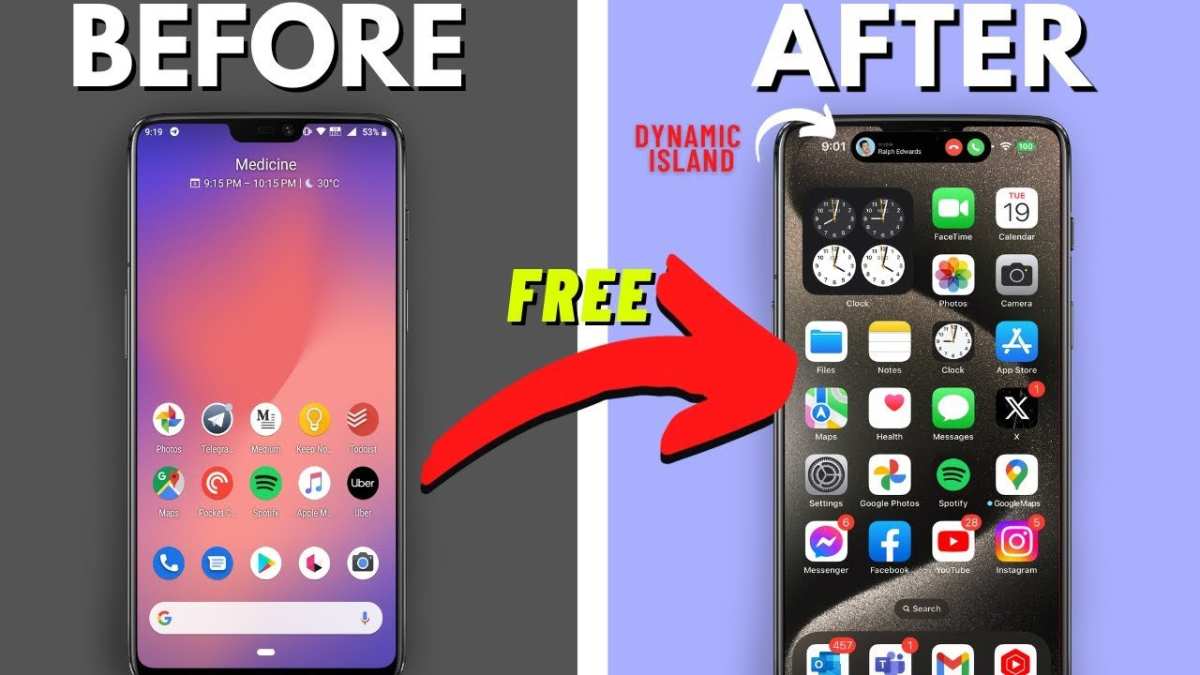
How to Make Your Android Look Like iPhone
Transforming your Android device to look like an iPhone can be a fun and satisfying project. You might love the sleek design of iPhones, from their icons to their wallpapers, but prefer using an Android device. Luckily, with a few simple steps, you can give your Android phone that elegant, iPhone-inspired appearance. In this guide, we’ll walk through everything you need to achieve that seamless, almost identical look, from customizing your home screen to installing the right apps.Understanding the Key Differences Between Android and iPhone Looks
Before diving into the customization process, it helps to understand what makes an iPhone’s design unique. This will guide your choices when selecting themes and apps.- Home Screen Layout: iPhones typically have a clean grid layout with uniform app icons and no app drawer, relying heavily on the dock and a limited number of pages.
- App Icons: iOS icons are rounded squares with vibrant colors and a consistent design style.
- Control Center: The iPhone Control Center is accessed by swiping down from the top right, providing quick access to settings like Wi-Fi, Bluetooth, and brightness.
- Wallpaper Choices: iPhones often feature high-quality, minimalistic wallpapers, both static and dynamic.
- System Fonts and Animations: iOS uses specific fonts like San Francisco and smooth animations that contribute to its polished look.
Choosing the Right Launcher for iPhone-Like Home Screen
The first step to making your Android look like an iPhone is selecting an appropriate launcher. A launcher changes the overall layout, icons, transitions, and available features on your device.What is a Launcher?
A launcher is an app that replaces your default home screen interface. It allows you to customize icon styles, app grid layouts, effects, and even the app drawer behavior.Best Launchers for iPhone-Style Appearance
- iPhone Launcher: Designed to mimic the iOS interface perfectly, these launchers replicate app icons, control center, and even the lock screen. Examples include “iOS Launcher” and “PhoneX Launcher.”
- Nova Launcher: One of the most flexible launchers, customizable enough to resemble iOS with the right icon packs and widgets.
- Launcher iOS 16: Offers a very close appearance to the latest iOS versions, with animated wallpapers and iOS-style icons.
How to Set Up a Launcher
- Download and install your preferred launcher from the Google Play Store.
- Open the launcher and follow the setup instructions—this usually involves granting permissions.
- Set the new launcher as your default home screen to replace the stock Android launcher.
- Customize the layout, icons, and wallpapers to match iPhone aesthetics.
Getting iPhone-Like Icons and Themes
Icons are a significant part of the iPhone’s polished appearance. To emulate this, you’ll need to download icon packs and themes compatible with your chosen launcher.Using Icon Packs
Most launchers support icon packs that can instantly transform your app icons to look like iOS icons.- Look for icon packs like “iOS Icons,” “iPhone Icon Pack,” or “iOS Style Icons” on the Play Store.
- Download and install the icon pack.
- Apply the icon pack within your launcher settings, usually under the “Appearance” or “Icon Pack” section.
Customizing App Icons Manually
If certain icons don’t change automatically, you can manually replace them:- Long-press the app icon on your home screen.
- Select “Edit” or the pencil icon.
- Choose the new icon from your icon pack or gallery.
- Save the changes to update the icon’s appearance.
Designing the Home Screen with iPhone Features
Now that you have the icons, focus on arranging your home screen to mirror iPhone styles.Creating the Icon Grid
– Place essential apps on the first screen for easy access. – Keep a minimal number of apps on each page, similar to iOS. – Use a grid size of 4×5 or 5×5 for consistency with iPhone layouts.Adding the Dock
– Use your launcher’s dock customization options. – Keep important apps like Phone, Messages, Safari, and Mail in the dock. – Use a transparent or matching iOS-style dock for a seamless look.Organizing Apps into Folders
– Group similar apps into folders with titles like “Social” or “Utilities.” – Use folder icons that look similar to iOS, or leave them simple.Setting Up the iOS-Style Control Center
The Control Center is a distinctive feature of iPhones, providing quick access to settings.Install a Control Center App
– Search for “Control Center iOS” or “iOS Control Center” apps on the Play Store. – Apps like “Control Center iOS 15” or “Flyne Control Center” are popular options.Configure the Control Center
– Follow the setup instructions to enable quick toggles for Wi-Fi, Bluetooth, brightness, volume, and more. – Pinch-to-activate the control center from the top right, mimicking iPhone gestures.Adding Custom Toggles and Shortcuts
– Many control center apps allow you to customize toggles. – Add shortcuts for your favorite apps or functions for quick access.Installing Wallpapers and Lock Screen Designs
Wallpaper plays a pivotal role in the visual appeal.Choosing High-Quality iPhone Wallpapers
– Search online for “iPhone wallpapers” or visit sites like Unsplash or WallpapersCraft. – Opt for minimalistic or abstract designs to match iOS backgrounds.Applying Wallpapers
– Long-press on your home screen. – Select “Wallpaper” and choose your downloaded image. – Set it as home screen wallpaper, lock screen wallpaper, or both.Dynamic and Static Wallpapers
– Some apps provide live wallpapers that mimic iPhone dynamic wallpapers. – Use these to give your device a lively, authentic feel.Matching Fonts and Animations
Fonts and animations contribute to the overall iPhone look.Changing System Fonts
– Not all Android devices support changing system fonts natively. – Use font-changing apps like “iFont” or “zFont.” – Download and apply fonts similar to iOS’s San Francisco font.Adding Smooth Animations
– Most launchers come with transition effects. – Choose animations that emulate iOS, such as smooth scrolling or fade effects.Additional Tips for a Complete iPhone Look
– Remove or hide app labels for a cleaner look. – Use a simple, elegant clock widget, like the “iOS Clock Widget.” – Disable app drawer if your launcher supports it, forcing all apps to appear on the home screens. – Set up gestures similar to iOS for easy navigation.Final Touches and Troubleshooting
– Regularly update your launcher and themes to keep the look fresh. – Ensure your device runs smoothly by removing unnecessary widgets or apps. – Experiment with different icon packs and wallpapers until you find your perfect setup. By following these steps and combining the right apps, themes, and arrangements, you can make your Android device resemble an iPhone visually. It’s all about paying attention to detail—icons, wallpapers, animations, and the overall layout—to capture the essence of iOS design. Enjoy your newly customized device!Frequently Asked Questions
What app can I use to change my Android’s icons to resemble iPhone icons?
You can use icon pack apps like “IOS Icon Pack” or “X Icon Changer” available on the Google Play Store. These apps replace your default icons with ones that closely mimic those on an iPhone, giving your home screen a consistent and polished appearance.
How do I customize my Android’s home screen to imitate the iPhone layout?
Install a launcher such as Nova Launcher or Lawnchair, which allows extensive customization. Set the grid size to match iPhone layouts, hide app labels for a cleaner look, and arrange your apps similarly to the iPhone home screen. Combining these settings helps your Android device resemble an iPhone setup.
What widgets can I add to make my Android interface look like an iPhone?
Use widgets that replicate iPhone features, like calendar, weather, and clock widgets available through third-party apps. For a more authentic look, select widget styles that resemble iOS counterparts and place them on your home screen in positions similar to those on an iPhone.
Can changing my Android’s notification style help achieve an iPhone-like appearance?
Yes. Adjust your notification style in your device settings or through third-party apps to display notifications in a way similar to iOS. Removing or minimizing notification banners and customizing notification colors can make your Android experience feel more like an iPhone environment.
Is it possible to modify my Android’s system sounds to match the iPhone’s?
Absolutely. Replace your system sounds with those taken from iOS or download sound packs that mimic the tone and style of iPhone alerts and ringtones. Setting these as default for calls, notifications, and alerts helps your device adopt an iPhone-like auditory experience.
Final Thoughts
To make your android look like iPhone, start by installing a sleek launcher that mimics iOS’s core design. Choose themes and icons that resemble Apple’s aesthetic for a cohesive appearance. Customize your widgets and app icons to complete the illusion. By focusing on these key steps, you can easily create an iPhone-like experience on your Android device. Remember, the main keyword “how to make your android look like iphone” is achievable with simple customization. This way, you enjoy a polished, iPhone-style interface tailored to your preferences.
Similar Posts































