How To Make Your Android Ios: A Step-By-Step Guide
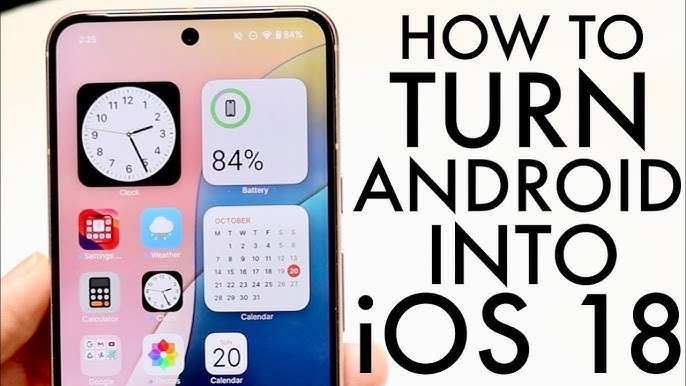

How to Make Your Android Look and Feel Like iOS
If you’re an Android user who admires the sleek, smooth, and elegant design of iOS, you might have wondered how you can give your Android device a similar look and feel. The good news is, you don’t need to buy an iPhone to enjoy that aesthetic. With a few simple tweaks, you can customize your Android device so it resembles an iPhone, both visually and functionally. In this guide, we’ll walk through all the necessary steps, from changing your launcher to customizing icons, notifications, and more, ensuring your Android feels like an iOS device.Understanding the Differences Between Android and iOS
Before diving into customization, it’s helpful to understand what makes iOS unique. iOS is known for its clean design, smooth animations, consistent user interface, and seamless integration across Apple devices. Android, on the other hand, offers more flexibility, but this can make it tricky to mimic iOS perfectly. The key areas to focus on include:- Home Screen Layout
- Icons and App Design
- Notification Center
- Control Center
- Fonts and Colors
- App Drawer and Multitasking
Choosing the Right Launcher for iOS-Style Experience
The first step in making your Android look like iOS is selecting a launcher. Launchers replace your default home screen and app drawer with more customizable options. Here are some popular launchers that can help create an iOS look:- iPhone Launcher: This launcher mimics the iOS interface with app icons, dock, and widget styles similar to Apple’s devices.
- PROCEDURE: Download from Google Play, install, and set as default. Most iOS launchers come with customization options for icons, wallpapers, and animations.
- Additional Tips: Choose a launcher that allows you to hide the app drawer or disables it entirely, giving you a home screen similar to iPhone.
Installing iOS-Style Icon Packs
Icons play a big role in creating an iOS look. Android allows you to change app icons easily using icon packs. Here’s how to do it:- Search for “iOS icon pack” on Google Play. Popular options include “iOS Icon Pack,” “iOS Style Icons,” or “iOS9 Icon Pack.”
- Download and install your preferred icon pack.
- Open your launcher’s settings and find the option to customize icons.
- Apply the icon pack to change your app icons to iOS-like icons.
Customizing the Home Screen Layout
iOS features a simple grid of app icons with no app drawer—everything is on the home screens. To replicate this on Android:- Disable or hide the app drawer in your launcher settings, if available.
- Arrange your apps on the home screens in a grid pattern similar to iOS.
- Remove unnecessary widgets to keep the home screen clean, or add minimal widgets like a clock or weather widget with iOS-style designs.
Setting Up a Control Center Similar to iOS
One of iOS’s standout features is the Control Center, which provides quick access to settings like Wi-Fi, Bluetooth, brightness, and volume. To mimic this:- Download an app like “Control Center iOS 15,” “Quick Control Center,” or “iOS Control Center” from Google Play.
- Open the app and grant necessary permissions.
- Customize the quick settings options to include Wi-Fi, Bluetooth, flashlight, brightness, and more.
- Set the control center to appear as an overlay or pull-down screen, according to your preference.
Adjusting Notifications for iOS Look and Feel
iOS notifications are simple, clean, and appear as banners. To recreate this:- Use notification customization apps like “Material Notification Shade” or “NotiStar” to tweak notification appearance.
- Choose themes that emulate iOS banners or cards.
- Adjust notification sounds and alert styles to match iPhone tones.
Changing Fonts and Colors for a Cohesive Design
Fonts contribute significantly to the iOS aesthetic. To change fonts:- Download font-changing apps like “iFont” or “HiFont.”
- Select fonts that resemble the iOS system font (San Francisco). While importing the exact font can be complex, choose the closest alternative available.
- Apply the font system-wide for messages, settings, and apps.
Enhancing Multitasking and App Management
iOS has a simple app switcher accessible via the home button or swipe gesture. To replicate this:- Use a custom recent apps button or swipe gesture in your launcher settings.
- Configure the app switcher to show full-screen previews of recent apps, similar to iOS.
- Consider installing third-party apps like “Edge Gestures” or “Fluid Navigation Gestures” for more fluid multitasking controls.
Final Touches: Wallpapers and Themes
Finally, choose wallpapers and themes that match the iOS aesthetic:- Search for high-quality iOS wallpapers online and set them as your background.
- Use theme apps that provide pastel, light, or minimalistic themes.
- Configure accent colors in your launcher or theme app to match iOS’s subtle tones.
Summary of Steps to Make Your Android Ios
- Select an iOS-style launcher and configure it.
- Install and apply an iOS icon pack.
- Arrange your home screen to resemble iOS’s clean grid layout.
- Set up a control center with a dedicated app.
- Customize notifications for a banner-like appearance.
- Adjust fonts and colors for consistency.
- Optimize multitasking and app switcher settings.
- Choose wallpapers and themes that match iOS styles.
Frequently Asked Questions
How can I customize the appearance of my Android or iOS device?
You can personalize your device by changing wallpapers, adjusting themes, and modifying icons through the device settings or third-party apps. On Android, explore launchers and icon packs available in app stores to create a unique look. For iOS, utilize wallpapers and app arrangements to reflect your style, and consider using widgets for added customization.
What steps should I follow to optimize the performance of my Android or iOS device?
To improve your device’s performance, regularly delete unnecessary apps and clear cache data. Keep your operating system up to date for the latest enhancements and security patches. Additionally, disable background app refresh, reduce animations, and manage storage space efficiently to ensure smooth operation.
How do I transfer data from one device to another on Android or iOS?
Use built-in transfer tools like Google’s Data Transfer feature for Android devices or Apple’s Quick Start for iOS. Connect both devices via Wi-Fi or cable and follow the on-screen instructions to migrate contacts, photos, apps, and settings seamlessly. Cloud backup services such as Google Drive or iCloud also facilitate easy data transfers.
What security measures should I implement to protect my device?
Activate screen lock features like PIN, password, or biometric authentication to prevent unauthorized access. Install security updates promptly, avoid downloading apps from untrusted sources, and enable Find My Device or Find My iPhone for remote location and data wiping if needed. Regularly review app permissions and use reputable security apps for additional protection.
How can I improve battery life on my Android or iOS device?
Reduce screen brightness, disable Wi-Fi and Bluetooth when not in use, and limit background activity for apps. Enable battery saver modes available on both platforms, and keep your apps updated for efficiency improvements. Managing push notifications and closing unused apps also help extend battery longevity.
Final Thoughts
To make your android ios, start by choosing reliable tools that allow cross-platform development. Focus on creating a user-friendly interface tailored to both Android and iOS users. Test your app thoroughly on different devices to ensure compatibility and performance. By following these steps, you can efficiently make your android ios and deliver a seamless experience to your users.
Similar Posts































