How To Make Video Into Gif Android For Easy Sharing
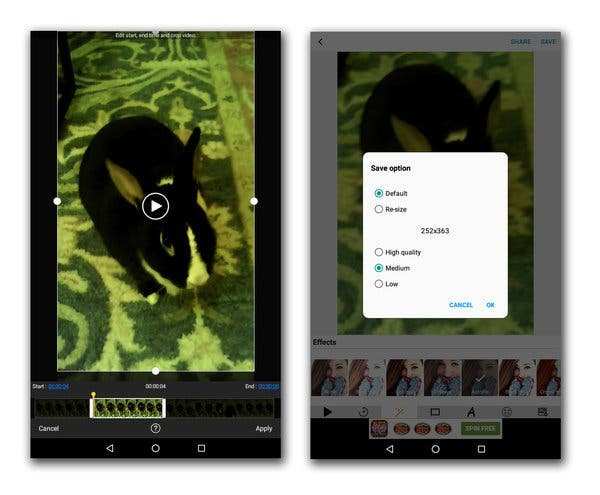
To make a video into a GIF on Android, simply use a dedicated app like GIPHY or ImgPlay. **Yes, it’s quick and straightforward.** Just select your video, trim it if needed, and save it as a GIF.
If you want to know how to make video into gif android, these apps guide you step-by-step through the process. They make creating GIFs from videos simple, even for beginners.

How to Make Video into GIF Android: A Complete Guide
Creating GIFs from videos on your Android device can be a fun way to share moments, add humor, or create eye-catching content for social media. Whether you want a short clip of your pet doing something adorable or a quick animated meme, turning videos into GIFs is easier than you think. This guide will walk you through everything you need to know about how to make video into GIF Android, covering the best apps, step-by-step instructions, tips for perfect GIFs, and common mistakes to avoid.
Why Convert Videos into GIFs on Android?
Before diving into the process, let’s understand why converting videos into GIFs on your Android device matters.
- Easy Sharing: GIFs are lightweight and easy to upload to social media platforms, messages, and emails.
- Express Emotions: GIFs can convey feelings, reactions, or humor in a way that simple text can’t.
- Create Attention-Grabbing Content: Eye-catching GIFs can make your posts stand out in feeds.
- Save Storage Space: GIFs usually take up less space than full-length videos, making them easier to store and share.
Selecting the Right Apps to Make GIFs from Videos on Android
Choosing the best app is crucial to ensure a smooth process and high-quality output. Here are some popular options that work well for Android users:
GIPHY
GIPHY is one of the most popular GIF platforms with a built-in video-to-GIF converter. It offers a simple interface and lots of editing options. You can upload your video, trim it to a short clip, add captions or effects, and save it as a GIF.
GIF Maker – ImgPlay
This app is user-friendly and versatile. It allows you to convert videos from your gallery into GIFs, add text or drawings, and adjust frame rates. It works well for quick edits and sharing.
PicsArt Animator
More than just a GIF converter, this app lets you create animated GIFs with drawings or overlays. It’s perfect if you want to add a creative touch to your videos before converting them.
Video to GIF – GIF Maker
Designed specifically to turn video clips into GIFs, this app offers simple tools for trimming, cropping, and customizing your GIFs. It supports various video formats and provides options for quality settings.
Using Built-In Features or Online Tools
Some Android devices come with built-in features or pre-installed apps that support GIF creation. Alternatively, websites like Ezgif.com work well for converting videos to GIFs directly from your browser, especially if you prefer not to install extra apps.
Step-by-Step Guide to Making GIFs from Videos on Android
Now, let’s walk through the process of converting a video into a GIF on your Android device. The steps may vary slightly depending on the app you choose, but the general process remains consistent.
Using GIPHY App
- Download and install GIPHY from the Google Play Store.
- Open the app and tap on the “Create” button, usually marked with a plus (+) icon.
- Select the “Video” option to import a video from your gallery.
- Browse and choose the video clip you want to turn into a GIF.
- Trim the video to select your preferred segment. Most apps offer drag handles to choose the start and end points precisely.
- Apply edits like adding captions, stickers, or filters if needed.
- Adjust the speed or frame rate to optimize the GIF’s quality and size.
- Preview your GIF, then tap “Next” or “Save” to export it.
- Share the GIF directly from the app or save it to your device for later use.
Using GIF Maker – ImgPlay
- Launch GIF Maker – ImgPlay and tap the “Video” tab.
- Pick the video you want to convert from your gallery.
- Use the trimming tools to select the exact part of the video to turn into a GIF.
- Enhance your GIF with text, drawings, or effects if desired.
- Adjust the frame rate and quality settings to balance clarity and file size.
- Tap “Save” or “Create GIF” and choose where to store or share it.
Tips for Creating the Best GIFs from Videos
To make your GIFs stand out, consider the following tips:
- Keep it short: GIFs are most engaging when they last between 1-3 seconds. Shorter clips load faster and are more likely to be viewed completely.
- Focus on the action: Select parts of the video that capture a clear, lively moment.
- Use high-quality videos: Starting with a good video ensures your GIF looks sharp and clear.
- Experiment with effects: Adding captions or stickers can create fun, expressive GIFs.
- Optimize size and quality: Lowering frame rate or resolution can reduce file size without losing too much quality, ideal for quick sharing.
Common Challenges and How to Overcome Them
While making GIFs on Android is straightforward, users sometimes face issues. Here’s how to troubleshoot common problems:
GIFs Look Blurry or Pixelated
This happens when video quality is low or when you reduce resolution too much. To fix this, start with a high-quality video and avoid excessive compression settings during editing.
Large File Size
If your GIF is too big, try:
- Reducing the frame rate.
- Lowering the resolution.
- Shortening the duration of the GIF.
GIFs Are Not Smooth
A low frame rate can cause choppiness. Set a higher frame rate (like 15 or 20 fps) during editing for smoother animation.
Video Compatibility Issues
Some apps might not support certain video formats. Convert your videos to MP4 or MOV before importing or choose an app that supports more formats.
Best Practices for Creating Shareable GIFs
When you finish your GIF, think about how to make it appealing and easy to share:
- Use bright colors and clear contrast: These grab attention.
- Add humor or expressive text: Make your GIF memorable.
- Keep the file size reasonable: Under 1MB is ideal for quick loading.
- Test on different platforms: Make sure your GIF looks good on social media, messaging apps, and emails.
Final Tips for Mastering Video to GIF Conversion on Android
Remember, practice makes perfect. Try different videos, editing styles, and app features to find what suits your needs best. Keep your videos short and action-packed, and always preview your GIF before sharing. By experimenting with settings, you’ll learn how to produce high-quality, engaging GIFs that can brighten anyone’s day or spice up your social media feed.
Creating GIFs from videos on Android is a fun way to communicate and entertain. With the right app and a little creativity, you can produce eye-catching GIFs easily. Keep exploring different tools and techniques, and you’ll become a pro at turning your favorite moments into shareable animated images.
Frequently Asked Questions
What is the easiest way to convert a video into a GIF on an Android device?
To convert a video into a GIF on your Android device, you can use dedicated apps like GIF Maker – ImgPlay or Giphy. These apps allow you to select a video from your gallery, trim the desired part, and save it as a GIF. Follow the app prompts to customize your GIF before exporting.
Are there any specific video formats supported when creating GIFs on Android?
Most Android GIF creation apps support common video formats such as MP4, AVI, and MOV. Before starting, check if your video is compatible with the app you’re using. If needed, convert your video to a supported format using video converter apps available on the Play Store.
Can I edit or add effects to my GIF after converting from a video?
Yes, many Android GIF maker apps include editing features that let you add text, stickers, or filters to your GIF. After selecting your video and converting it, explore the app’s editing tools to enhance your GIF as desired.
Is it possible to adjust the speed or frame rate of the resulting GIF?
Most apps offer options to change the speed of the GIF during or after creation. You can usually set how fast or slow the frames play, giving you control over the final appearance. Check the app’s settings or editing options before saving your GIF.
Are there any free apps that can help me make GIFs from videos on Android?
Yes, several free apps such as GIF Maker – ImgPlay, Giphy, and ImgPlay offer features to convert videos into GIFs without cost. These apps provide easy-to-use interfaces and basic editing tools to help you create GIFs efficiently.
Final Thoughts
Making a video into a gif on Android requires a simple app and some easy steps. First, download a reliable GIF maker app from the Play Store. Select the video you want to convert, then trim or edit it if needed. Save the GIF and share it directly from your device.
Knowing how to make video into gif android helps you create engaging content quickly. Follow these straightforward steps to convert videos into GIFs effortlessly, making your social media posts more dynamic and fun.

Similar Posts































