How To Make The Keyboard Bigger On Android: Simple Guide
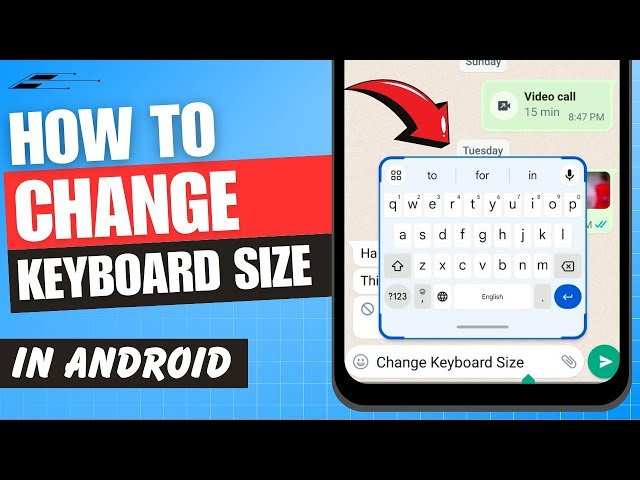
How to Make the Keyboard Bigger on Android
When you’re using your Android device, sometimes the keyboard can feel too small, making typing difficult or uncomfortable. Whether you have large fingers, are trying to see more of what you’re typing, or simply prefer bigger keys, adjusting your keyboard size can make your experience more enjoyable. Luckily, Android offers several ways to increase the size of your keyboard, and in this guide, we will walk through each method in detail. From changing settings on your device to installing third-party keyboards, you have multiple options to make typing easier and more comfortable.Understanding Why Your Keyboard Might Feel Small
Before diving into how to resize your keyboard, it’s helpful to know why it might feel too tiny. Most Android devices come with default keyboard settings optimized for typical use, but these aren’t always perfect for every user. Several factors affect keyboard size:- Screen size and resolution: Larger screens may still have small keyboards if default settings aren’t adjusted.
- Keyboard app used: Different keyboard apps have different customization options.
- User preferences: Individual comfort levels vary, influencing the desire for bigger keys or a larger keyboard area.
Built-in Android Features to Make the Keyboard Bigger
Many Android devices include options to customize the keyboard without needing third-party apps. These features are often sufficient for most users looking to increase keyboard size.Adjusting Font Size and Display Settings
One simple way to make the keyboard appear bigger is by increasing the system font size and overall display size. This doesn’t directly resize the keyboard but makes all elements on your screen larger, including keyboard keys. Here’s how to do it:- Open the Settings app on your device.
- Navigate to Accessibility.
- Tap on Font Size or Display Size.
- Use the slider to increase the font or display size to your preference.
- Return to your keyboard and see if the keys appear larger.
Using Android’s Accessibility Features
Android offers accessibility options that help users with visual impairments but can also make the keyboard larger. Steps:- Go to Settings.
- Tap on Accessibility.
- Select Magnification or Large Text.
- Enable magnification gestures or increase font sizes.
- Test your keyboard to see if the keys are more prominent.
Changing the Default Keyboard App for Larger Keys
If the built-in options aren’t enough, switching to a third-party keyboard app may be the best solution. Many third-party keyboards allow extensive customization, including resizing keys, increasing key spacing, and more.Popular Keyboard Apps for Bigger Keys
Some of the best options include:- Gboard: Google’s keyboard, highly customizable with size options.
- SwiftKey: Supports personalized resizing and layout adjustments.
- AnySoftKeyboard: Open-source with options to modify key sizes.
How to Install and Configure a New Keyboard
Follow these steps:- Open the Google Play Store.
- Search for your preferred keyboard app (e.g., Gboard, SwiftKey).
- Download and install the app.
- After installation, go to Settings.
- Navigate to System > Languages & Input > Keyboard & Inputs.
- Select Virtual Keyboard and tap on Manage Keyboards.
- Enable the newly installed keyboard.
- Open any app that brings up the keyboard; you should see a keyboard icon or prompt to switch input methods.
- Select your new keyboard.
Customizing the Keyboard Size in Third-Party Apps
Once you’ve installed your preferred keyboard:- Go to the keyboard’s settings. Often, tapping on the gear icon on the keyboard itself opens options.
- Look for size or layout options, such as Key Size, Key Spacing, or Layout.
- Adjust sliders or numbers to increase key size until you reach a comfortable level.
- Save changes and test typing to ensure keys are large enough.
Using Keyboard Themes and Layouts for Better Visibility
Apart from resizing keys, visual improvements can make your keyboard easier to use.Select High-Contrast Themes
Most keyboards support themes that increase contrast, making keys more visible. Steps:- Open your keyboard app settings.
- Go to the Themes or Appearance section.
- Choose high-contrast or dark themes designed for better visibility.
- Apply and check the new look on your keyboard.
Custom Layouts and Key Arrangement
Some apps allow you to change the layout:- Switch from a QWERTY layout to a larger or simplified one.
- Adjust the placement of keys to make frequently used keys bigger or more accessible.
Additional Tips for Better Typing Experience
Making your keyboard bigger is only one part of improving your typing comfort. Consider these tips:- Use a stand or a larger device: Larger screens naturally make keys bigger and easier to press.
- Enable predictive text and autocorrect: Reduces the need for precise tapping.
- Practice proper finger placement: Keeps typing natural and reduces errors.
Summary of Methods to Make Your Keyboard Bigger on Android
Here’s a quick overview:| Method | Pros | Cons |
|---|---|---|
| Adjusting display or font size | Simple and built-in | Affects entire screen |
| Using accessibility features | Helpful for visually impaired users | Less precise for keyboard size |
| Switching to third-party keyboards | Most customizable options | Requires installation and setup |
| Modifying themes and layouts | Improves visibility and usability | Depends on app support |
Frequently Asked Questions
Can I change the size of the keyboard for certain apps only on Android?
Yes, some Android keyboards allow you to customize their size for specific apps. You can often find this option within the keyboard settings or through app permissions. Additionally, third-party keyboards may provide more flexible size settings that apply to individual applications, giving you a tailored typing experience based on your needs in different contexts.
How do I access accessibility settings to adjust keyboard size on Android?
Open your device’s Settings and navigate to Accessibility options. Within this menu, look for features like Display Size or Magnification, which can indirectly make the keyboard appear larger. Some Android versions also have specific options for adjusting font size and interface scaling, helping to increase the overall visibility, including the keyboard layout.
Are there third-party keyboard apps that offer adjustable sizing options?
Yes, many third-party keyboards like Gboard, SwiftKey, and others provide options to change keyboard size directly within their settings. These apps often include sliders or preset options to enlarge or reduce the keyboard height and key size, allowing you to customize your typing interface for better comfort and usability.
What steps should I follow to resize the keyboard through system settings on Android?
Most Android devices do not offer a direct system-wide keyboard size adjustment. However, you can modify the display size in the device settings, which indirectly affects keyboard size. To do this, go to Settings > Display > Display Size or Screen Zoom, then increase the size slider. This change enlarges not only the keyboard but also other interface elements, making tapping easier.
Is there a way to temporarily enlarge the keyboard for easier typing?
Some keyboards provide a quick toggle or gesture to temporarily enlarge the keys. For example, enabling a one-handed mode or using a ‘large keyboard’ overlay feature can make the keys larger for a short period. Check your keyboard’s settings or gesture options to see if such features are available and how to activate them for easier typing sessions.
Final Thoughts
To make the keyboard bigger on Android, start by opening your device’s Settings. Navigate to Language & Input and select your keyboard app. Many keyboards, like Gboard, have customization options under preferences or layout. Adjust the size slider or enable the option for larger keys. Some third-party apps also offer additional resizing features for better comfort while typing. In conclusion, understanding how to make the keyboard bigger on Android involves exploring your keyboard settings and customizing size options. This simple adjustment can significantly enhance your typing experience.
Similar Posts































