How To Make Text Size Smaller On Android For Better Reading
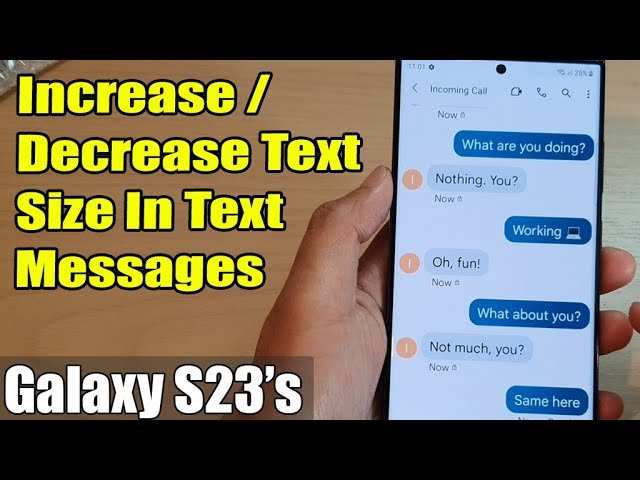

How to Make Text Size Smaller on Android
When your Android device displays text that’s too large or uncomfortable to read, adjusting the text size can significantly improve your experience. Whether you’re trying to fit more information on your screen or simply prefer smaller text for aesthetic reasons, knowing how to change the text size on Android is a useful skill. In this detailed guide, we’ll explore various methods to make text smaller on your Android device, covering all major settings and apps, so you get the perfect text size for your needs.Understanding Why Text Size Matters on Android
Before diving into the steps, let’s briefly discuss why adjusting text size is important. Sometimes the default font settings are too large or too small, making reading difficult or causing your screen to look cluttered. By customizing the text size:- It becomes easier to read long articles or messages without straining your eyes.
- More content fits on the screen, reducing scrolling and making navigation smoother.
- The overall look of your device feels more personalized.
How to Change Text Size via Android Settings
The most straightforward way to make text smaller on Android is through the device’s built-in settings. Here’s a step-by-step guide:Access Display Settings
1. Unlock your Android device and open the **Settings** app, usually represented by a gear icon. 2. Scroll down to find **Display** and tap on it.Adjust Font Size
1. Inside the Display menu, locate **Font size** or **Font size and style**. 2. Tap on it to open the font size adjustment slider.Set a Smaller Font
1. Drag the slider to the **left** or towards the **smaller** icon. Some devices may have specific labels like “Small” to “Large.” 2. As you move the slider, you will see a live preview of how the text will look. 3. Once satisfied with the size, tap **Apply** or simply exit the settings.Check Compatibility and Effects
– Changing font size affects system-wide text, including menus, notifications, and compatible apps. – Some apps might not follow the font size change immediately or may have their own text settings.Using Accessibility Settings to Make Text Smaller
Android’s accessibility features offer additional control over text display, including font scaling and display size.Adjust Display Size
– Open **Settings** and navigate to **Accessibility**. – Tap on **Display Size** or **Display & Text Size**. – Use the slider to make items and text smaller or larger.Change Font Size Specifically
– In **Accessibility**, look for **Font Size**. – Drag the slider towards the **smaller** end to decrease font size. – This method provides finer control, especially for users with specific visual preferences.Benefits of Accessibility Options
– These settings often influence the entire interface and can help create a more comfortable viewing experience, especially for those with visual impairments or preferences for minimal text size.Adjusting Text Size in Specific Apps
Some apps, such as web browsers, messaging apps, or e-readers, have their own text size controls. Learning how to change text size within individual applications can be very helpful.Web Browsers
– Open your preferred browser, like Chrome. – Tap the menu icon (three dots). – Select **Settings** > **Accessibility** or **Site Settings**. – Adjust the **Text Size** or **Zoom** preferences. – Alternatively, use pinch-to-zoom gestures directly on the webpage to make text smaller or bigger temporarily.Messaging Apps
– Many messaging apps like WhatsApp or Messenger have font size options within their chat or display settings. – Check the app’s menu for **Chat Settings** or **Appearance**. – Look for **Font Size** options and select a smaller size if available.E-Reader and Reading Apps
– Apps like Kindle or Google Play Books typically have easily accessible font size controls. – Tap on the **Aa** icon or menu, then adjust the font size slider to make text smaller.Keyboard and Text Input Methods
Although less common, some keyboards allow for font size adjustments or font style changes which can influence how text appears when typing.Using Custom Fonts or Keyboards
– Download third-party keyboards that allow font size adjustment. – Set the custom keyboard as your default input method. – Adjust font size through the keyboard’s settings if supported.Additional Tips for Managing Text Size on Android
– **Preview Changes Before Applying:** Always look at the live preview when adjusting sliders to ensure the text size looks comfortable. – **Test Across Different Apps:** Remember that some apps might not follow system font size changes immediately. – **Restart Your Device if Needed:** After adjusting settings, restart your device to ensure changes take full effect. – **Update Your Device:** Ensure your Android OS is up to date, as newer versions often improve accessibility and display options.Tech Tips for Maintaining Visual Comfort
To make your Android viewing experience better, consider these additional tips:- Combine smaller text with a high contrast background for better readability.
- Use blue light filters or night mode features to reduce eye strain during long reading sessions.
- Adjust brightness settings to match lighting conditions; sometimes reducing screen brightness helps the text seem clearer and more comfortable to read.
Common Problems and How to Fix Them
If adjusting font size doesn’t work as expected, try these solutions:- Ensure the setting you’re adjusting affects the system and not just specific apps.
- Clear cache or data of affected apps if text appears inconsistent.
- Restart your device after making changes to ensure proper application.
- Check for software updates, as they often improve display and accessibility options.
Summary of Methods to Make Text Smaller on Android
| Method | Location | Effectiveness | Notes | |—|—|—|—| | System Settings | Settings > Display > Font Size | High | Changes system-wide text size | | Accessibility Options | Settings > Accessibility > Display Size | High | Fine-tune overall display size | | App-specific Settings | App menus (browser, chat apps) | Variable | Best for individual apps | | Using Zoom and Pinch Gestures | Anywhere on screen | Temporary | Quick adjustment for specific content | Making text smaller on Android seems simple once you get familiar with the different options. Whether through system-wide settings, accessibility features, or app-specific controls, you now have the tools to customize your device’s display to your liking. Remember, small adjustments can make a big difference in how comfortably you interact with your device daily.Frequently Asked Questions
How can I reduce the text size for notifications on my Android device?
To adjust the text size for notifications, open your device’s Settings, then navigate to Accessibility. Tap on ‘Notification Dot’ or ‘Notification Settings’ depending on your device, and look for options related to text size or display. Adjust the slider or toggle to make notification texts smaller, ensuring better readability and space management.
What steps should I follow to decrease font size in apps like messaging or email?
Access your device’s Settings and select Display. Tap on ‘Font Size’ or ‘Text Size’ and move the slider toward the smaller end. Some apps also offer in-app font size options; open the app, go to its Settings or Preferences menu, and look for text or font size options to customize text appearance directly within that app.
Is there a way to set a default smaller text size across all apps on my Android?
Yes, you can set a default text size for most apps by adjusting the system-wide font size in Settings. Go to Display, select ‘Font Size’ or ‘Screen Zoom,’ and choose a smaller setting. This change applies to supported apps and ensures consistent text sizing without needing to modify each app individually.
Final Thoughts
To make text size smaller on Android, start by opening your device’s Settings app. Tap on Display and then select Font Size or Font Size and Style. Adjust the slider to decrease the size until you reach your desired level. If your device supports accessibility features, you can also find options to customize text size further. Applying these steps helps you easily control text visibility based on your preferences. In conclusion, knowing how to make text size smaller on Android simplifies reading experiences. Adjusting font size ensures your device displays content comfortably, tailored to your needs.
Similar Posts































