How To Make Text Larger On Android Tips And Tricks
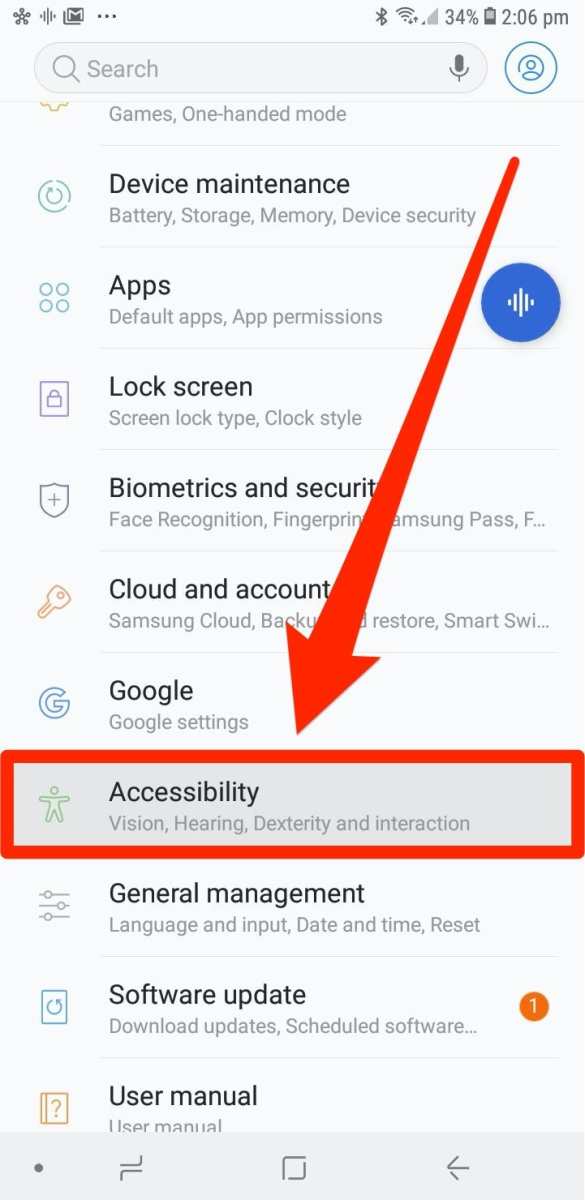
To make text larger on Android, simply go to Settings, tap on Accessibility, and select Font Size. **This quick step easily enlarges text across your device.** If your goal is to read more comfortably, adjusting the font size is the simplest solution. Knowing how to make text larger on android helps reduce eye strain and enhances your overall experience. Just a few taps make a significant difference in readability and convenience.

How to Make Text Larger on Android
Making text larger on your Android device can significantly improve your overall experience, especially if you find it difficult to read small fonts. Whether you’re trying to read a message, browse the web, or use an app, enlarging text can make everything clearer and more comfortable. In this guide, you’ll find easy-to-follow methods to increase text size, covering built-in device settings, accessibility options, and third-party solutions. Let’s explore each approach in detail, so you can choose the best way to customize your Android experience.
Understanding Why Text Size Matters
Before diving into how to increase text size, it’s useful to understand why this feature is important. Larger text helps reduce eye strain, makes reading easier, and can assist users with visual impairments. Android devices offer multiple options to modify text size, giving you the flexibility to customize your device to suit your eyesight and comfort preferences.
Using the Display Settings to Make Text Larger
One of the most straightforward ways to increase text size on Android is through the device’s built-in display settings. These settings affect system-wide text display, meaning all compatible apps will display larger text once configured.
Steps to Adjust Text Size via Display Settings
- Open the Settings app on your Android device. You’ll usually find this app on your home screen or in the app drawer.
- Scroll down and tap on Display. This section controls screen brightness, font size, and display size.
- Locate and tap on Font size. Depending on your device, this might also be called Font size and style or similar.
- Use the slider to adjust the font size. Moving it to the right increases the size, while moving it to the left decreases it.
- Preview the changes as you adjust the slider. Once satisfied, tap on Apply or simply exit the menu. Most devices automatically save your settings.
Additional Tips for Optimizing Display Settings
- Some Android devices also include a Display size option. Increasing display size can make icons and text larger across the system.
- Experiment with both font size and display size to find the most comfortable setup.
- Remember that changing display size may affect how apps appear, sometimes cropping or resizing content.
Enhancing Accessibility Settings for Larger Text
Android’s accessibility features are designed to assist users with visual challenges by offering options like magnification, high contrast, and larger text.
Enabling Larger Text via Accessibility Features
- Go to Settings and select Accessibility.
- Look for options like Font size, Visibility enhancements, or Large text.
- Toggle on the Large text option if available.
- Adjust the slider to your preferred size to make text larger across system menus and apps that support accessibility settings.
Using Magnification Gestures for Instant Font Enlargement
Android offers a quick way to magnify specific parts of your screen:
- Open Accessibility settings.
- Locate Magnification or Magnification gestures.
- Enable the feature, then use designated gestures (such as triple-tapping the screen) to zoom into an area for easier reading.
Adjusting Font Style and Size in Specific Apps
Sometimes, you may want to enlarge text only within certain apps, such as a reading app or messaging platform, without changing overall device settings.
Changing Font Size Within Apps
Many apps, especially reading and messaging apps, offer their own font size settings:
- Open the app you want to customize.
- Navigate to the app’s Settings or Preferences menu.
- Look for options labeled Font size, Text size, or Display.
- Adjust the slider or select a larger font option.
- Apply your changes and check if the text is easier to read.
Utilizing In-App Reading Modes and Themes
Some apps support reading modes or themes that increase font size automatically, reducing eye strain:
- Activate a dark mode or high-contrast mode for better visibility.
- Enable a reading mode if available, which often includes larger fonts and simplified layouts.
Using Third-Party Apps to Make Text Larger
If built-in settings don’t provide sufficient size adjustments, third-party apps can help:
Popular Apps for Enlarging Text
- Big Font: Lets you set a custom font size for your entire system.
- Zoomerang: Adds zoom features and magnifier tools for quick enlargement.
- Nova Launcher: Customizes home screens and text size independently from system settings.
How to Install and Use These Apps
- Search for your chosen app in the Google Play Store.
- Download and install the app.
- Follow the app’s instructions to set your preferred font size or enable magnification features.
- Test the changes in different apps and adjust as necessary.
Additional Tips for Better Readability
Apart from increasing font size, consider these tips for improving readability:
- Use high-contrast backgrounds and text colors.
- Adjust screen brightness to reduce glare.
- Choose simplified fonts or use bold text if available.
- Keep your device updated to access the latest accessibility features and improvements.
Troubleshooting Common Issues
In some cases, adjusting text size might not work as expected:
- App-specific font sizes may override system settings. Check the app’s settings for customization options.
- If text appears blurry after increasing size, try adjusting screen resolution or reset display settings.
- Ensure your device software is updated, as updates often fix bugs related to display and accessibility features.
Making text larger on your Android device is simple once you know where to look. Whether you prefer to use built-in display adjustments, accessibility features, or third-party apps, these options ensure you can read comfortably and enjoy your device without straining your eyes. Experiment with different settings to find what works best for you, and enjoy a more accessible, user-friendly experience.
Frequently Asked Questions
What steps can I take to adjust text size directly within individual apps on my Android device?
Many Android apps allow you to customize text size within their settings. Open the app, access its menu or settings section, and look for options like “Display,” “Text,” or “Accessibility.” Adjust the slider or toggle to increase the text size as per your preference. This method ensures that the text within that specific app becomes larger without affecting the overall system settings.
How can I quickly access accessibility features to increase text size on Android?
You can access accessibility options by opening the Settings app and navigating to the “Accessibility” section. From there, select “Text and Display” or a similar option, then choose “Font Size” or “Display Size.” Use the provided sliders to make the text larger. These features are designed to help you customize your device’s display for easier reading across all applications.
Are there any third-party apps that can help enlarge text on Android devices?
Yes, some third-party apps are available in the Google Play Store that enhance text readability. Apps like “Big Font” or “Font Size” allow you to modify font sizes system-wide. Ensure you choose reputable apps with good reviews. After installation, follow the app instructions to increase font size, which will affect most apps and interfaces on your device.
Can I change the overall display size to make text appear larger on my Android phone?
Absolutely. Navigate to Settings > Display > Display Size or Screen Zoom. Adjust the slider to increase the overall size of elements on your screen, including text. This method makes all on-screen text and interface components larger, providing a more comfortable viewing experience without adjusting individual app settings.
Does increasing font size affect the readability of other elements on my Android screen?
Increasing font size generally improves readability, but it may also make other UI elements larger, which could affect how content fits on your screen. If you find that some interfaces become crowded or less functional, consider adjusting both font size and display size to find a balance that suits your needs best. Experimenting with these settings helps optimize your device for easier viewing.
Final Thoughts
To make text larger on Android, you can adjust the display size in your device settings. Simply go to Settings > Accessibility > Font Size and drag the slider to increase the size. Alternatively, you can change the font size directly within individual apps if they support this feature.
For quick access, use pinch-to-zoom in supported apps like Chrome or Maps to enlarge the text and content instantly. This method provides immediate visual improvement without changing system settings.
In conclusion, how to make text larger on Android involves adjusting either system-wide font size or using quick zoom features. These options ensure comfortable reading, making your device easier to use.

Similar Posts































